
Earlier this month Microsoft made the “My Sign-ins” app available under Conditional Access policies. That was great news to us. So far, as a “light touch” effort at zero trust, we had been restricting sign-ins to the “Office 365” app to firm managed devices. This includes all the common apps you’d expect to encounter when using the M365 suite, so is a pretty good starting point.
Not mentioned in the list of apps the “Office 365” app includes, but seems to be implicitly covered in our testing, is the “My Profile” app. If you visit https://mysignins.microsoft.com/ and click on any of “Devices”, “Organisations”, “My Groups” and “My Access” these come under the “My Profile” app.
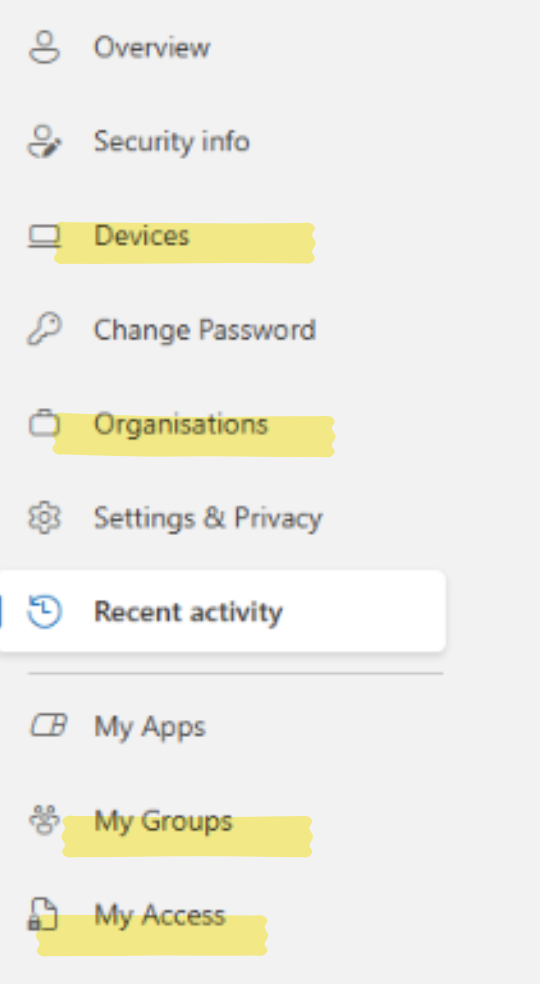
So requiring a managed device to access the “Office 365” app ensures you can’t access any of these from a non-managed device either. But that still leaves “My Apps” and the https://mysignins.microsoft.com/ page itself, and we were wondering if these can be locked down.
“My Apps” can be controlled. It should appear as an app that can be selected in conditional access, and if it does not one can enable it thus:
|
1 |
New-MgServicePrincipal -BodyParameter @{ AppId = "2793995e-0a7d-40d7-bd35-6968ba142197" } |
And then when we learnt that “My Sign-ins” too can be selected, it was great news. (If that app too doesn’t appear, run the same cmdlet as above but use “19db86c3-b2b9-44cc-b339-36da233a3be2” as the App Id. Better still, read that linked post coz that’s where I am copy pasting this info from).
So we naively went and added “My Sign-ins” and locked it too down to managed devices (for a test group of course, not rolling out major changes to the whole firm!). And that’s when we learnt that doing so is not a good idea.
Why? Coz while we were interested in blocking access to the https://mysignins.microsoft.com/ page, a key part of the page is the “Security info” section. I never thought of it as part of the My Sign-ins page as by habit I tend to visit https://aka.ms/mysecurity info for it, but that URL is actually https://mysignins.microsoft.com/security-info and so technically it comes under the “My Sign-ins” app. 😊 Which means, with our policy in place, no one can even setup their MFA etc. from an unmanaged device – which is not what you want!
Of course, you do want to lock down who can register MFA, and we too do that by having a conditional access policy that targets the “Register security info” action to require MFA or be from trusted locations, and to get around the chicken-and-egg problem of someone from an untrusted location not being able to register their first MFA we rely on Temporary Access Passes (TAP) – but by locking down the “My Sign-ins” app to managed devices, that basically overrides the TAP policy.
So lesson learnt. We didn’t go ahead with locking down “My Sign-ins”. And like the article suggests, the real use of being able to select “My Sign-ins” in conditional access policies is to exclude it from a policy when you want the policy to apply to “All Cloud Apps” except a few, not to include it.