
I use Firefox. And I use the multi-account containers extension heavily in that. Very useful at work too when I have multiple test account and want to sign in with these, as I can open these up in separate tabs as opposed to separate windows as one would do with Edge etc.
As part of testing some new Conditional Access policies however, wherein we were limiting users to hybrid joined or compliant devices, I noticed that my test accounts stopped working with the “You can’t get there from here” message.
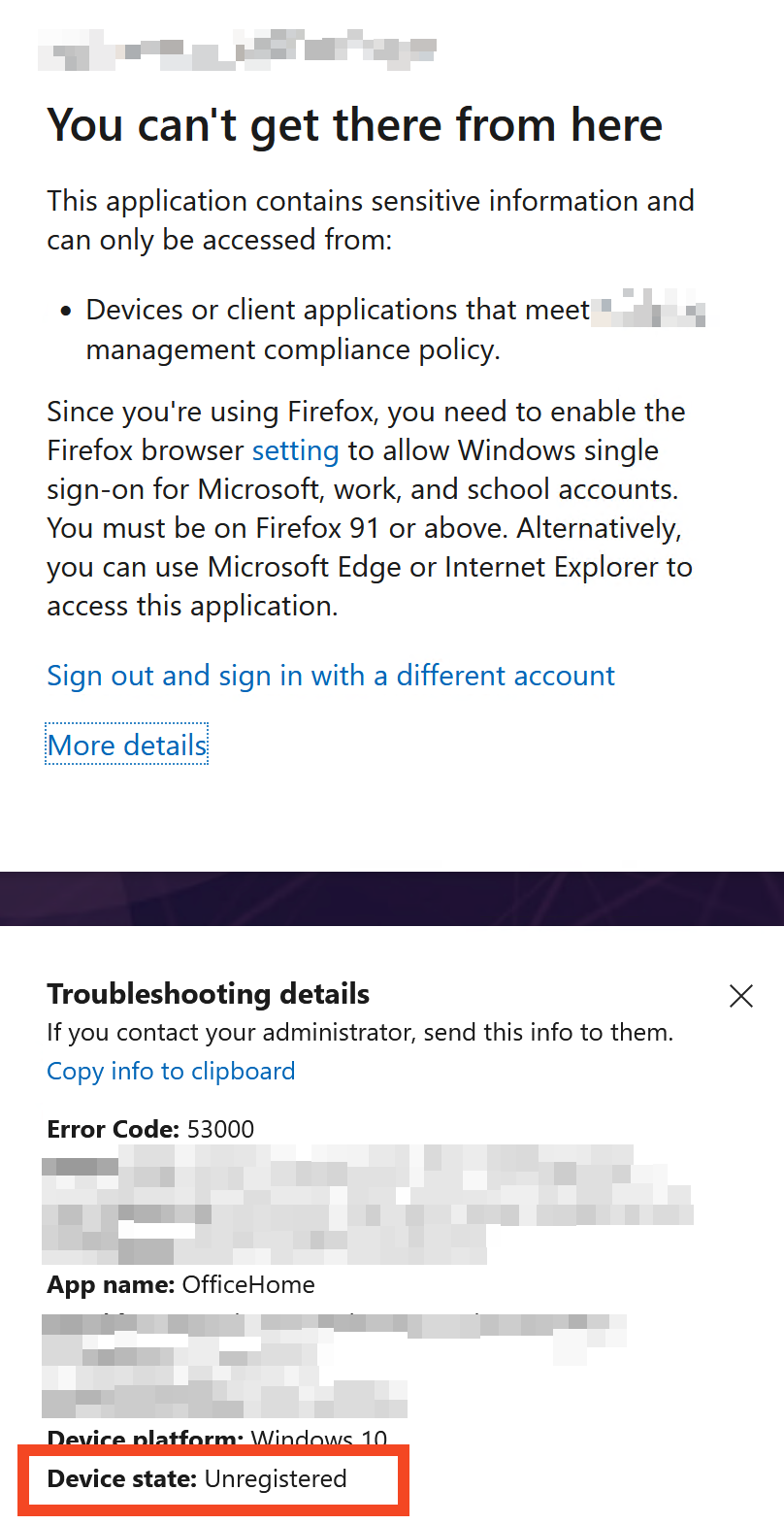
My machine is hybrid joined, and yet the error message showed it as an unregistered device. The help message points to this Firefox KB article to allow Windows SSO and that was enabled in my case already.
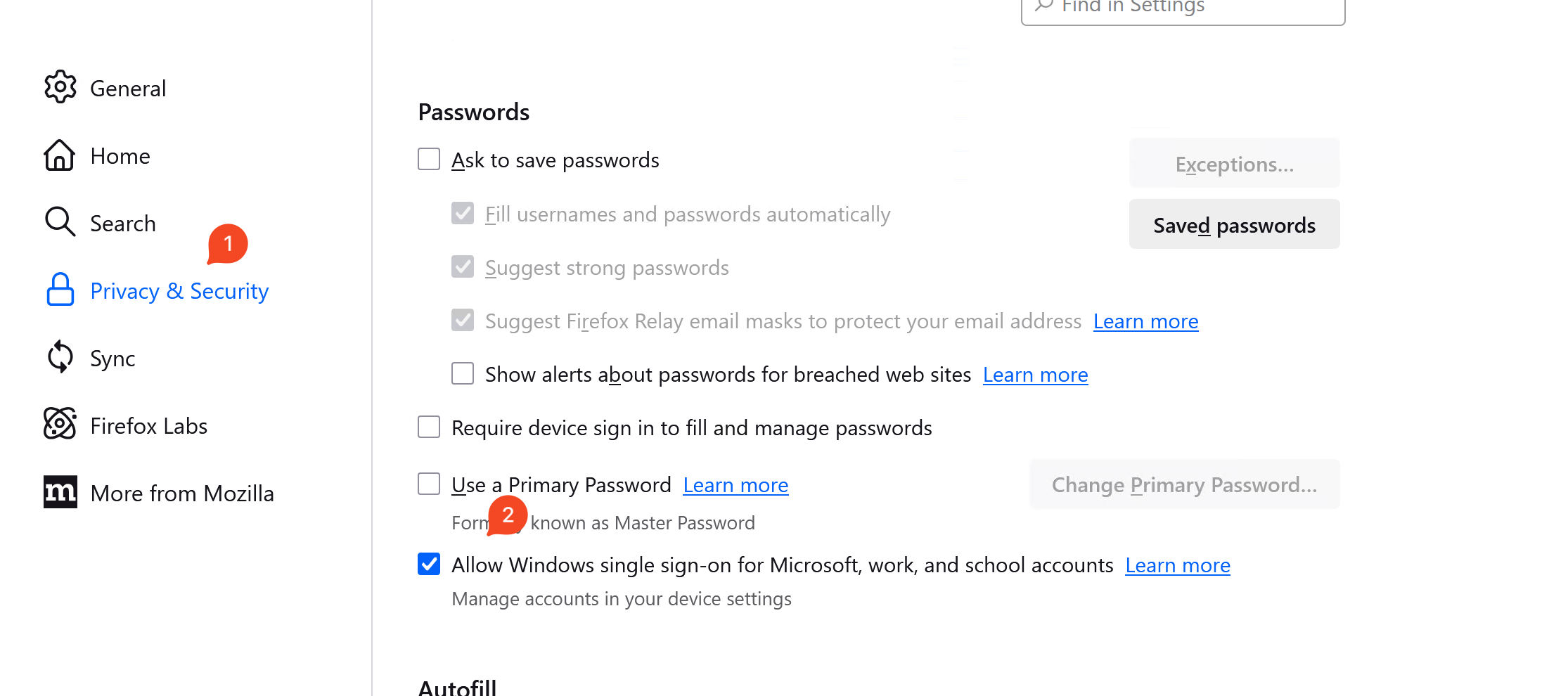
The article also said the account must be added to Windows itself. Under Settings:
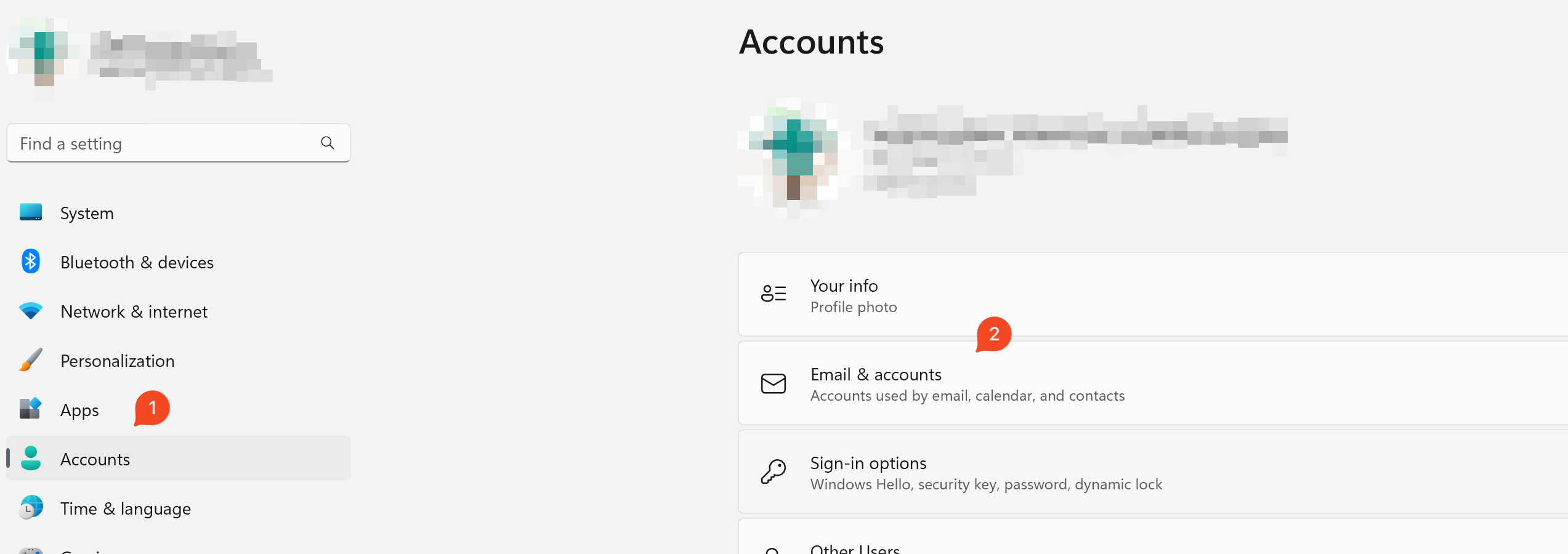
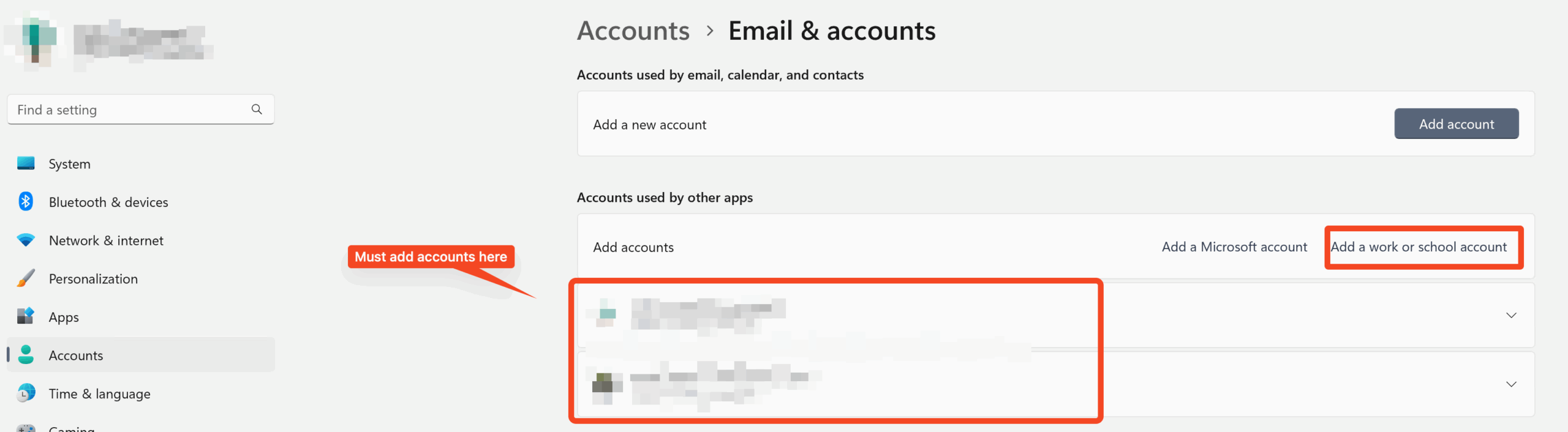
I added my test account in there by clicking on “Add a work or school account”. Closed and opened Firefox, and still the account didn’t work.
Thinking this might be an issue with the containers extension itself, I opened up a new tab not in any container and tried browsing with that, and that worked! I was prompted to select an account from all the accounts in the screenshot above, and selecting my test account let me know. So the issue was to do with the containers extension.
Googling on that brought me to this forum post and from there to this GitHub wiki. Looks like this was fixed back in 2023 itself, just not exposed via the UI. Feel free to follow the steps in that wiki, else follow on to see what I did to fix it:
1) Opened up my profile folder. If you don’t know where that is, click on Firefox help:
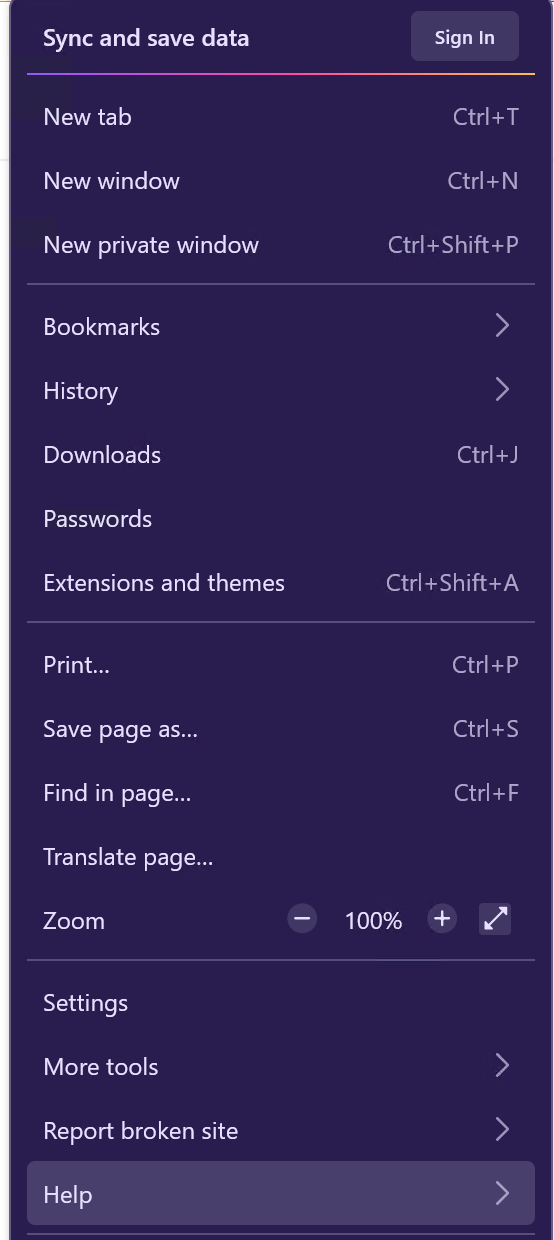
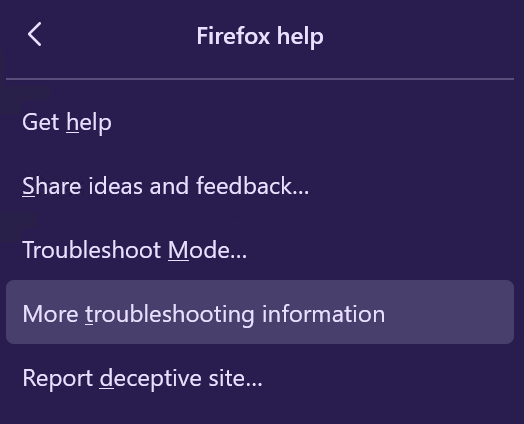
More troubleshooting info:
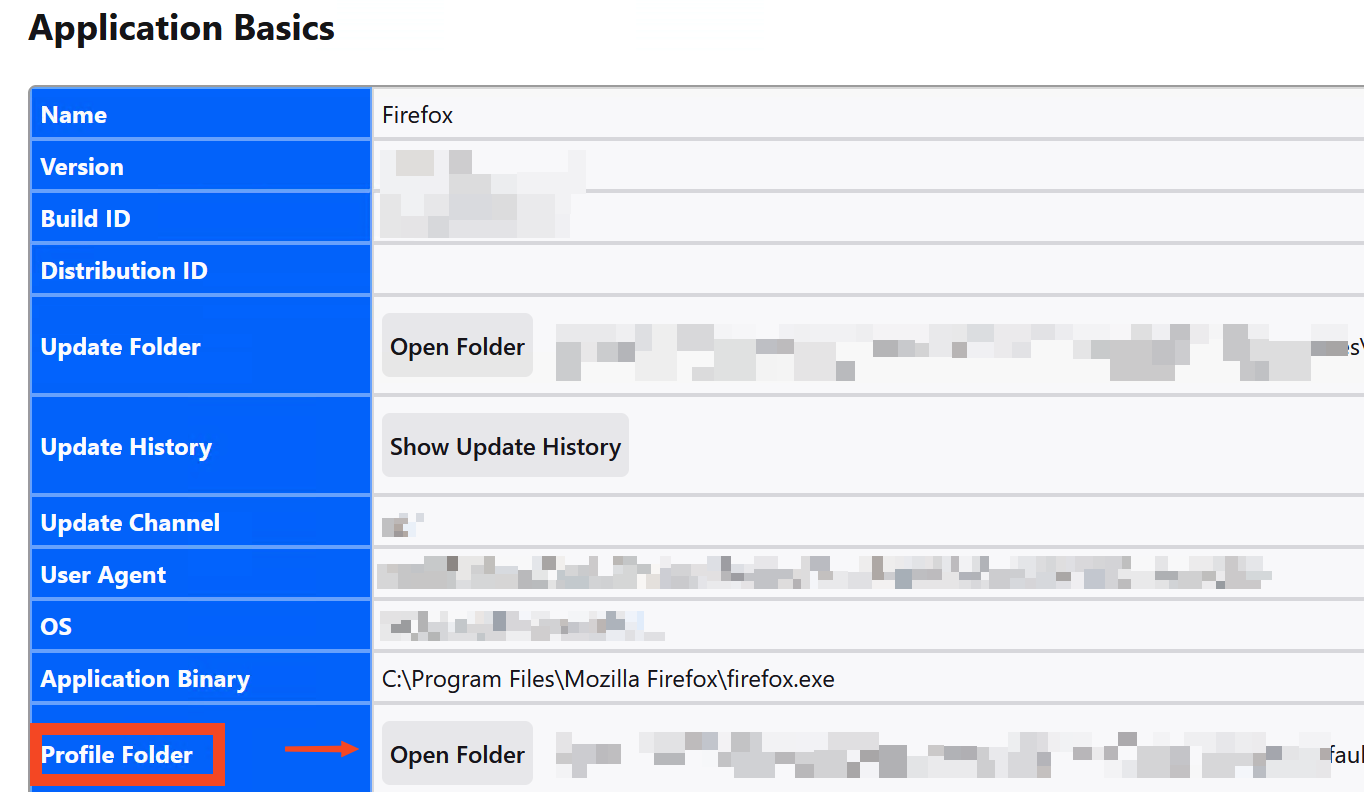
Click open folder to open the profiles folder.
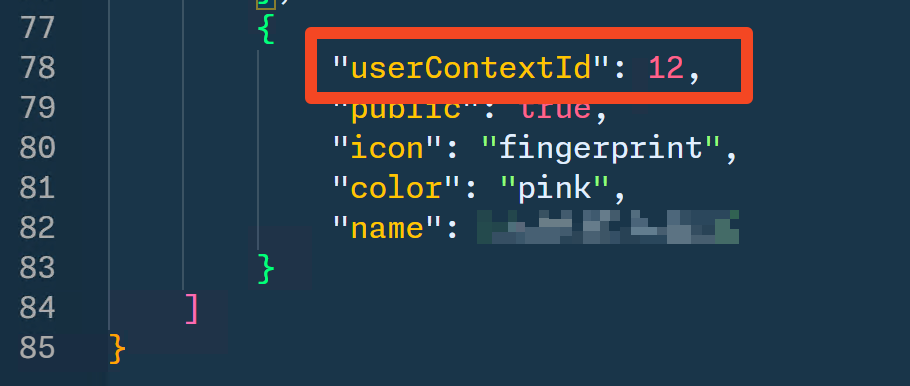
2) Open containers.json. Preferably in an editor like VS Code etc. such that you can format it (optional).
3) Find the entry for the container you are working with and note its userContextId.
4) Then open about:config in Firefox, accept the warning, and type in network.http.windows-sso.container-enabled.<the id>. (There’s a typo in the screenshot below, the 21 should read as 12 coz that’s the correct id).

This creates a new entry.
That’s all! Now if I try and browse via that container, it picks up all my accounts linked to the device, and I can select the one I want to use.
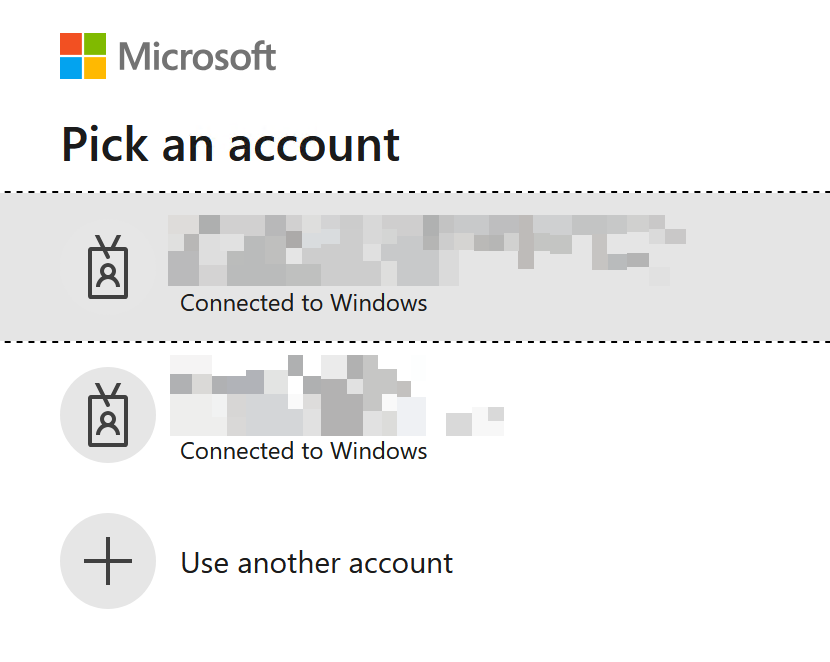
The SSO part doesn’t automagically know what account you want to use (since as far as it’s concerned you are signed in with more than one account) so you have to select the account each time. But that’s not an extension issue, and makes sense. It’s a minor irritation, but I can live with that. (And you encounter this in Edge etc. too if I am signed in to a profile with more than one account – just got to be careful of selecting the correct account each time).
Bonus tip
Since I want this to work with all my containers, and I see that they are in sequential order, what I did is 1) close Firefox and 2) open the prefs.js file in the profiles folder (this is what contains the settings from about:config). I then found the line that I had added:

And I made a bunch more copies of it with numbers starting from 1 – 25 (figured I am on 12 now and I might as well make a few extra for the future). Here’s the lines if anyone else wants to copy paste:
|
1 2 3 4 5 6 7 8 9 10 11 12 13 14 15 16 17 18 19 20 21 22 23 24 25 |
user_pref("network.http.windows-sso.container-enabled.1", true); user_pref("network.http.windows-sso.container-enabled.2", true); user_pref("network.http.windows-sso.container-enabled.3", true); user_pref("network.http.windows-sso.container-enabled.4", true); user_pref("network.http.windows-sso.container-enabled.5", true); user_pref("network.http.windows-sso.container-enabled.6", true); user_pref("network.http.windows-sso.container-enabled.7", true); user_pref("network.http.windows-sso.container-enabled.8", true); user_pref("network.http.windows-sso.container-enabled.9", true); user_pref("network.http.windows-sso.container-enabled.10", true); user_pref("network.http.windows-sso.container-enabled.11", true); user_pref("network.http.windows-sso.container-enabled.12", true); user_pref("network.http.windows-sso.container-enabled.13", true); user_pref("network.http.windows-sso.container-enabled.14", true); user_pref("network.http.windows-sso.container-enabled.15", true); user_pref("network.http.windows-sso.container-enabled.16", true); user_pref("network.http.windows-sso.container-enabled.17", true); user_pref("network.http.windows-sso.container-enabled.18", true); user_pref("network.http.windows-sso.container-enabled.19", true); user_pref("network.http.windows-sso.container-enabled.20", true); user_pref("network.http.windows-sso.container-enabled.21", true); user_pref("network.http.windows-sso.container-enabled.22", true); user_pref("network.http.windows-sso.container-enabled.23", true); user_pref("network.http.windows-sso.container-enabled.24", true); user_pref("network.http.windows-sso.container-enabled.25", true); |
That’s all!
New containers
Good to know. When I create a new container and the account I want to use is not listed, adding it via “User another account” will not help.
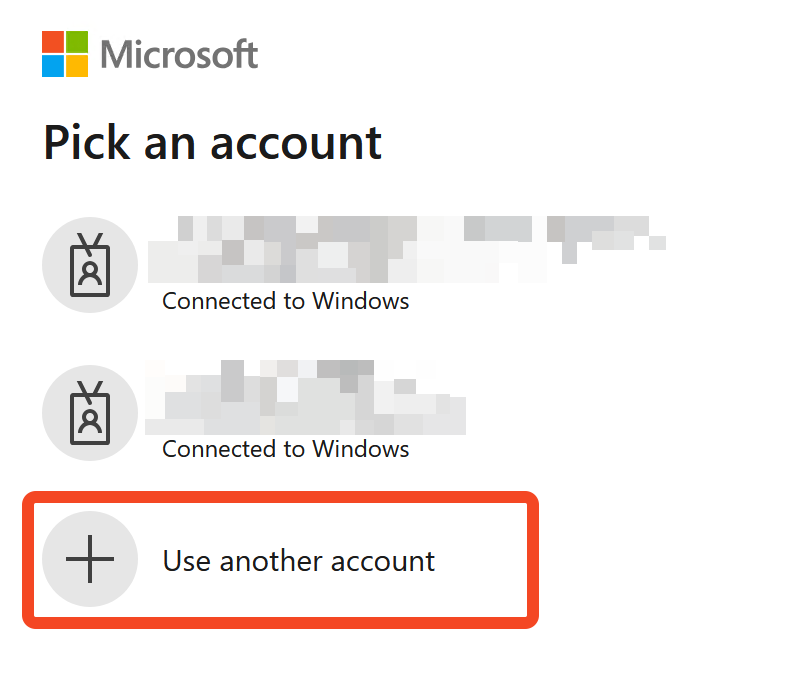
Because all that will do is add the account within the container, not to Windows itself.
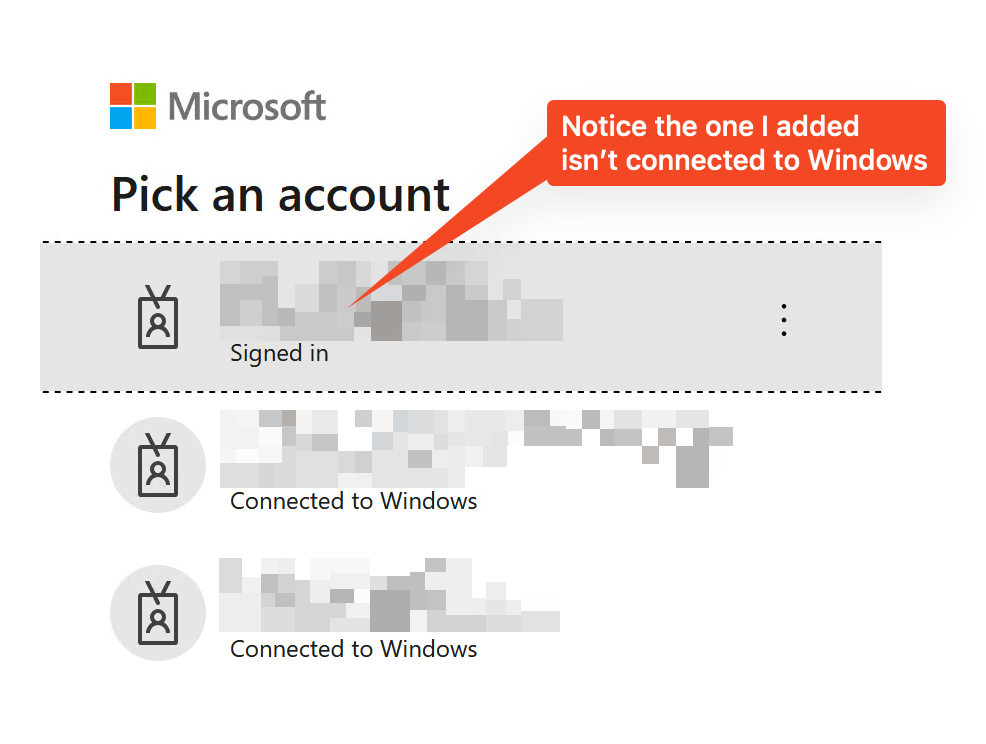
Selected the “Signed in” account above will not work if there are any conditional access policies that need device compliance etc., so one must always remember to go and add it in Windows itself under Settings > Accounts > Email & Accounts.
My thanks to the devlopers of the extension and also for their efforts in fixing this issue. 🙏