
O365 add-ins, also known as M365 Apps or Integrated Apps, are what you can deploy to Outlook etc. via this section of the M365 admin center.
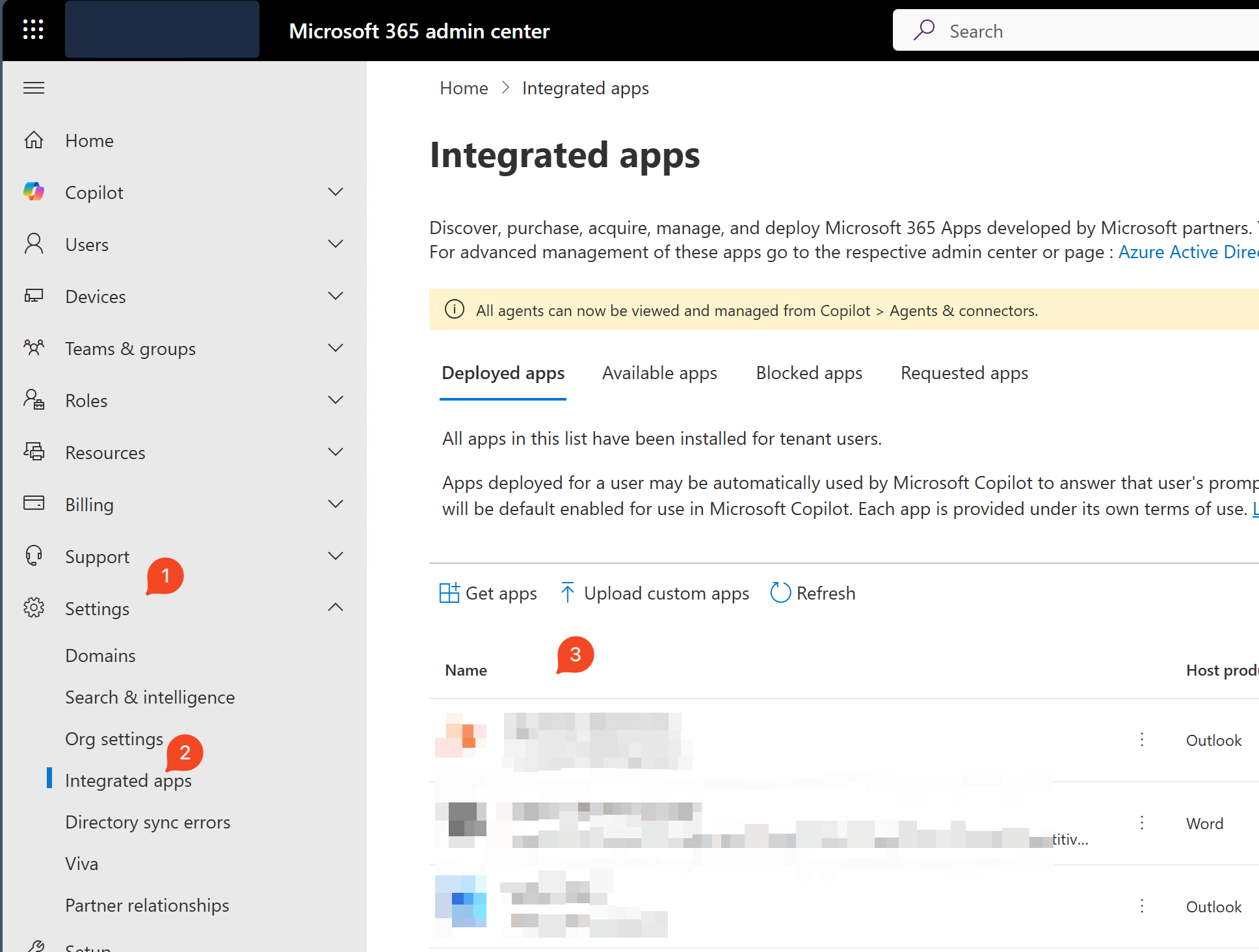
As per the docs, you need to be a Global Admin or an Exchange Admin (possibly with Application Admin, depending on certain conditions) to do this. And while that seems to be the case with the portal, it looks like one can do some tasks with only the Application Admin role via PowerShell.
In my case I don’t need to deploy new add-ins, only manage who an existing add-in is deployed to.
The instructions for using PowerShell are in this link, but below is what I did.
|
1 2 3 4 5 6 |
# Install the module, import it etc. Install-Module -Name O365CentralizedAddInDeployment Import-Module -Name O365CentralizedAddInDeployment # Login Connect-OrganizationAddInService |
After that, to get all the available add-ins, one can do:
|
1 |
Get-OrganizationAddIn |
And then to get the details of a specific add-in (e.g. publisher, version), one can do:
|
1 |
Get-OrganizationAddIn -ProductId 815b5912-1fb6-44ac-8971-f54600fdd599 | fl * |
And then to publish it to users and groups, one can do:
|
1 2 3 4 5 |
# Add a group... Set-OrganizationAddInAssignments -ProductId 815b5912-1fb6-44ac-8971-f54600fdd599 -Add -Members "dd3772c5-3b54-48fb-b5a3-c724855f2275" # Remove a group Set-OrganizationAddInAssignments -ProductId 815b5912-1fb6-44ac-8971-f54600fdd599 -Remove -Members "dd3772c5-3b54-48fb-b5a3-c724855f2275" |
|
1 2 3 4 5 |
# Add a user... Set-OrganizationAddInAssignments -ProductId 815b5912-1fb6-44ac-8971-f54600fdd599 -Add -Members "me@mydomain.com" # Remove a user... Set-OrganizationAddInAssignments -ProductId 815b5912-1fb6-44ac-8971-f54600fdd599 -Remove -Members "me@mydomain.com" |
That’s all!
Interestingly, sometimes the portal too let me do these tasks with the Application Admin role; but not always. I find PowerShell to more consistently work rather than the portal.