
At work I spent some time yesterday working on a side project to setup forwarding from one set of URLs to another. We are migrating a service from our on-prem world to the cloud, and there are tons of URLs pointing that will now get invalidated as a result.
In the on-prem world the URLs are of the form https://olddomain.com/app/#/secret/secretId, while in the cloud world it is very similar and looks like https://newdomain.com/app/#/secret/newsecretId. While it’s easy to setup a redirect from olddomain.com to newdomain.com, the problem is that the secretId changes to a new number newsecretId in the cloud, so you can’t just do a catch-all redirect.
I had a CSV file of the old and new secret Ids, and I wondered what I can do with it.
(By the way, side promo of a new tool I discovered recently. SmoothCSV. If you deal regularly with CSVs, and don’t want to open Excel/ LibreOffice for it, nor use a regular text or code editor as that doesn’t look right either, this is the tool for you! Open source and cross-platform).
Azure Front Door
One more thing we wanted to do was have https://olddomain.com/* redirect to a SharePoint Online with some info on the migration for anyone using the old URLs, and so we had setup Azure Front Door for this. It’s a simple rule there to redirect any URLs beginning with https://olddomain.com/ to https://newdomain.com/ and I wanted to piggy back on that to handle URLs beginning with https://olddomain.com/app/#/secret/ differently somehow.
This is where I encountered my first issue, which stumped me for a while. I only realized later what was happening, but by then I had stumbled upon a fix by blindly trying different things to get it working.
Here’s what I did. In Front Door I have two rules:
- Rule 1: If a URL begins with
https://olddomain.com/app/#/secret/send it to a dummy Azure Function I had setup. Stop processing any more rules. - Rule 2: If a URL begins with
https://olddomain.comsend it to the SharePoint site.
Rule 2 was the original rule, created as part of the initial requirement. Rule 1 is what I created and put as a higher priority over Rule 1, so I can do my per secret Id redirecting somehow.
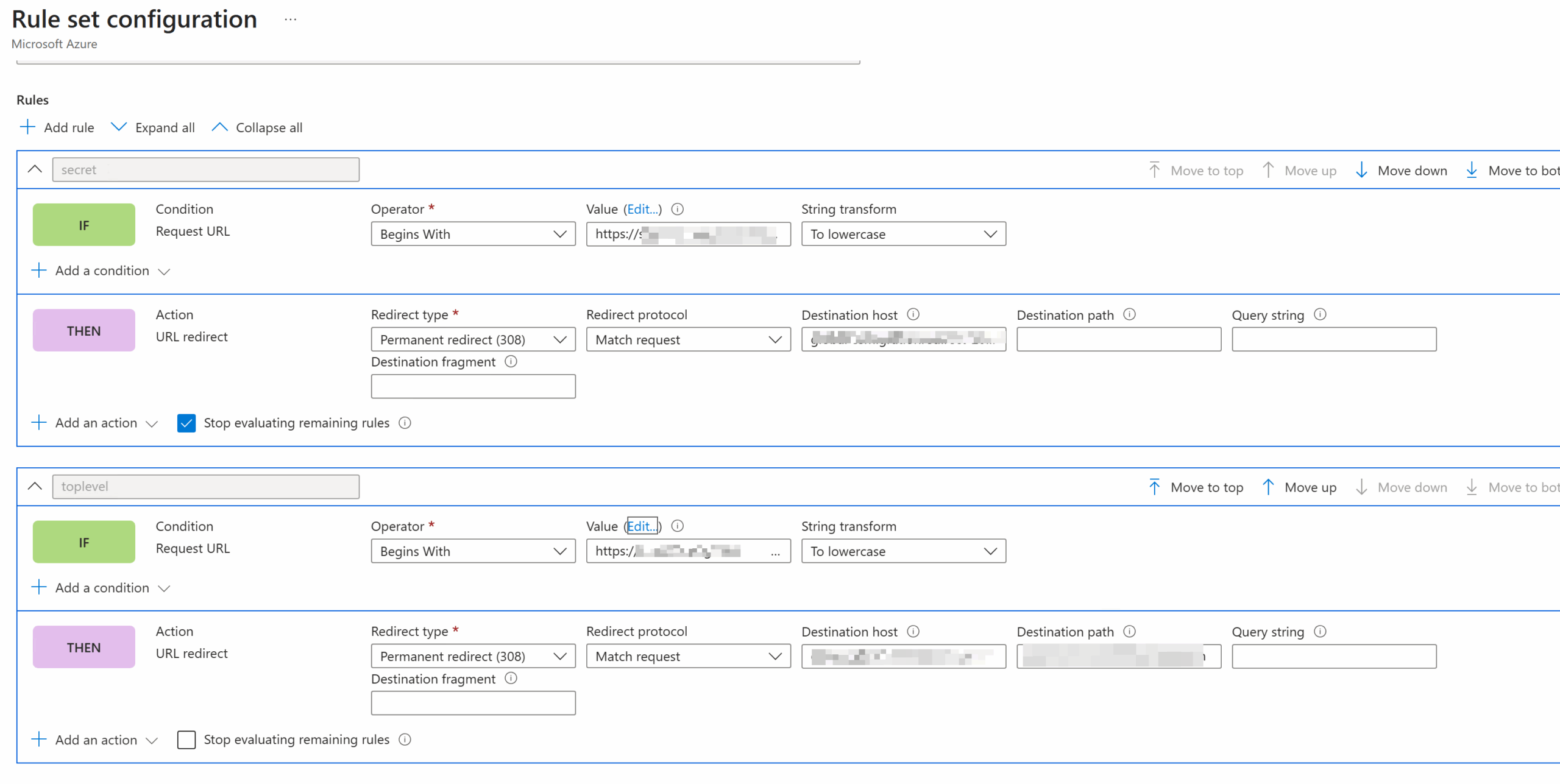
Sounds like it should work, but it does not! I never hit Rule 2, I always keep going to Rule 1. I even changed Rule 2 to be a RegEx match, but that didn’t help either.
The fix, in the end, was to match on the URL beginning with https://olddomain.com/app/. That worked, and while I stumbled upon it by troubleshooting and removing parts of the URL to see what minimum works, I wasn’t sure why this was the fix. Nevertheless I moved on to the next part of the problem.
Enter Azure Functions
My idea was to have these URLs be redirected to an Azure Function. I’ll import the CSV file of old and new secret Ids into an Azure Tables, the Azure Function will receive an URL that looks like https://olddomain.com/app/#/secret/secretId from Azure Front Door, I will use PowerShell to extract the secretId, lookup the new value from Table, construct a new URL https://newdomain.com/app/#/secret/newsecretId and send that to the user.
Turns out sending a user a new URL is very easy. From a bit of Googling I learnt that a bit of HTML like this does the job:
|
1 2 3 4 5 6 7 8 |
<html> <head> <meta http-equiv="refresh" content="1;url=https://newdomain.com/app/#/secret/$newSecretId/" /> <title>Redirecting...</title> </head> <body> </body> </html> |
What the above does is that it tells the browser receiving the page to do a refresh to the given URL after 1 second. I put $newsecretId above, coz that’s what will change based on the lookup.
In Azure Function, all I need do is the following (these are only snippets, not the whole code):
|
1 2 3 4 5 6 7 8 9 10 11 12 13 14 15 16 17 18 19 20 21 |
# Put the HTML from above into a variable; this assumes I have looked up and got a value for $newSecretId already $html = @" <html> <head> <meta http-equiv="refresh" content="1;url=https://newdomain.com/app/#/secret/$newSecretId/" /> <title>Redirecting...</title> </head> <body> </body> </html> "@ # Return that Push-OutputBinding -Name Response -Value ([HttpResponseContext]@{ StatusCode = 200 # This is crucial, without the ContentType the receiving browser will treat the HTML as plain text ContentType = "text/html; charset=utf-8" Body = $html }) exit |
Neat!
But of course, this didn’t work as expected! There wouldn’t be a blog post if it did. 🙃
What was failing was the part not in the snippet above. When I receive the redirected URL from Azure Front Door, I wasn’t getting the old secret Id in the link.
A digression
A bit of a digression first.
Typically an Azure Function URL looks like this: https://<APP_NAME>.azurewebsites.net/api/<FUNCTION_NAME>/
It is possible to remove the /api/ but by setting the following JSON in the host.json file.
|
1 2 3 4 5 6 7 8 9 10 11 12 13 14 15 16 |
{ "version": "2.0", "isDefaultHostConfig": true, "managedDependency": { "Enabled": true }, "extensionBundle": { "id": "Microsoft.Azure.Functions.ExtensionBundle", "version": "[4.*, 5.0.0)" }, "extensions": { "http": { "routePrefix": "" } } } |
It is also possible to remove the <FUNCTION_NAME> bit from the URL. The official doc tells you how but is incomplete as it only gives you examples of changing <FUNCTION_NAME> to something else. I wanted to remove it though, if possible, and when Googling didn’t help I turned to ChatGPT and from there I learnt that by modifying the function.json file thus, I can achieve it:
|
1 2 3 4 5 6 7 8 9 10 11 12 13 14 15 16 17 18 19 |
{ "bindings": [ { "authLevel": "anonymous", "type": "httpTrigger", "direction": "in", "name": "Request", "methods": [ "get" ], "route": "{*path}" }, { "type": "http", "direction": "out", "name": "Response" } ] } |
The "route": "{*path}" bit makes it so that all paths are sent to this Function app. I couldn’t find much documentation on this wildcard property, but I did find some links that explained this property in general (like this one, for instance). Glad I stumbled upon it via ChatGPT!
With this in place I can access whatever is sent to the function via the $Request.Params.path property (the name path matches whatever is puting in the route definition).
Back to the issue
So now I have Azure Front Door redirecting https://olddomain.com/app/#/secret/secretId to my Function App. When redirecting, it will send the browser to <APP_NAME>.azurewebsites.net/ and also include app/#/secret/secretId.

I know the app/#/secret/secretId part will come through, coz I am not setting anything in the Destination path and Destination fragment, so Front Door will send whatever it gets over. This is why I removed the extra bits from the Function URL, coz if I didn’t do that I’d have to put api/<FUNCTION_NAME>/ in the Destination path, and I didn’t want to do that coz there’s no way to add that and have Front Door append whatever it gets. By leaving it blank, Front Door will send everything over.
And yet, in Azure Function, when I examine the path via the $Request.Params.path property, all I see is “app/“. Nothing after that! Odd.
Fragments
And now we come to fragments. 😀
I had seen the word fragment in Front Door, but hadn’t paid much attention. But once I got to troubleshooting why the Function App wasn’t working, I learnt about it. This also explained to me why Front Door wasn’t working with my original URL way above when I first tried it.
You see, when you have a URL like https://olddomain.com/app/#/secret/secretId, the bit after the # is what’s known as a fragment. We typically see them in web pages when used to send the browser to a specific heading/ id tag of a page. Since they are meant to be specific to things within a page, browsers don’t send them to the server. Because the idea is that the browser will only send a request to the page it wants, get it, and then use the fragment to find what it needs.
This is pretty neat from a privacy point of view, coz as you can guess from the URLs above what I am dealing with are some sort of secrets, and clearly the designers of that tool had security in mind and so they put the secret Id part of the URL within a fragment. So no proxy servers or firewalls will ever see the secret Id, all they will see is https://olddomain.com/app/ which presumeably is a JavaScript page, and once that’s got the page itself will be sent #/secret/secretId and it can use that to show the secret Id. Nothing is captured anywhere. (That’s my guess at least on how this is used…)
Unfortunately, this isn’t ideal for me, coz that’s why 1) Front Door never worked when I tried to match on URLs beginning with https://olddomain.com/app/#/secret/ coz it never saw anything after the #, and 2) why Azure Function too cannot see the secret Id. There’s simply no way for me to get it! Aaargh!
A bit of JavaScript to the rescue
But hang on, yes Azure Function can’t see the full URL, but since it’s in the browser, presumeably I can use some JavaScript to get it?
Enter ChatGPT. I asked it for some JavaScript code which can be used to extract the URL from a browser and send to a different URL. It gave me the following code:
|
1 2 3 4 5 6 7 8 9 10 11 12 13 14 15 16 17 18 19 |
<!DOCTYPE html> <html> <head> <meta charset="utf-8" /> <title>Redirecting...</title> <script> (function() { const fragment = window.location.hash ? window.location.hash.substring(1) : ""; const basePath = "${path}"; let redirectUrl = "/redirect?path=" + encodeURIComponent(basePath); if (fragment) redirectUrl += "&fragment=" + encodeURIComponent(fragment); window.location.replace(redirectUrl); })(); </script> </head> <body> <p>Redirecting...</p> </body> </html> |
Here’s what I can do. Azure Function gets called. It can check what the URL it received it (via the $Request.Params.path property). If the path is just “app/“, then it sends the above HTML to the browser.
|
1 2 3 4 5 6 7 8 |
Push-OutputBinding -Name Response -Value ([HttpResponseContext]@{ StatusCode = 200 # This is crucial, without the ContentType the receiving browser will treat the HTML as plain text ContentType = "text/html; charset=utf-8" Body = $html }) exit |
The browser receives the HTML. Within it is this JavaScript:
|
1 2 3 4 5 6 7 |
(function() { const fragment = window.location.hash ? window.location.hash.substring(1) : ""; const basePath = "${path}"; let redirectUrl = "/redirect?path=" + encodeURIComponent(basePath); if (fragment) redirectUrl += "&fragment=" + encodeURIComponent(fragment); window.location.replace(redirectUrl); })(); |
The URL in the browser at this point would be https://<APP_NAME>.azurewebsites.net/app/#/secret/secretId (the original URL would have been https://olddomain.com/app/#/secret/secretId which will get redirected by Front Door to https://<APP_NAME>.azurewebsites.net/app/ and then the browser will tack on #/secret/secretId).
The window.location.hash property is the bit after the #. JavaScript can see that coz it is running within the browser in the page that I sent through. The code takes that, and does a redirect to /redirect?path=<whatever is in the URL as a path, in this case /app>&fragment=<whatever it extracted as fragment>.
This too goes over to my Azure Function, as that’s the redirect is relative to whatever page the browser is on! 😎 And since the Function is set to receive all URLs sent its way, it is thus called again but this time as https://<APP_NAME>.azurewebsites.net/redirect?path=app&fragment=secret/secretId. Voila!
Extract the Secret Id
Again, the Function can fetch the URL it received it (via the $Request.Params.path property). And if the path is just “redirect/” (coz that’s what we are sending to above), it can extract the parameters that were sent through. These are in the $Request.Query property, so we can get to the fragment by doing:
|
1 |
$fragment = $Request.Query.Fragment |
Then do a bit of slice and dice to extract the Secret Id from “
secret/secretId“, and Bob’s your uncle!
And then figure out what the new Secret Id would be, and this time send the original bit of HTML I pasted way above that does a redirect to newdomain.com. Phew!
Using a Managed Identity with Azure Tables
One of the things I also wanted to do was use Managed Identities when connecting the Function App to Azure Tables. Previously I used to use the AzTable module but that uses connection strings and I wanted to move away from that.
Using a Managed Identity is kind of straight forward. You need to assign the Managed Identity of the Function App the Storage Table Data Contributor role on the Table. And then in the Function App:
|
1 2 3 4 5 6 7 8 9 |
# Get a token $azToken = ConvertFrom-SecureString -SecureString (Get-AzAccessToken -ResourceType Storage -AsSecureString -ErrorAction Stop).token -AsPlainText -ErrorAction Stop # Construct headers $headers = @{ "Authorization" = "Bearer $azToken" "x-ms-version" = "2017-11-09" "Accept" = "application/json;odata=nometadata" } |
And then do the actual API calls to get data:
|
1 2 3 |
$uri = "https://$storageAccount.table.core.windows.net/$tableName(PartitionKey='$secretId',RowKey='$secretId')" $azTableRowObj = Invoke-RestMethod -Uri $uri -Headers $headers -Method GET -ErrorAction Stop |
Thanks to this and this Microsoft link for helping me getting started.
One thing I couldn’t figure out though was how to do a filter without using a PartitionKey and RowKey. The links have instructions on doing that, but it never worked for me… and I didn’t bother spending more time as I could search via PartitionKey and RowKey anyways.