
Continuing from my previous post (which is a continuation to another post), during my last enrolment the phone OS upgraded from Android to Android AOSP.
This was not unexpected because Microsoft is in the process of moving Teams phones from Android to Android AOSP. Details can be found in this blog post and my phone model’s latest Android firmware is on the list of supported devices.
This is a good opportunity though for me to capture the Entra ID sign-in logs for that process.
Firmware 122.15.0.243 (Android AOSP)
- Firmware Version: 122.15.0.243
- Hardware Version: 122.1.0.0.0.0.0
- Microsoft Intune Version: 25.02.1
- Authenticator Version: 6.2505.3166
- This is new, is a part of Android AOSP.
- Teams Version: 1449/1.0.94.2025165302
- Admin Agent Version: 1.0.0.202505080136.product
This firmware is from September 2025.
Device Code flow when Android is upgraded to Android AOSP
As part of the enrollment process first the device gets enrolled as Android Device Admin, then the firmware is upgraded to Android AOSP, and it is re-enrolled with the Android AOSP enrollment profile. Just mentioning this because you will see the device in Entra ID with the name <upn>_Android_<date> for a while and then it is renamed to <upn>_AndroidAOSP_<date>. On Intune side though, I think the Android device is un-enrolled and re-enrolled coz when I click on the older entry I get a device not found. That entry disappeared after a few mins so I couldn’t dig around much.
Logs (oldest entries at the bottom – read from bottom to top):
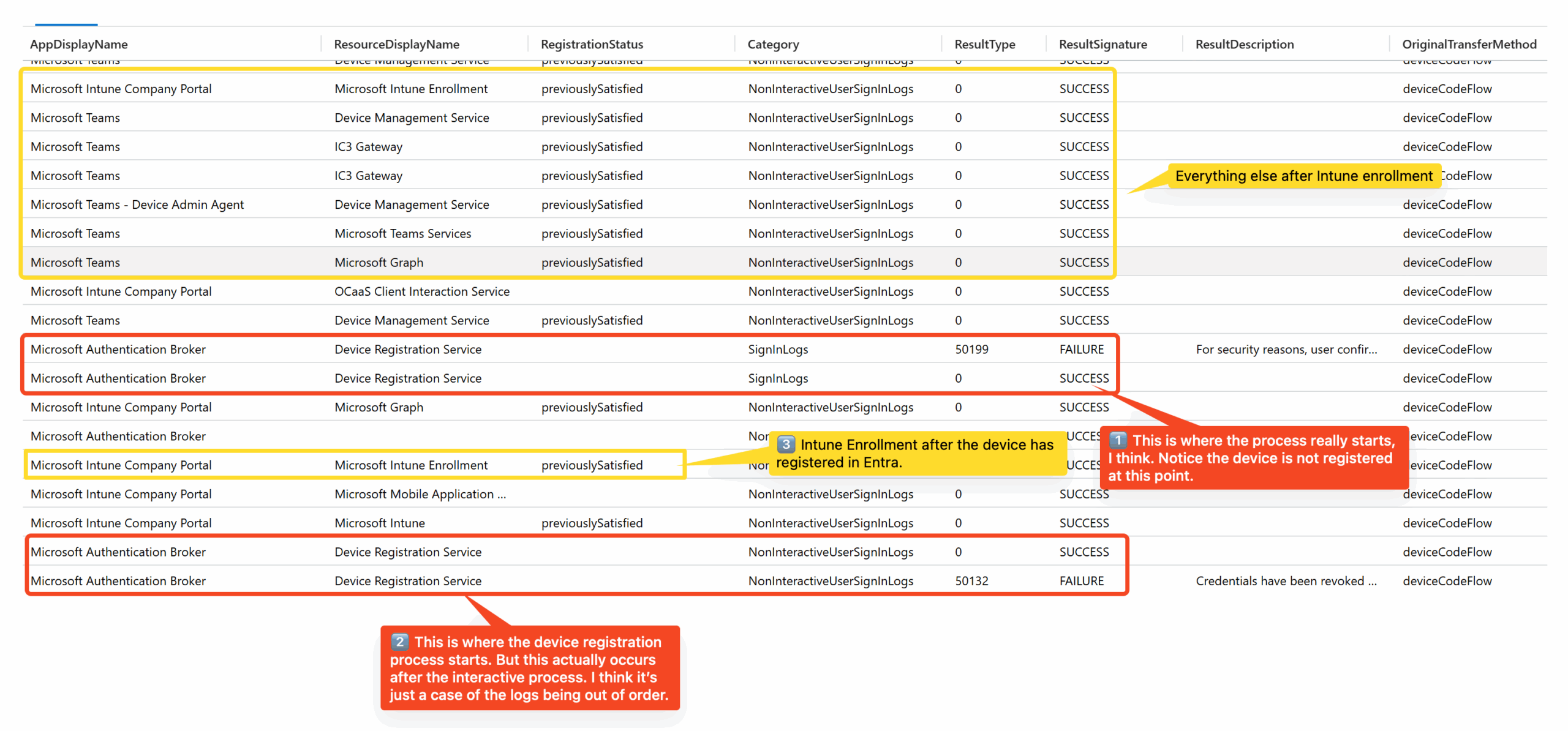
(contd.) (oldest entries at the bottom – read from bottom to top)
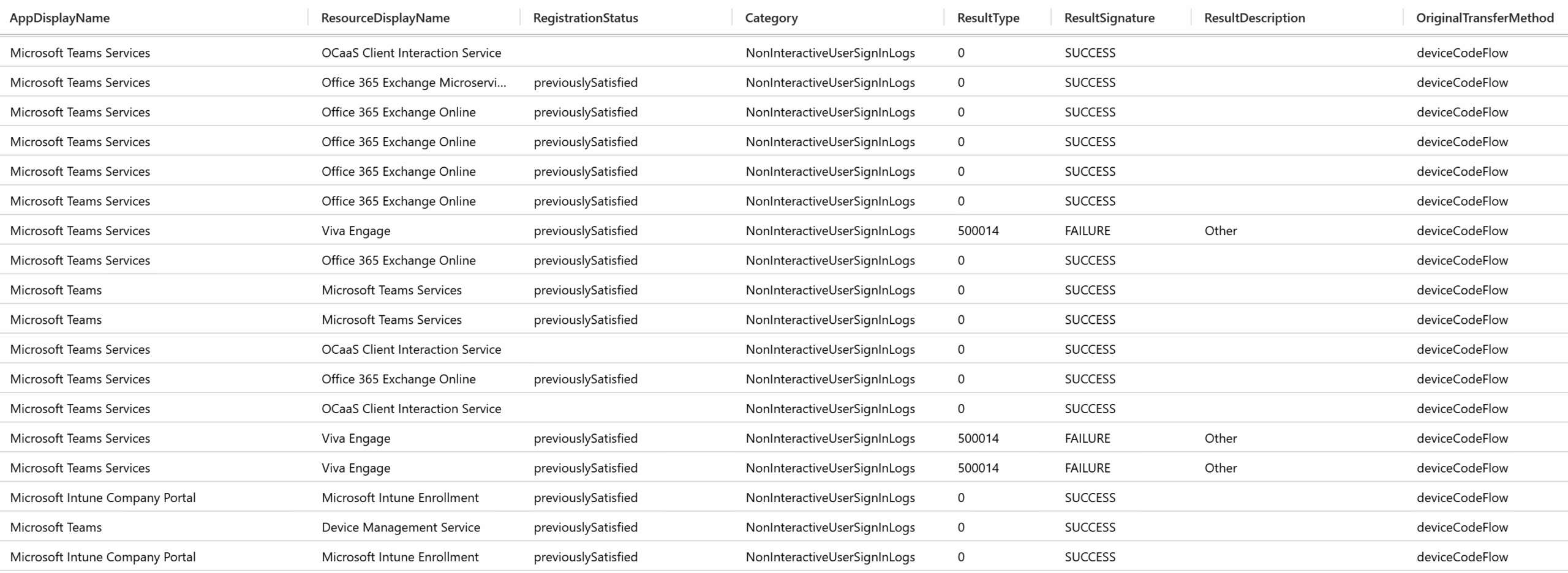
There’s more like this from Microsoft Teams and Microsoft Teams Services.
Adding the Device Name too to the output so we can see how that changes (oldest entries at the bottom – read from bottom to top):
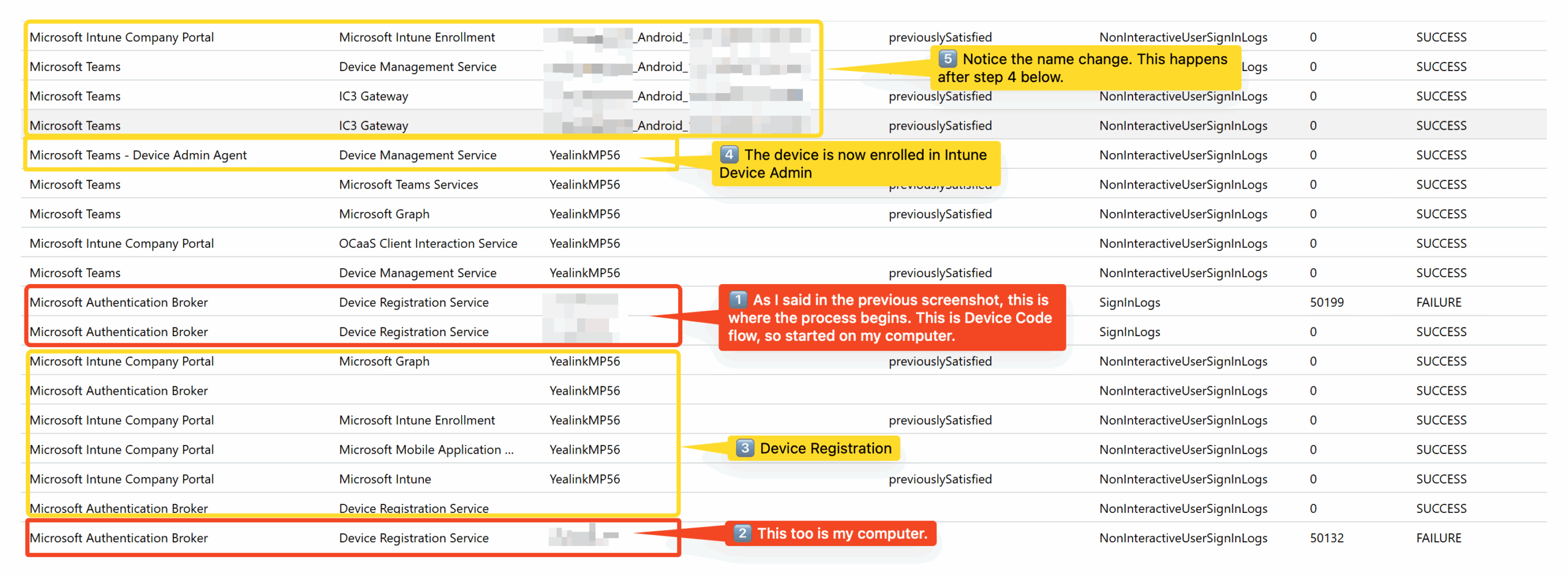
(contd.) (oldest entries at the bottom – read from bottom to top)
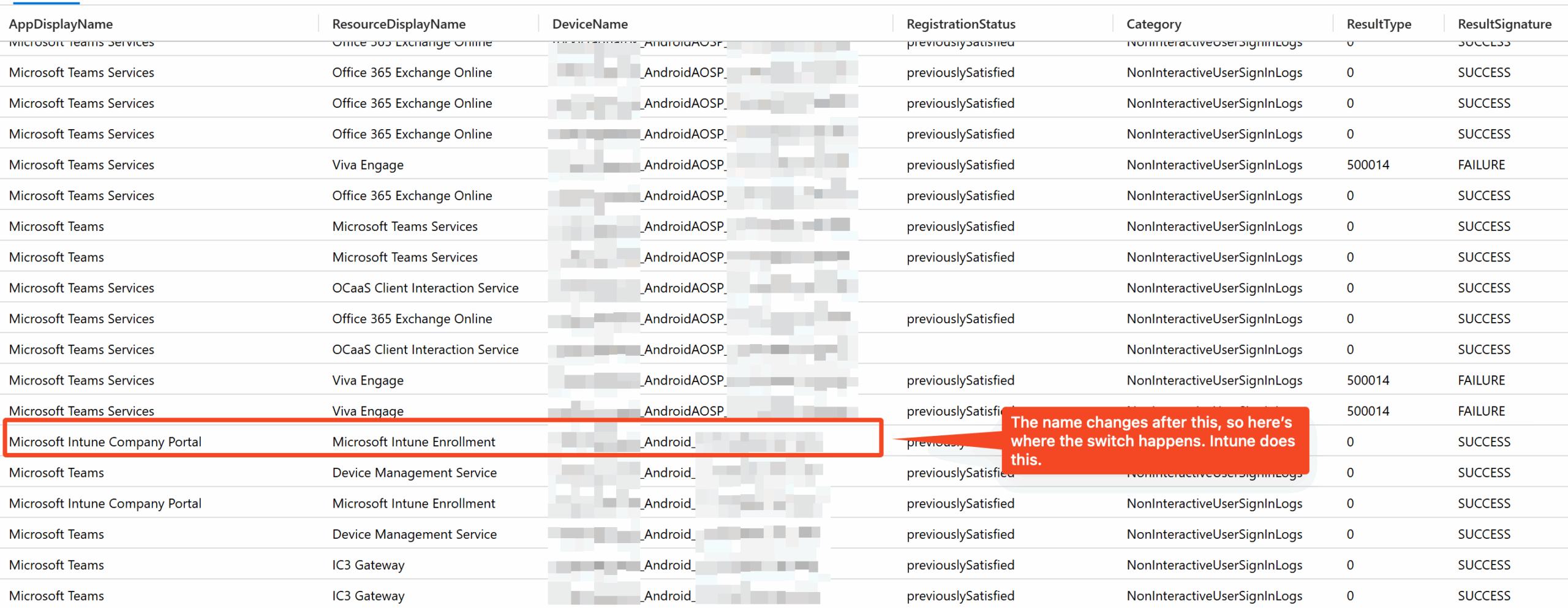
Username password flow when Android is upgraded to Android AOSP
I couldn’t test this scenario as there’s no way to downgrade the device.
Username password flow
This is when I reset the device and enroll afresh while the phone is on Android AOSP.
The initial screen is as before, where I can either “Refresh code” or sign in to the device. I went with the latter. Entered my email address, password, did MFA, and then got the following:
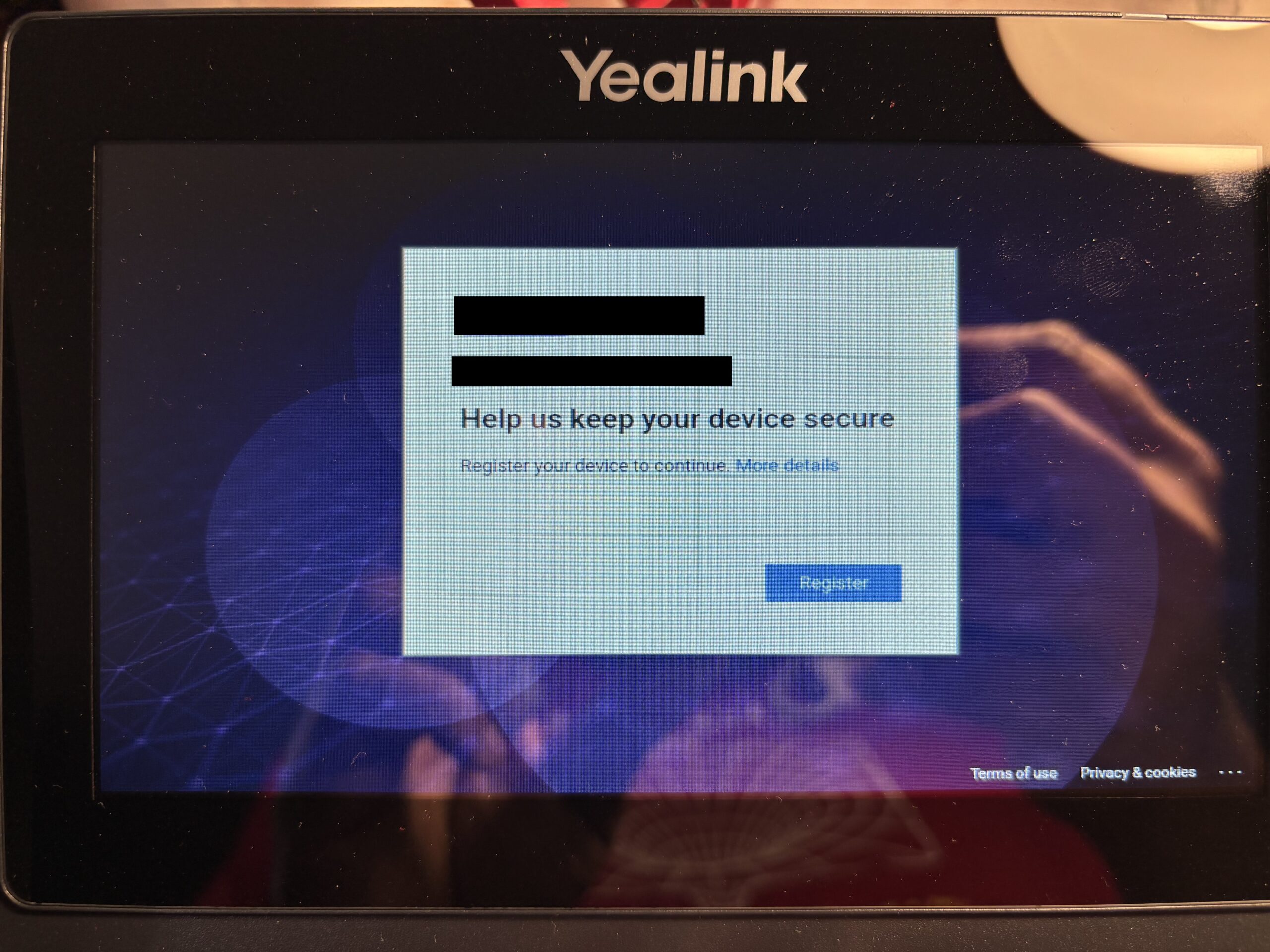
Clicking “Register” here kicks off the process.
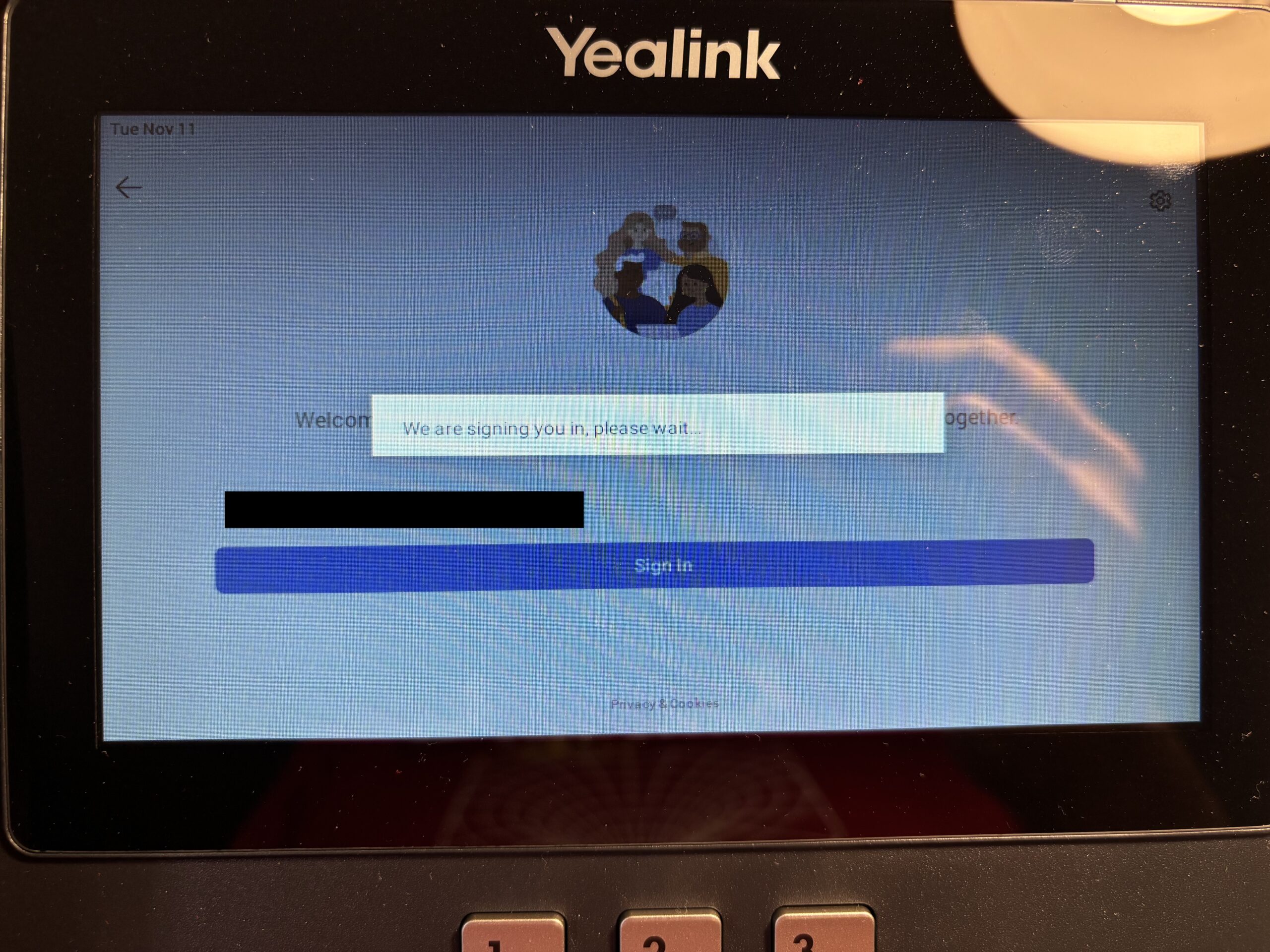
This takes ages (a minute or two) and finally I am in.
Looking at the logs, here are the logs from yesterday with Android and username password flow (oldest entries at the bottom).
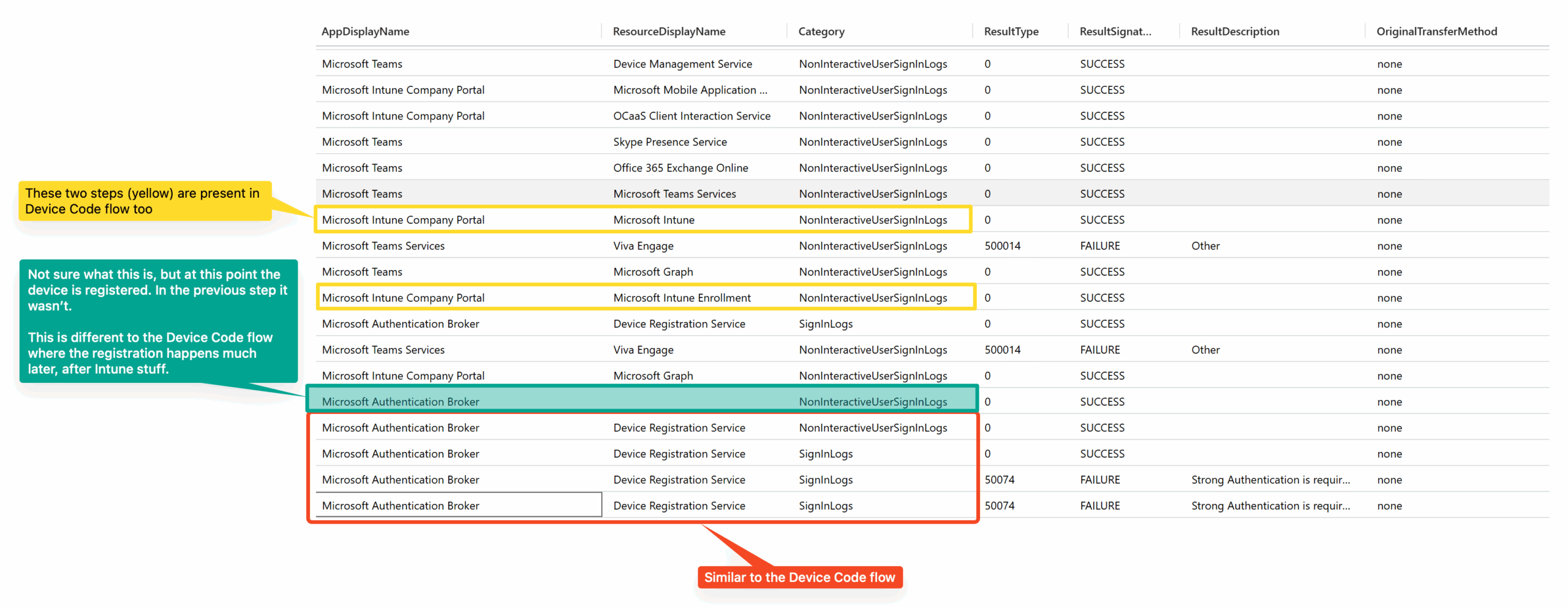
Contrast this with Android AOSP (oldest entries at the bottom):
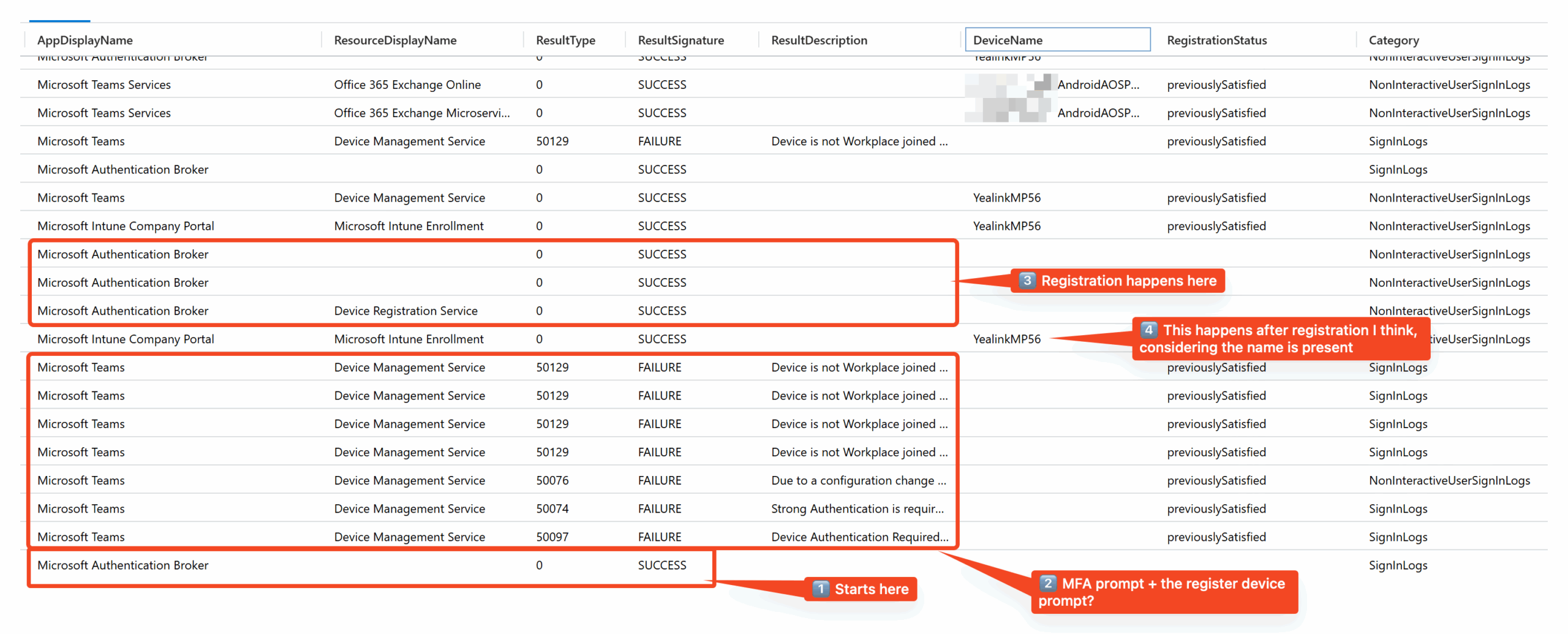
Maybe something amiss with the KQL I am using, the logs don’t seem to be in order. But the key difference is, with Android AOSP: Microsoft Teams is doing most of the work, talking to Device Management Service etc. And when this interaction happens, it triggers the device registration etc.
Reading from down, the first Microsoft Teams <=> Device Management Service with an error code 50097 is not a Conditional Access failure. Rather something else is throwing the error. The message is: Device Authentication Required - DeviceId -DeviceAltSecId claims are null OR no device corresponding to the device identifier exists.
The next interaction with error code 50074 is from our Conditional Access policies requriing MFA.
The one after that with error code 50076 is part of the MFA requirement. The error is: Due to a configuration change made by your administrator, or because you moved to a new location, you must use multi-factor authentication to access the resource.
And then we get error code 50129 which is Device is not Workplace joined - Workplace join is required to register the device. The logs don’t say Conditional Access is triggering this, but I see our policies requiring Compliant Devices are failing – so I guess this is due to Conditional Access, but maybe also not. It could be like 50097 above.
This repeats 3 more times, with the fourth attempt registering the device.
Then Intune Company Portal picks in and does Intune Enrollment. At this point the device name is the default YealinkMP56.
Anyways, key takeaway is Microsoft Teams is driving things.
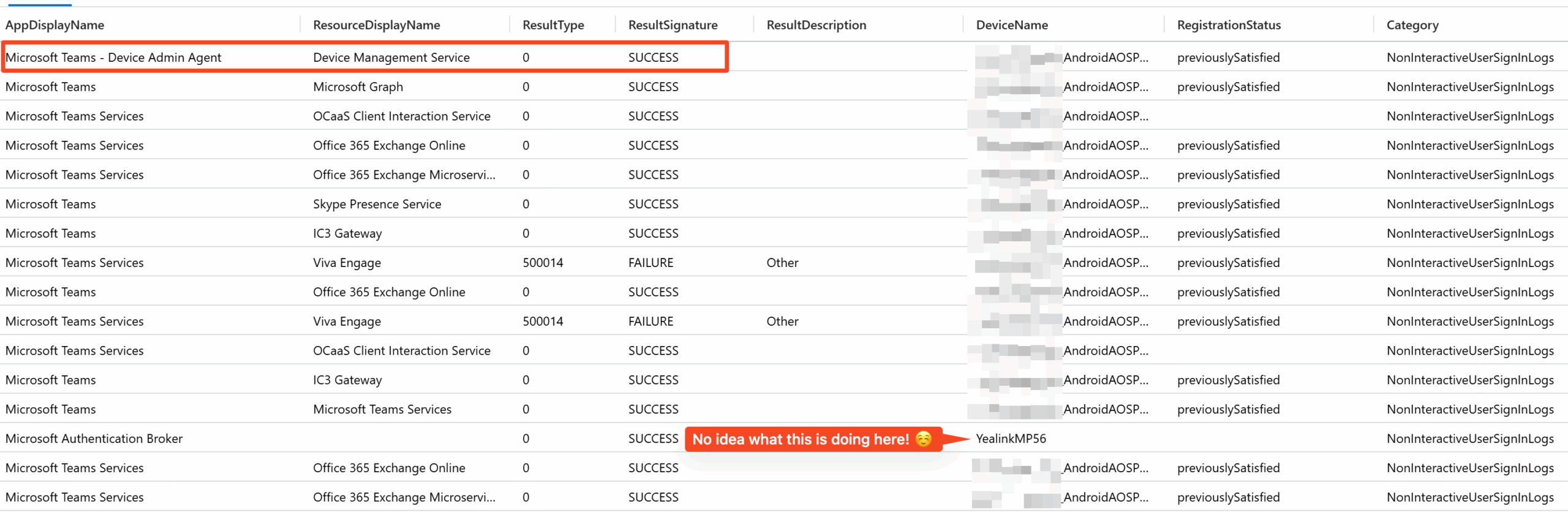
The logs continue, and I was surprised to see the Device Admin agent app again. (Oldest entries are at the bottom, read from bottom to top).
Device Code flow
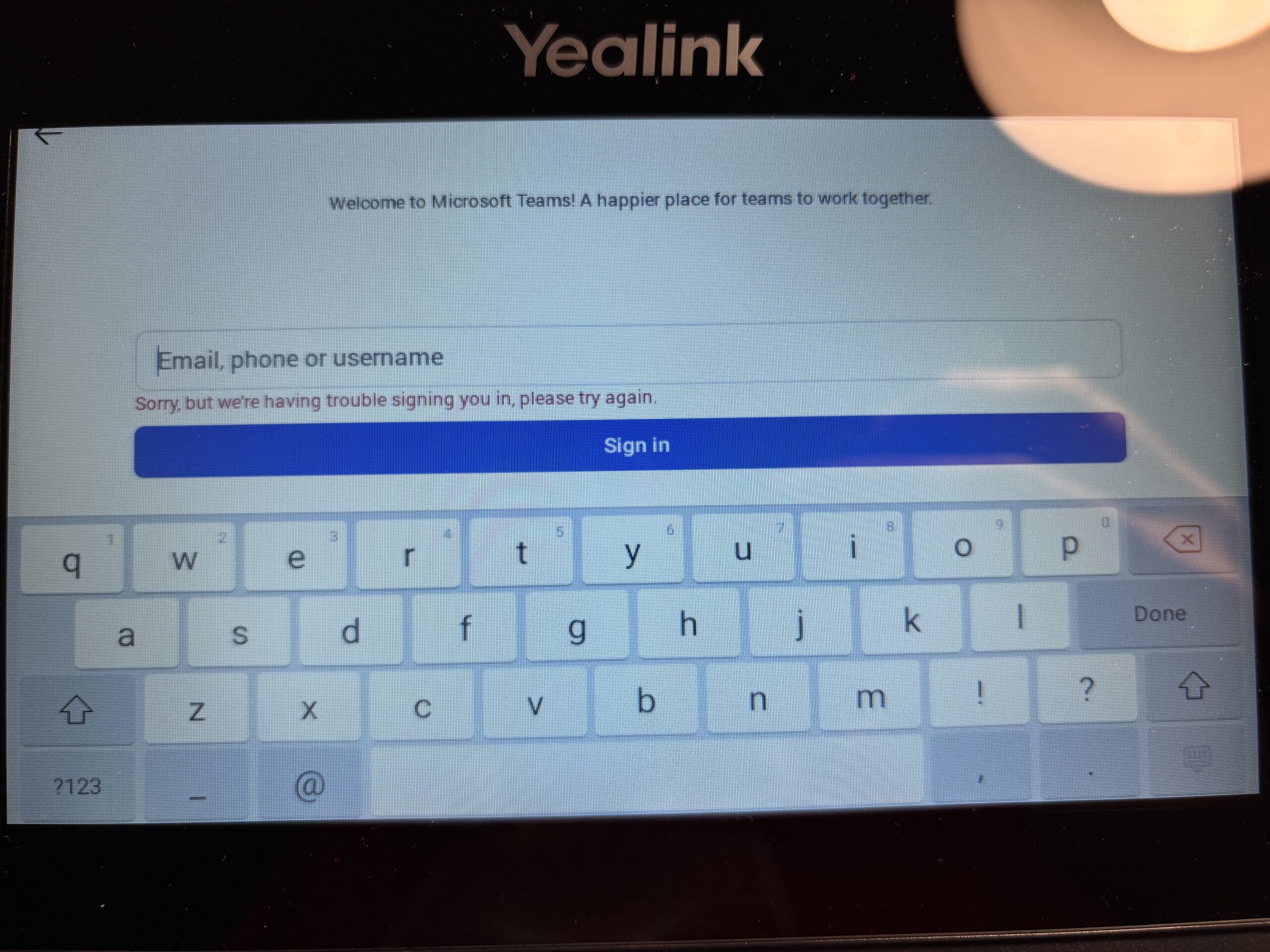
Reset the phone, and tried with Device Code flow. This should be a quick win, right? Nope! It failed like this:
The logs are short this time (read from bottom to top).
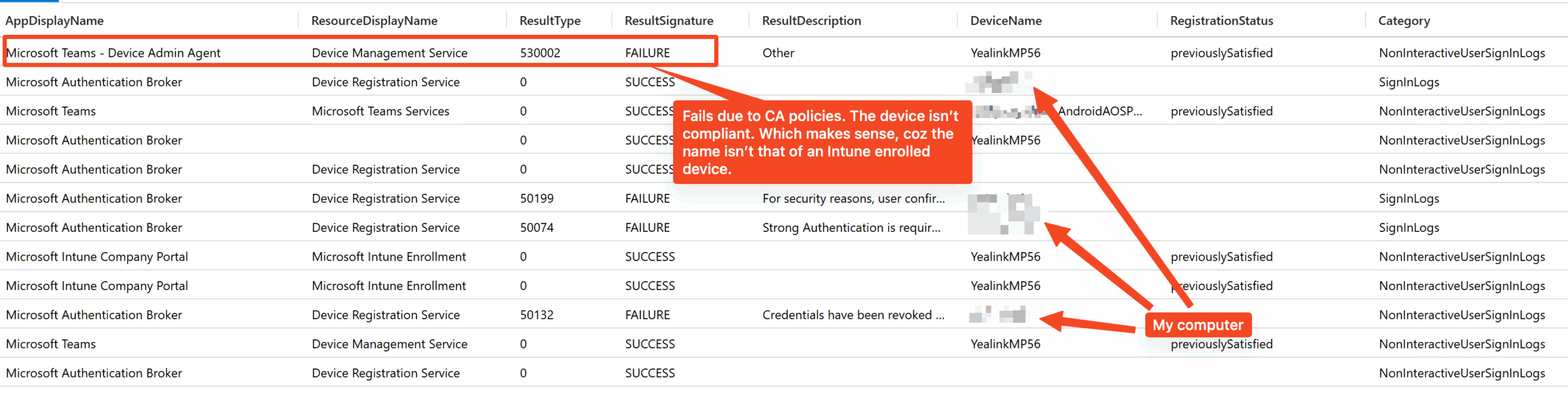
This makes no sense. Things seem to have succeeded as per the logs. Intune enrollment did happen, and what finally failed is “Device Admin Agent” failing coz the device isn’t compliant. If I expand the entry, the device state is “Managed” – so it is Intune enrolled – but not yet Compliant. I double check in Intune too, and indeed the device is enrolled! What gives?!
Maybe its just a matter of time? So I powered off and powered on the device like any good IT person, hoping the phone would just realize it is enrolled and contine from there. Of course it did not! After reboot the phone was back to the sign in page. Undeterred, I tried the device code method again (I didn’t reset the device this time) – and no surprises, this time it worked!
The only consistent thing is that nothing’s consistent. Always expect surprises. Why did it work this time, who knows?! 🤔 😡
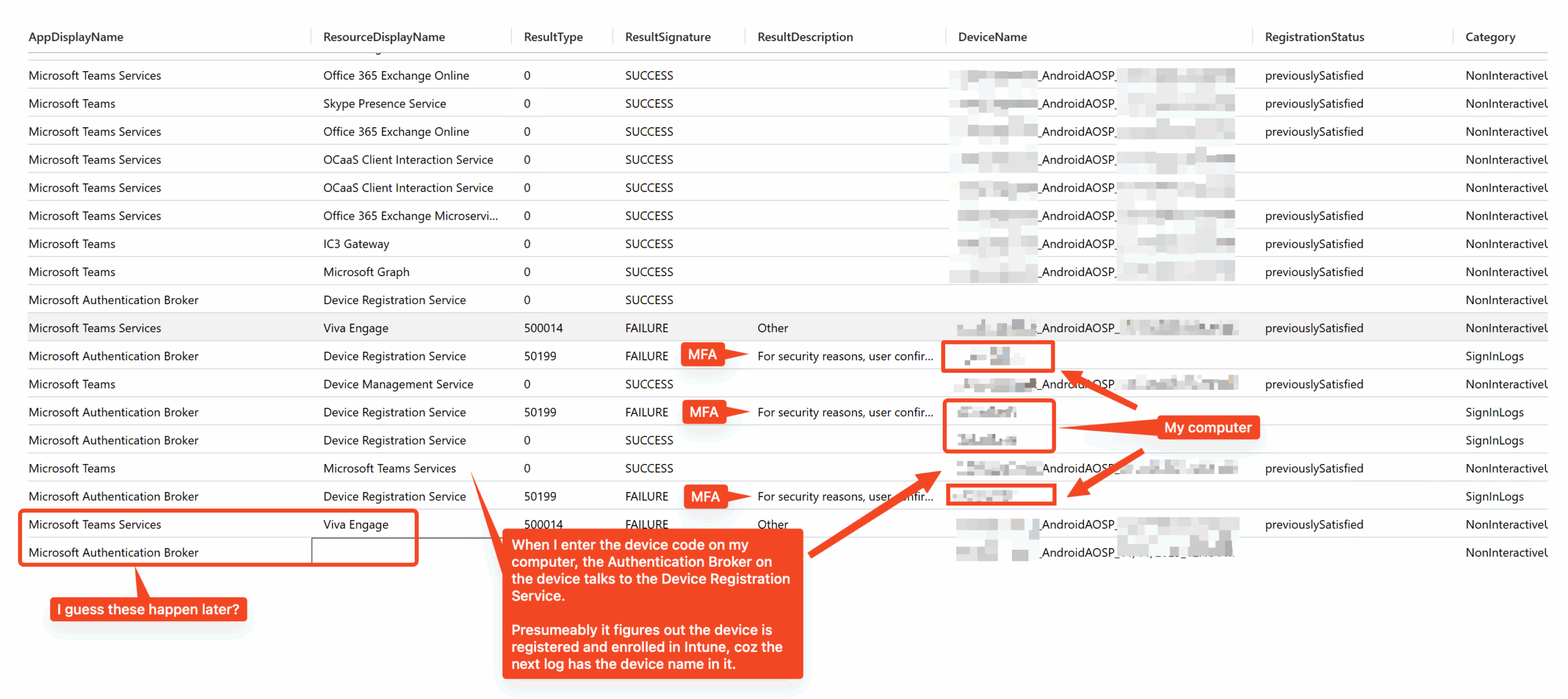
Did it create a new device in Intune/ Entra ID? Nope! I signed in and it took the previously enrolled device. So I was right – the enrollment did happen and it was just a case of the device not knowing it, and when I signed in the two got linked. To confirm that no enrollment happened, I took a look at the logs:
Downgraded to Firmware 122.15.0.234 (Android AOSP)
I was surprised but downgrading the firmware worked. Maybe coz I did to the version just one prior to the existing one, or maybe things are different with the AOSP firmware.
Only tried the Device Code flow. Same as before, it didn’t work. The device is Intune enrolled, but the phone throws an error.
Looking at the logs (read from bottom to up) things look a bit different because I don’t see any obvious failures like from Teams Device Admin. And there’s just one entry after the device is Intune enrolled, after which things just stop.
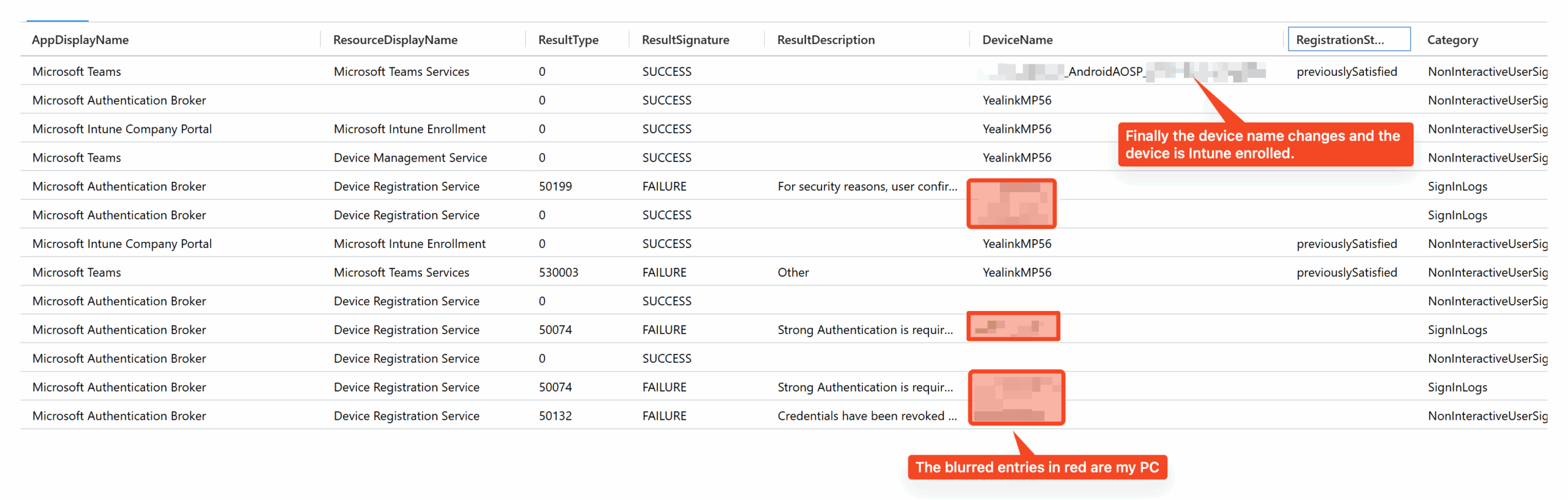
My hunch is that this is something to do with the firmware and delays. But that’s just a hunch.
Back to Firmware 122.15.0.243 (Android AOSP)
What else can I try? I upgraded the firmware back to the latest AOSP one I was on (which is where I began this post) and tried again. No muy bueno, it still fails.
However, I had another idea.
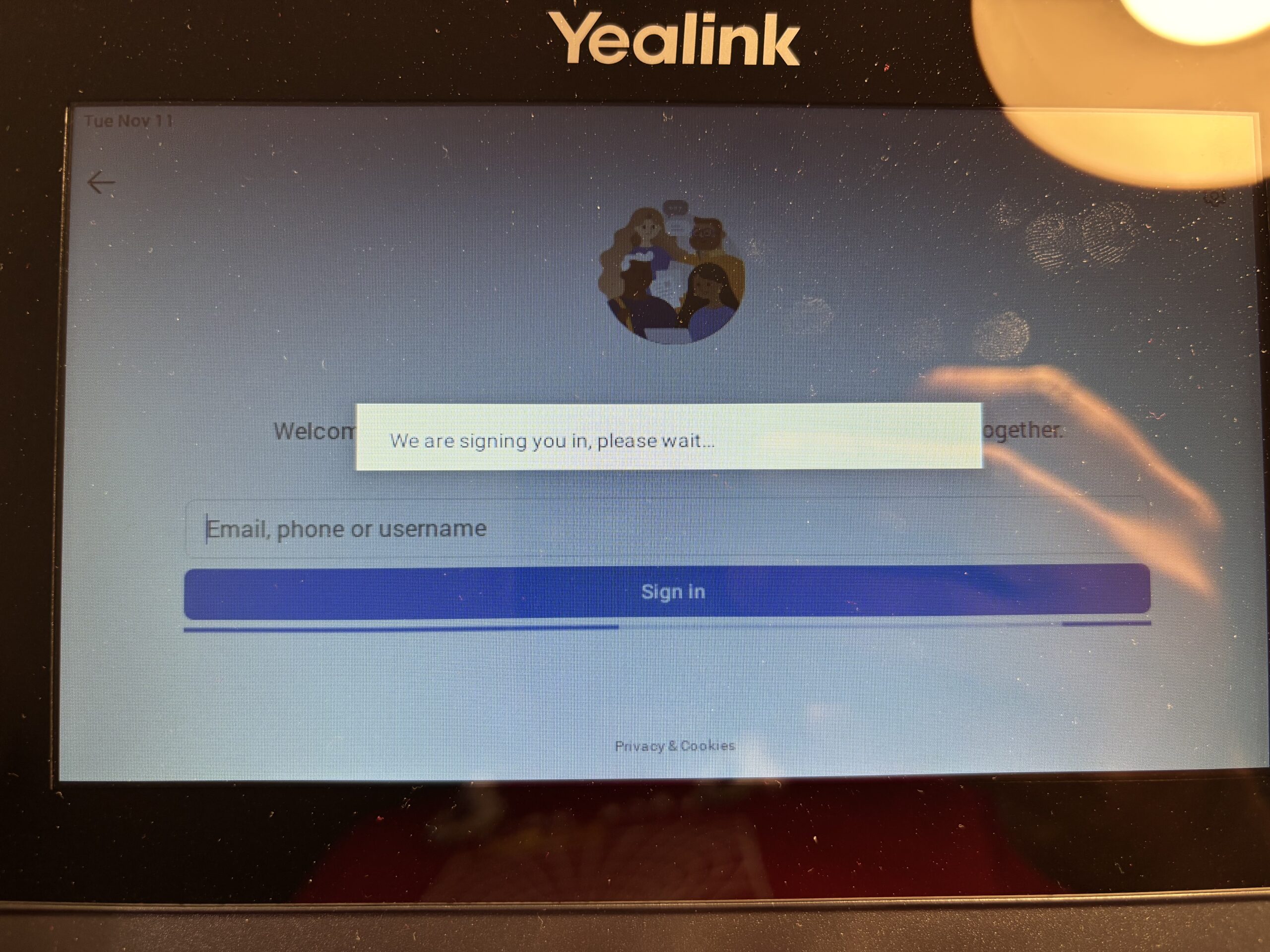
Remember it fails on this screen:
So I put my email address in and clicked “Sign in”. There was no password prompt, but I got the prompt to register my device (which I previously encountered in the username/ password flow).
Clicked “Register” there, and it errored and put me back to where we began.
Weirdly, now Intune doesn’t even show the device name registered properly.

Entra too has the default name of YealinkMP56. So unlike the attempt before where the device enrolled in Intune, looks like that didn’t happen either.
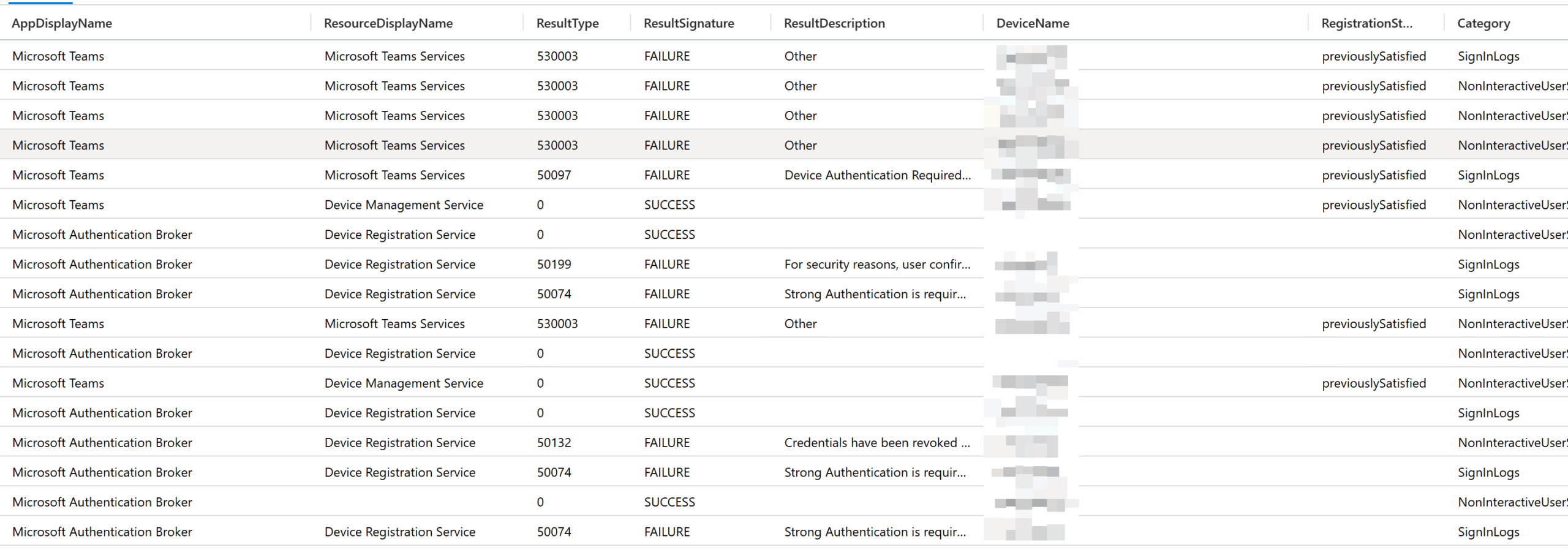
This is so so weird! 😀 I seem to be in a loop like yesterday where things do random behaviour. Take a look at these logs – there’s no Intune enrollment happening! And all the failures at the end are because the device isn’t compliant coz it isn’t enrolled in Intune.
Interestingly, I saw an alert email pop up about more Intune issues that got resolved, so maybe I am just unlucky like yesterday?
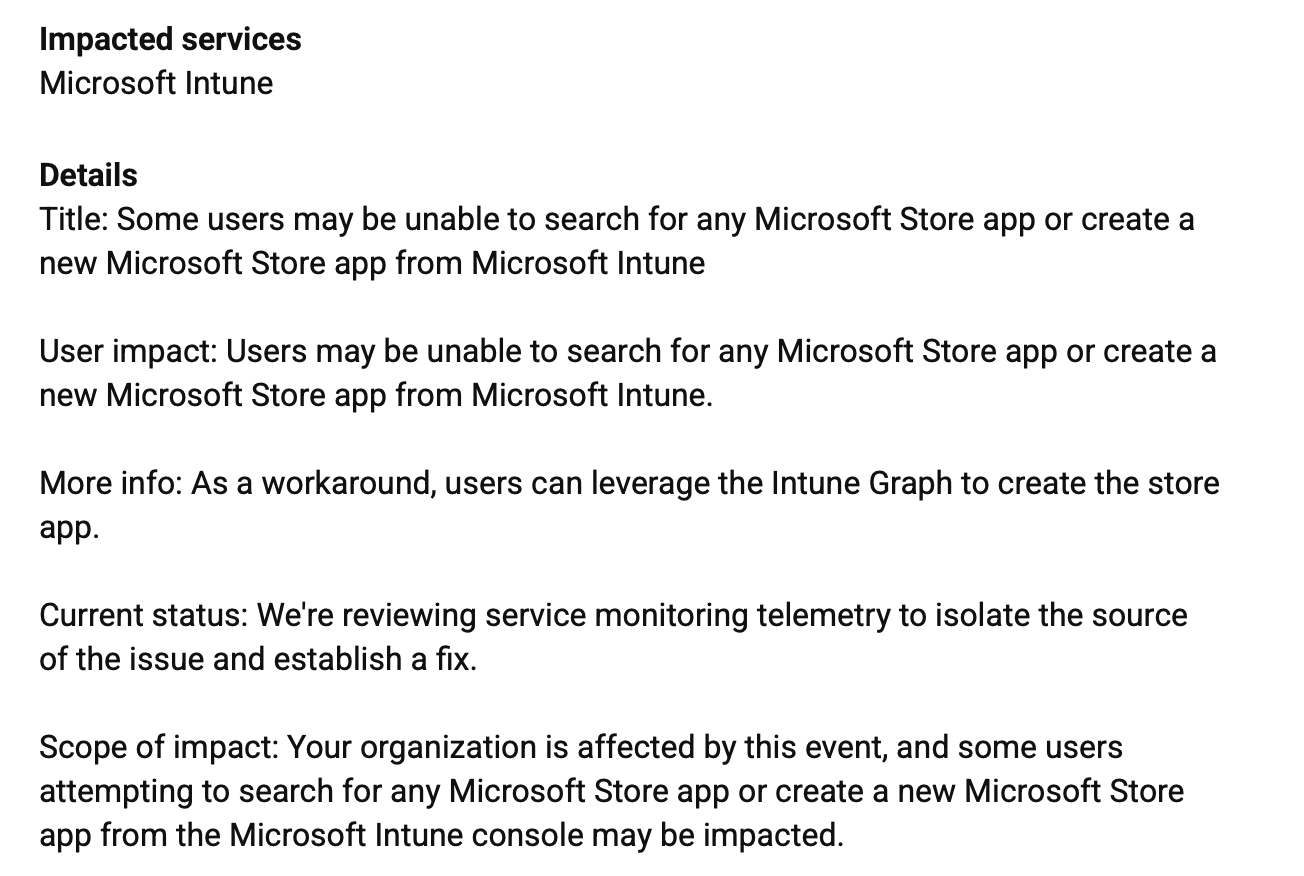
This has nothing to do with Intune enrollment though.
At this point I am stuck in the loop 🔁 so reset phone and let’s try again…
And voila! It worked. Yeah. 😱
At this point I don’t care, I just want this to end. 😀 I am guessing the Intune issue did have some impact, but I don’t know and I don’t care. It was definitely coincidental that both yesterday and today when things failed there were health alerts; although yesterday’s was more obvious in that username password enrollment too failed, while today it was just Device Code.
Maybe it was just a matter of waiting.
Or the wind blowing in the right direction outside.
Who knows… 🤷
Anyways, I can finally collect the logs from a successful Device Code flow enrollment. 😅
But first, the logs from earlier when Device Code failed on this firmware (read the entries from bottom to top).
I was surprised there that Teams Device Admin agent failed and that the name hadn’t changed. The device was enrolled in Intune, Conditional Access was seeing it as Managed, but it wasn’t in a Compliant state yet. The name hadn’t changed, but that too could be put down to a delay in things updating.
I thought this Teams Device Admin failing is what broke things. But I was mistaken, as I see it happening now too but things proceed past it (read the entries from bottom to top).
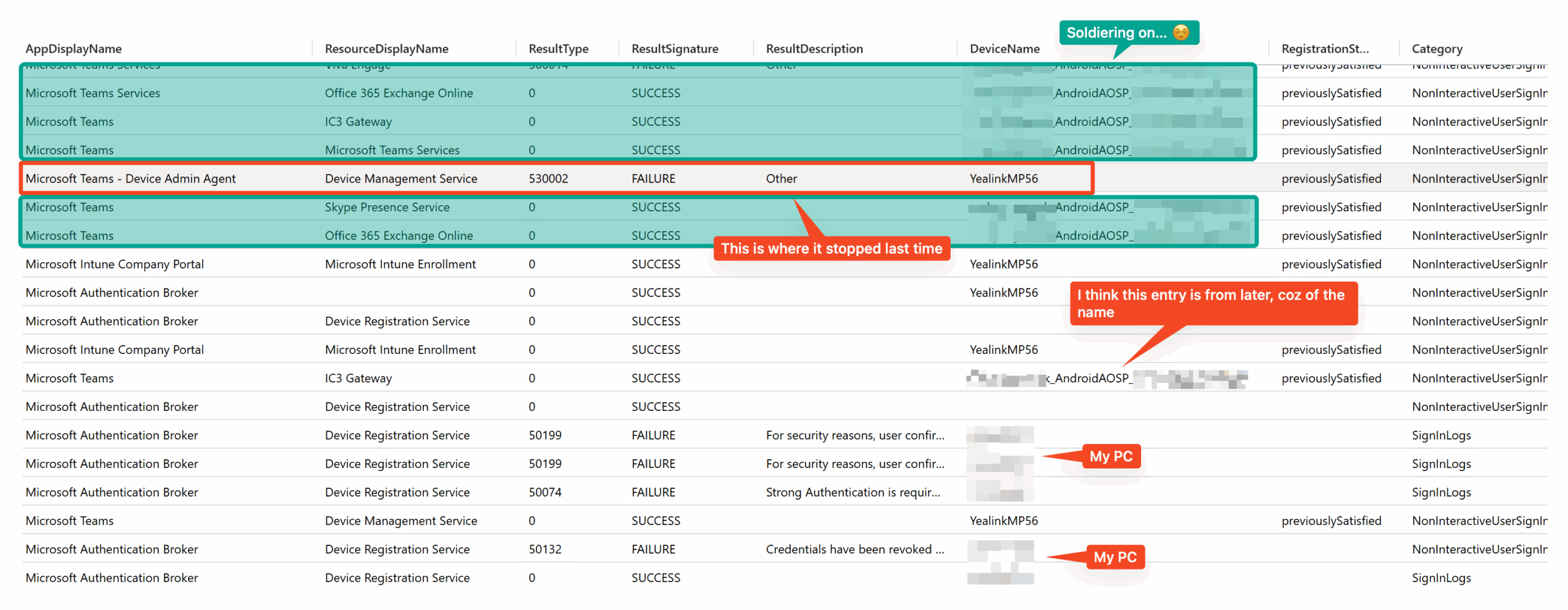
Even though Teams Device Admin agent failed, that didn’t stop things. When it failed the device is enrolled into Intune but wasn’t Compliant yet – that’s why it failed (same as before – then too the device was Managed but not Compliant yet).
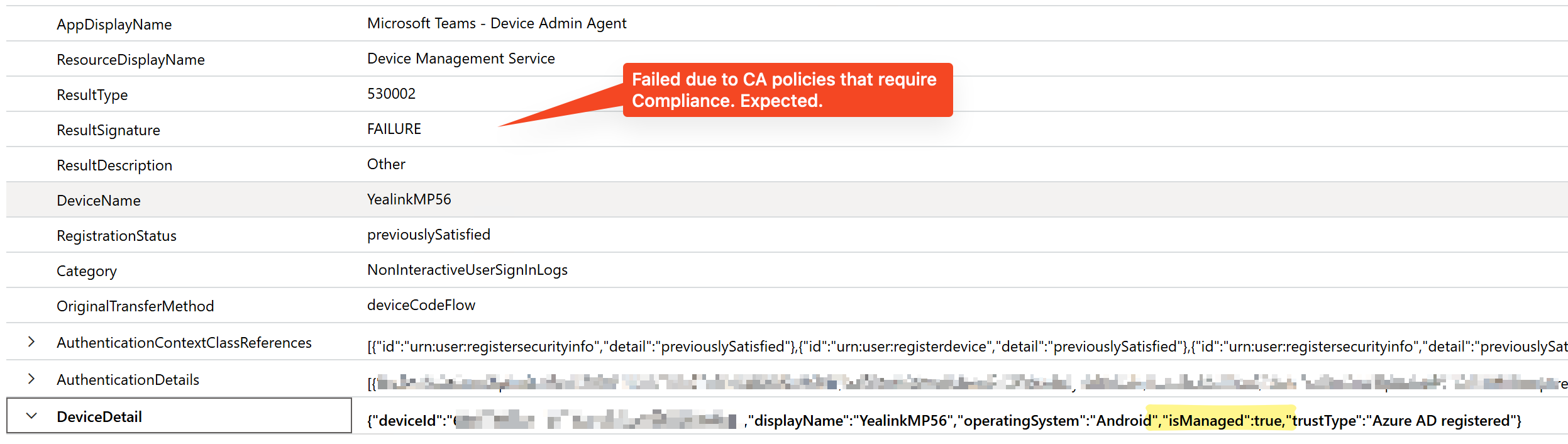
And yet in the very next entry, the device name has changed and is now Compliant. This is what was breaking earlier.
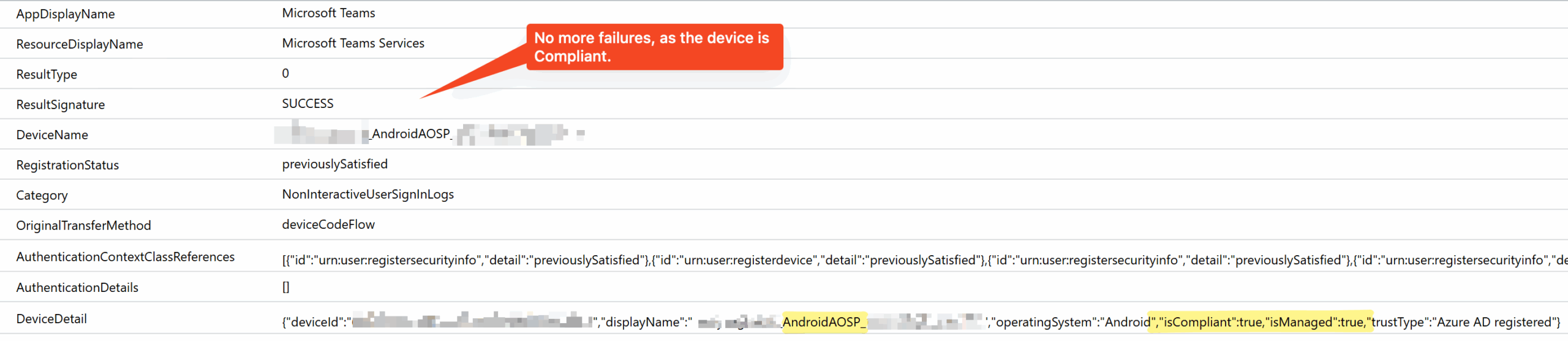
In the logs there’s just a few milliseconds difference between these two entries. So something in the backend must have been broken earlier, because of which it didn’t proceed to the next steps.
There’s a few more entries in the log, and we can see things proceeding and eventually succeeding.
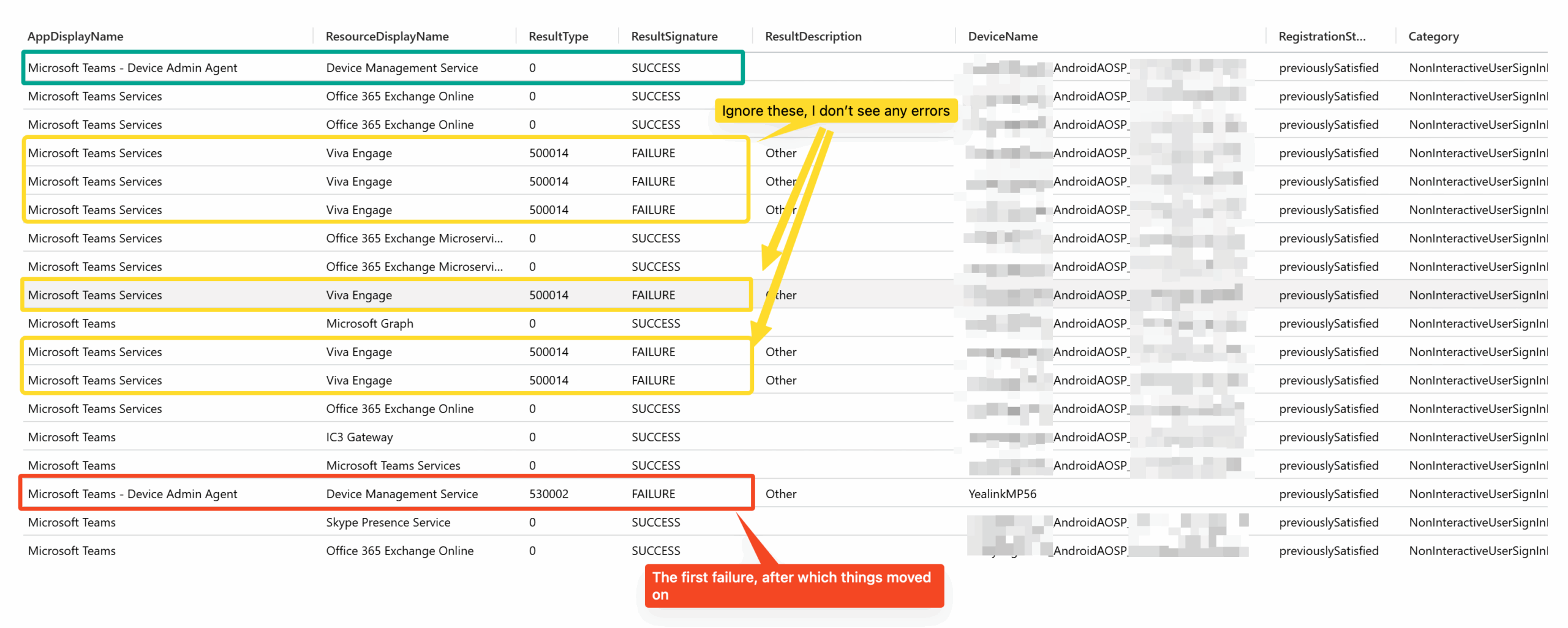
Also, just to call attention to it again, with Android AOSP it’s “Microsoft Teams” that does most things.
| Username password | Device Code |
|
|
That’s it! I am outta here.
Update (the following day): Today there is a health alert for Intune AOSP devices.
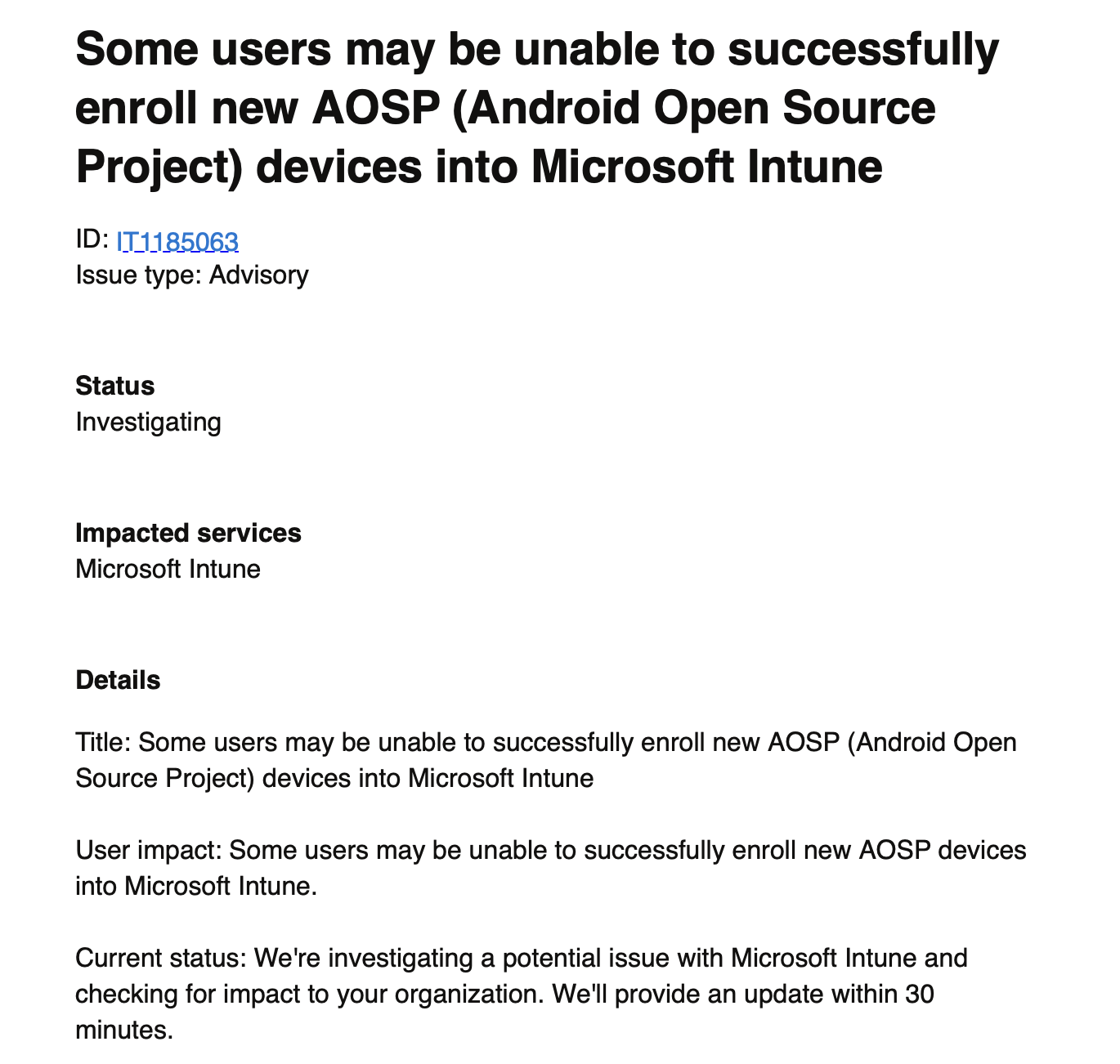
So there must have been some intermittent issue past few days which is now gotten worse/ noticeable. Just my luck!