
Continuing from my previous post, I upgraded the Yealink MP56 phone to the next available firmware.
Firmware 122.15.0.107
This firmware is from December 2022. Here is what the admin page shows post-upgrade:
- Firmware Version: 122.15.0.107
-
Hardware Version: 122.1.0.0.0.0.0
-
Company Portal Version: 5.0.5484.0
-
Teams Version: 1449/1.0.94.2022110803
-
Admin Agent Version: 1.0.0.202209060820.product
- This is new, wasn’t present originally.
Things are a bit different now when powering on the device. You get a page like this:
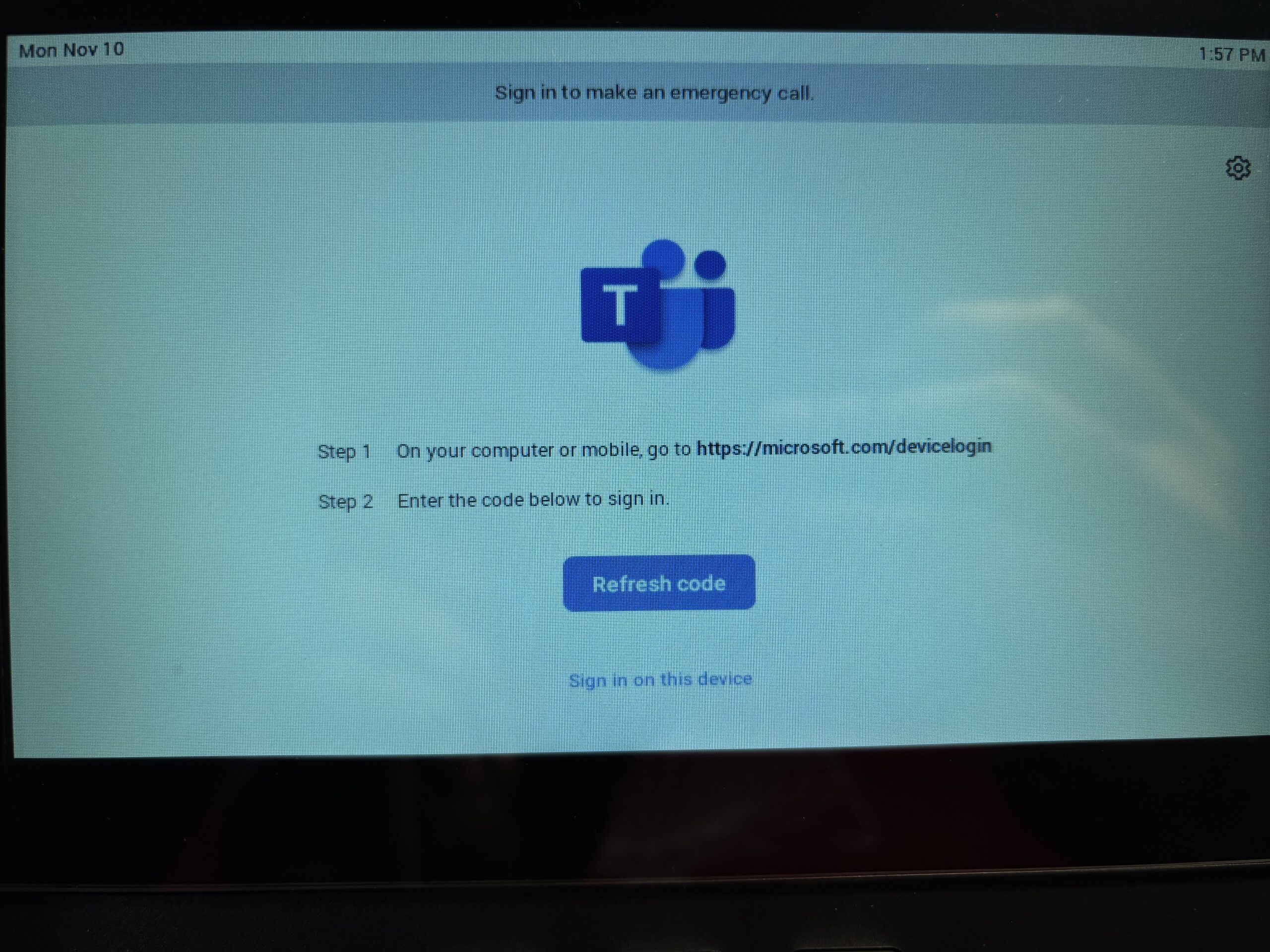
Device Code flow
Click Refresh code to get a code. Then on my computer I went to the Device Login page, entered the code, did MFA, it asked me for a password followed by MFA again, then a prompt like this:
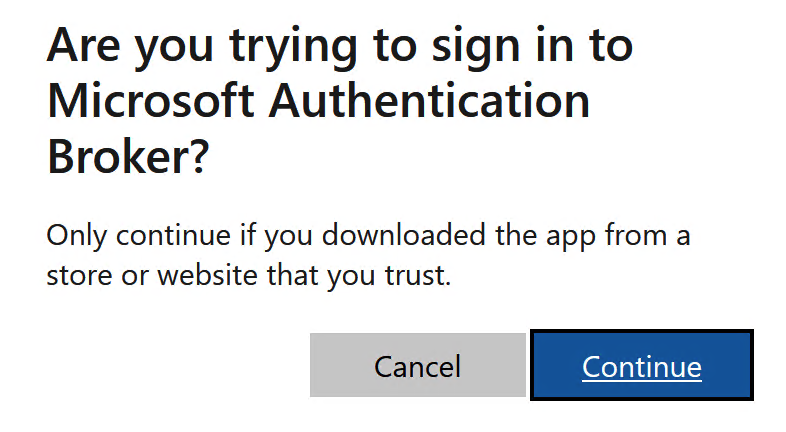
Clicked “Continue” and it signed me in.
Interestingly, the phone failed though.
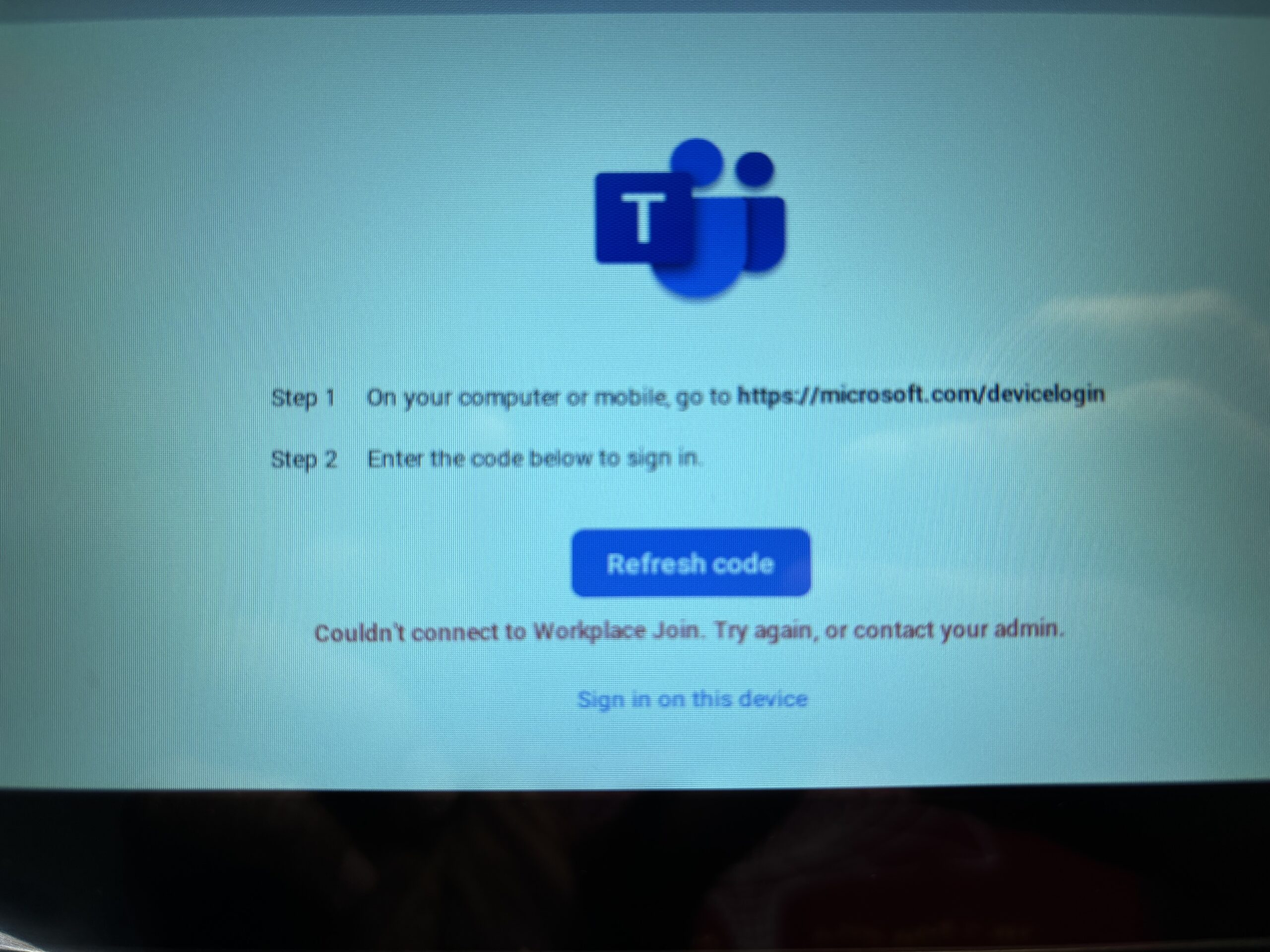
“Couldn't connect to Workfplace Join. Try again, or contact you admin.”
Looking at the logs, I can see tha things are different this time (oldest entries at the bottom – read from bottom to top).
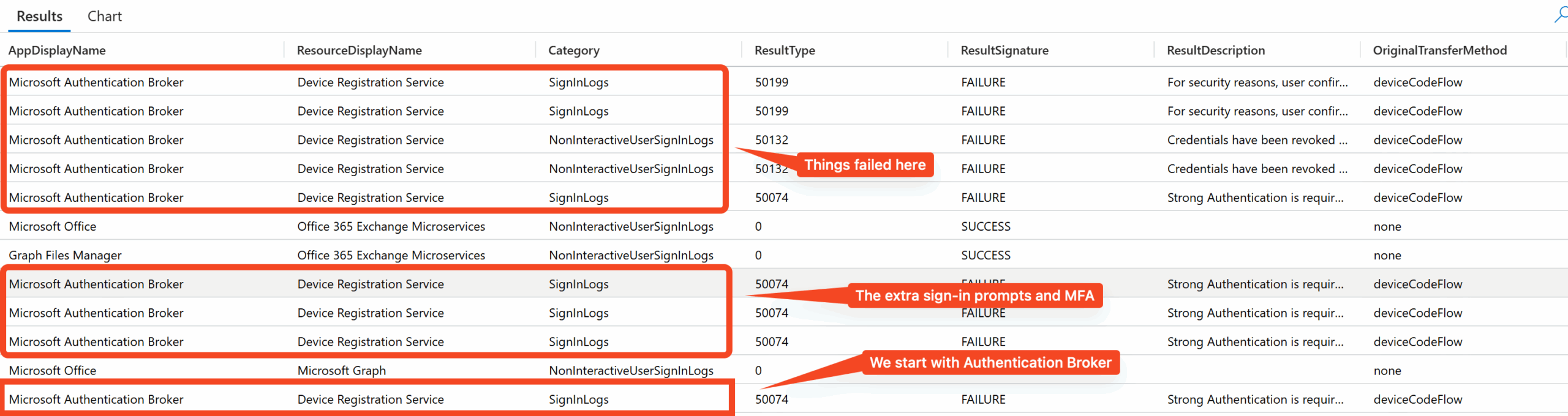
For one, we start with the Authentication Broker app this time, rather than Company Portal. So the page showing me a code is not the Company Portal app any more. This explains why Device Code worked, and why the message in my browser confirming the app I was signing into also showed the Authentication Broker.
The logs show a failure for this due to requiring MFA, and there’s a bunch of these which is probably why I got prompted for MFA twice.
The first failure message in the screenshot was “Credentials have been revoked due to the following reasons: SSO Artifact is invalid or expired, Session not fresh enough for application, A silent sign-in request was sent but the user's session with Azure AD is invalid or has expired.“, followed by “For security reasons, user confirmation is required for this request. Please repeat the request allowing user interaction.”
Neither of these messages are due to Conditional Access, so I am not sure what is going on. And confusingly, after these there was a final success message. So why did it fail?

I decided to try again in case it was a temporary error.
Clicked “Refresh code” on the phone, got a new code, and entered it in the browser. Prompted for password again, MFA, was shown the confirmation message asking if I am signing into Authentication Broker, and again while things succeeded in the browser it failed on the phone. Oh well.
Again the logs give a “For security reasons, user confirmation is required for this request. Please repeat the request allowing user interaction.” message and eventually succeeds.

One reason for this error is unsupported Conditional Access policies. And sure enough, looking at the supported Conditional Access policies for Teams phones it specifically says Device Code flow should not be blocked.
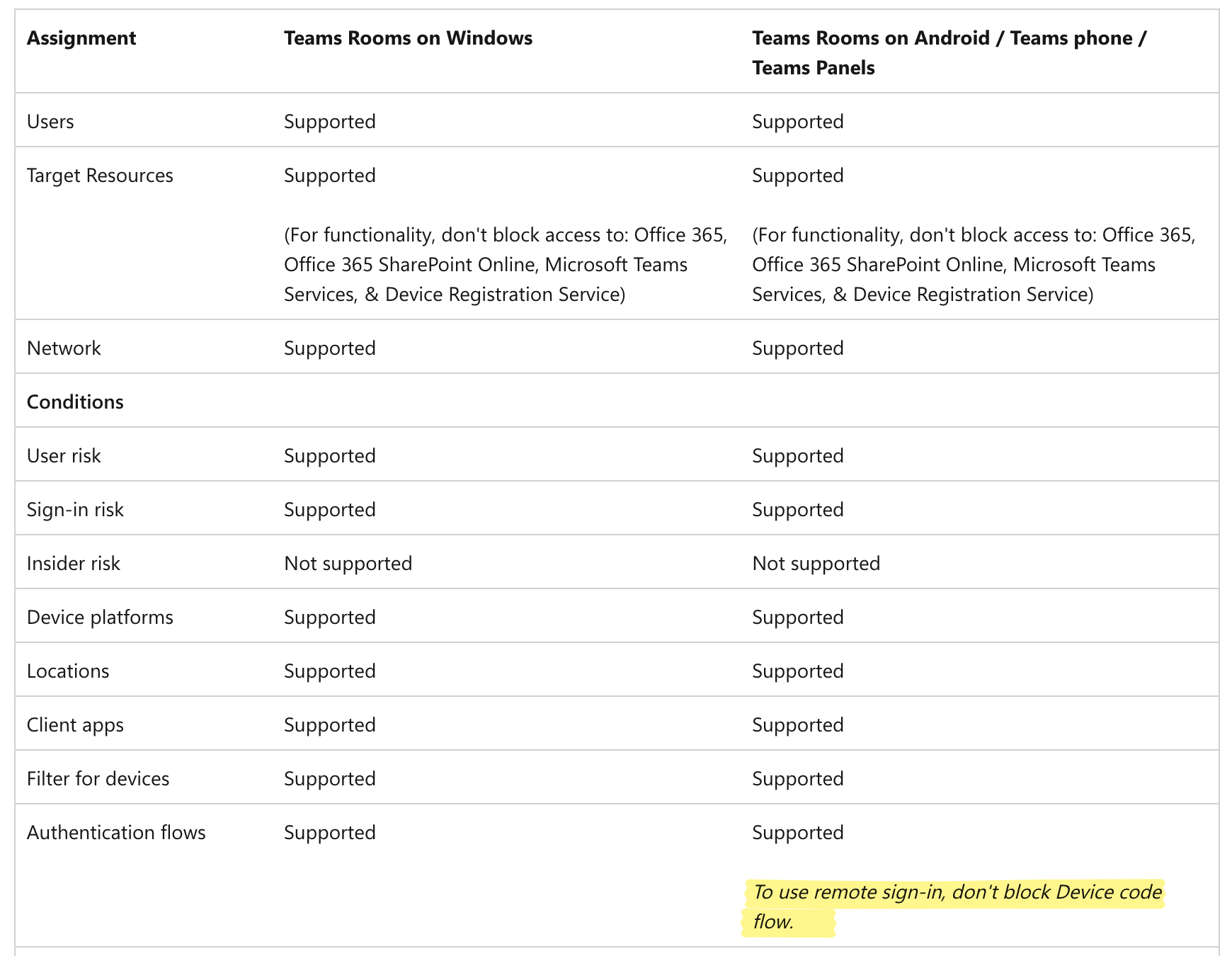
I still don’t see how it matters though, coz Conditional Access is not blocking anything in my case (as per the logs at least). Ideally, I should exempt myself altogether from the Device Code blocked flow and test, but I don’t want to. Plus, I know this issue gets fixed later (teaser for my later blog post! 😊) so time to move on and try the password flow.
Before I move on, for future reference here is a screenshot of the failure I got.
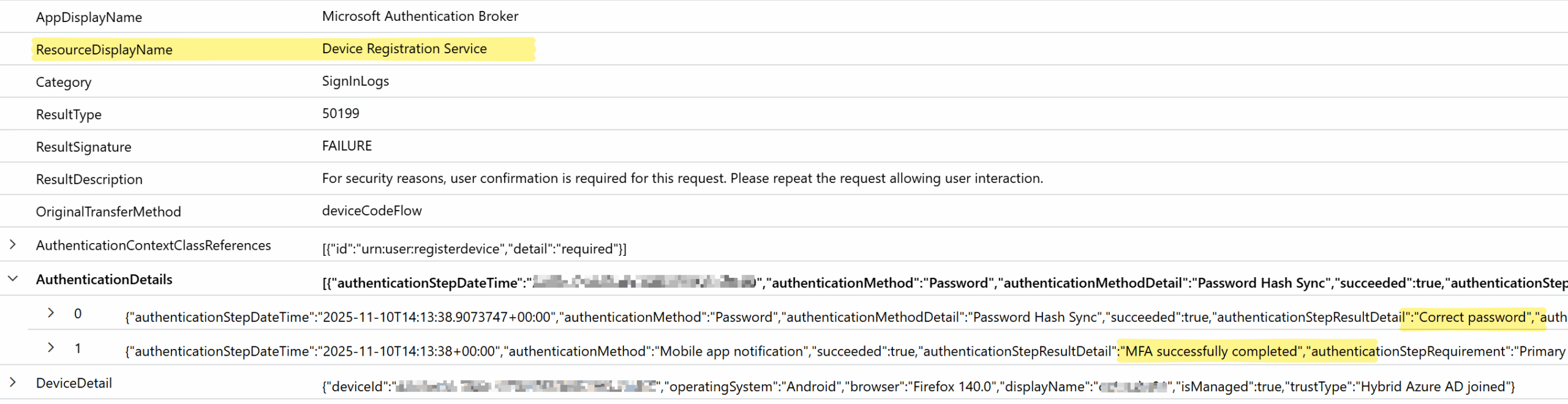
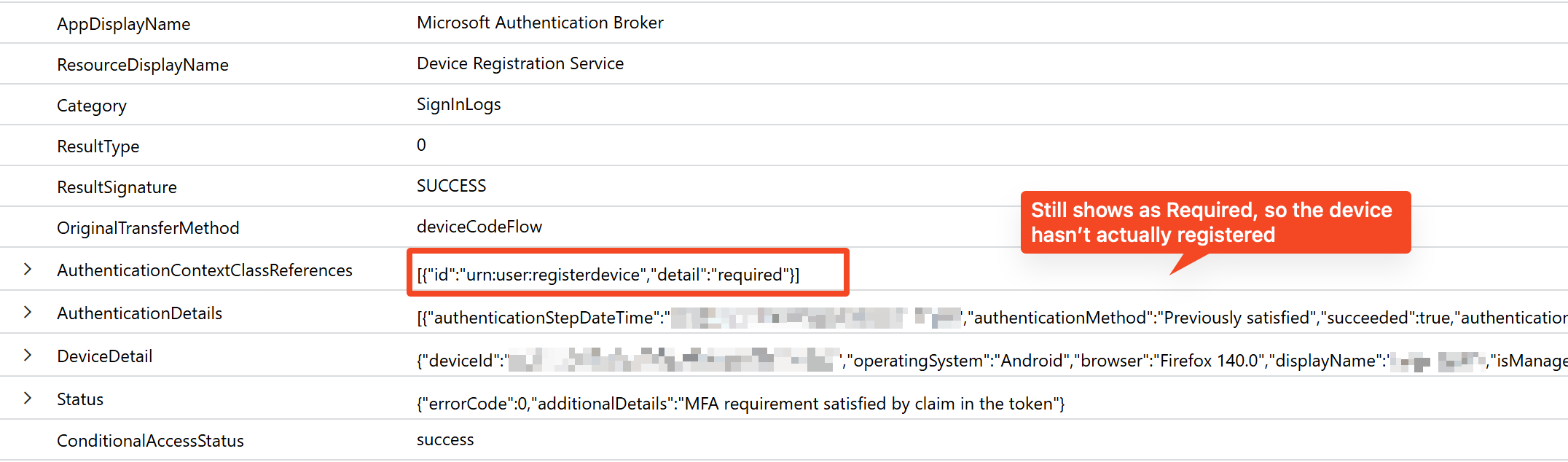
Everything looks alright, except for the error. And in the “success” entry just after this, it looks like the device hasn’t actually registered… so something failed.
Username password flow
This time I clicked “Sign in to this device” on the phone instead of doing a “Refresh code”.
That gives the familiar sign in page from the Company Portal. I enter my email address, password, MFA, and we are off to the races!
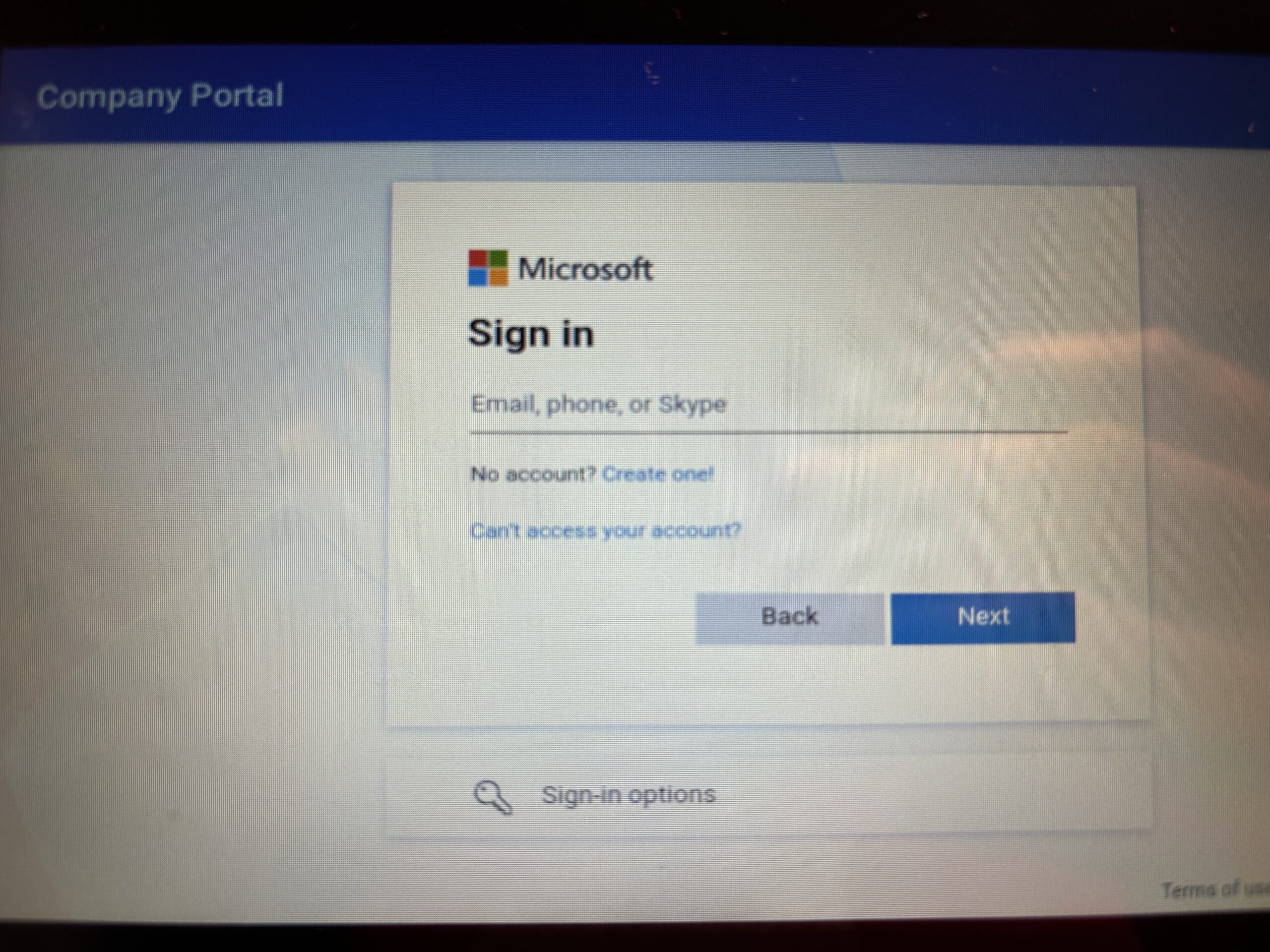
After signing in:
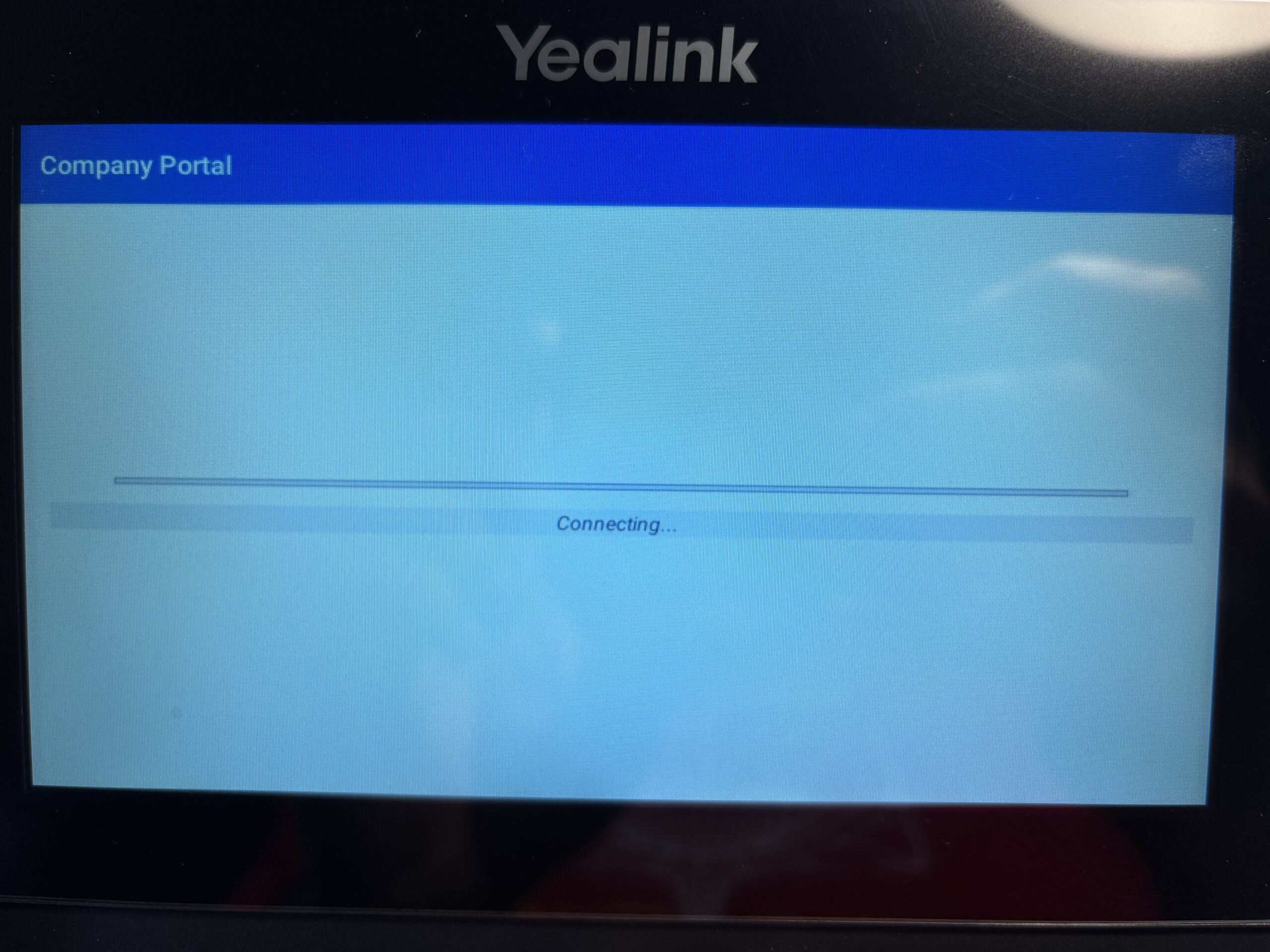
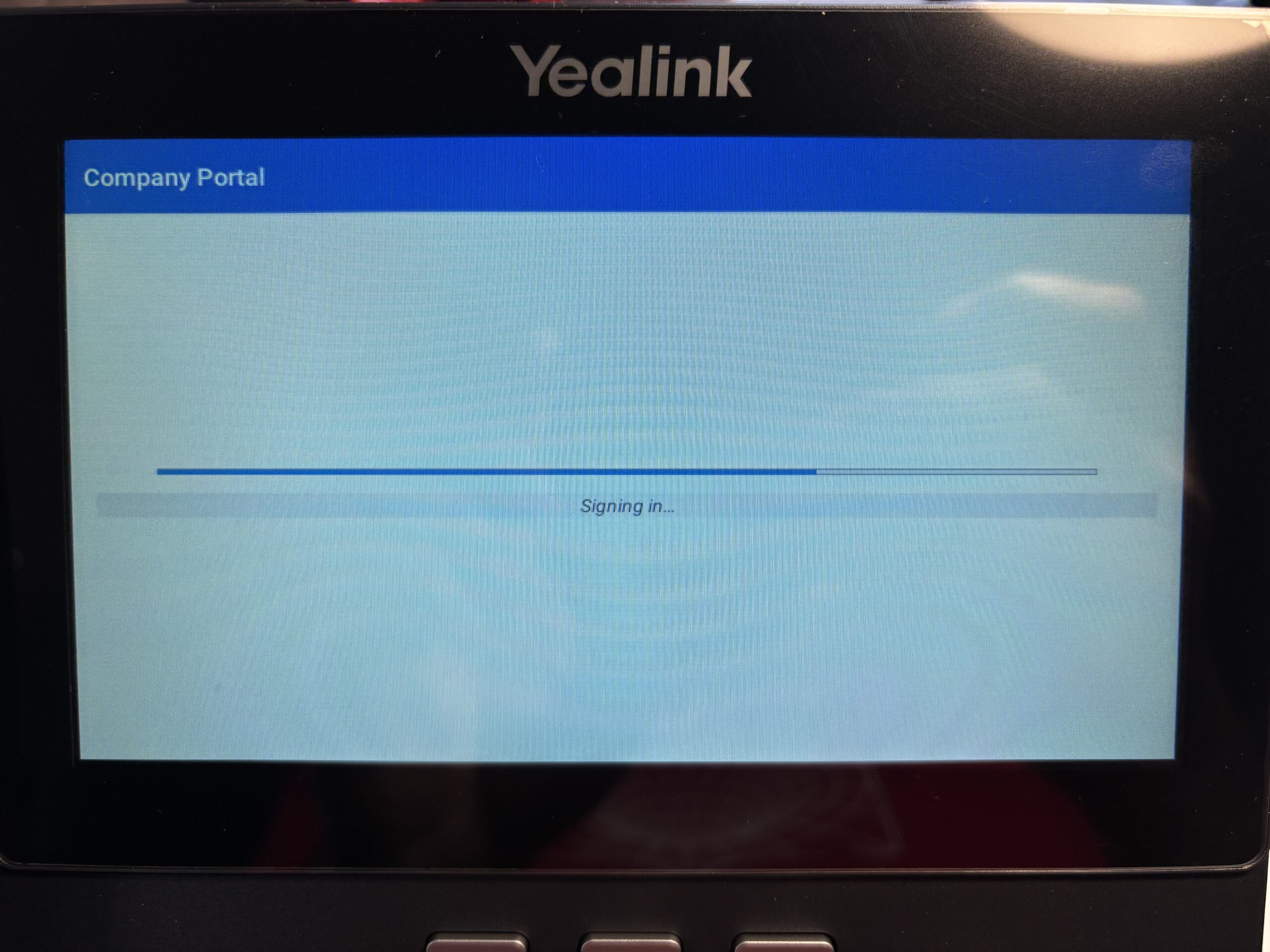
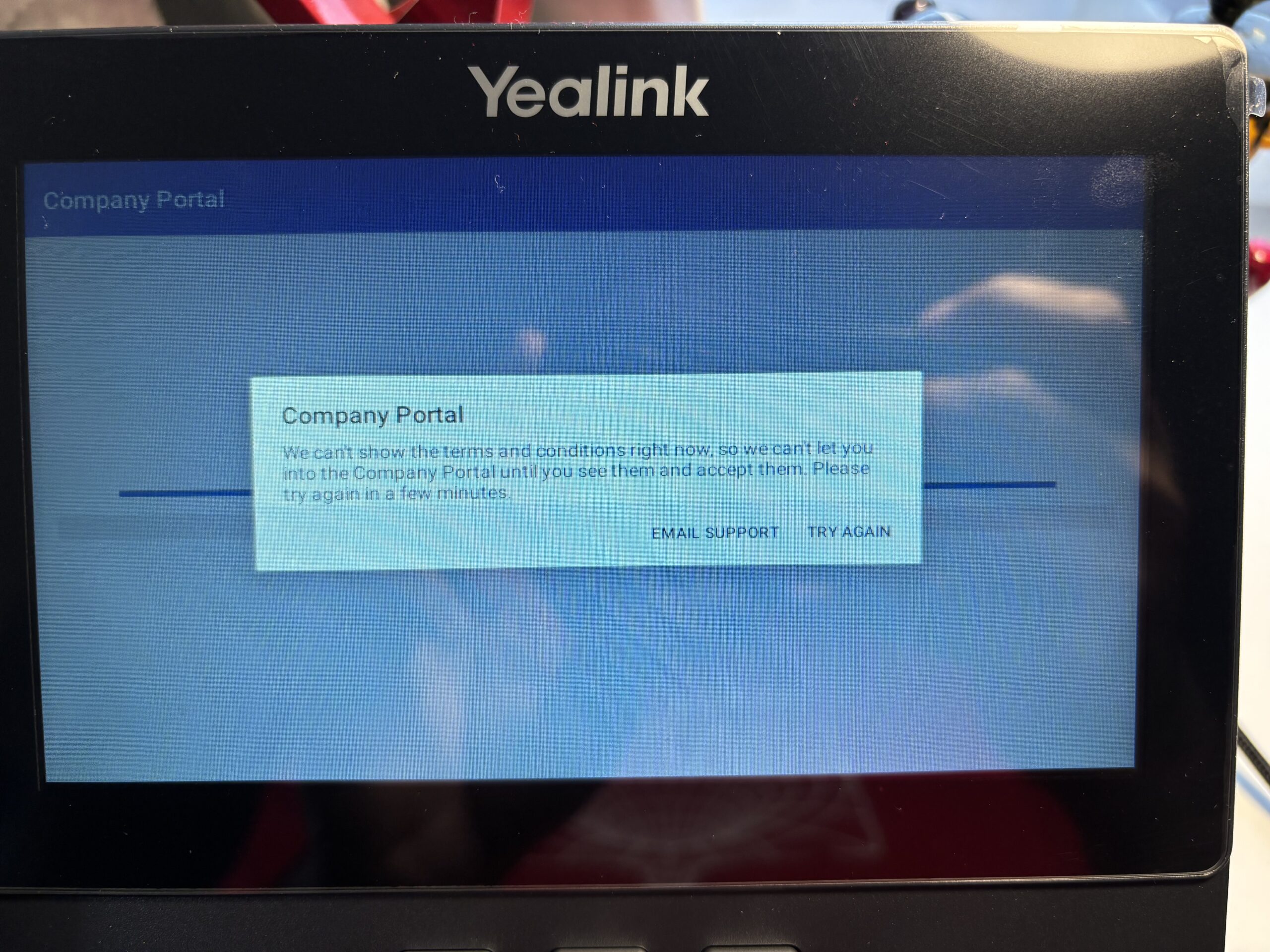
Again that error from before. I clicked “Try again”. This time it worked!
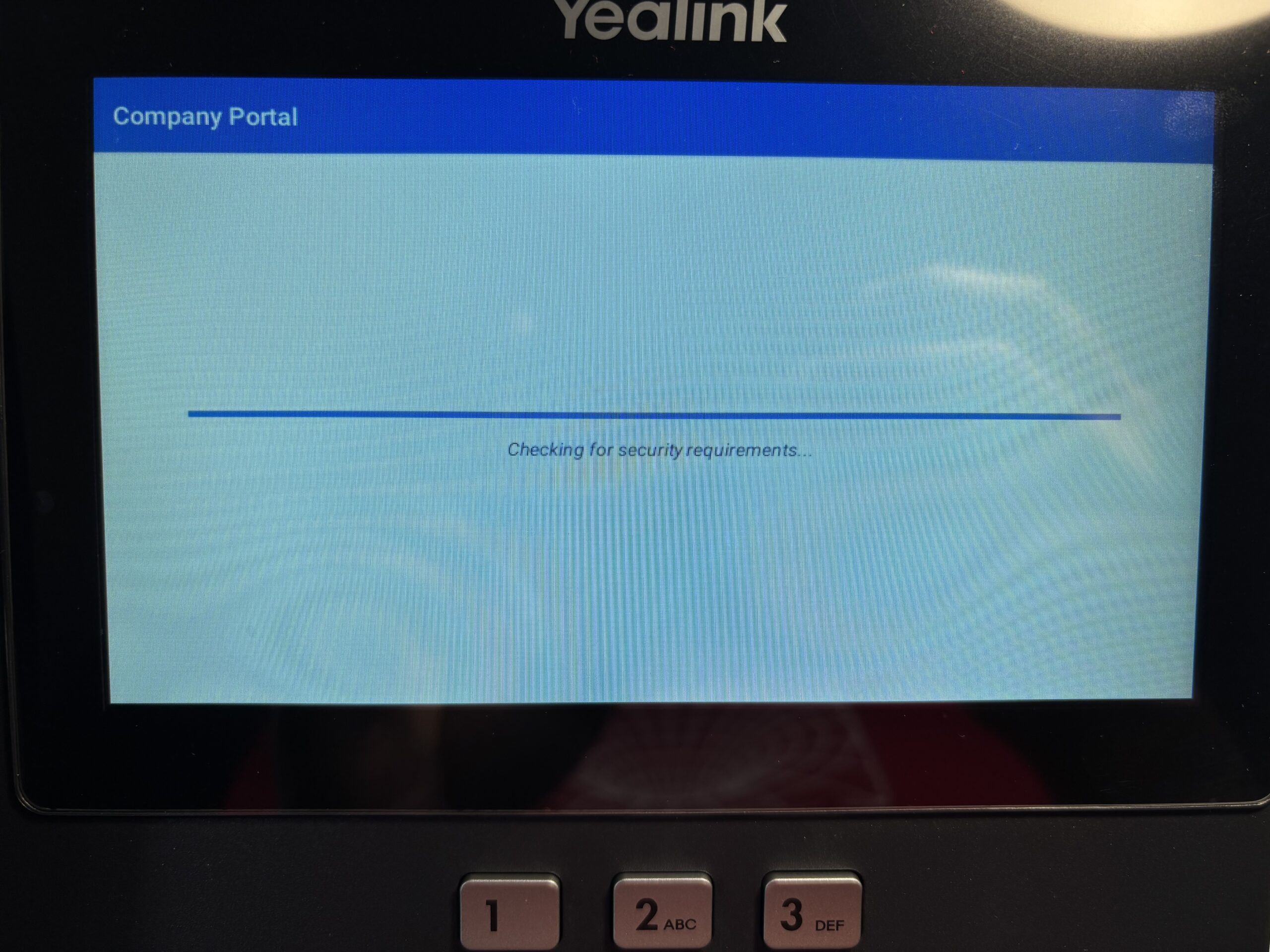
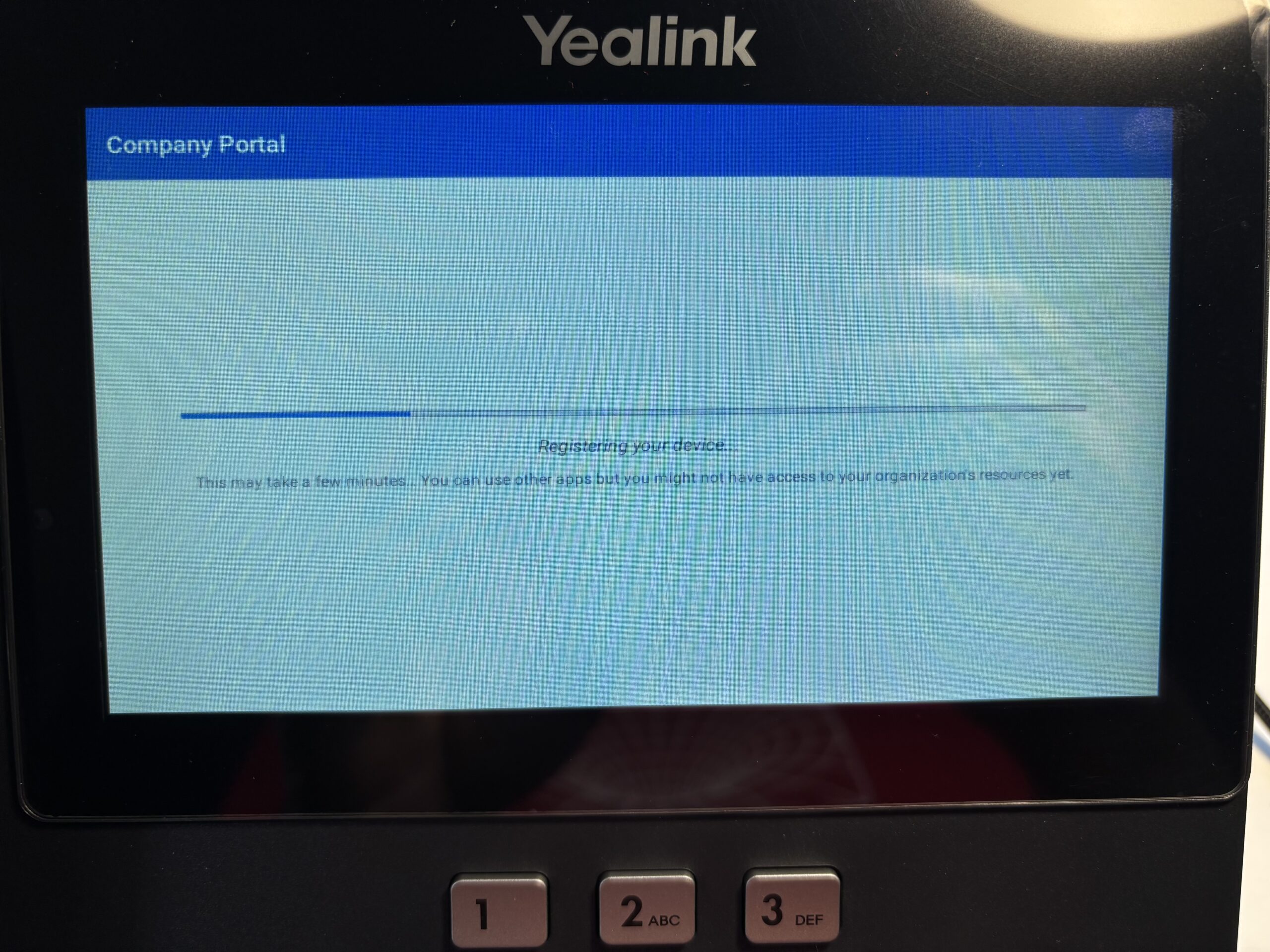
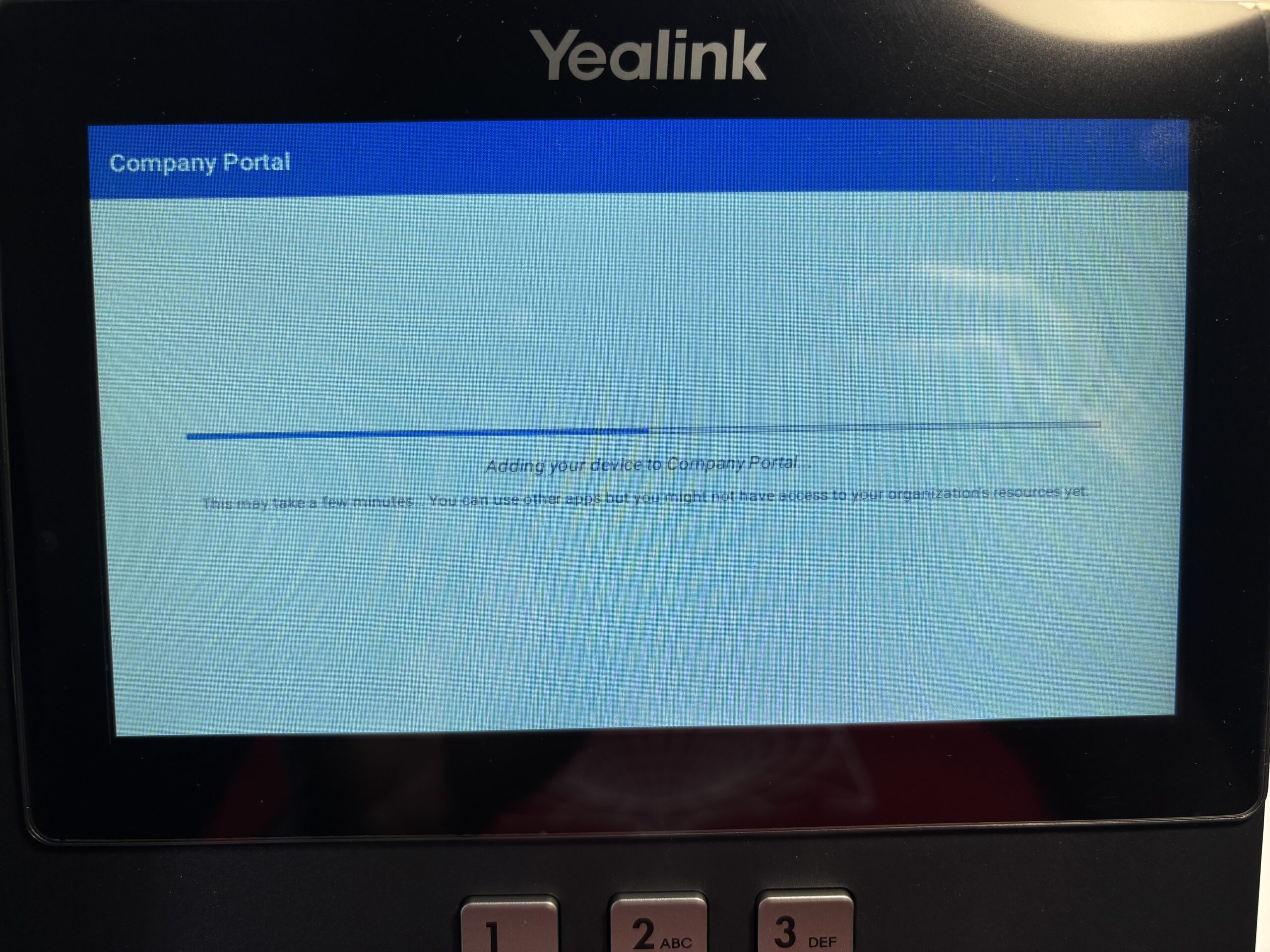
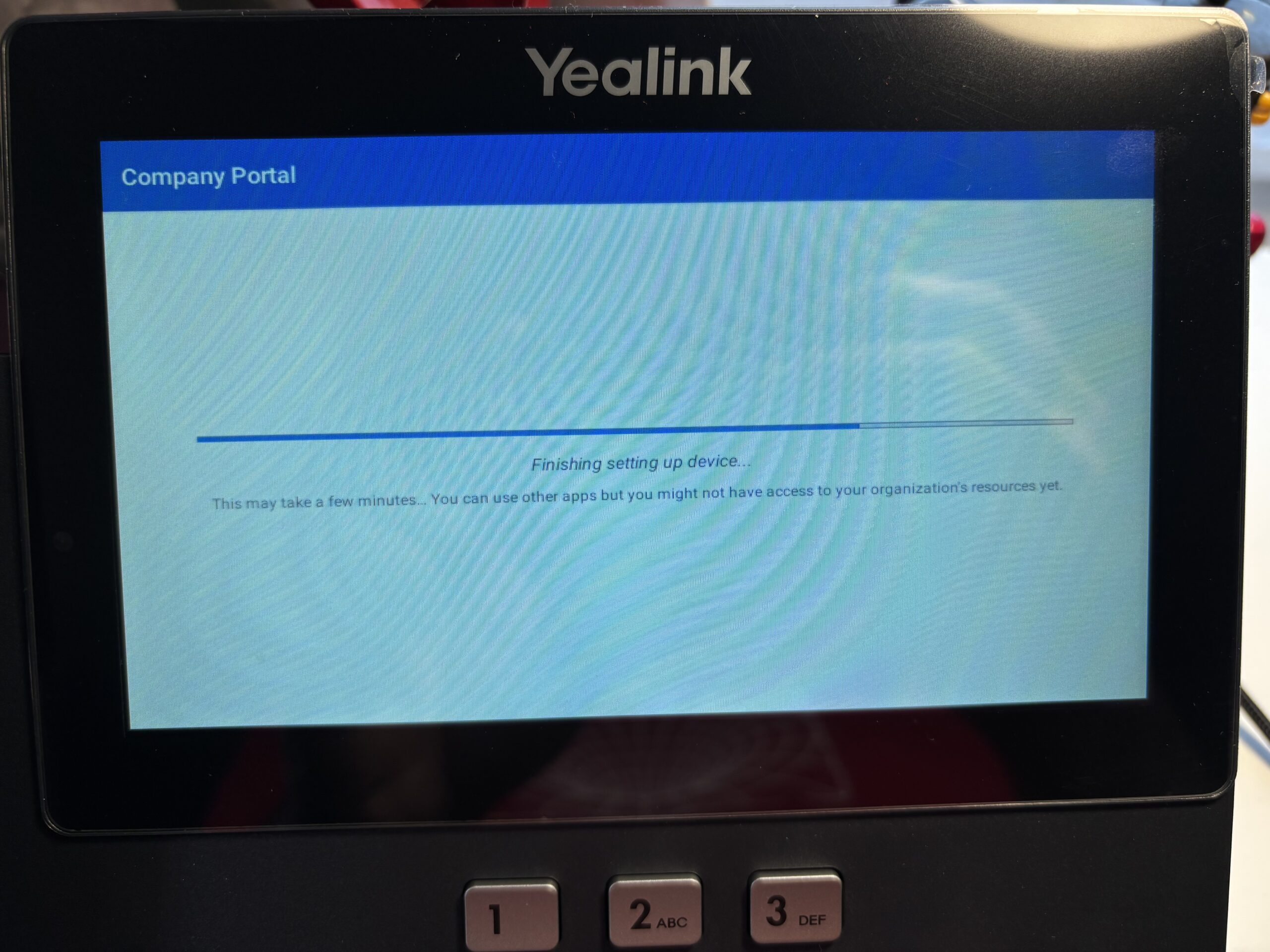
Yay! And finally, a glimpse of the Company Portal apps screen for some reason.
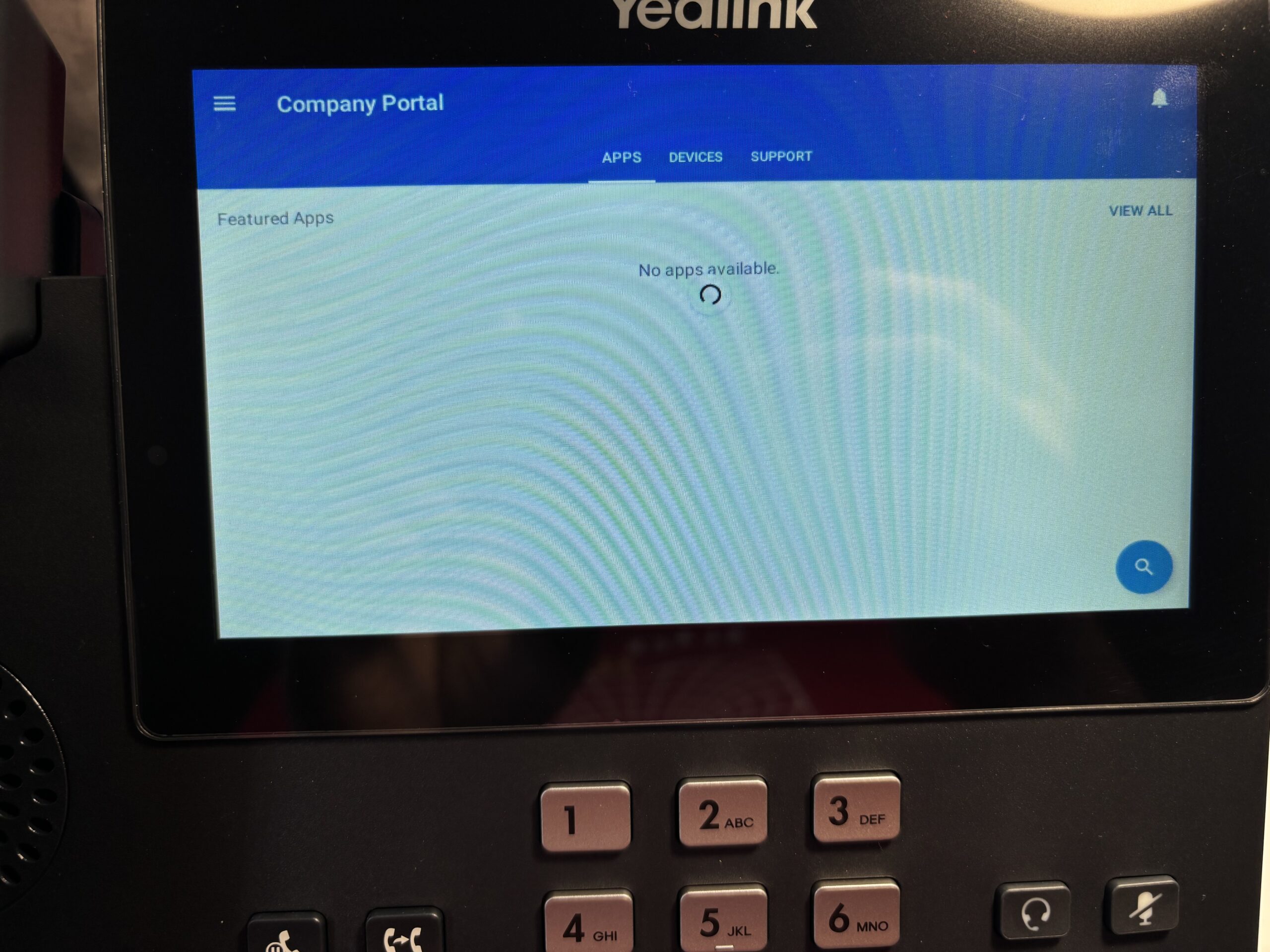
Followed by some more screens from Teams. On the screen where there’s a “Sign in” button it signs in automatically.
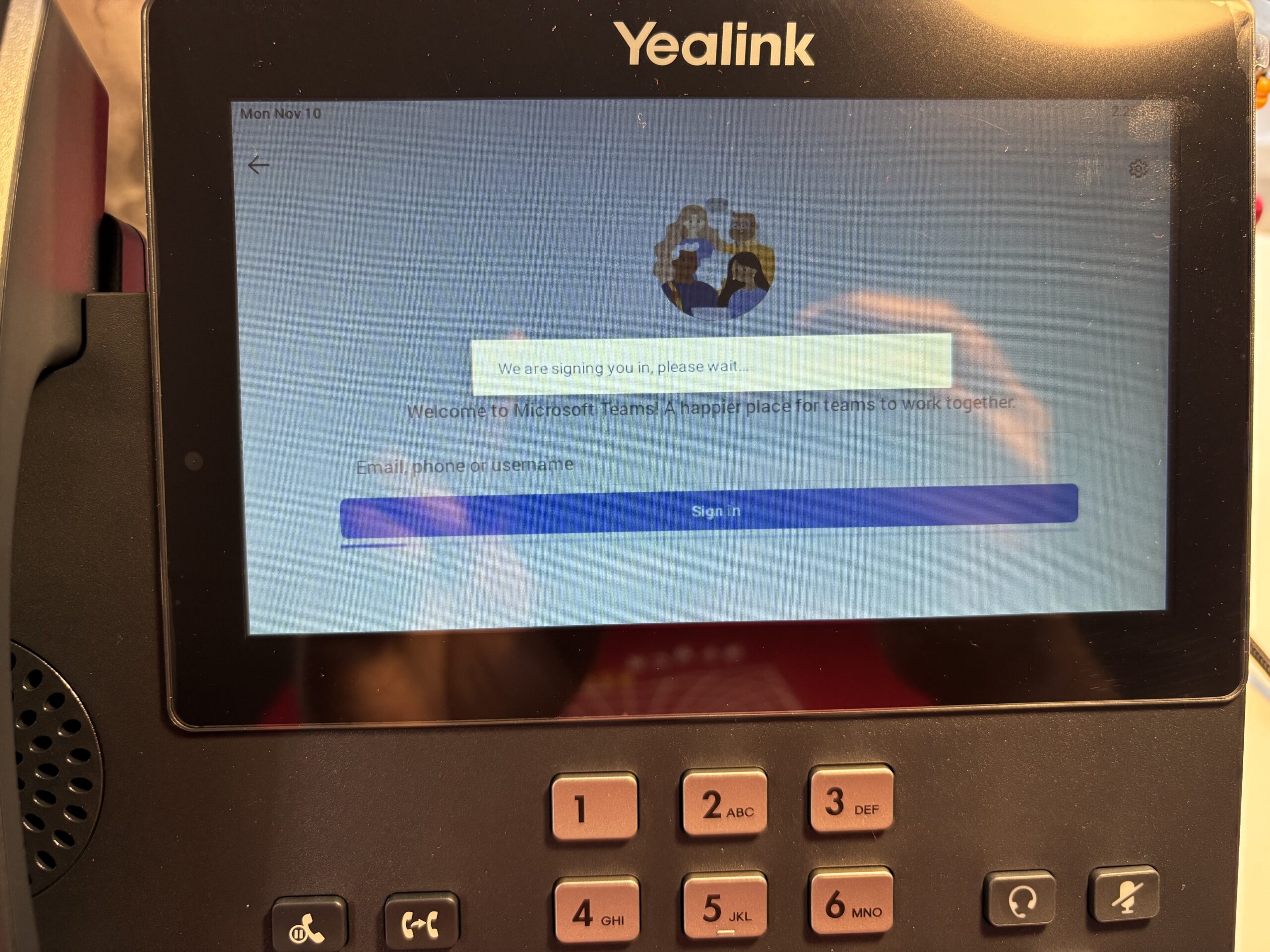
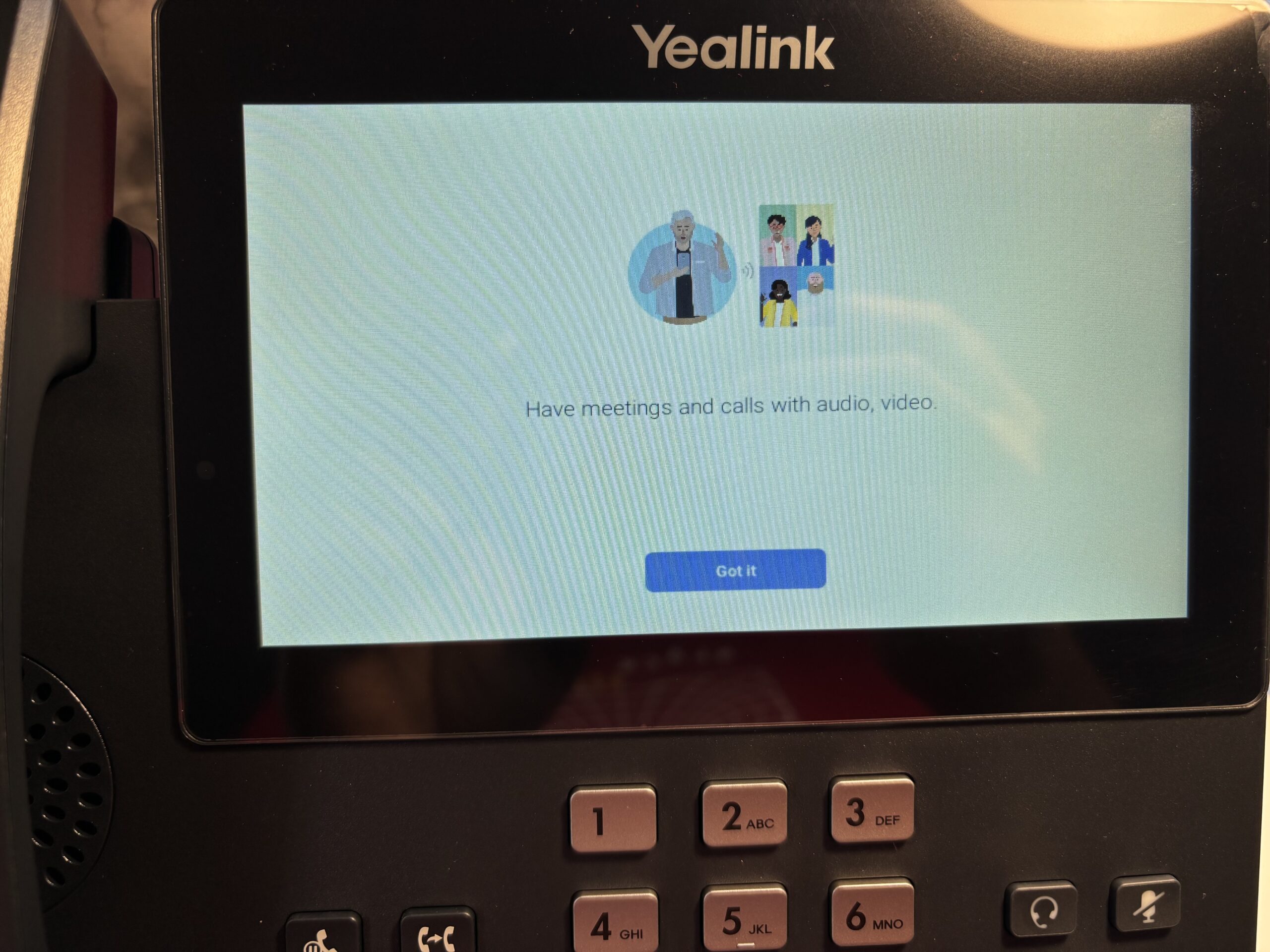
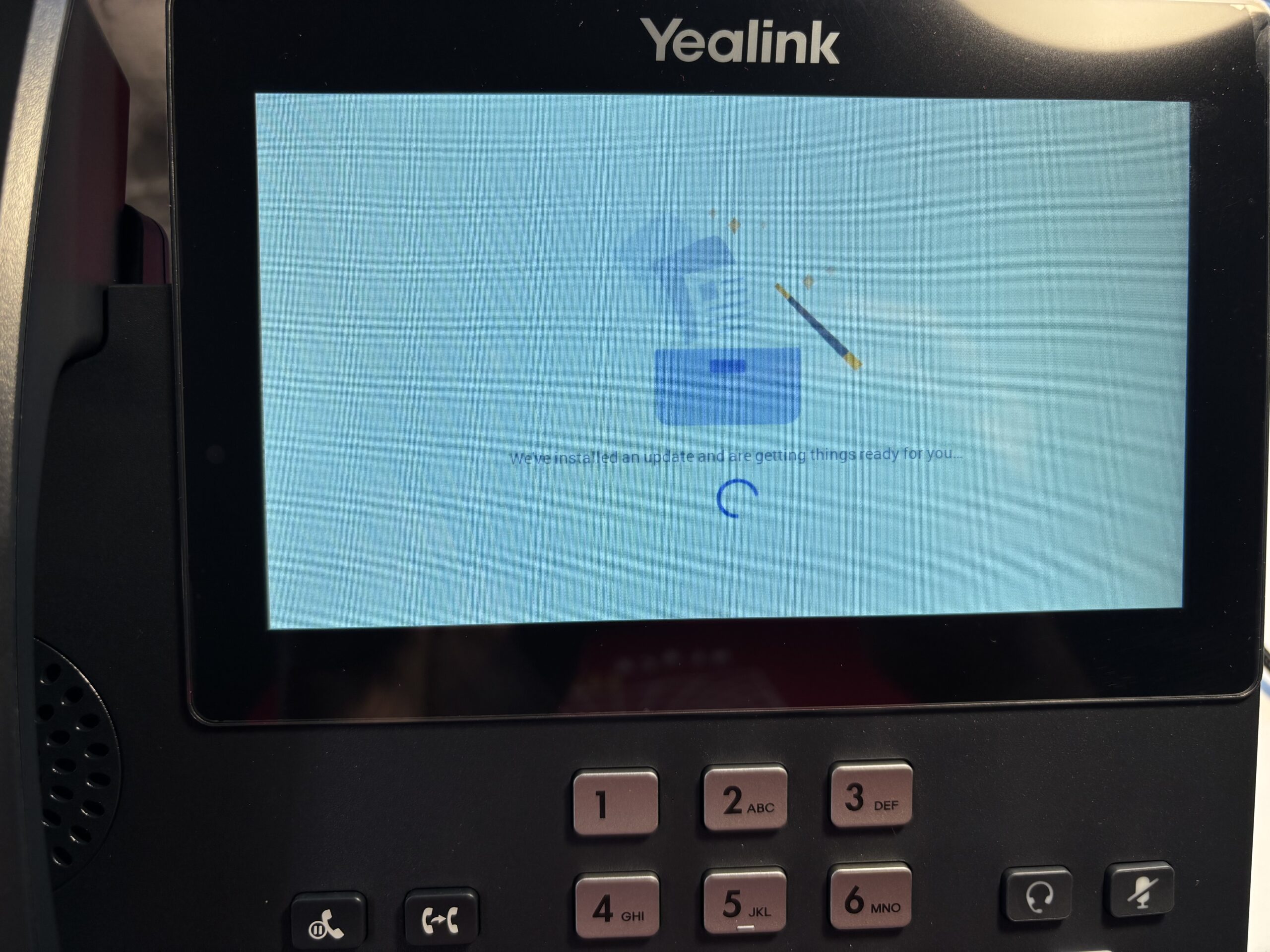
And we are in! After this I am shown the Teams phone UI.
Looking at the logs (oldest at the bottom – read from bottom to top):
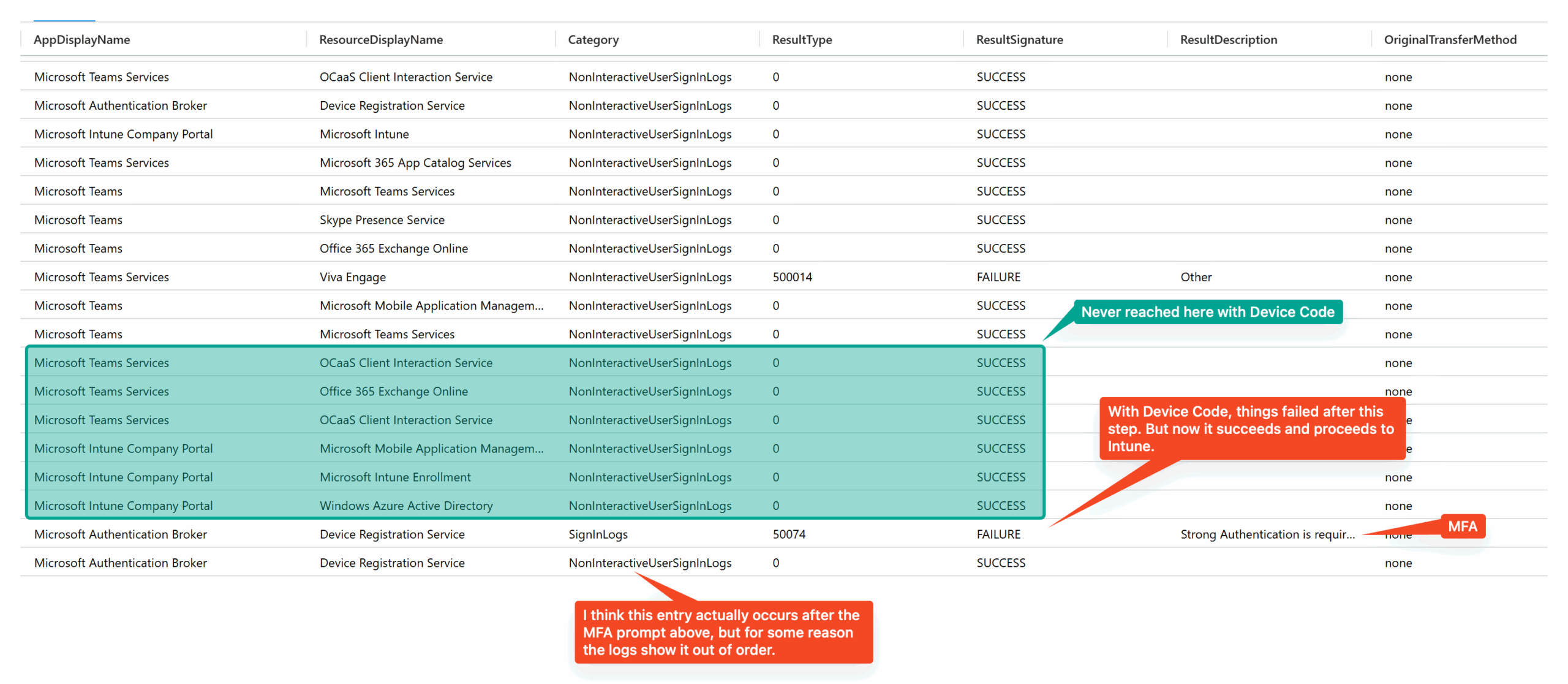
Just after the MFA prompt, when Intune Company portal is talking to Windows Azure AD (the first of the green shaded section), the device has successfully registered. (See the screenshot just after the one below where I can see this).
(contd.) (oldest entries at the bottom – read from bottom to top)
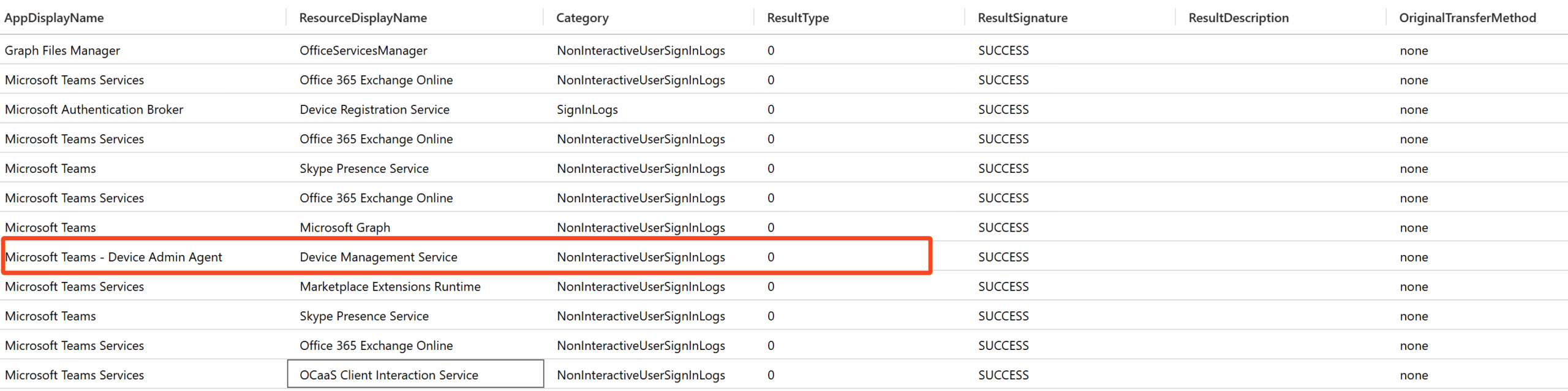
You can see Teams Device Admin also getting involved with Device Registration.
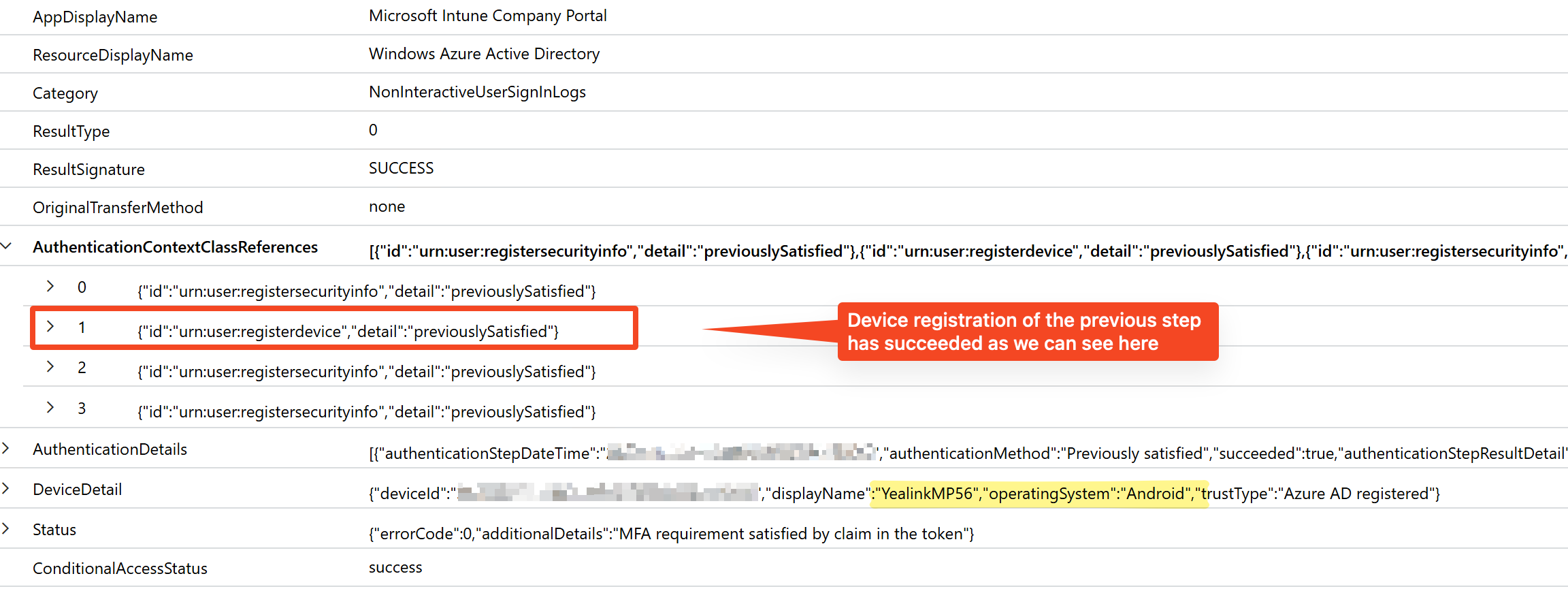
The only difference in the above output vs the Device Code one which failed is that after the Authentication Broker talking to Device Registration Service, we have Intune Company Portal talking to Windows Azure AD. I wonder if something is failing there. Here is what that entry looks like:
Firmware 122.15.0.166
This firmware is from March 2025. It’s the last of the Android firmware for this phone. I don’t expect much changes, but I upgraded to it to have the latest results just in case.
Details:
- Firmware Version: 122.15.0.166
- Hardware Version: 122.1.0.0.0.0.0
- Company Portal Version: 5.0.6152.0
- Teams Version: 1449/1.0.94.2024101709
- Admin Agent Version: 1.0.0.202407050618.product
On the phone, the sign in page is same as before.
Device Code flow
Magic! This worked. 🪄
Not adding any screenshots as it’s exactly as what I put above for the username password flow with the previous firmware. Only difference is that the Company Portal picked up the firm logo and theme instead of the default blue.
The logs look better too (of course) (oldest entries at the bottom – read from bottom to top):
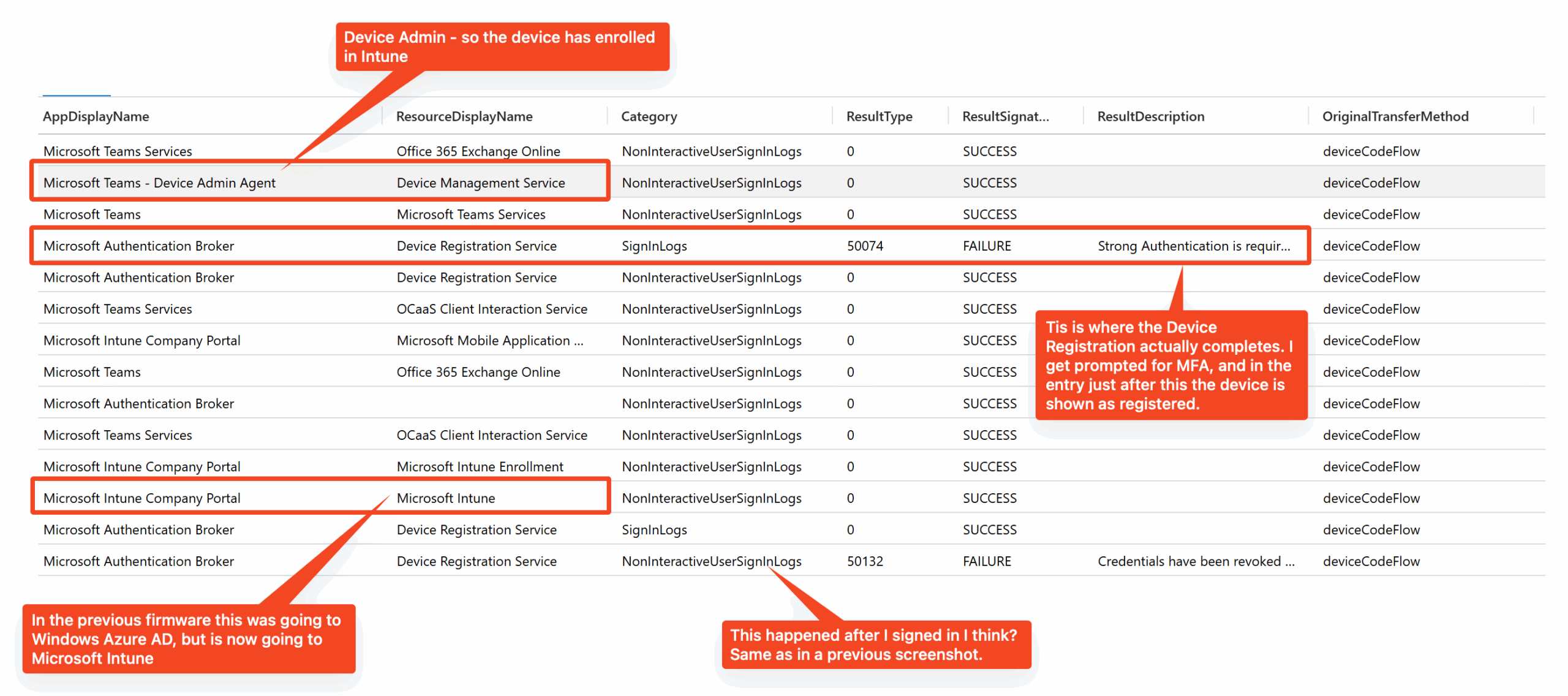
Key takeaway #1: firmware matters. Nothing changed on the Conditional Access policies or user account between the two firmware versions, but in the older one Device Code flow failed for no apparent reason, but in the newer one it worked. I think this point bears emphasising, because Conditional Access is usually blamed for a lot of things, but it isn’t always the culprit.
Key takeaway #2: you can block Device Code flow in general but only need allow it for the Device Registration action and exclude Teams Phone devices, and Teams Phones enrollment will work. The Microsoft docs make it sounds like you need to allow it carte blanche for the user, but you don’t really need that.
👉 A quick sidebar on blocking Device Code flow for all, except Teams Phones
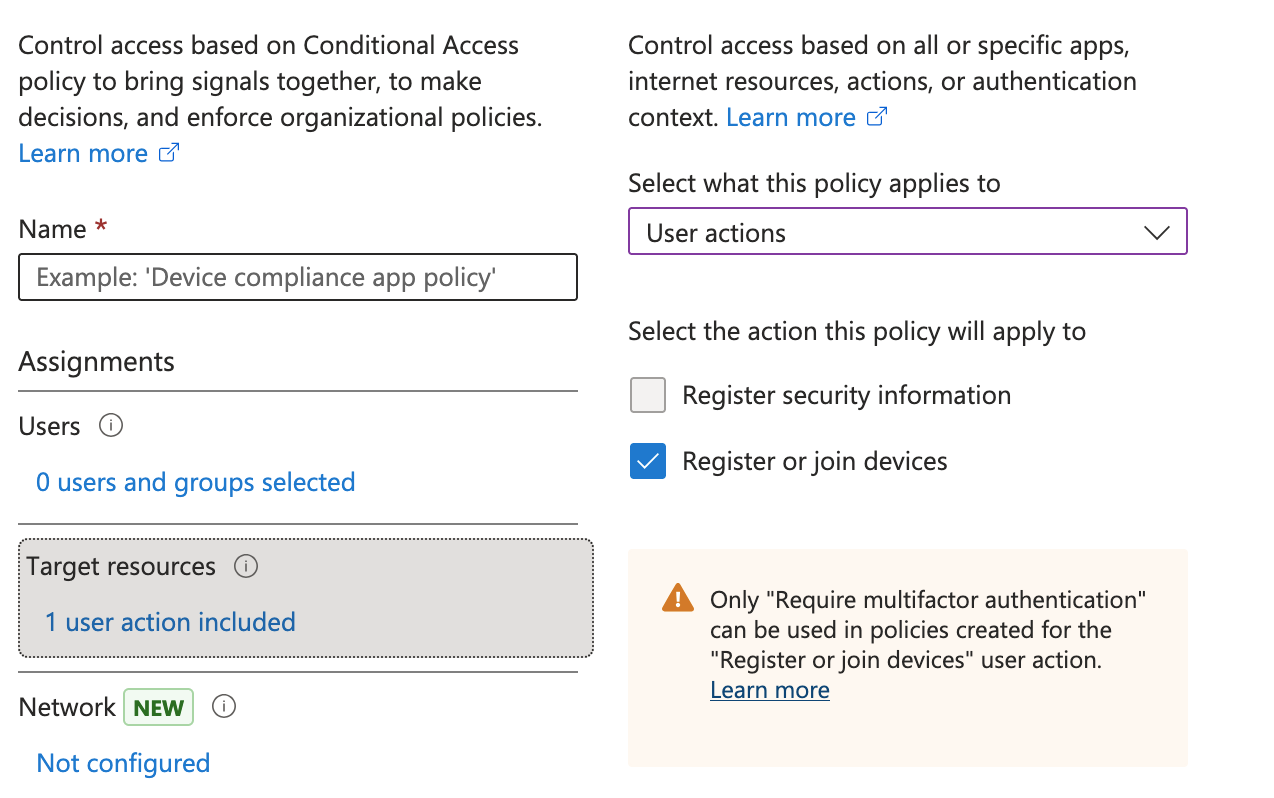
The Device Registration action is under Target resources > User actions > Register or join devices. But you can’t exempt it coz the only option available is to include it.
Instead, apply the policy to “All Cloud Apps” but exclude “Device Registration Service”.
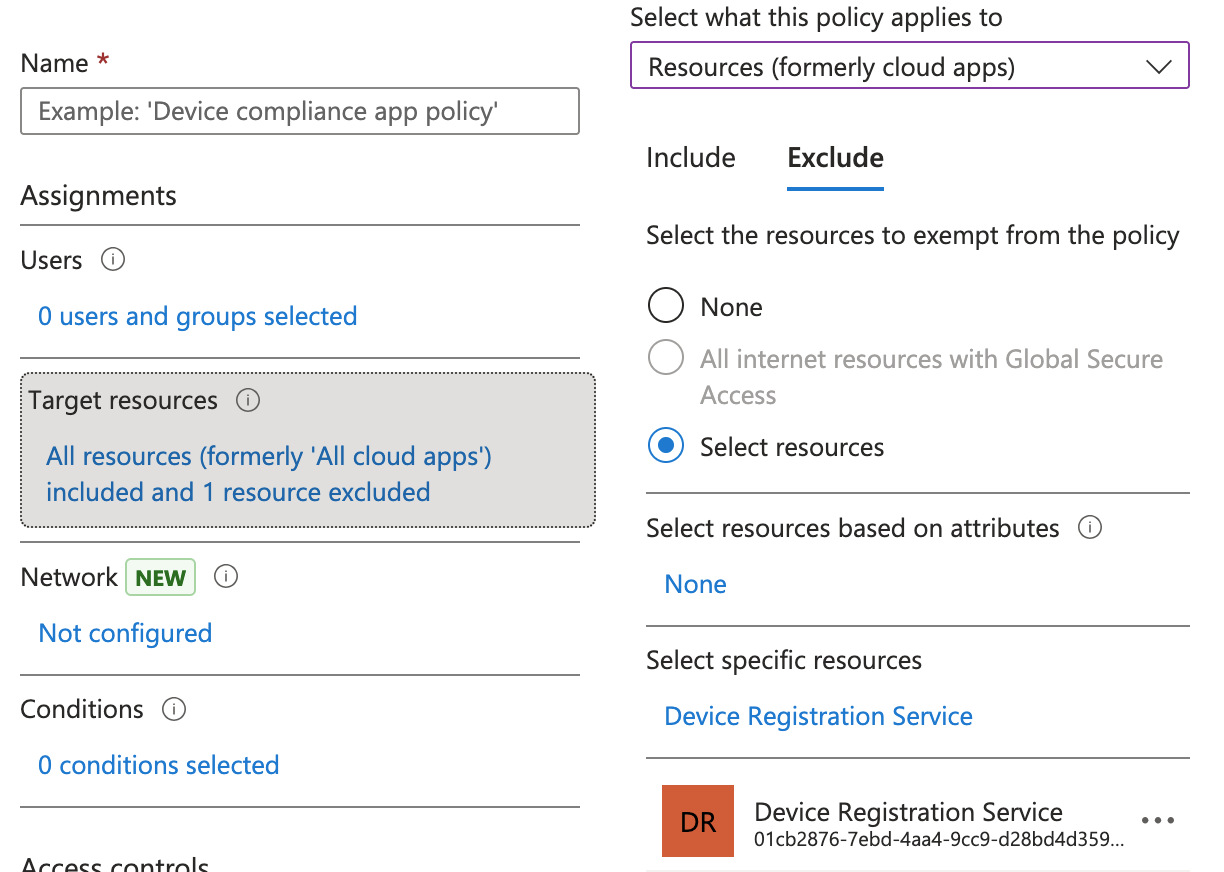
I am not sure what the difference is between the action and the app. I’d imagine the action is just a convenience thing and that it actually calls upon the underlying app, so that’s why excluding the app does the trick.
However, excluding only Device Registration Service from the Device Code block policy doesn’t help when it comes to Intune enrollment or using Teams etc. That’s because all these continue to be a part of the Device Code flow. Here’s a repeat of the screenshot I put above. Notice the transfer method is still deviceCodeFlow when it comes to Intune Enrollment, Teams Service, etc.
So we need to exclude Device Code flow for these too. The neat thing is since these steps are after the device has registered, we have more details of the device available to play with. Thus, we can exclude for instance devices with name “Yealink MP56” from the Device Code block policy, and so Device Code flow will continue working after the device has registered and when it tries to enroll in Intune etc.
Note: I am not saying that this is what one should do, all I am saying is that if one devices to block Device Code flow (is a good thing to do), then it must be exempted either for Teams Phone based on the users or some other criteria. Excluding for Teams Phone users doesn’t make sense because then these users can use Device Code flow for anything; so a better idea is to be more fine grained. Excluding based on the device display name or manufacturer is a compromise, and it will need some work as new models and manufacturers are introduced.
Username password flow
Interestingly, after successfully enrolling as above, I signed out of the device and also deleted it from Entra ID. Then I tried the username password flow, and that failed immediately after prompting me for MFA.
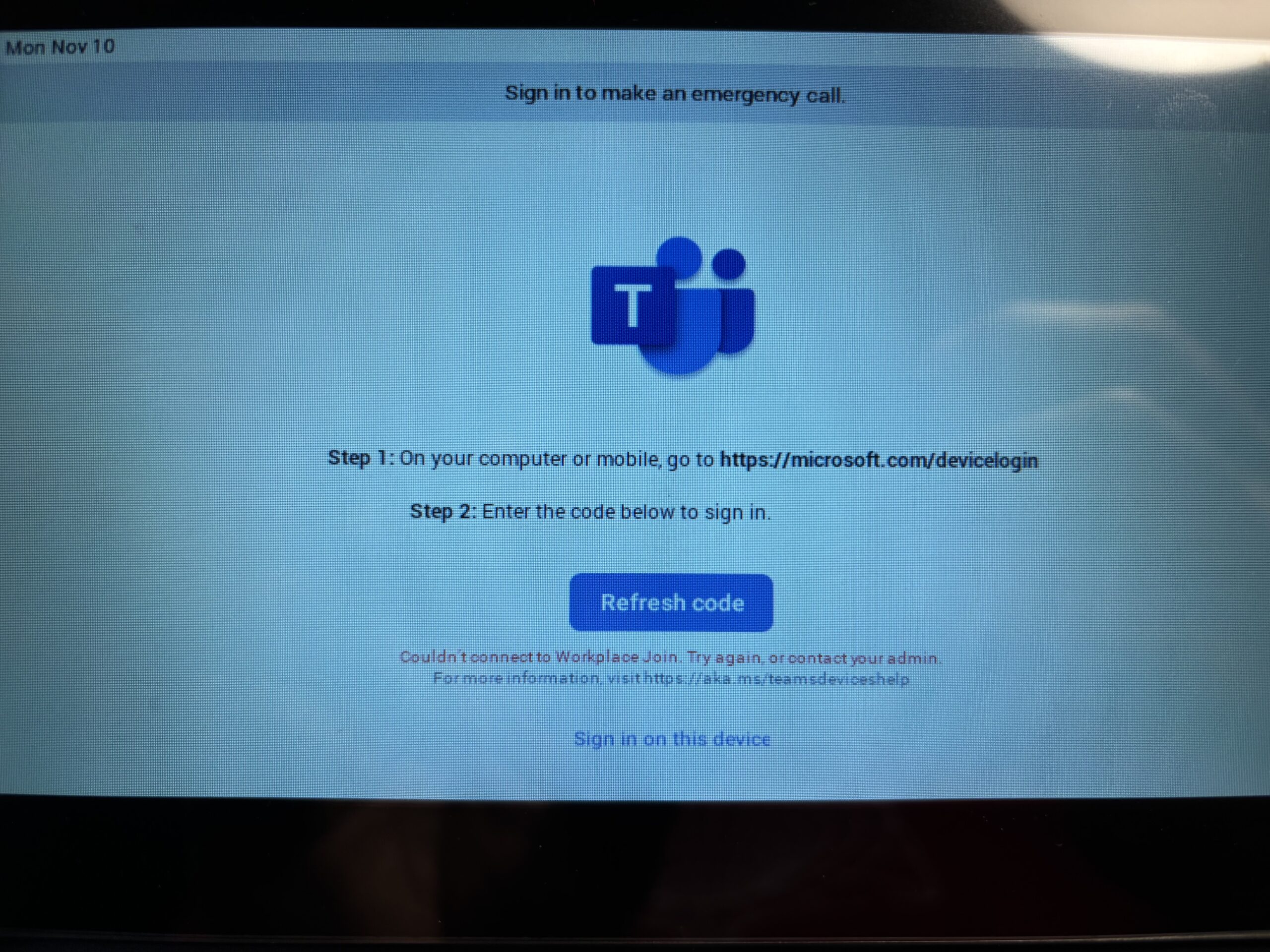
“Couldn’t connect to Workplace Join. Try again, or contact your admin”. Weird.
So I reset the device to factory settings and tried again (resetting to factory settings does not downgrade the firmware btw).
Surprise, now it worked! 🙃
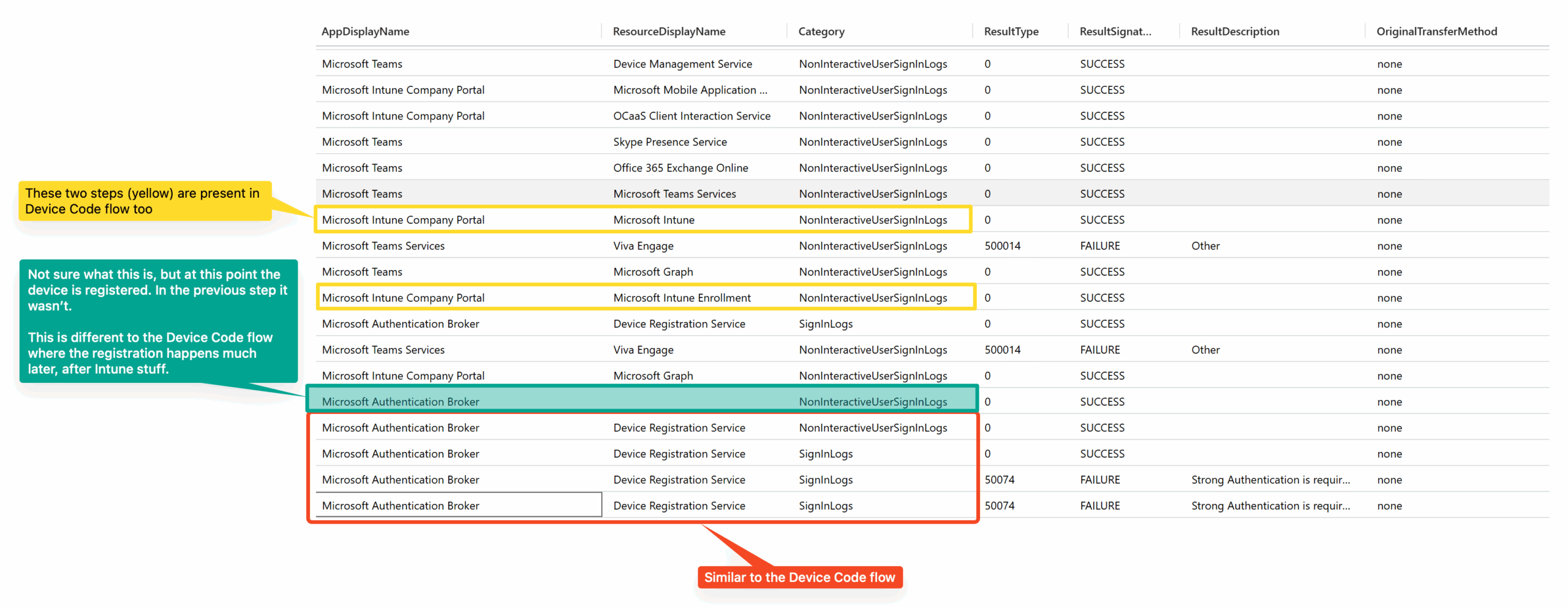
It’s very different to the Device Code flow. I wasn’t expecting that to be honest.
(contd.) (oldest entries at the bottom – read from bottom to top)
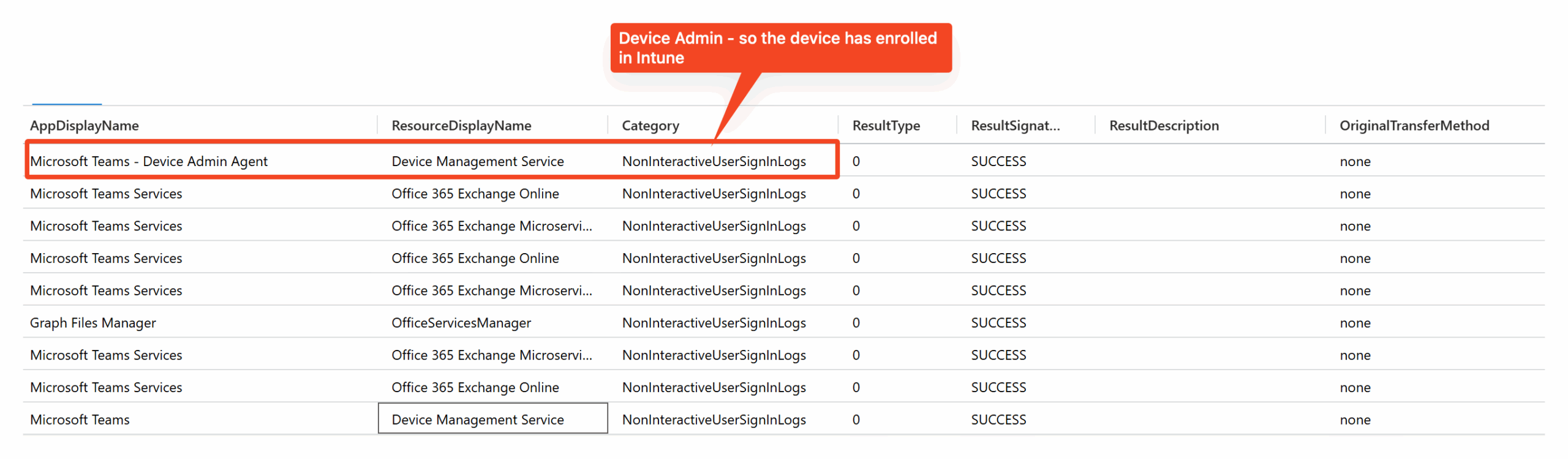
As you can see there’s lot more stuff happening!
👇 What follows below is some additional issues I encountered. They got resolved by themselves in the end, and all I can attribute them to is some Intune outage on Microsoft’s side. I took the effort of writing notes and putting screenshots, and didn’t want to delete them all so here they are. Feel free to skip.
Frustrations
I reset the device one more time and did a Device Code flow authentication (just for kicks!) and now I got the “Couldn't connect to Workplace Join. Try again, or contact your admin” error I previously received with username and password. Weird.
A second reset didn’t make a difference either. Interestingly, the logs show similar messages as what I received with the very first/ default firmware when Device Code flow was failing.
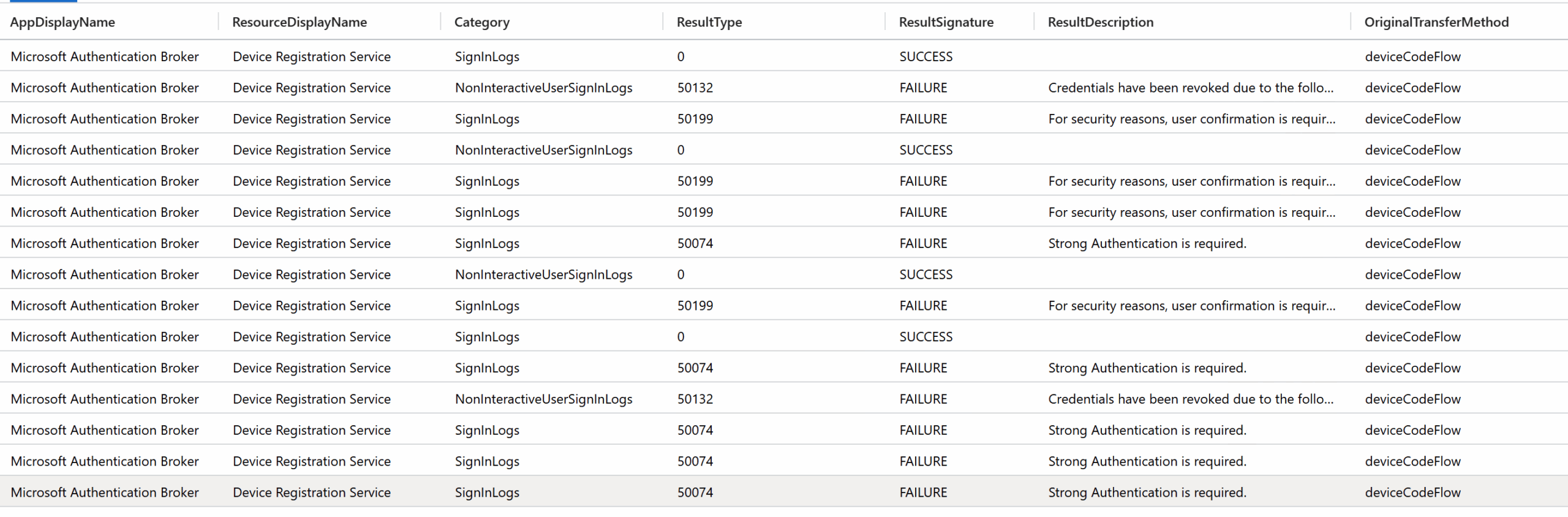
So I rebooted the device and tried, and this time it went further but failed with a different error.
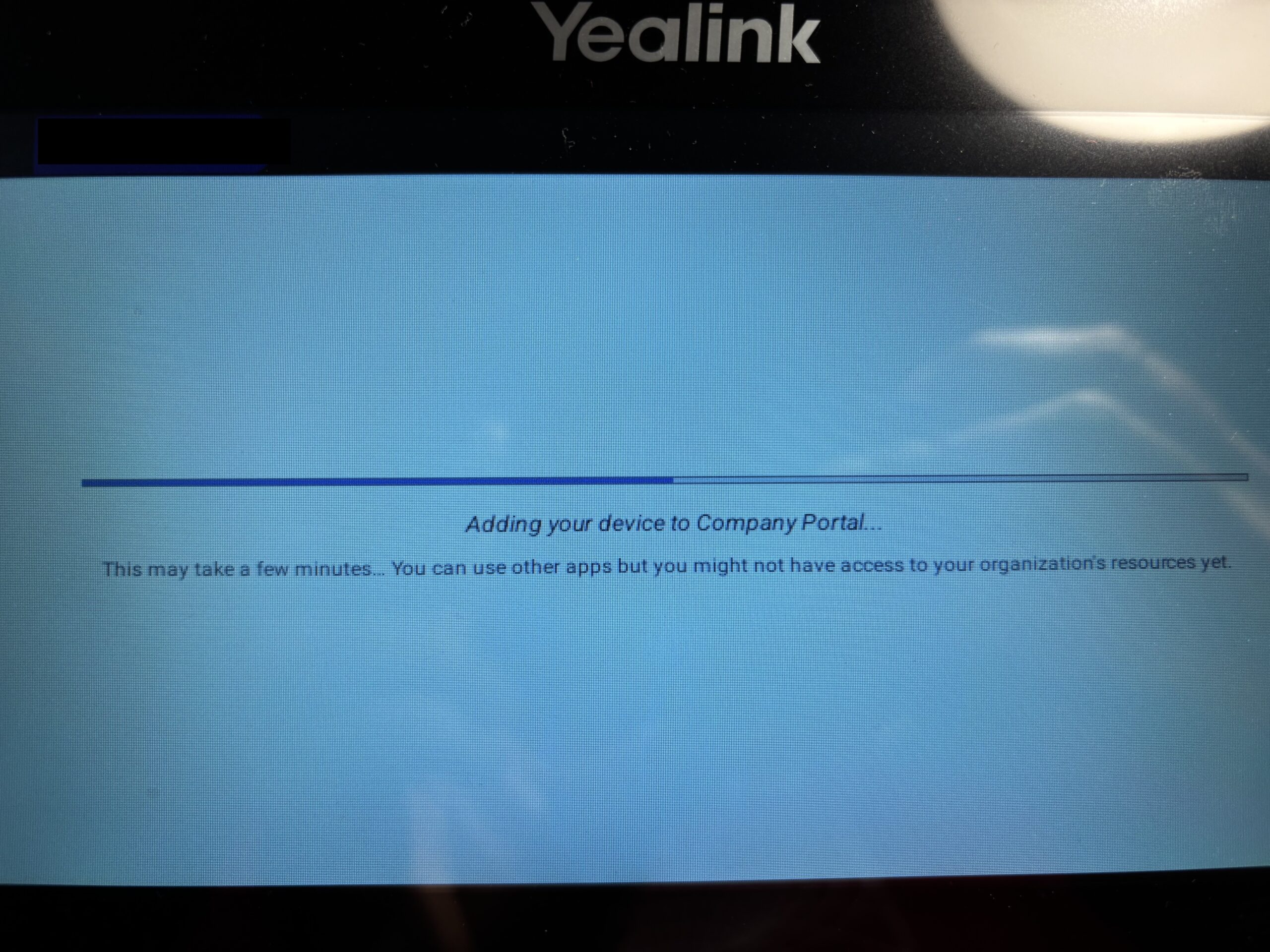
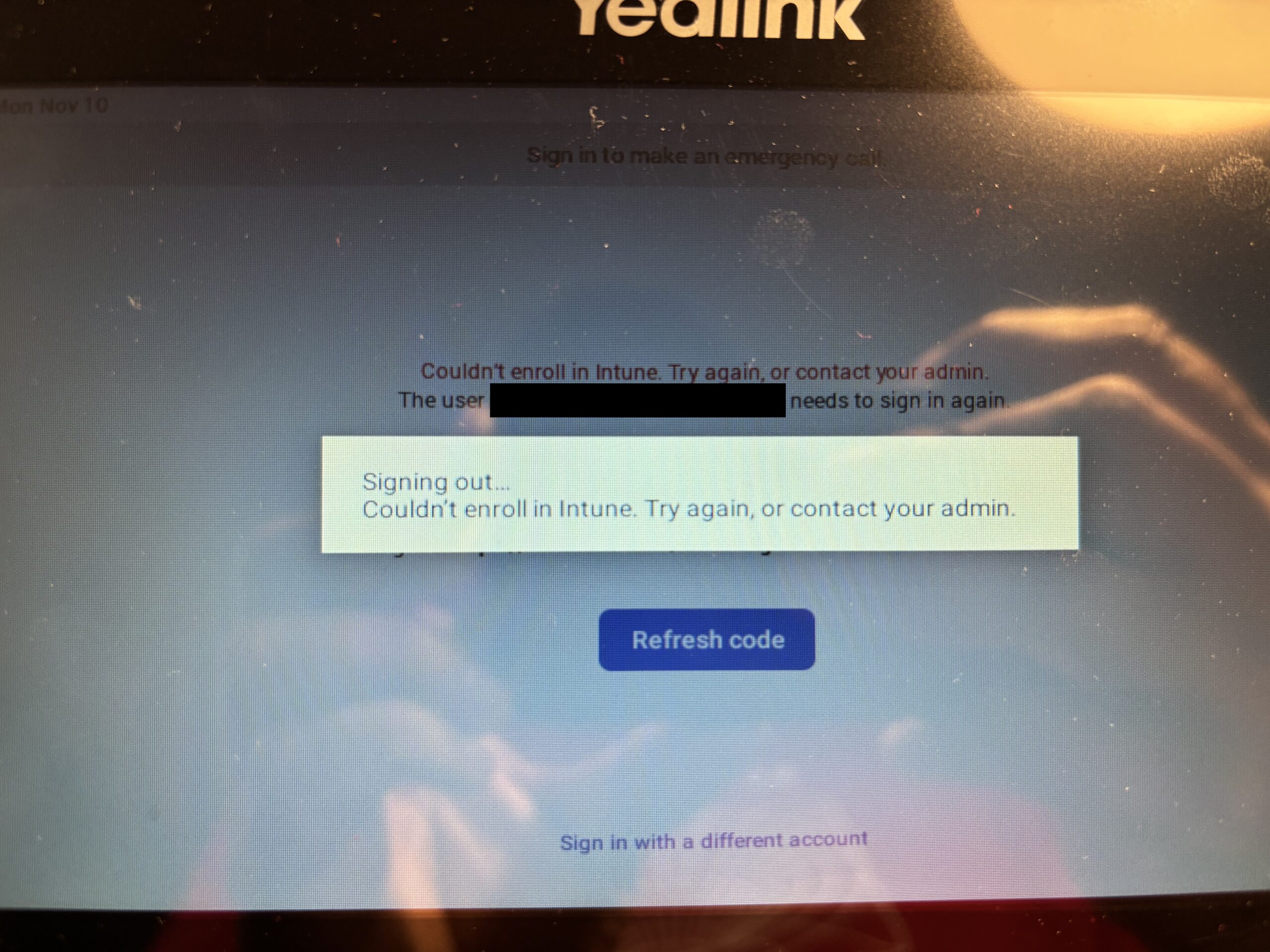
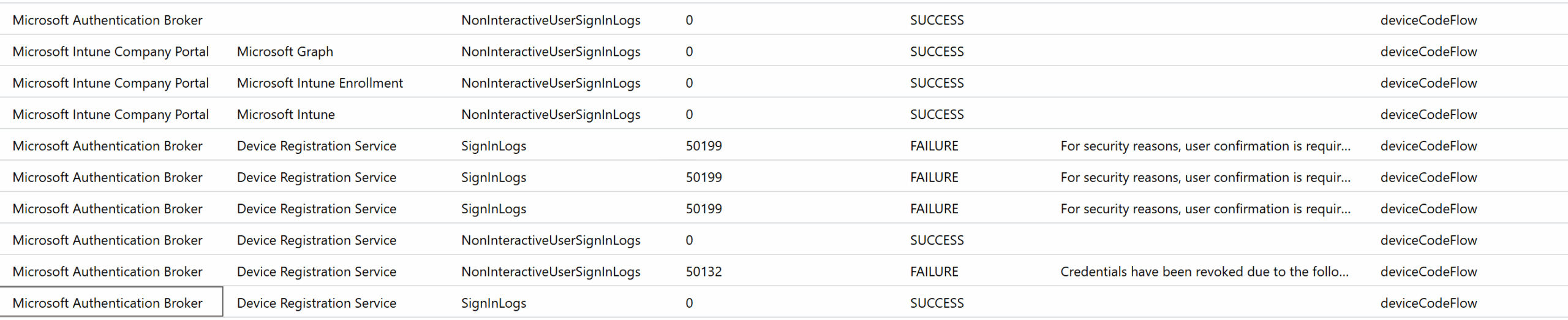
This time even though I was getting the same “For security reasons, user confirmation is required...” errors as before, things were proceeding further (notice the SUCCESS from Intune Enrollment).
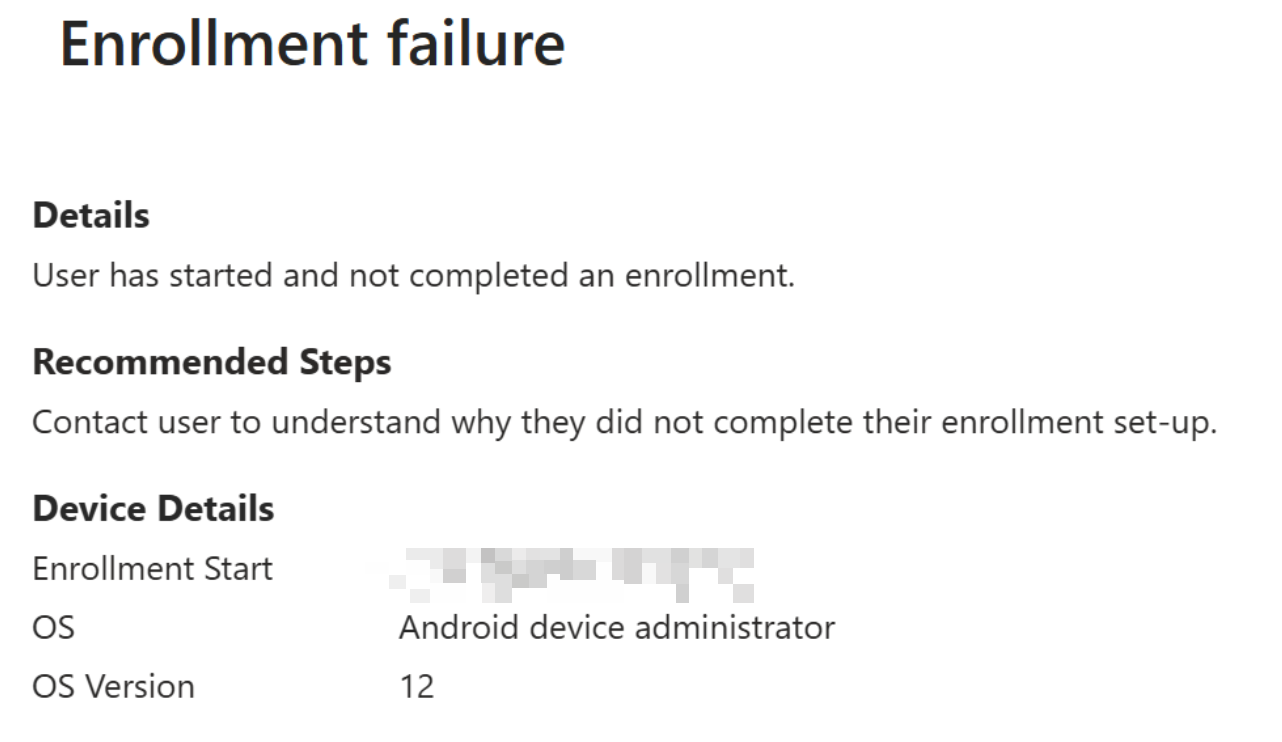
So I took a look at Intune and sure enough things reached Intune and failed. In fact, interestingly, I had only two enrollment failures under my account – one from now, and one from earlier in the day when I tried with the original firmware.

Vague error though.
I double checked the phone firmware with what I had noted down earlier – no change. And yet something was failing.
The weird thing, moreover, was that each time I reset the device and try I was getting a different error. On my 3rd attempt it seemed to again proceed as usual but then dropped me at this sign in page, and then when I tried to sign in via Device Code nothing happened.
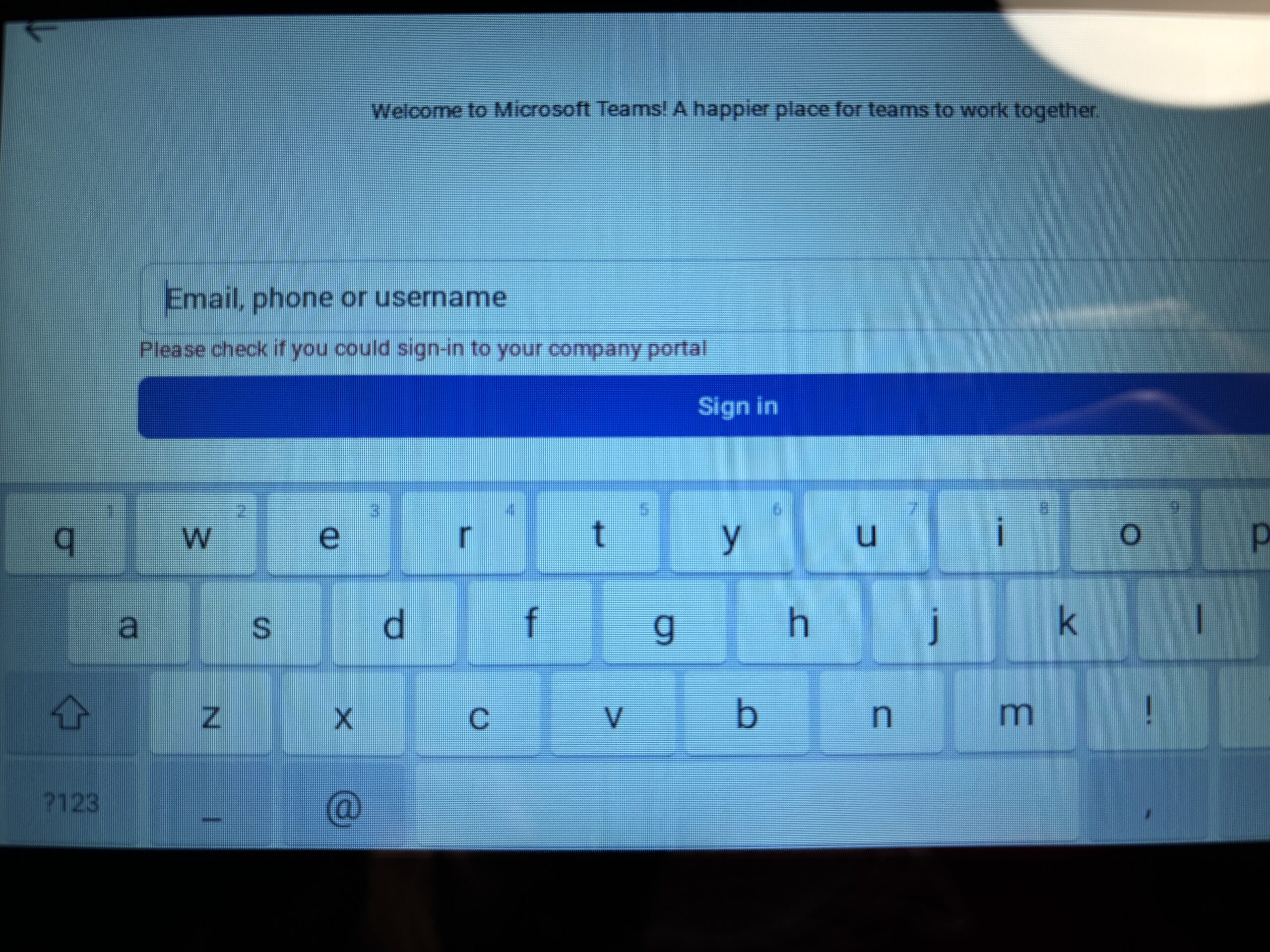
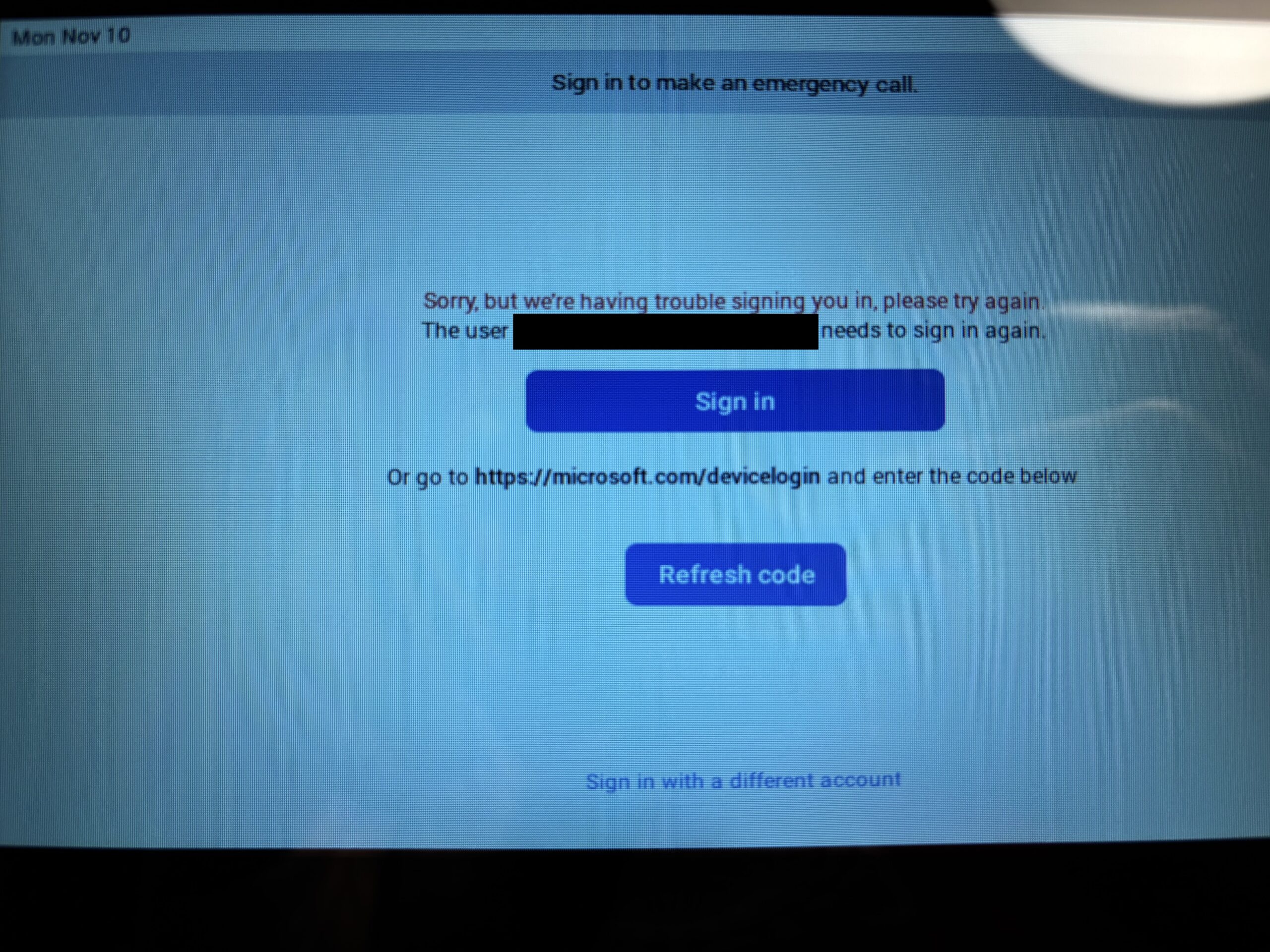
Aaargh!
On my 4th attempt, things were at least consistent in that I got the same error as above. So I decided to dig deeper into the sign in logs.
Interesting thing is even during this attempt the device is getting registered in Entra and then failing. And… it is failing due to our Conditional Access policies.
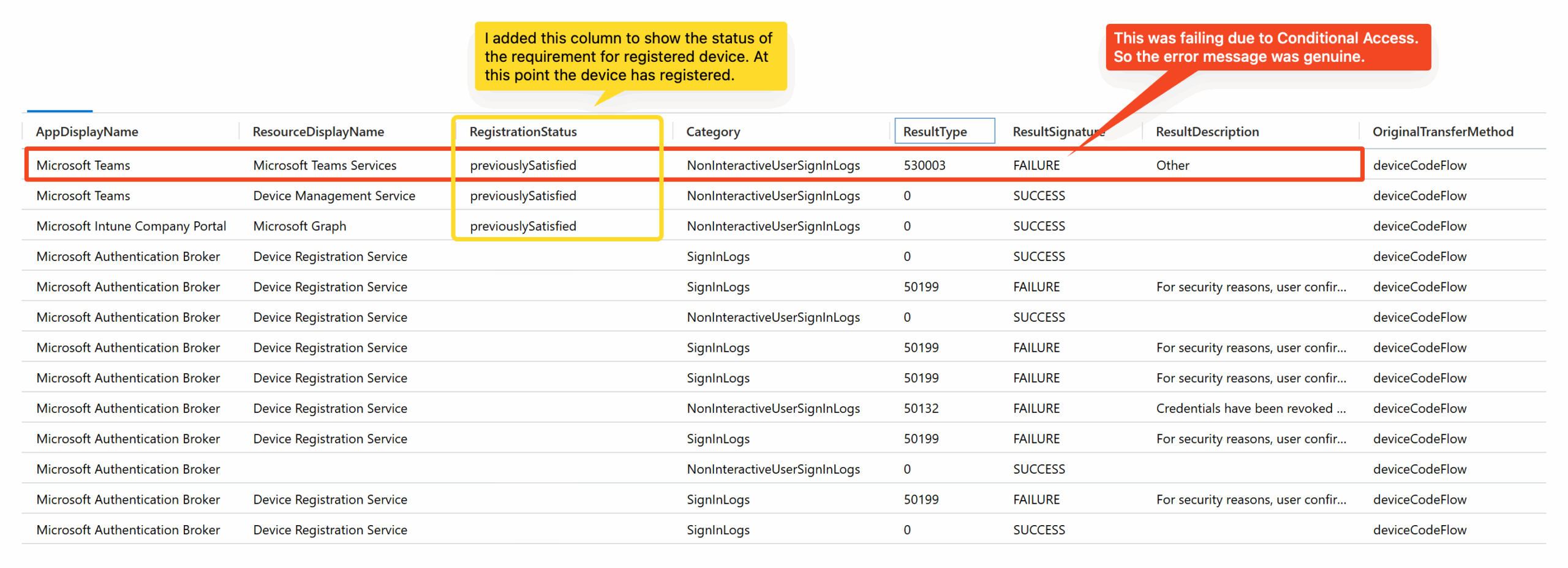
Weird (that word again!) thing is this error makes sense. At this point the device has only registered in Entra ID and it isn’t Intune enrolled, and so when Teams is trying to access the Teams Services resource it naturally fails because we have Conditional Access policies in place that require the device to be compliant. If the device had enrolled in Intune after device registration, this error wouldn’t have occured.
Contrast this to the logs I captured earlier when Device Code flow worked:
Here the device does Intune enrollment, as part of which it does Device Registration, and thus things work. But now the phone wasn’t doing Intune enrollment at all. I have no idea why!
Interestingly, in one of the previous failed attempts it was doing an Intune enrollment. This is all so confusing!
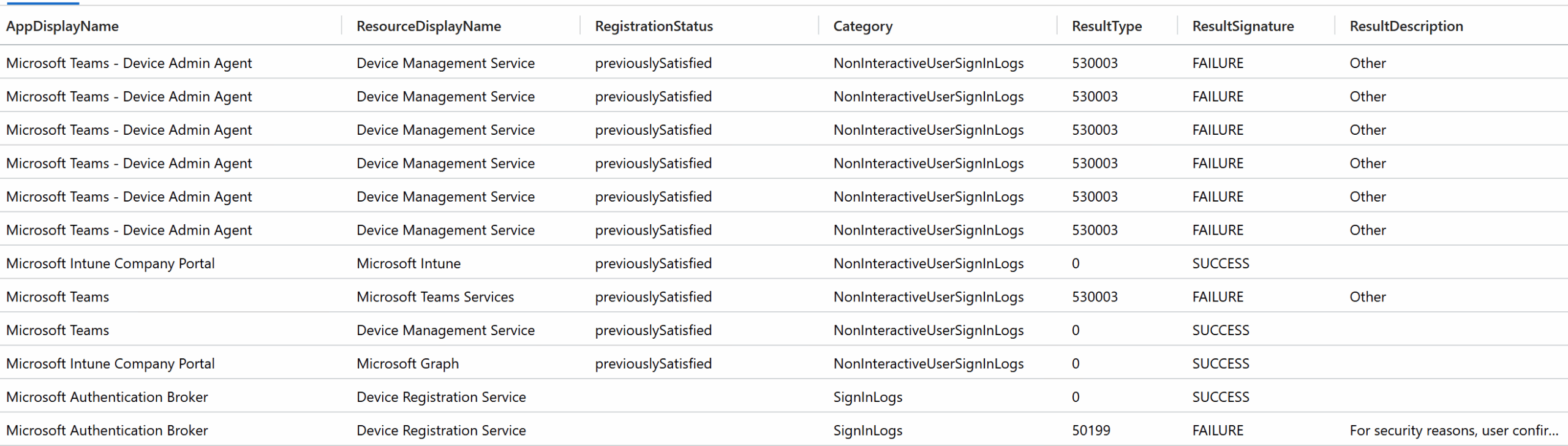
(Btw, after I took the above screenshot where no Intune enrollment was happening, I saw more logs come through. Here too no Intune enrollment is happening, but the Teams Device Admin agent is trying to do something. I wonder if the phone got corrupt somehow).
What else?
So far I had reset the device to factory settings multiple times. I had also tried resetting user data (that was another option in the admin UI) but it didn’t help either. One thing I wanted to try next was reinstall the firmware. The first time I upgraded to this version of the firmware it never prompted me to change the admin password of the device, but ever since then whenever I’d reset the firmware it prompts me to change the password. Not a big deal in itself, but I felt this wasn’t putting the device back to the original state at which it was working. It never asked me to change the password the first time I moved to this firmware, so why was it always asking now when doing a reset. Clearly that wasn’t a “reset” enough? (wishful thinking…)
For this phone at least, trying to upload the firmware again didn’t work as the phone wouldn’t accept it. Neither did trying to downgrade to a previous version. I had nothing else left to do. ☹️
Out of ideas, I thought let me try what happens with the username password flow, coz clearly that should work? But nope, that too fails with the same error! Madness!! 😤
At this point I gave up for the day. Something’s broken somewhere, and I’ve had enough for today!

Guess what, it works now! Wasted about 3 hours yesterday evening/ night troubleshooting this. At least I am wiser in the art of troubleshooting I suppose? 🧠
Interestingly, as part of the enrollment the firmware too got updated. We are now at:
- Firmware Version: 122.15.0.243
- Hardware Version: 122.1.0.0.0.0.0
- Microsoft Intune Version: 25.02.1
- Authenticator Version: 6.2505.3166
- This is new, wasn’t present originally!
- Teams Version: 1449/1.0.94.2025165302
- Admin Agent Version: 1.0.0.202505080136.product
The presence of Authenticator, plus the fact that I was on the latest Android firmware available from Yealink got me thinking maybe the device is now on Android AOSP, and sure enough it is. Nice!
The closest I can find from Microsoft as to why enrollment failed yesterday is some alerts about Intune Datawarehouse. This might have been a side effect of that?
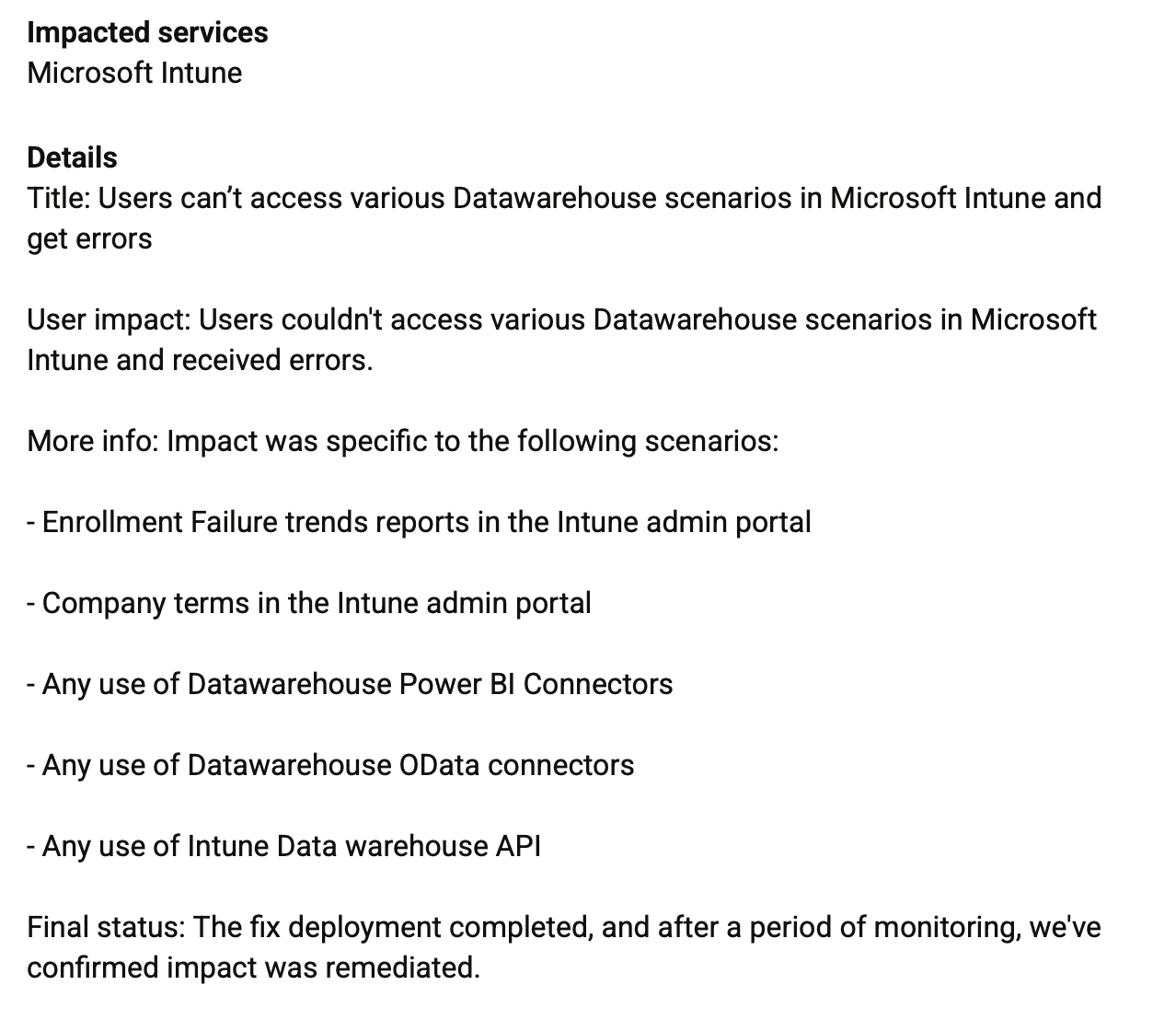
This issue started 3 days ago though, but the fix was rolled out around the time I was testing so maybe that’s how they are related? I dunno.
Update (a few hours later): When I logged in to work later, there were reports from others that Teams phone enrolment were failing yesterday. So it looks like there was indeed some issue.