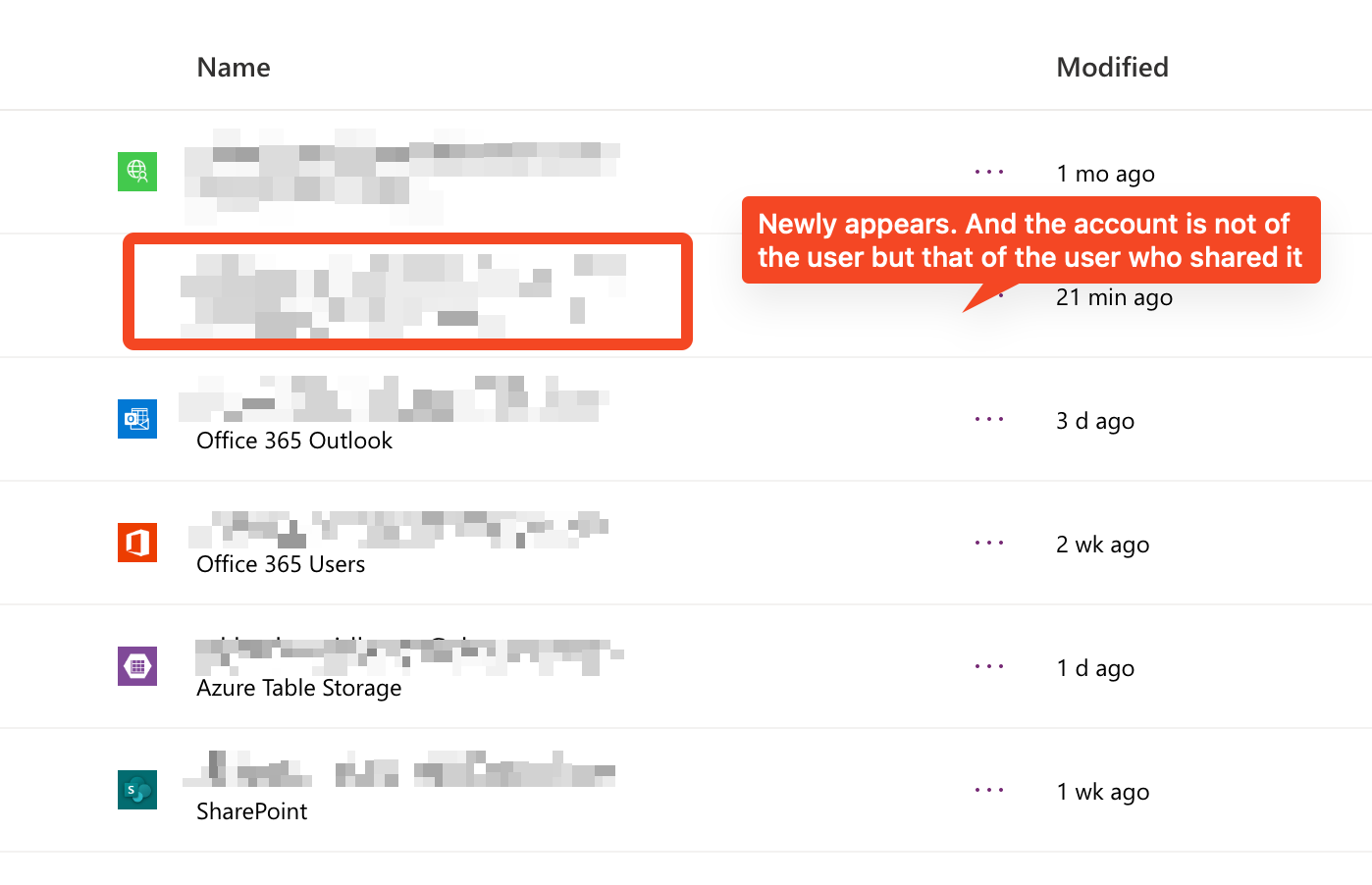
One problem with Power Apps and connectors is that it uses the details of the signed in user. Unlike Power Automate there’s no way to select what account the connector runs under.
There’s no harm with this, but in my case (1) I wanted to restrict the app registration used by the connector to a single service account, and (2) I didn’t want to prompt users to sign in to that connector either!
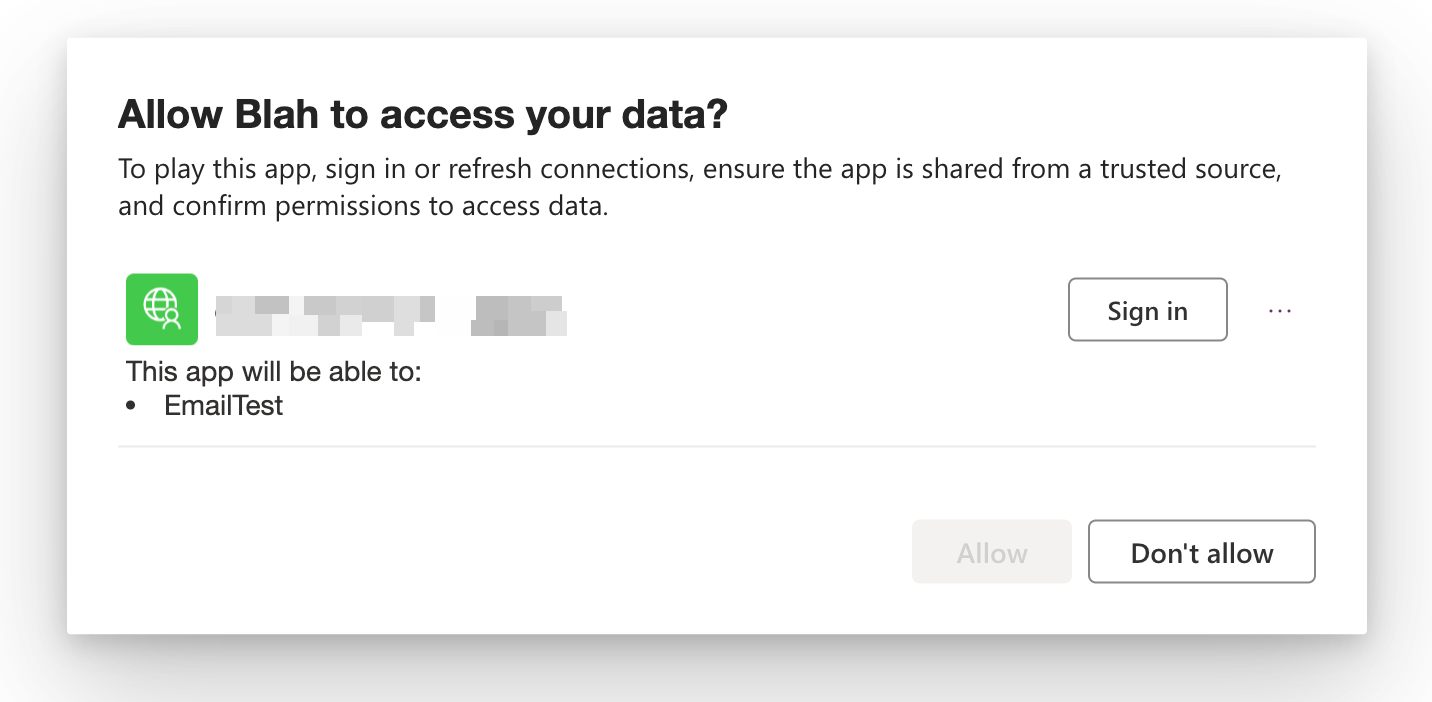
The solution for this is to use service principal authentication which was released last year (yay!). Using it is simple.
Going back to the connector setup screen, it’s a simple change:
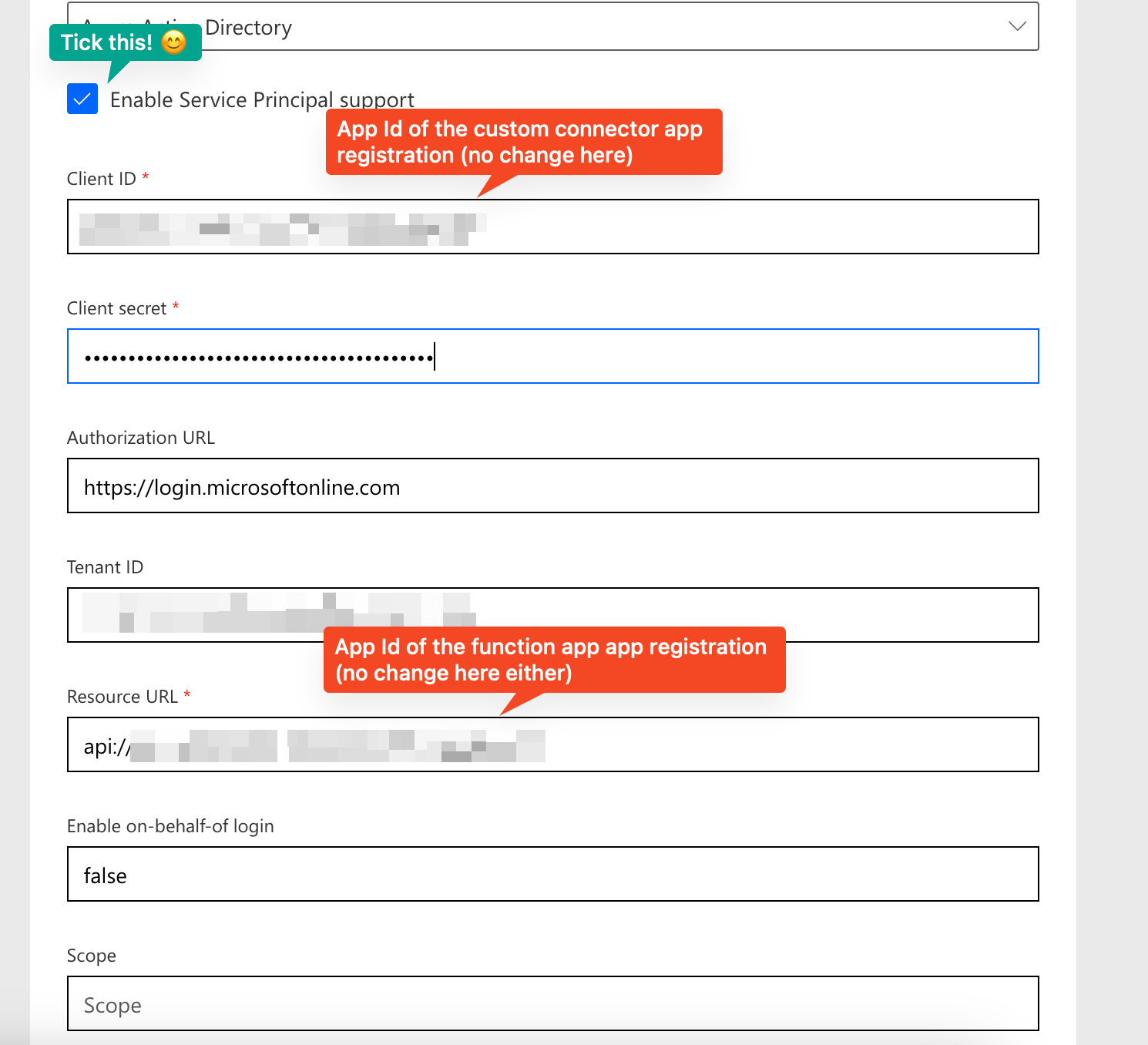
Unfortunately, changing this for an existing custom connector doesn’t seem to make a difference as it never prompted me to use a service principle. So I had to export and import this, then when I create a new connection I get an option.
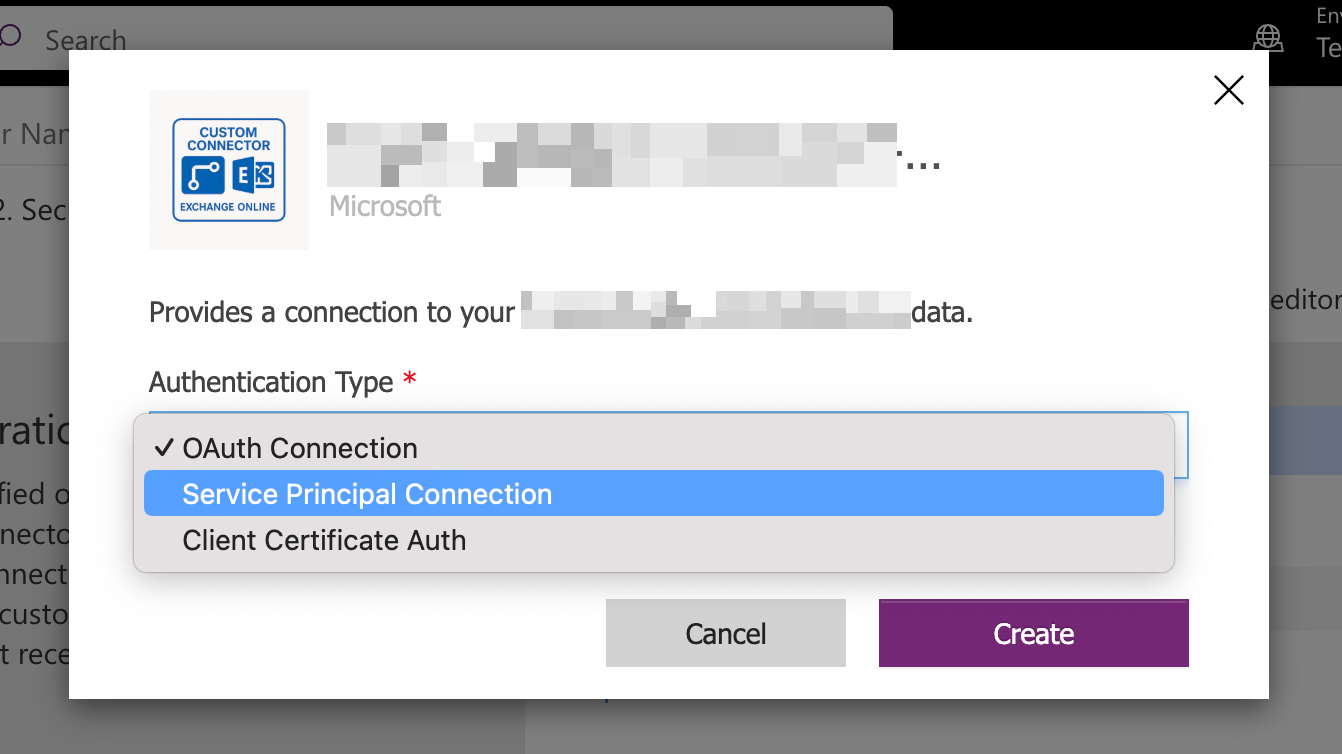
Select this, and add the same app Id and client secret used in the connector definition (these are that of the custom connector app registration):
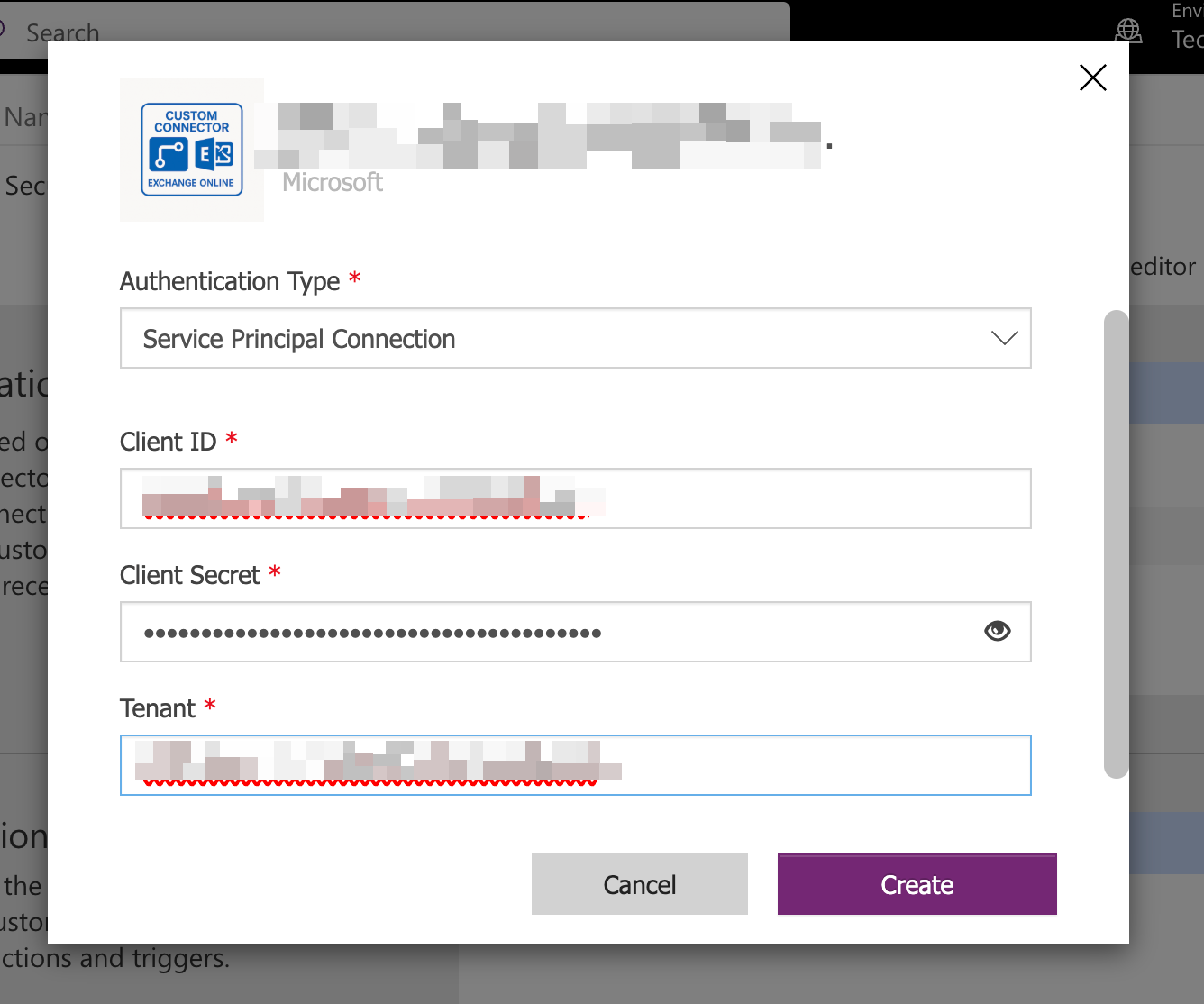
And click “Create”.
Then I can add it in Power Apps. And now there’s no prompts when a user launches the app. 😊 (well, there is still a consent dialog, but this can be bypassed).
Update (23rd May 2025): I give up on custom connectors and service principals. When testing with another account I realized that I do get a prompt to sign in, but worse I can’t sign in coz there’s nothing to sign-in. So I gave up on using a service principal. And I also realized that I can share a custom connector with a user account and all users who use the Power App will use that shared user account. To do this I must simply share the connection and click “Add everyone in my org” (or add individual users or groups).

Once I do that, the connector automatically appears under the name of the shared account for everyone.
Before sharing:
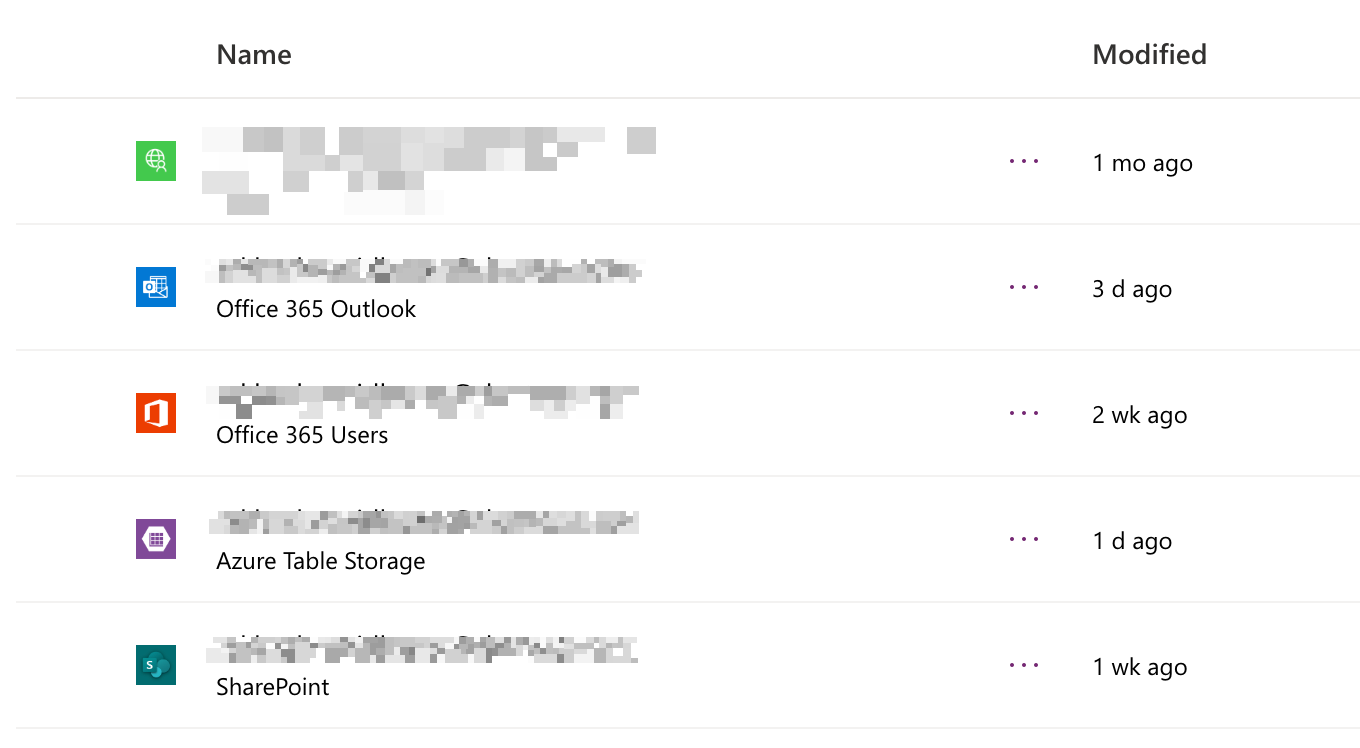
After sharing: