
This post is a sort of continuation to my previous posts like this and this. And probably not as clear as it could be coz I assume some prior knowledge. Plus I am figuring out a lot of stuff as I go along. What I describe below may not even be the “correct” way of doing things, but it worked for me. Apologies to anyone stumbling upon this and wondering what the heck is going on! ☺️
Azure Function App + Entra Auth
I created a new Function, enabled Authentication and authentication provider as Microsoft.
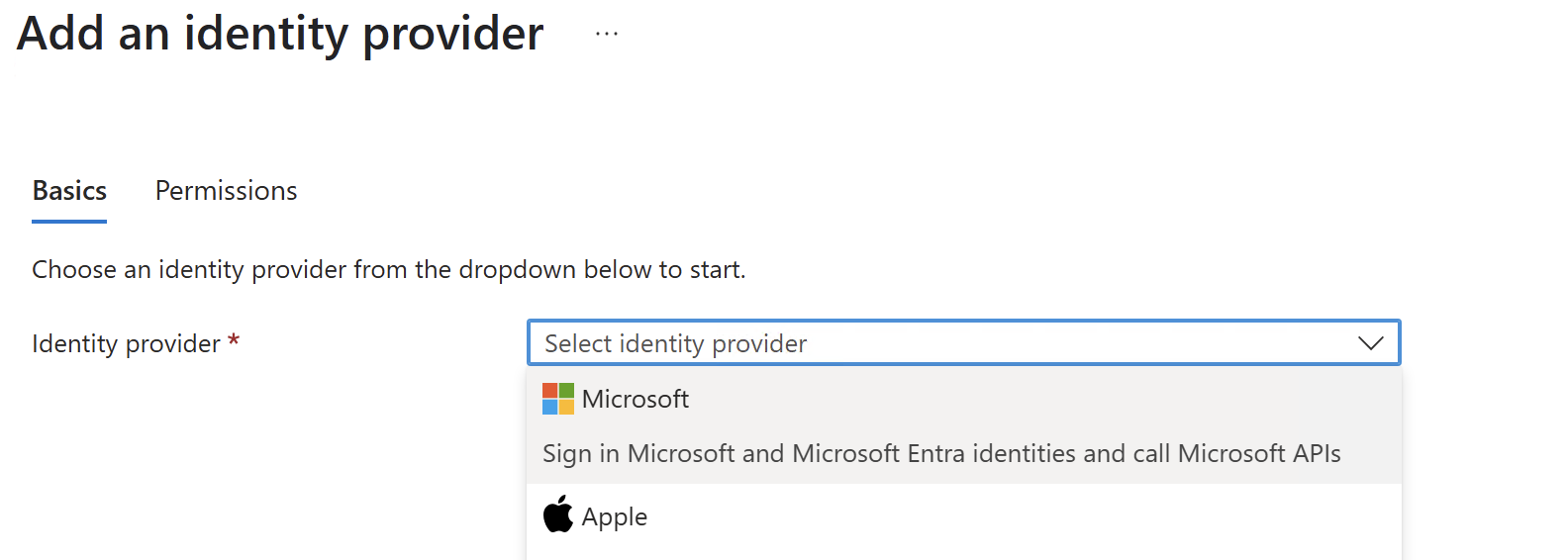
Here are the default settings as of writing.
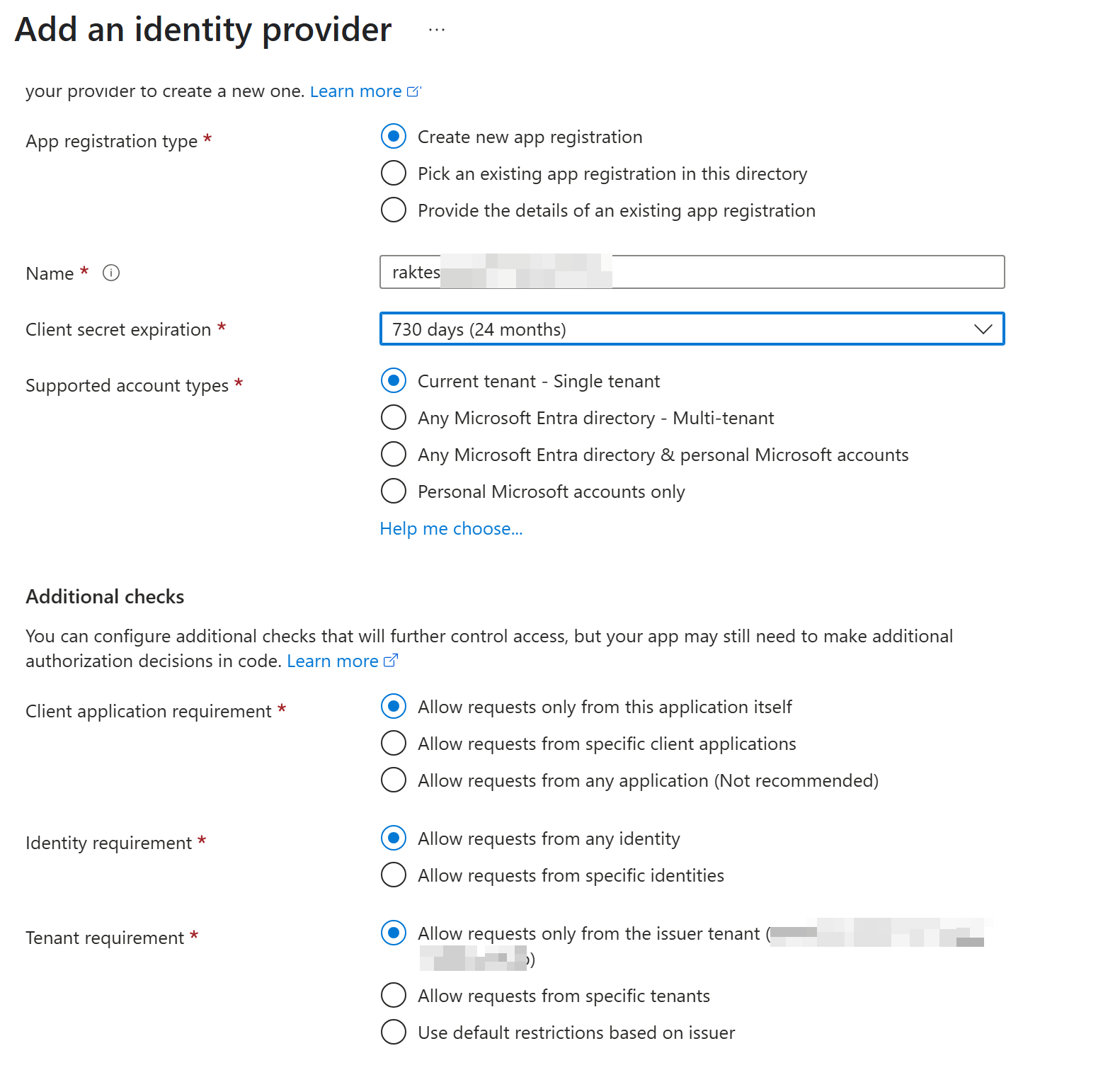
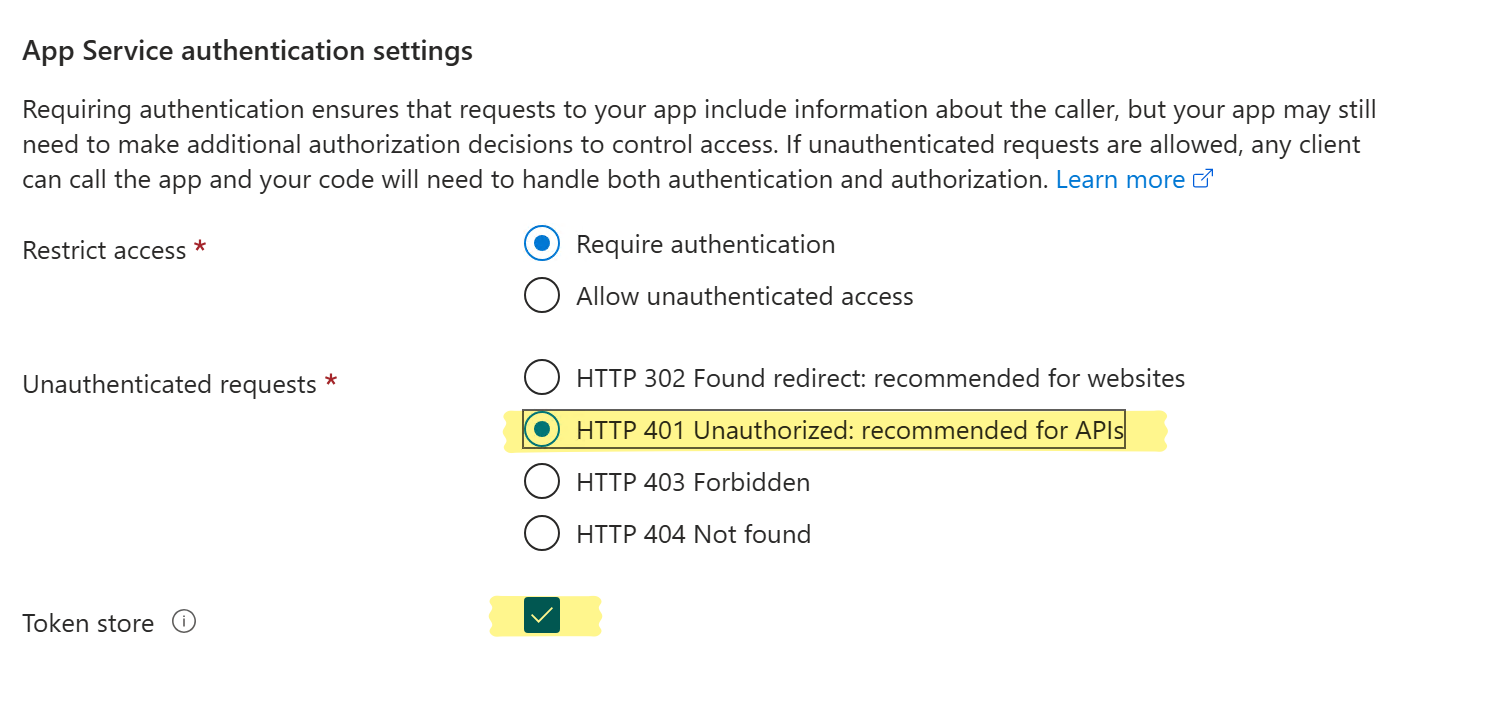
I changed this bit.
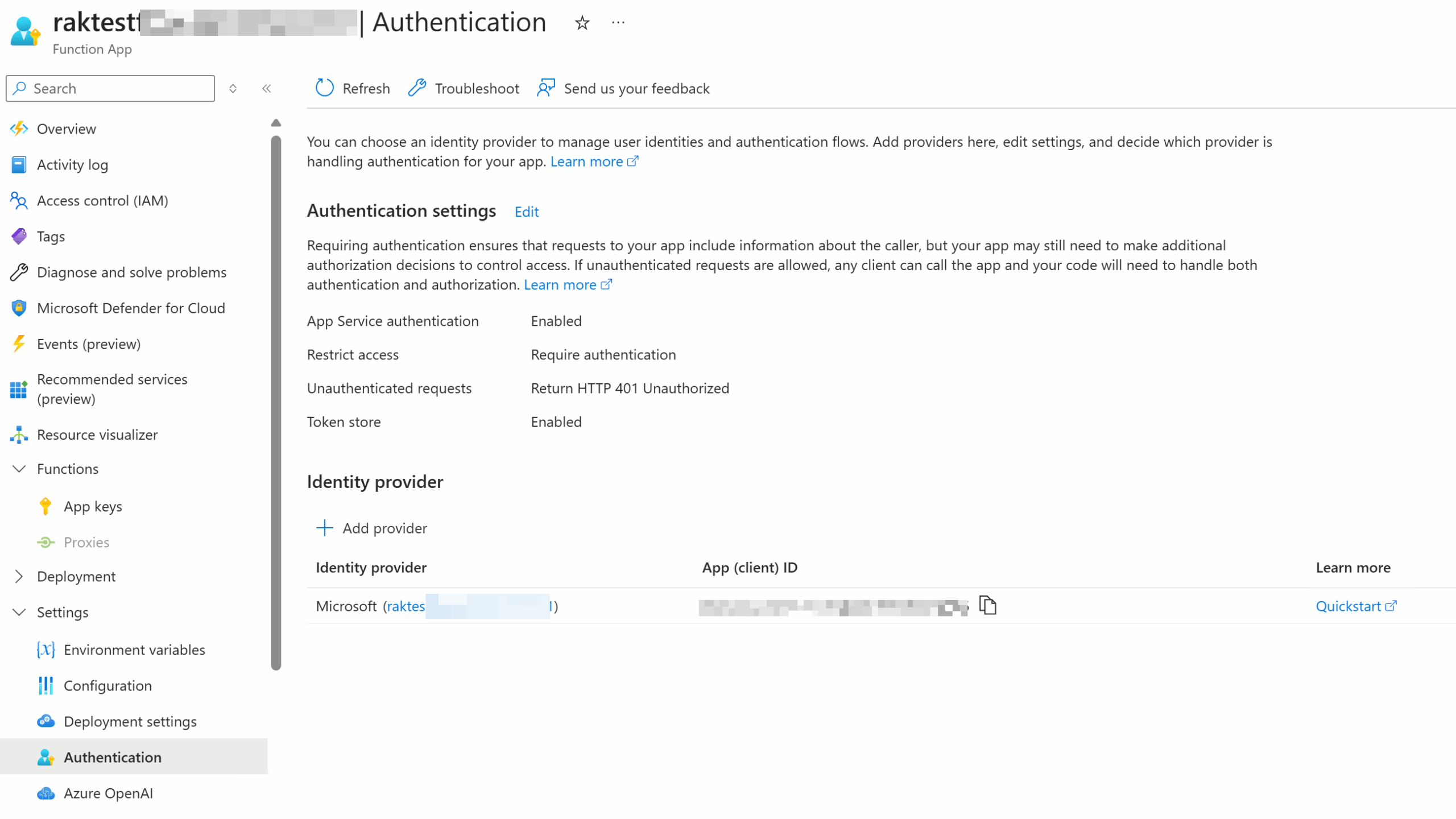
This creates an App Registration which I can access from the Function App itself.
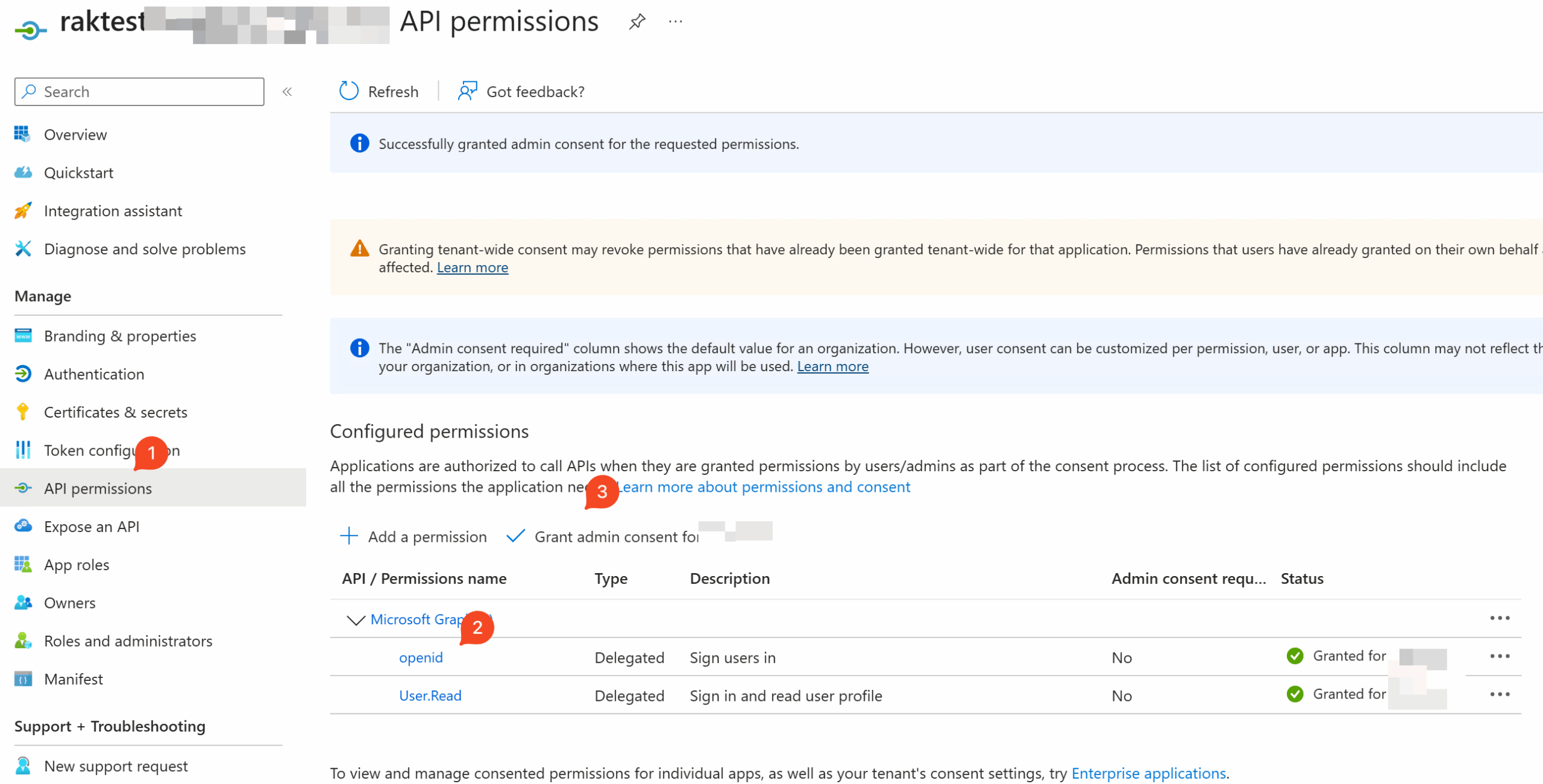
I do the admin consent for permissions. I also added an openid permission as this is needed to get ID Tokens. This is what Azure Functions middleware needs. (I had figured this out during my previous experimentation with this).
In the Enterprise App for this, I set it to require assignment.

And I add the user I want to grant access to in Users and Groups.
So far so good. This is similar to what I detailed in my initial post of Azure Functions and Entra ID authenticated access.
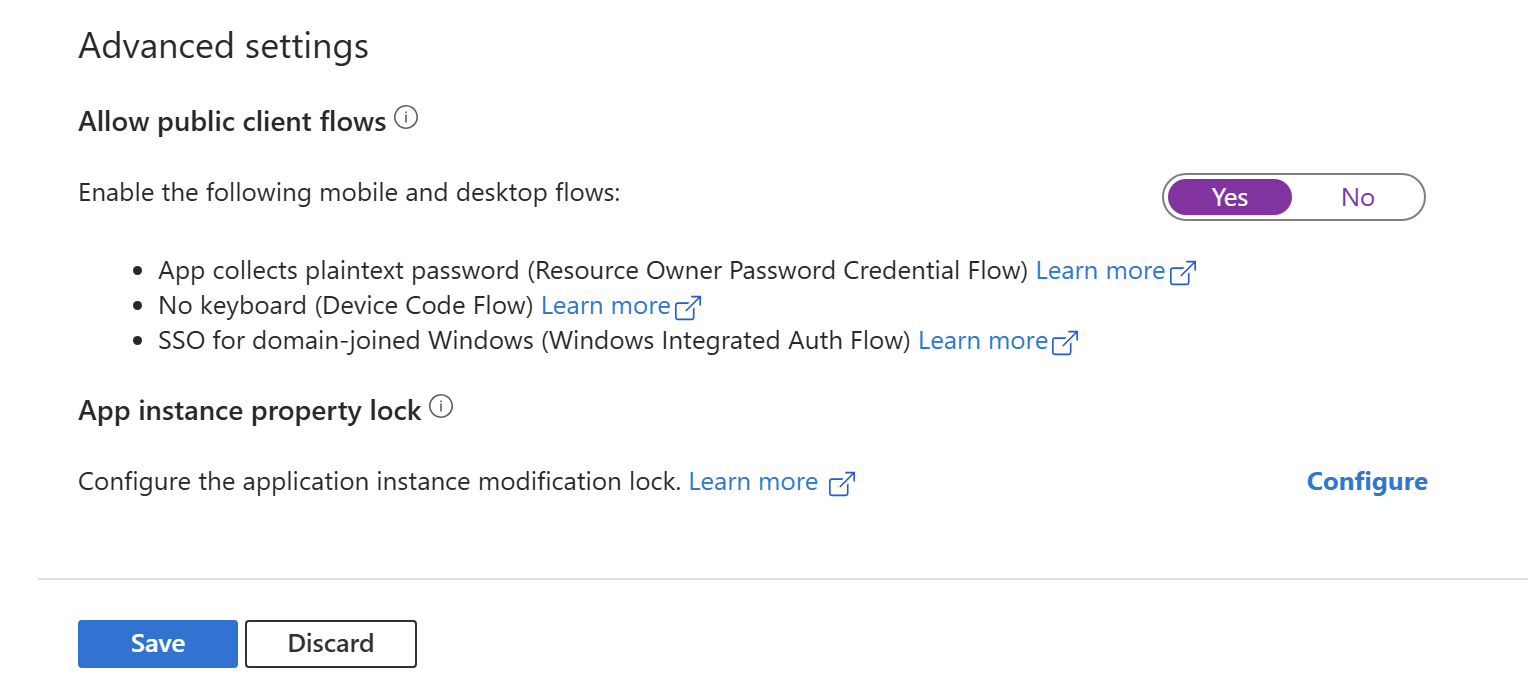
If I allow public client flows, I can now authenticate against the Function App.
Here’s the code I use:
|
1 2 3 4 5 6 7 8 9 10 11 12 13 14 15 16 17 18 19 20 21 22 23 24 25 26 27 |
$tenantId = "xxxx" $appId = "<appId associated with functionapp>" $scope = "User.Read openid" [System.Uri]$apiUrl = "https://raktestxxxxx.azurewebsites.net/api/HttpTrigger1" $apiAuthUrl = $apiUrl.AbsoluteUri -replace $apiUrl.AbsolutePath,"/.auth/login/aad" $invokeBody = @{ "TenantId" = "$tenantId" "AppId" = "$appId" "Scope" = "$scope" "apiUrl" = "$apiUrl" } $aadtoken = Get-MSDeviceToken -TenantId $tenantId -AppId $appId -Scope $scope $authBody = @{ "access_token" = $aadtoken.id_token } Write-Progress "Exchanging Azure AD token for API token" $response = Invoke-RestMethod -Method POST -Uri $apiAuthUrl -Body (ConvertTo-Json $authBody) -ContentType "application/json" $header = @{ "X-ZUMO-AUTH" = $response.authenticationToken } Invoke-RestMethod -Method POST -Uri $apiUrl -Headers $header -ContentType 'application/json; charset=utf-8' |
The Get-MSDeviceToken function is something I blogged about previously to authenticate using a device code.
In reality this is where someone would create a front end login page that signs the user in. That’s not what I want to do here, so I’ll leave it at that.
How do I go about using this with a Custom Connector in Power Platform?
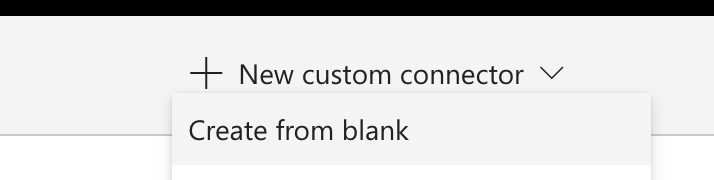
If I create a new connector:
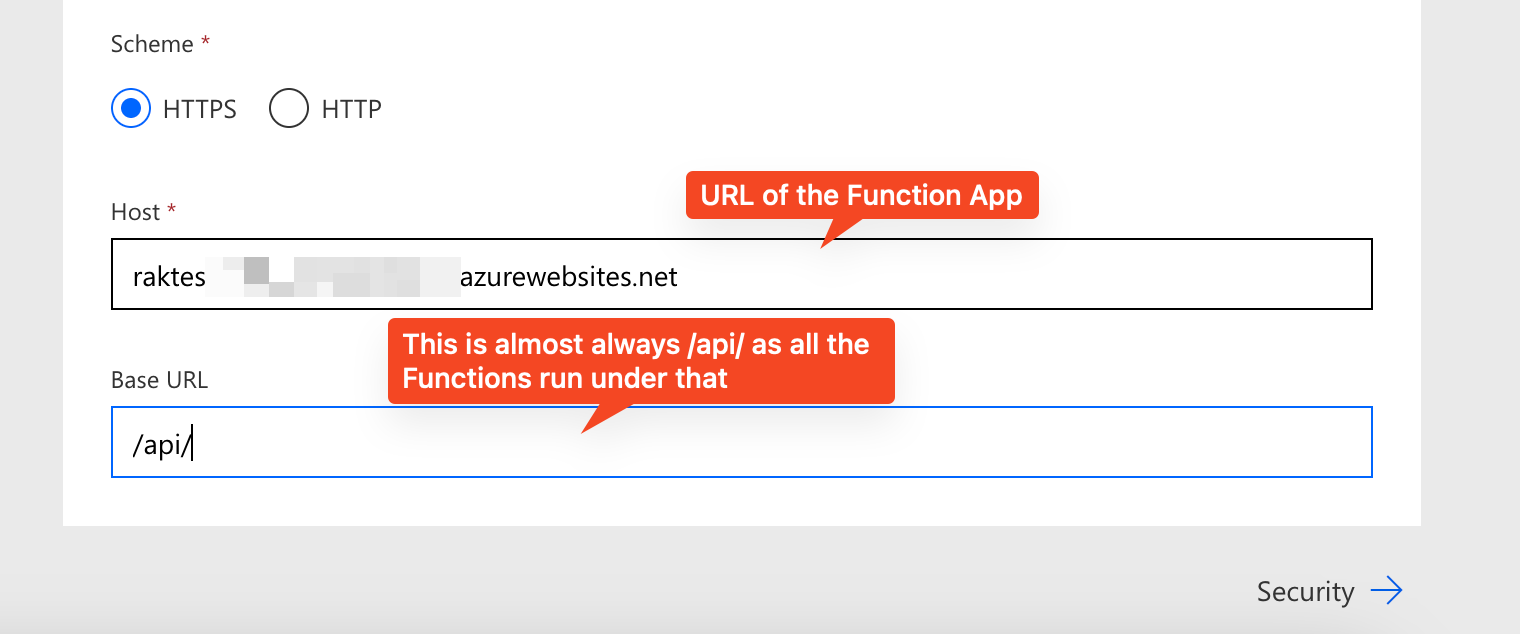
Fill page 1 thus:
On page 2, select OAuth2.0 authentication. And Azure AD of course.
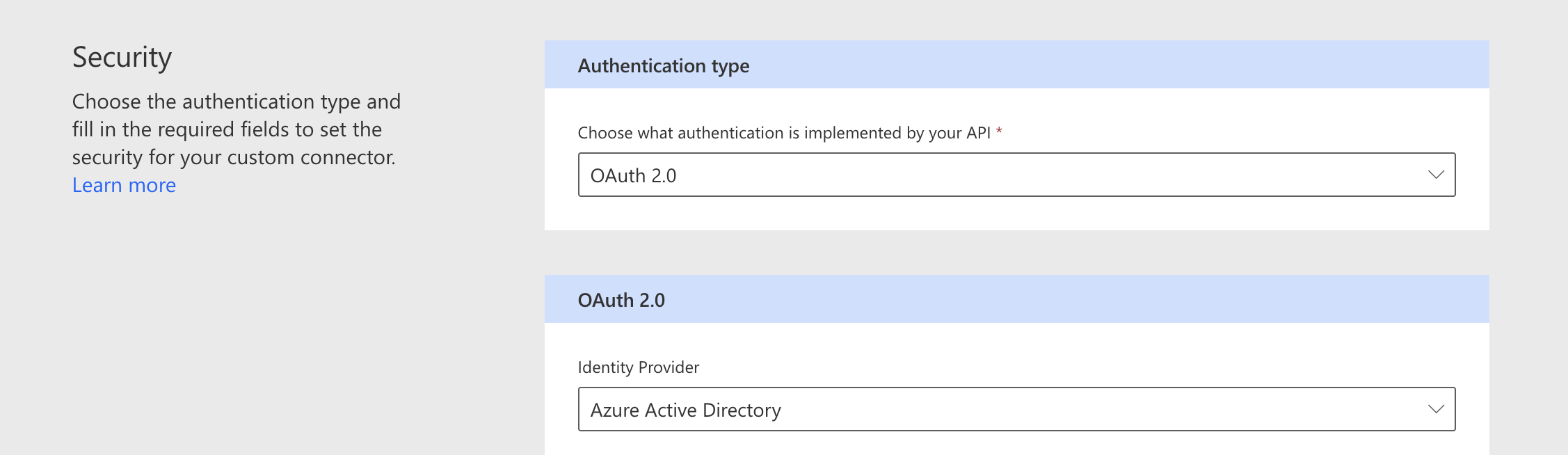
And here’s where it gets tricky. In the following sections, one is supposed to provide a client Id and client secret etc. What are those?
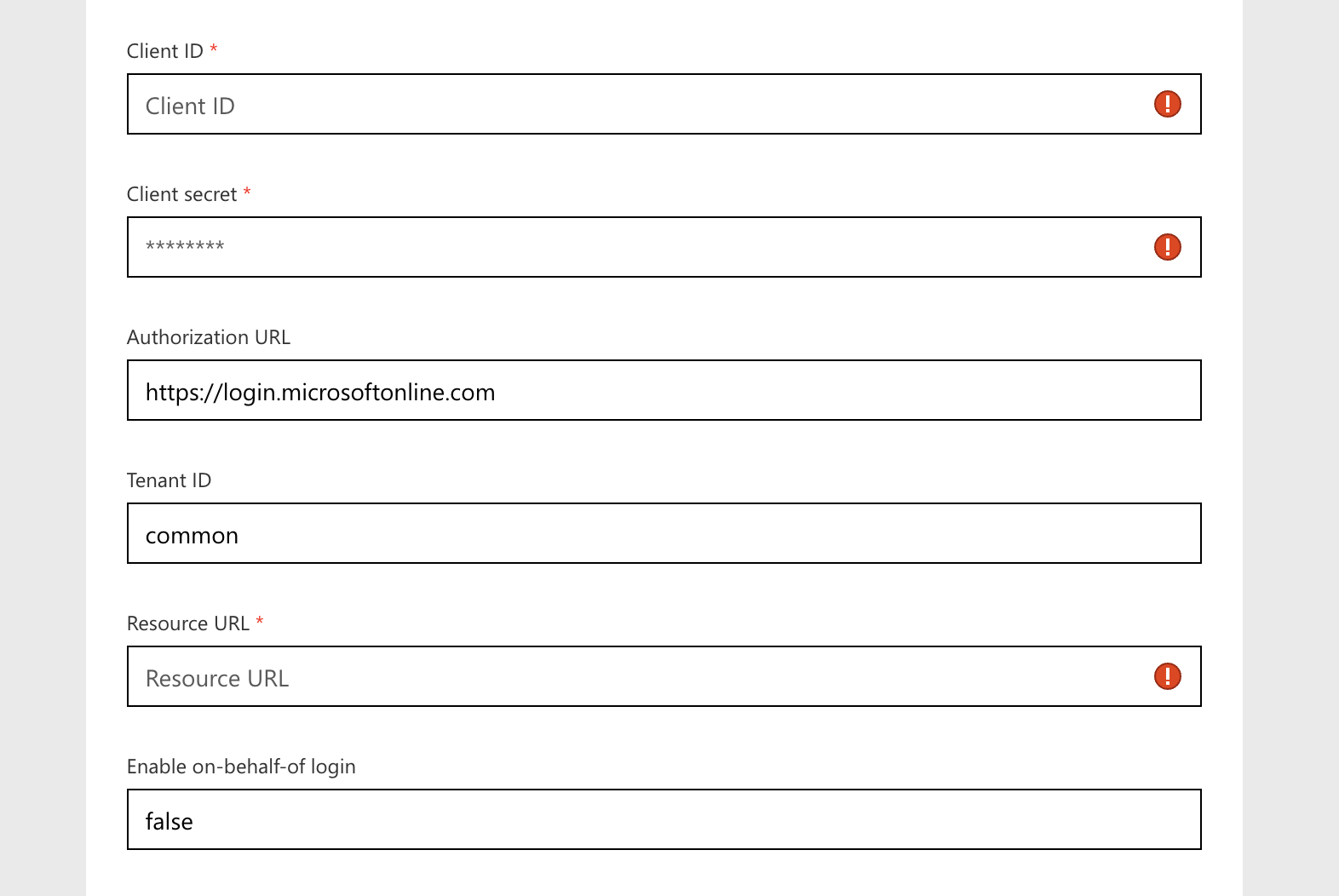
(At this point I must add my earlier warning again. What follows is what I think is the right approach to take. I am not an expert, and most of this was arrived at via some trial and error plus my earlier experience at authenticating using Logic Apps and all. What I describe below worked for me, but there might be other ways of doing it too! Read till the end of this post).
The first impluse might be to put that of the app registration associated with the Function App. But that’s not what is needed here. That app registration represents the Function App, and it could even be owned by a different team and no way they are going to give you the client secret etc.
So what you need here is really another app registration that represents the Custom Connector. So we must create a new app registration.
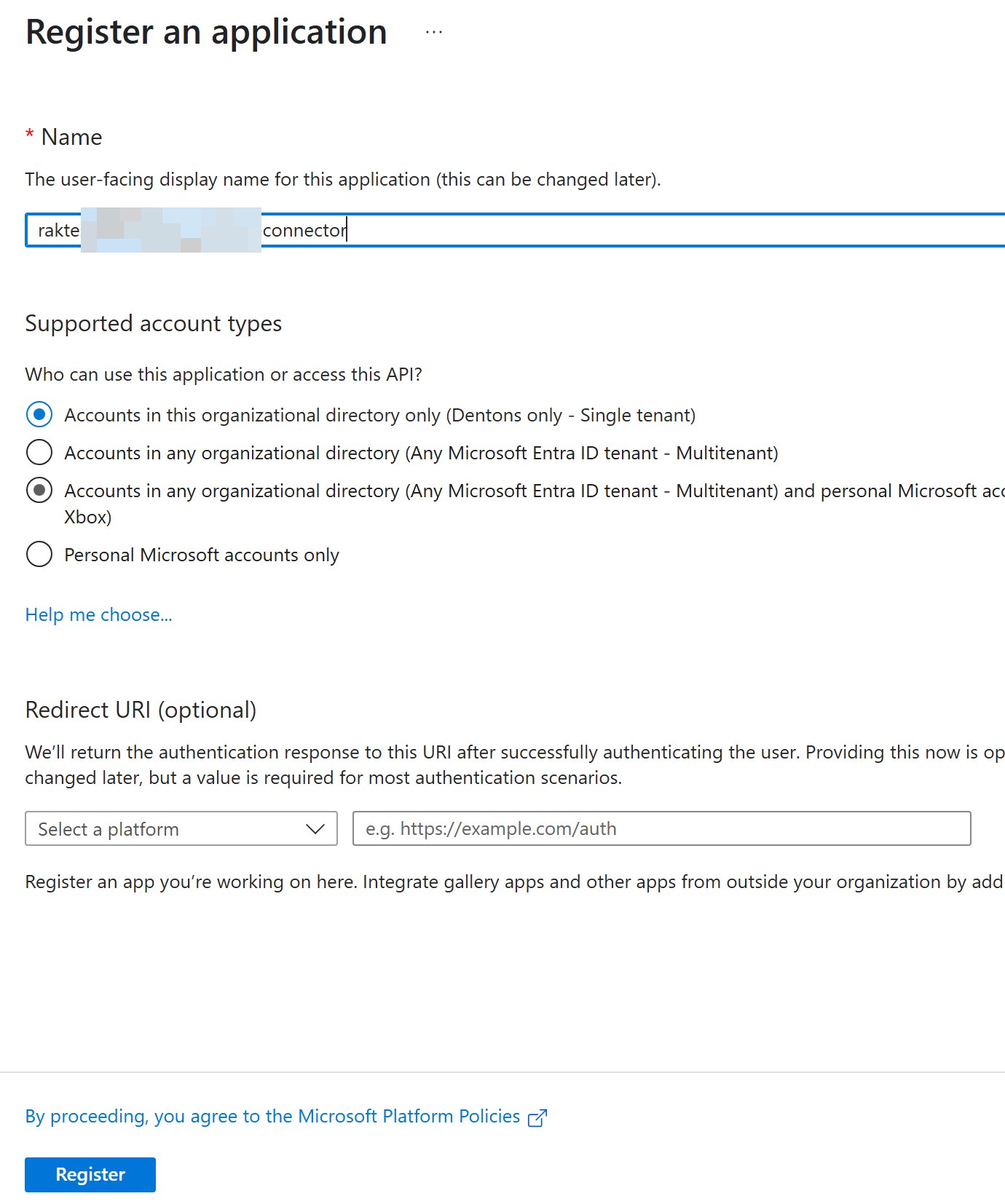
This App Registration should have access to that of the Function App.
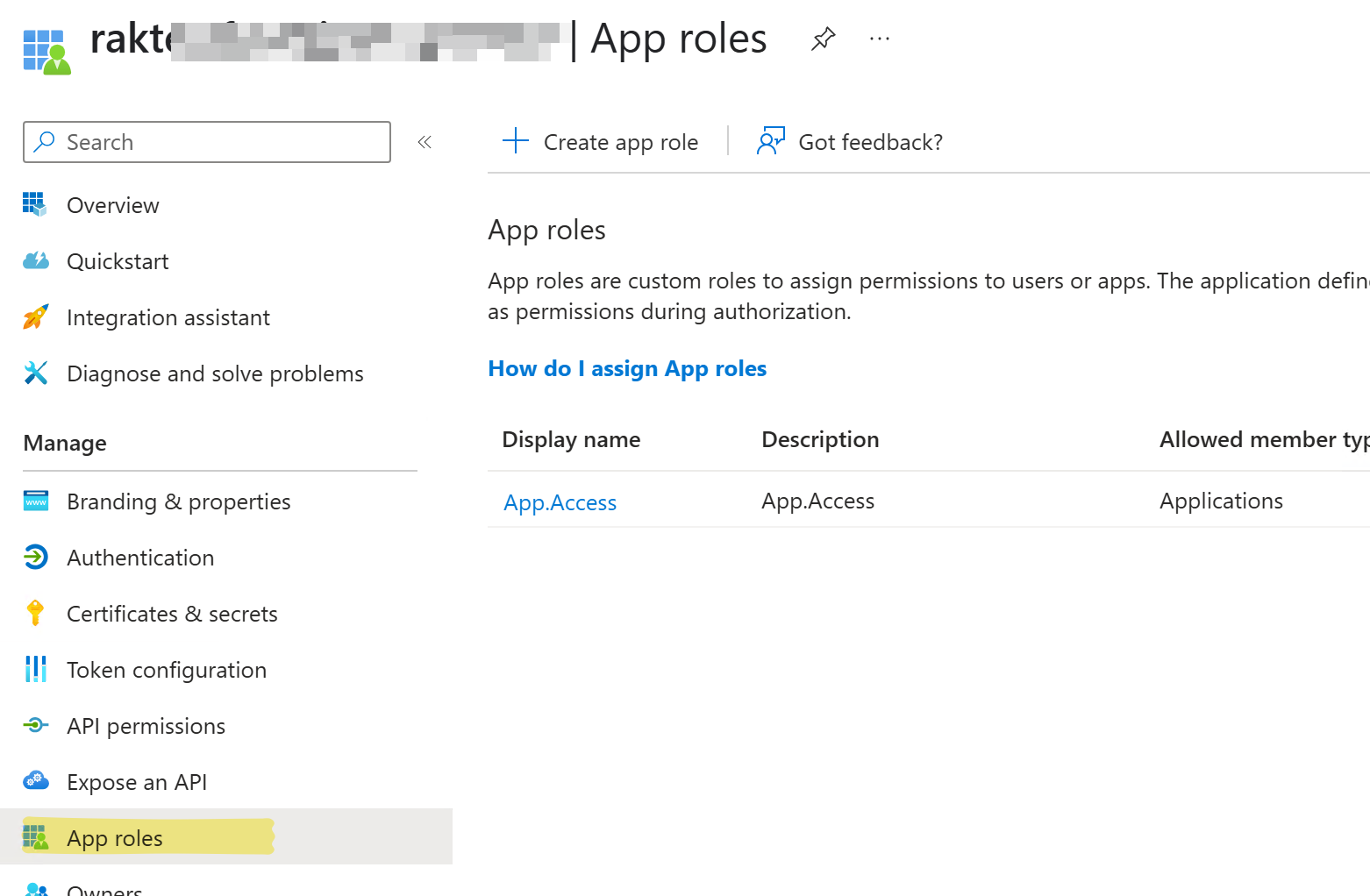
To do this, I use App Roles. (I came across app roles when fiddling with Logic Apps in an earlier post, via this Microsoft document). Adding app roles is easy.
On the Function App app registration I created a new app role like this:
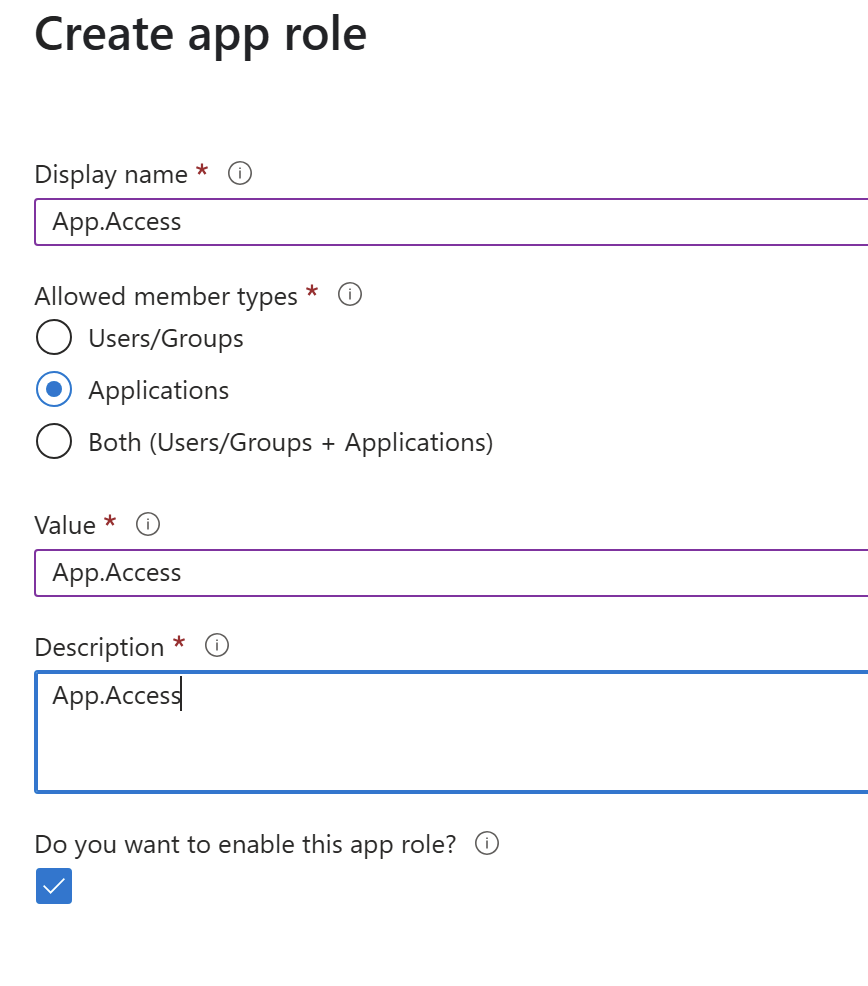
This is what the result looks like:
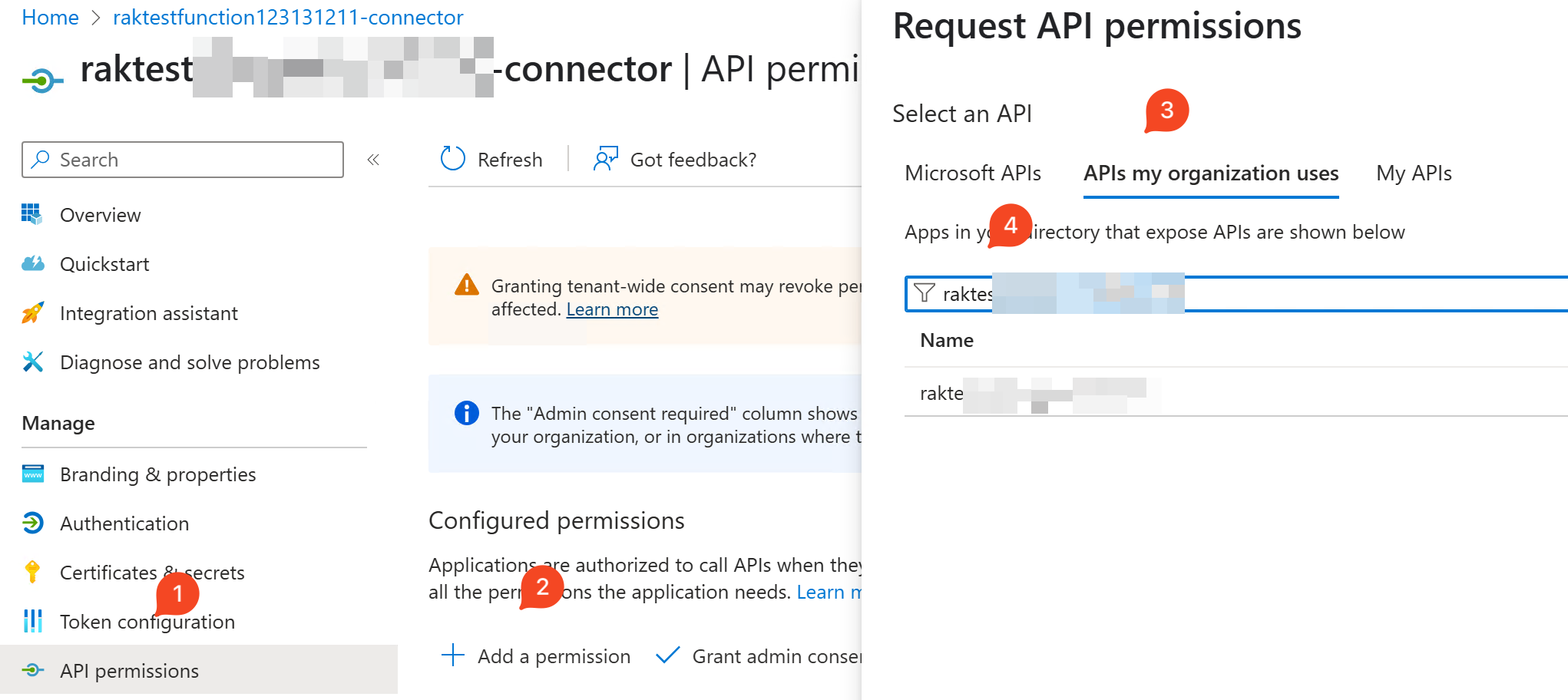
Then I must grant the Custom Connector app registration access to the Function App app registration via this App Role. To do this I go to the Custom Connector App Registration and add this as a permission.
Select it, go to application permissions, and the app role can be found there.
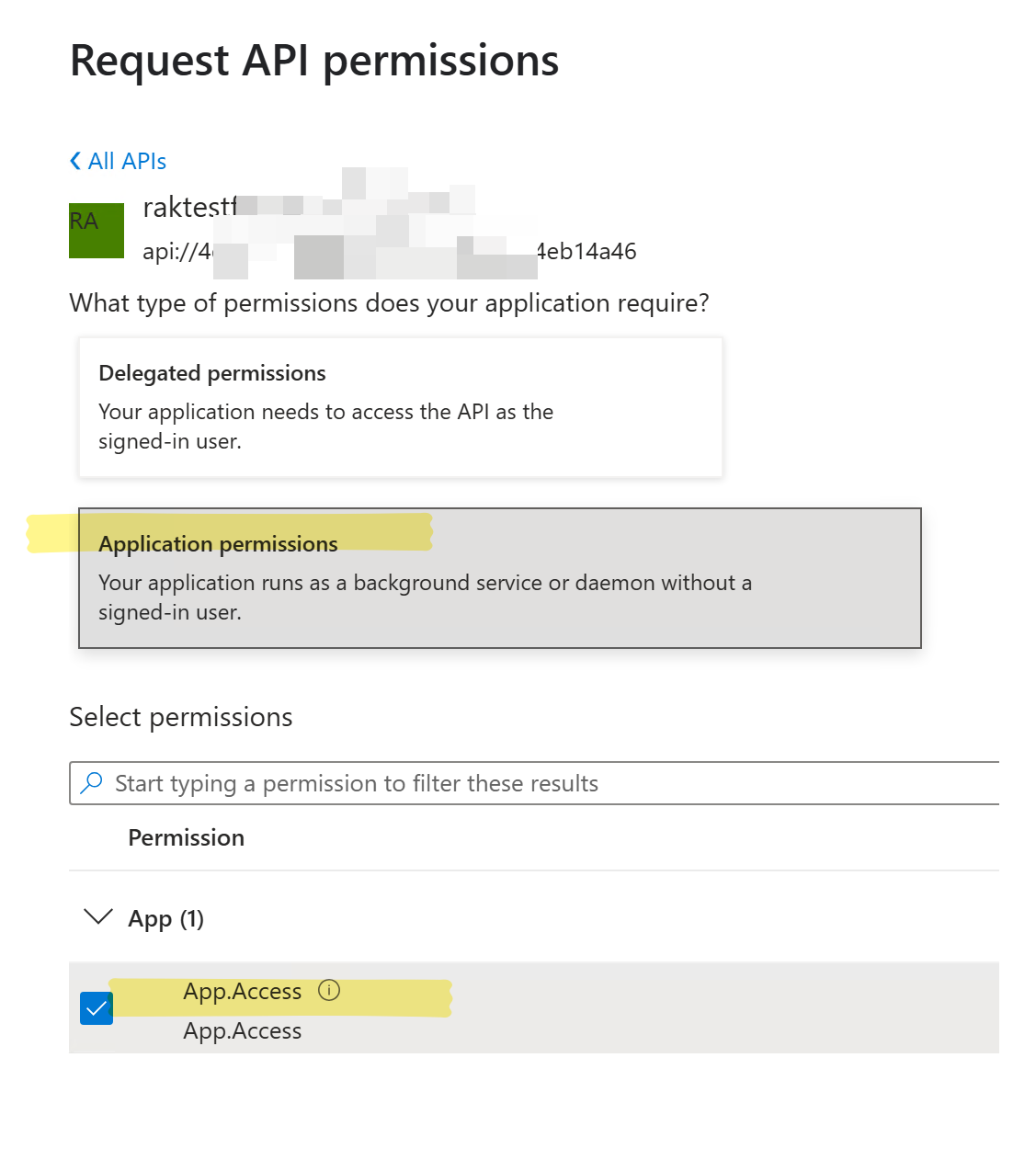
Select it, and do the consent.
What this does is that:
When you assign app roles to an application, you create application permissions. Application permissions are typically used by daemon apps or back-end services that need to authenticate and make authorized API call as themselves, without the interaction of a user.
Which is basically what we want. I want the Custom Connector to call the Function App. The Custom Connector will do the authentication on its end for users connecting to it.
Note this:
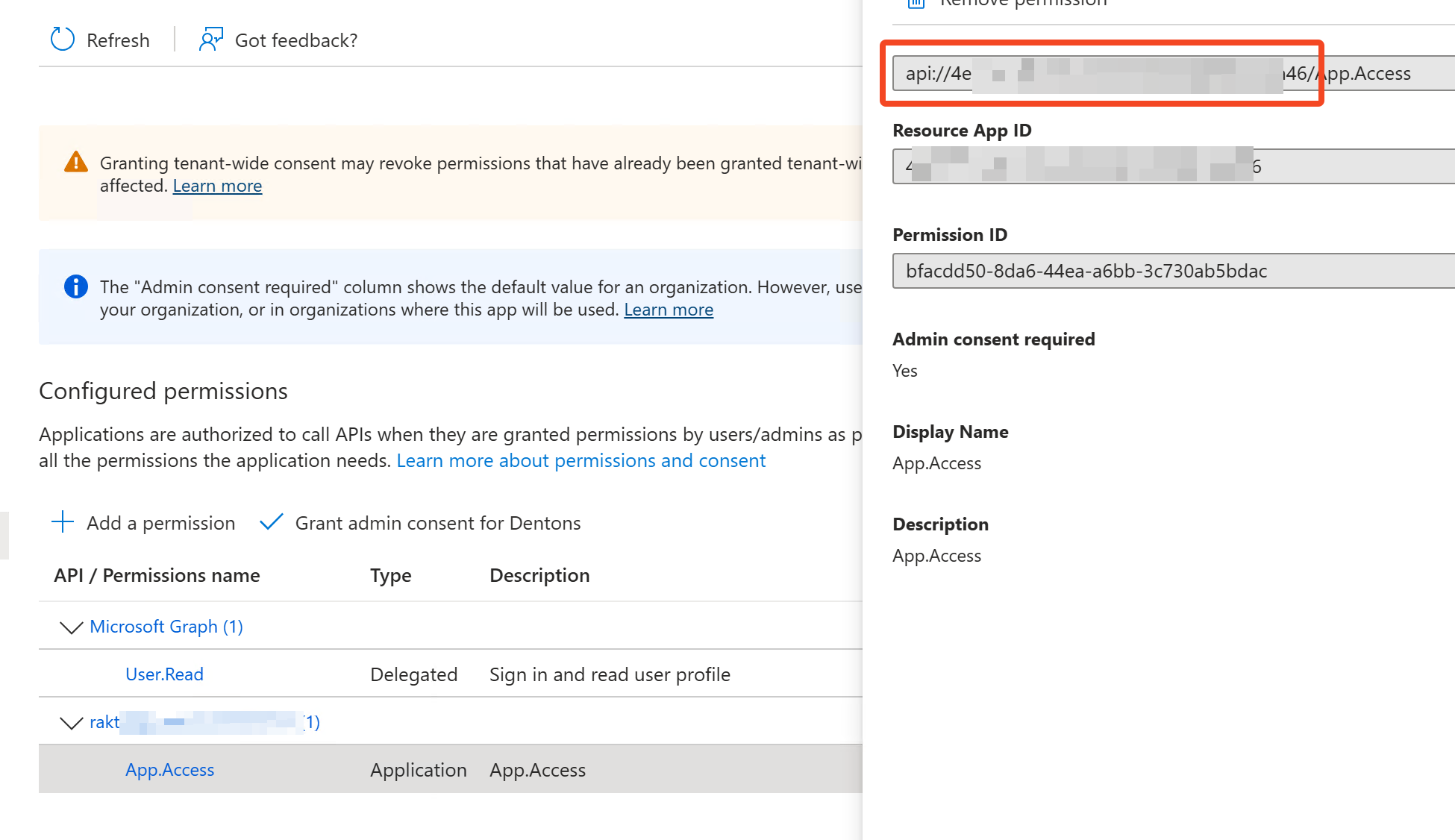
This is basically of the format api://<appId of function app app registration>/
This is the resource to which the Custom Connector app registration is trying to access. So this is what we will input in the Resource URL of the custom connector setup.

What we’ve done so far is create an app registration for the Custom Connector, authorize it to access the app registration of the Function App. When it authorizes, the token will have an audience value that’s set to api://<appId of function app app registration>/ (because that’s the resource we are trying to access – this is set on the Function App app registration under “Expose an API” and can be changed). So we must tell the Function App that it is ok to let anyone through with this resource.
We do that here:
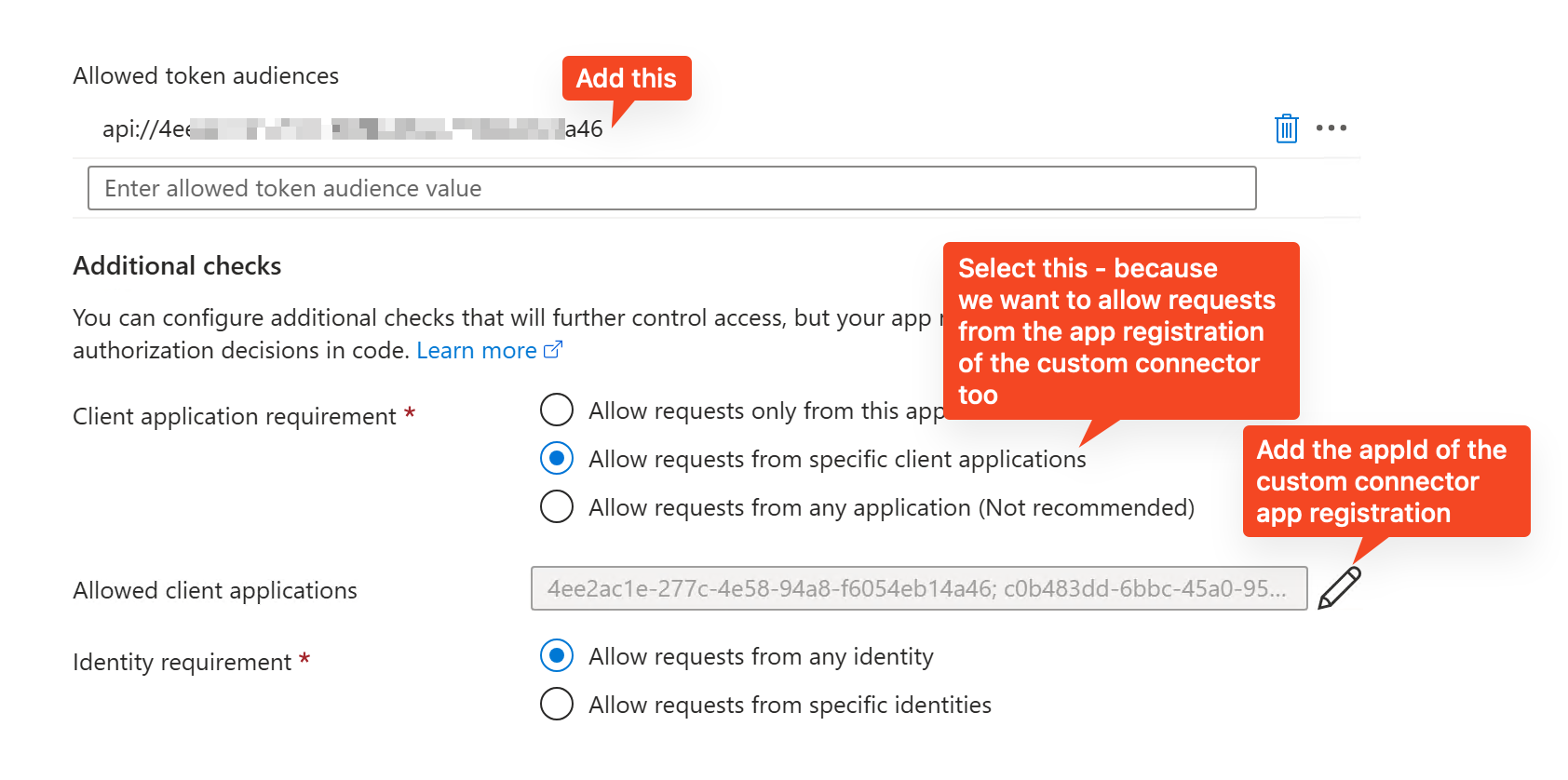
So that’s 3 changes we make to the authentication section of the Function App. First we add the token audience, and then we tell the Function App that I not only want requests from the app registration of the Function App to be allowed, but also those from the additional ones I specify (which in this case is the Custom Connector app registration).
(As an aside: it doesn’t matter if I add more app registrations as allowed, they must have the audience token I specify, and they can only get that because that app role was added. So the creator of the Function App controls things at the Function App itself (via the settings above) and the Entra admin controls things on the app registration of the Function App (via app roles). If I didn’t want things to be so strict, I could have added the app Id of the custom connector app registration as one of the allowed token audiences, and skipped all the stuff about app roles above. But I like to go overboard with things for some reason! It’s a manufacturing defect 🙃).
At this point we are nearly done! If I setup the custom connector with the details in hand (I forgot to mark it, but the secret below is that of the Custom Connector app registration):
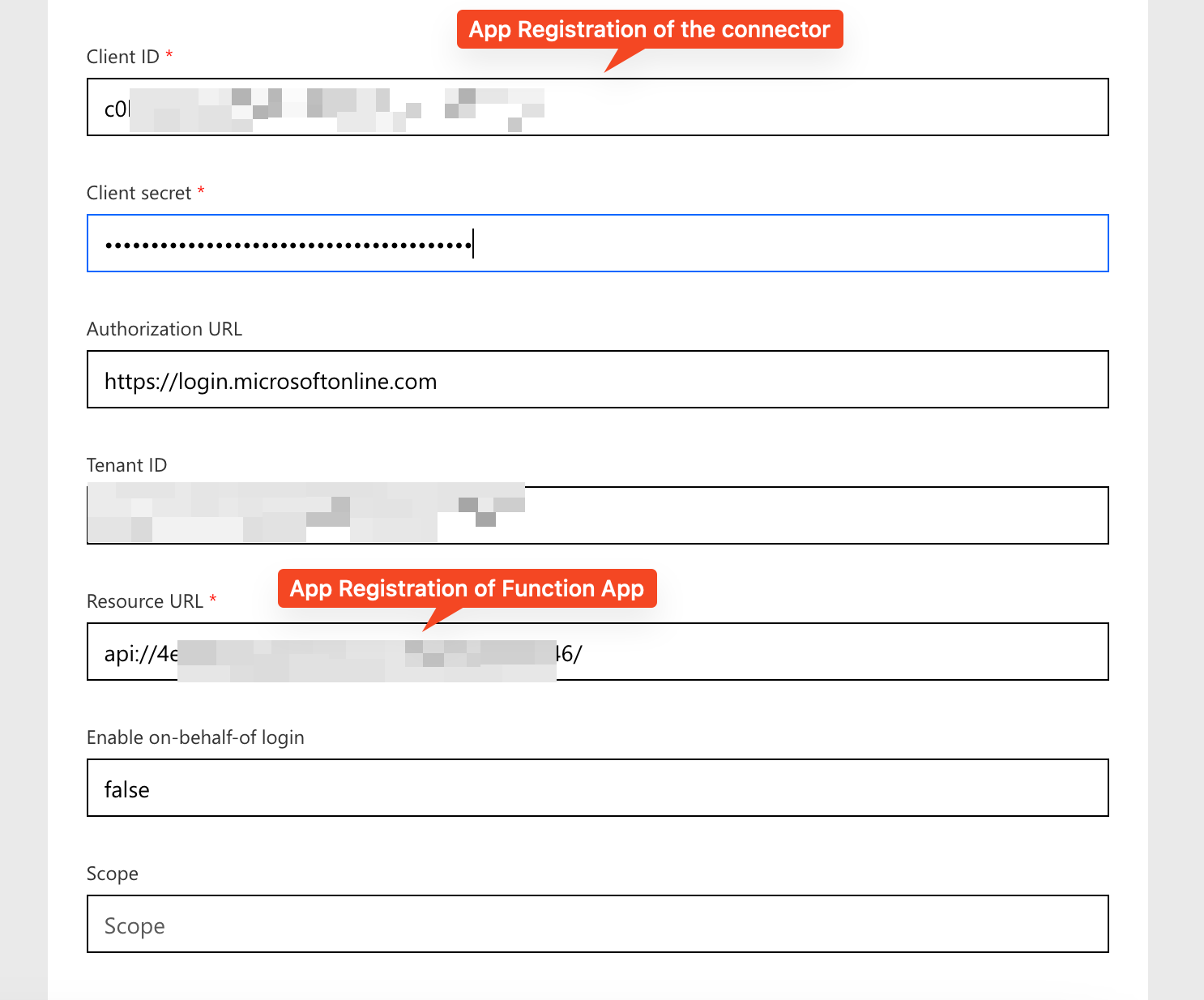
Then click “Create connector”.
This generates the redirect URL, which we must copy paste into the Custom Connector app registration.

Add it here:
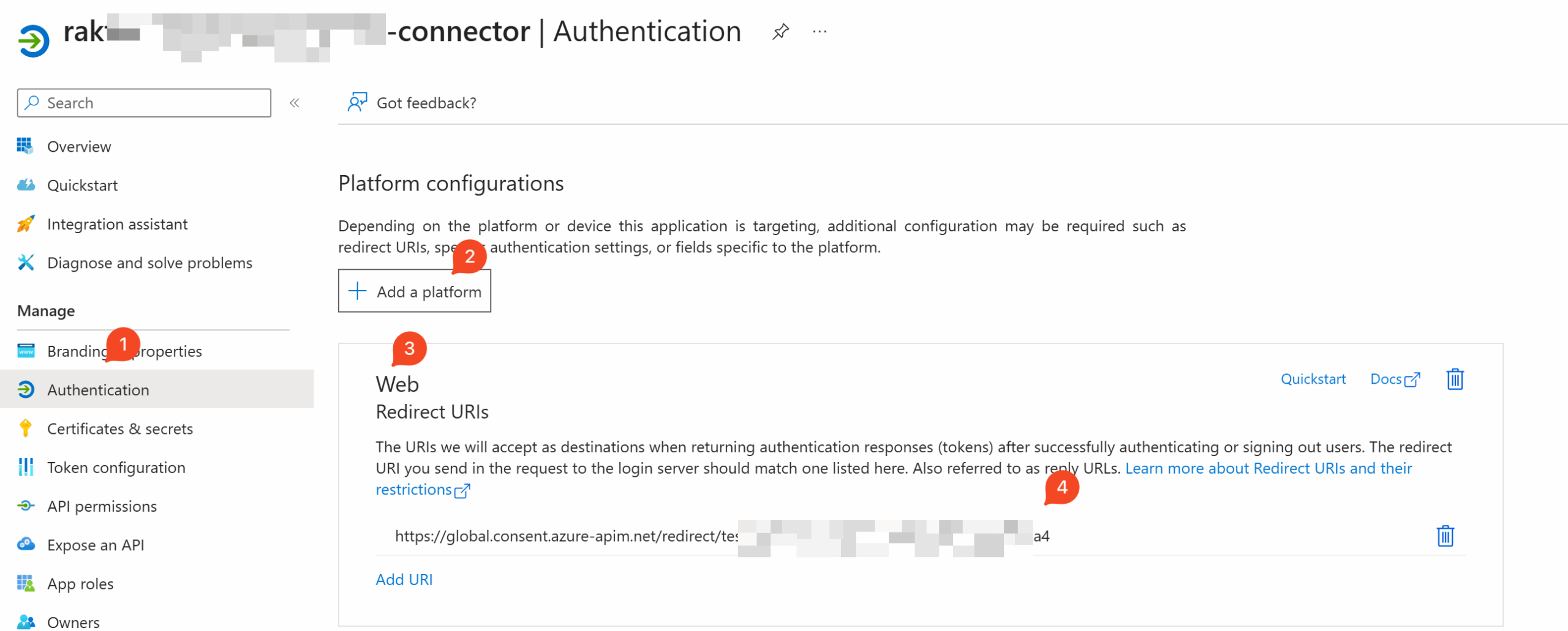
Click Save of course.
Optional, but I want to restrict the custom connector to certain users only, so I also set this to Yes and add a few users in Users and groups in the Enterprise App object of the custom connector app registration. 1️⃣
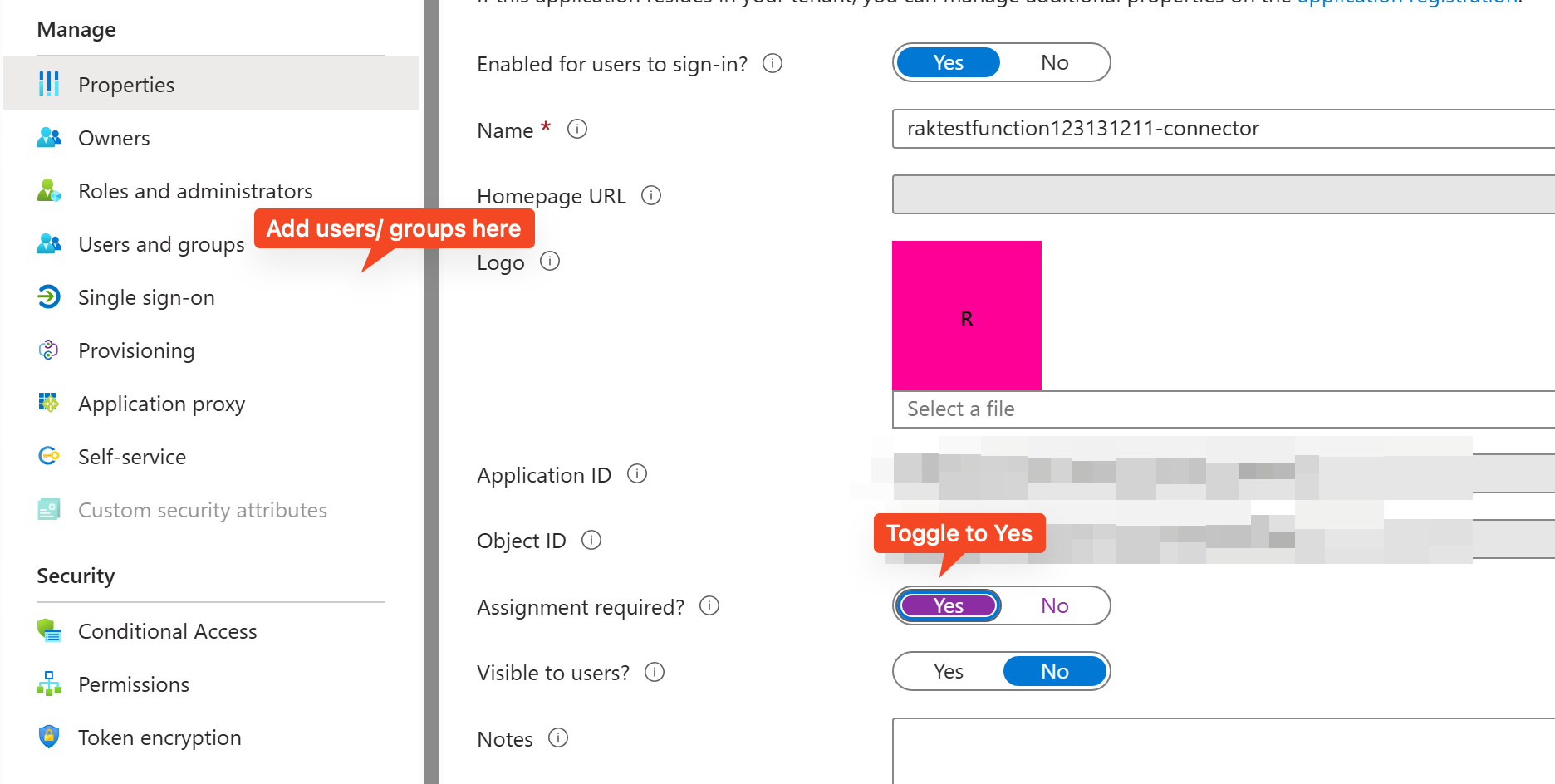
We are only nearly done! 😃
At this point if I add an action in the Custom Connector:
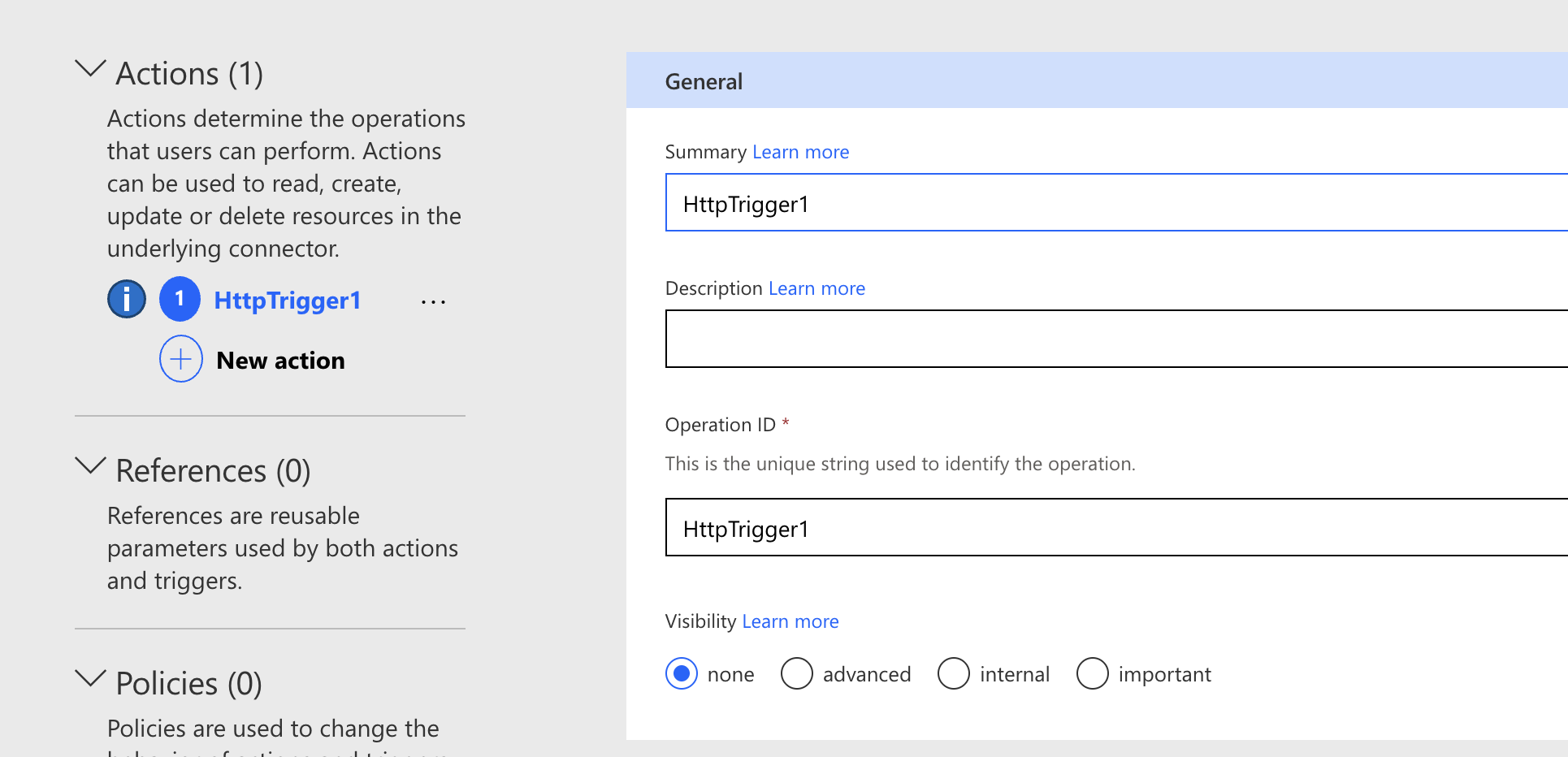
And go to Test and create a new connection, it fails with an admin prompt screen.
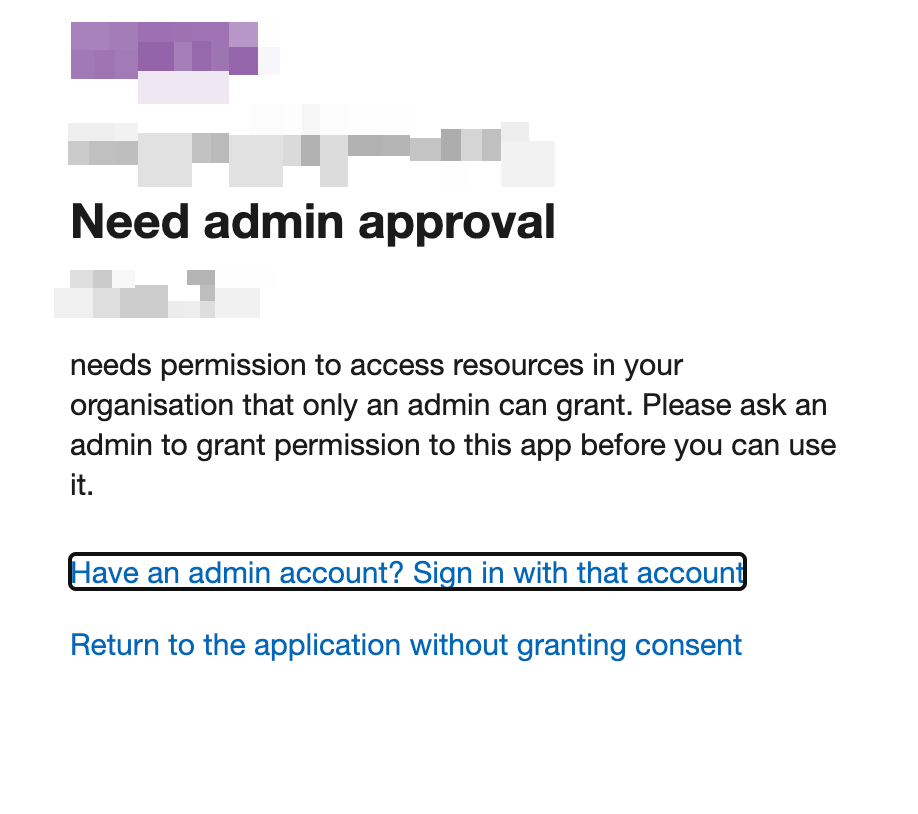
Which stumped me for a long time to be honest! Because I had done an admin consent and when I tried to do it again with my admin account it seemed to succeed but clearly it wasn’t.
What I had to do was to go to the Function App app registration > Expose an API > and add a client application as authorized.
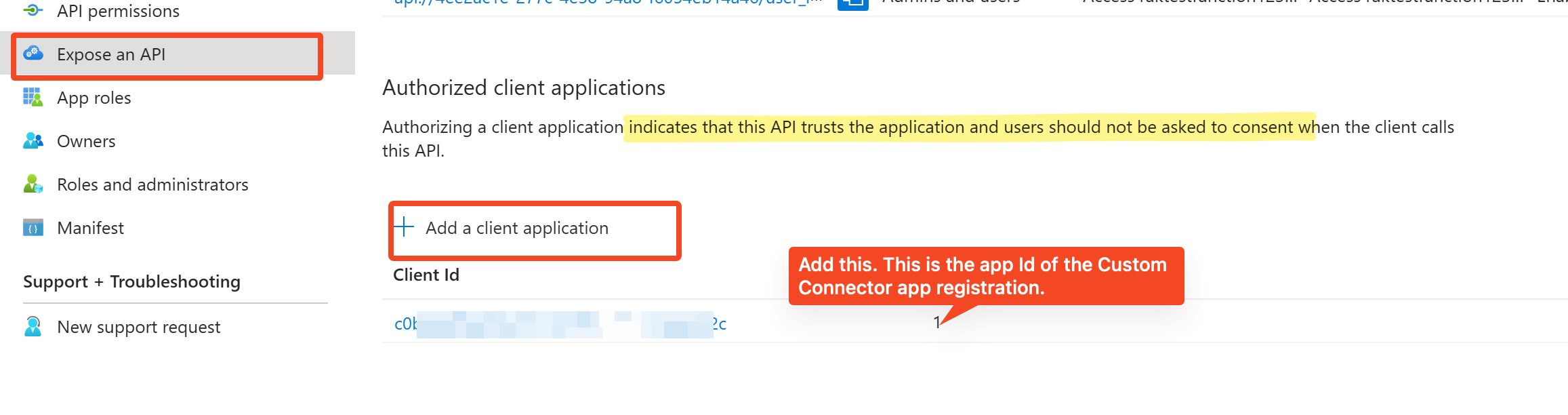
I had to select a scope when doing this, and I selected the only option that’s present.
After doing this the prompts went away and the test succeeded.
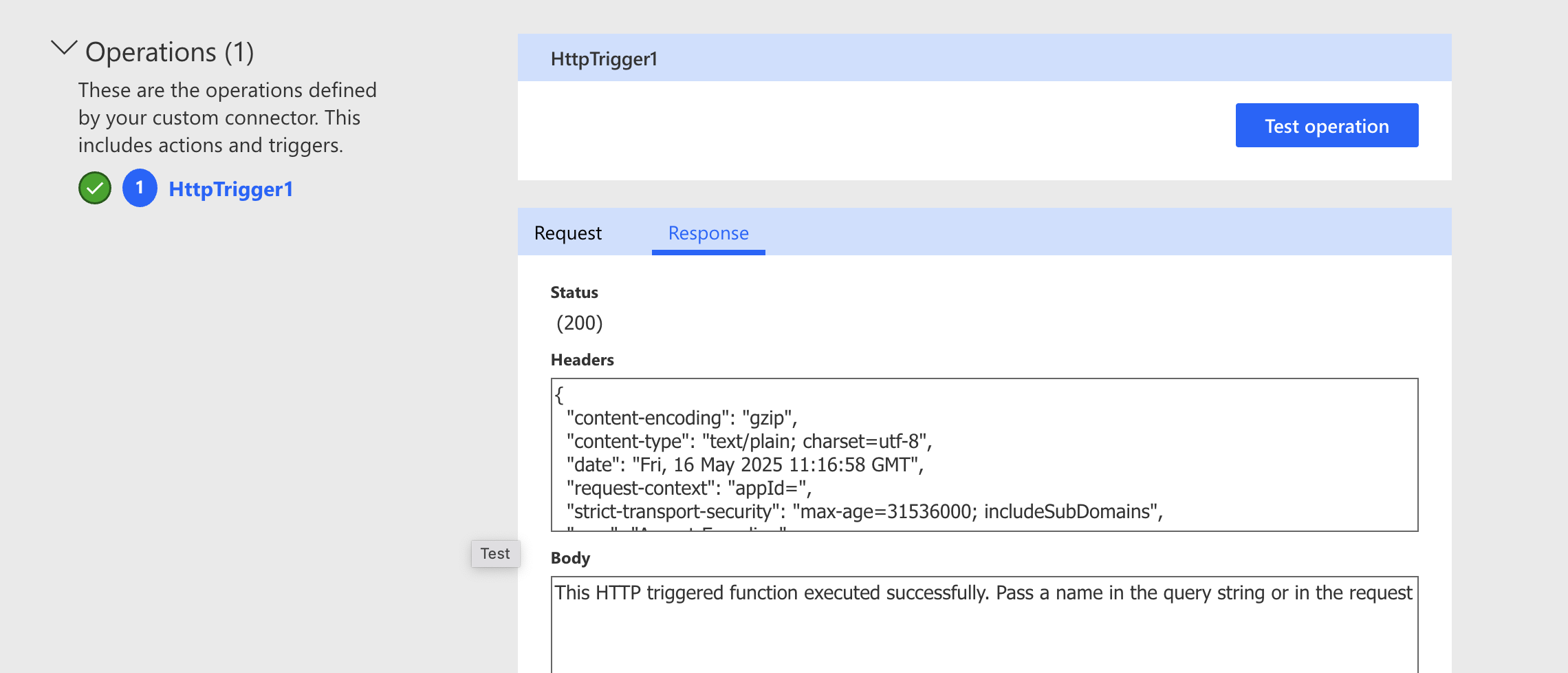
And if I try with a different user, it is blocked on the sign in level itself.
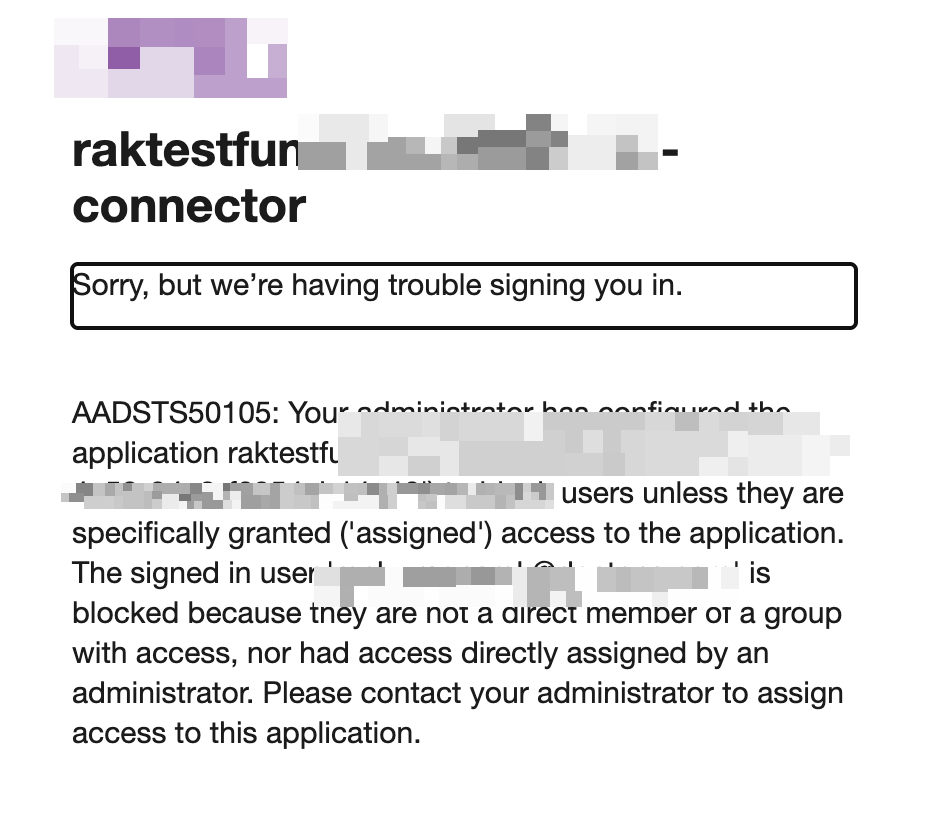
Phew!
A different approach
As I said in the “aside” section earlier, if I wanted to keep things simple and skip the app roles business, I could have done things differently.
I would have 1) created a new app registration for the Custom Connector like above, then 2) added it to the Custom Connector setup:
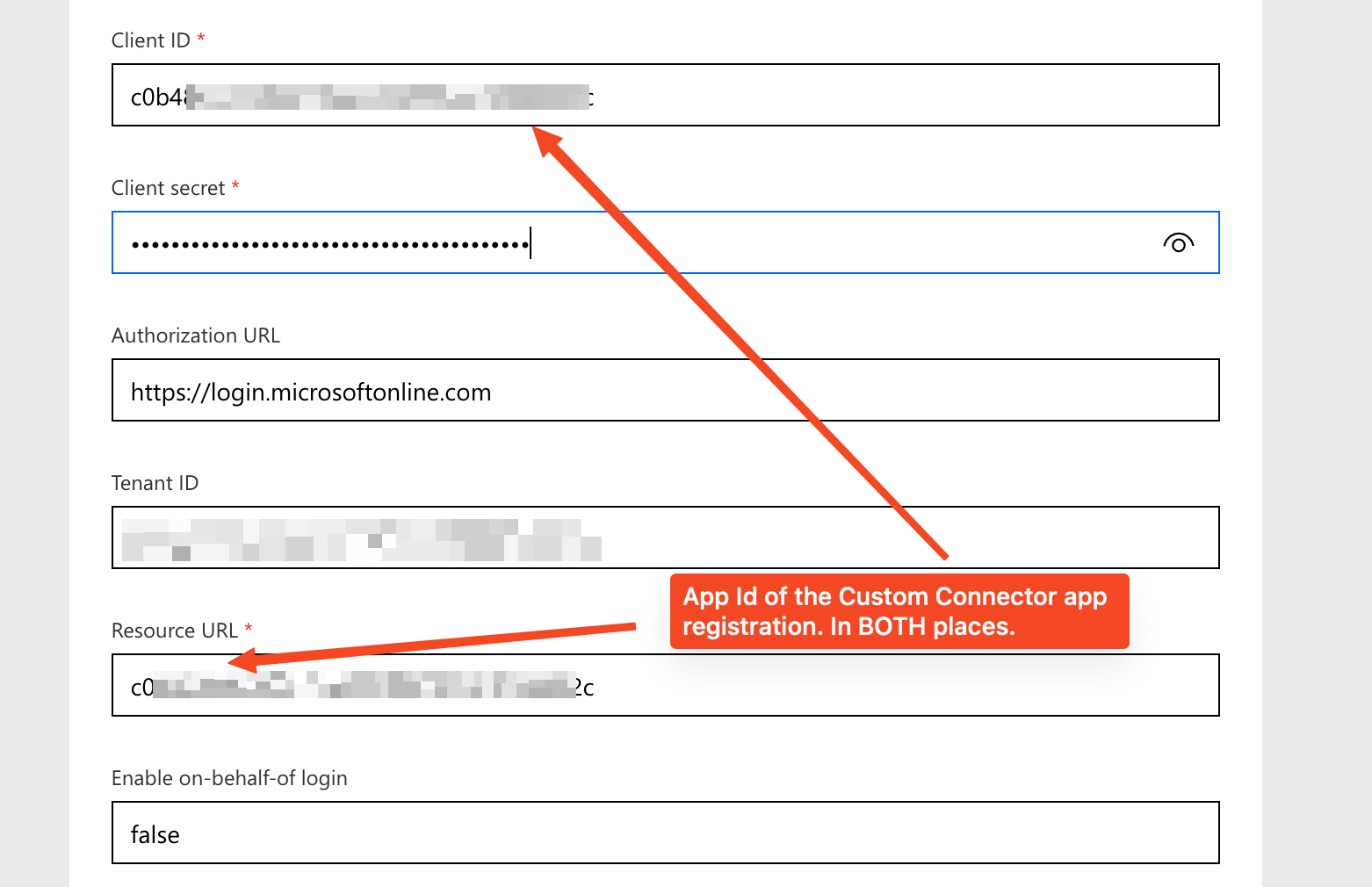
And 3) added this instead to the audience section of the Function App.
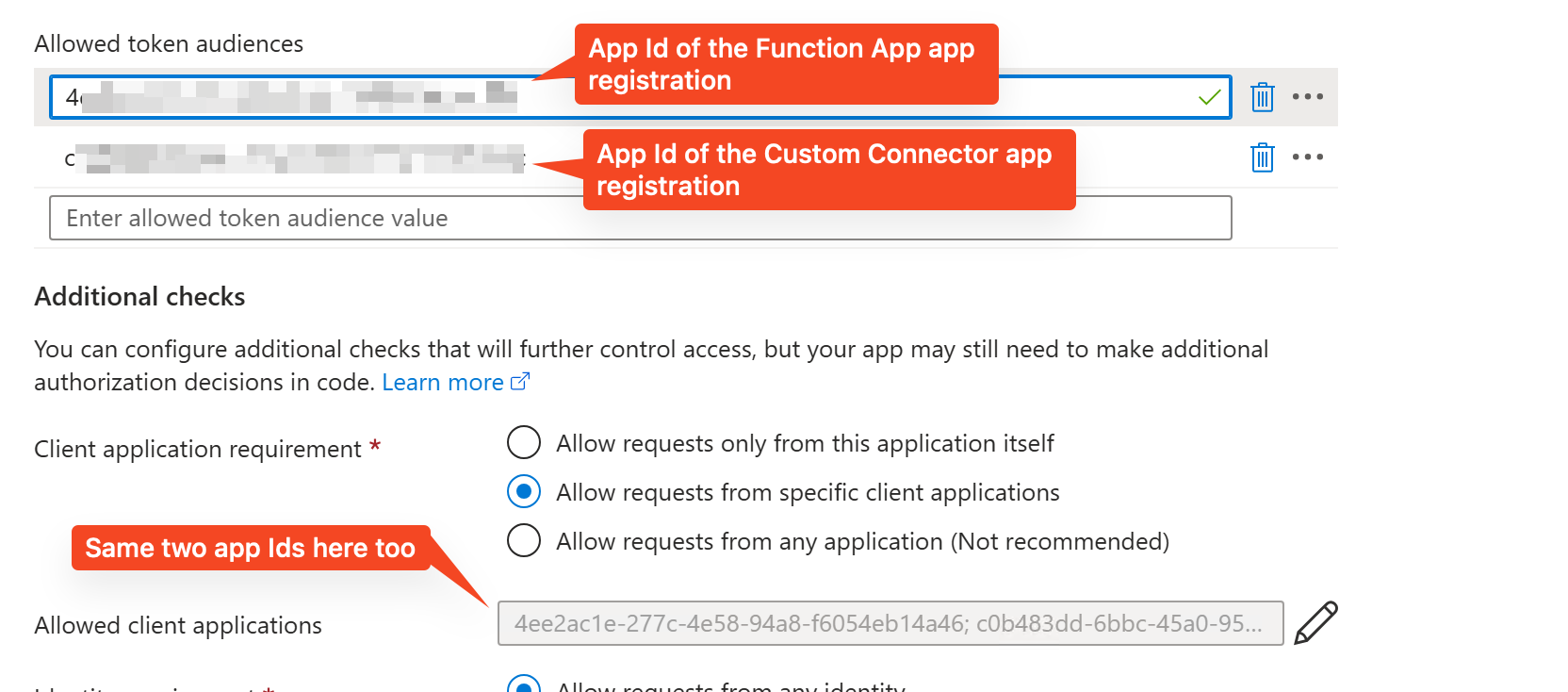
And that’s it. Nothing else to do!
This too will work, and is simpler. But I don’t like it for some reason. I can’t place a finger on why, but I think it’s because in this scenario the app registration of the Custom Connector has a equal status as the app registration of the Function App, and that doesn’t feel right to me. I don’t want the Custom Connector app registration to have rights directly to the Function app, I want to control this rights on the Entra ID side too and the only to do that is through app roles – granting it rights to the Function App app registration instead of to the Function app itself directly. If that makes sense…
Maybe it’s because I am an Entra/ Identity person that I am viewing it from this point of view. For anyone else, adding a bunch of app registrations to the Function App would be easier as they don’t have to involve an Entra admin to do the admin consent and all that (app roles + the consent at the expose an API screen). 🤷
Anyways, I wanted to end with this alternate approach too, because like I’ve harped on enough times I am no expert and this is just my way of doing things, not necessarily the only way or The Right Way.
1️⃣ If I restrict the Function App app registration to a set of users, then I must add these users there too. Else they will get blocked on the Function App app registration. 🔙
See a follow-up post here.