
Go read this post first. That’s what helped me figure out what to do without too much Googling around!
Key things are:
- The URL to call (via POST) is
https://api.fabric.microsoft.com/v1/workspaces/@{variables('WorkspaceID')}/items/@{variables('PipelineID')}/jobs/instances?jobType=Pipeline- No need for a body, unless the pipeline needs one.
- Here’s the documentation for the URL being called (there isn’t much!).
- The example there shows a payload, ignore that example. I realized later that the payload is just an example of parameters being sent to a pipeline.
- Use the HTTP with Entra ID preauhorized connector. When setting up authentication, use the following:
- Base URL is https://api.fabric.microsoft.com/
- Resource URI is https://analysis.windows.net/powerbi/api
- Be sure to give whatever account you sign in with here rights to the workspace. In my case it was a service account I use and I gave it Contributor rights.
That’s more or less it!
Irritatingly, I kept getting an Unauthorized error when testing this.
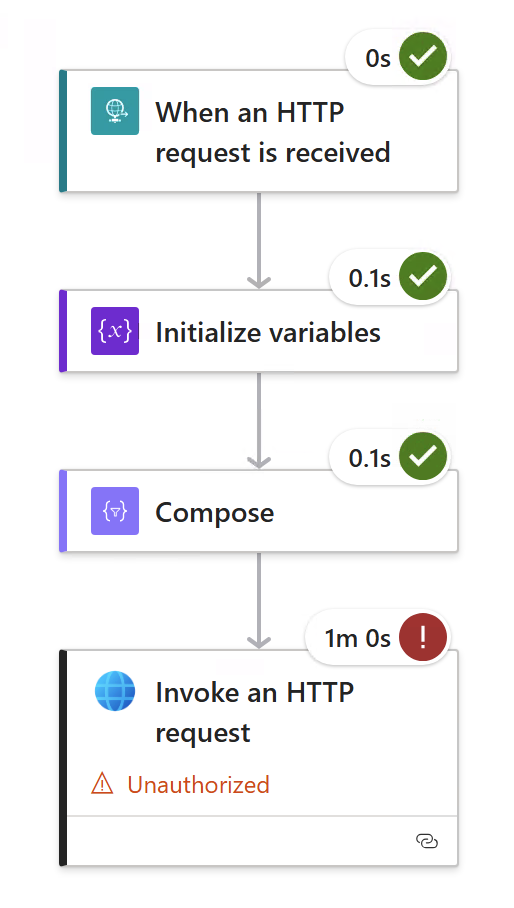
But I wasn’t actually unauthorized, coz the body had a different error:
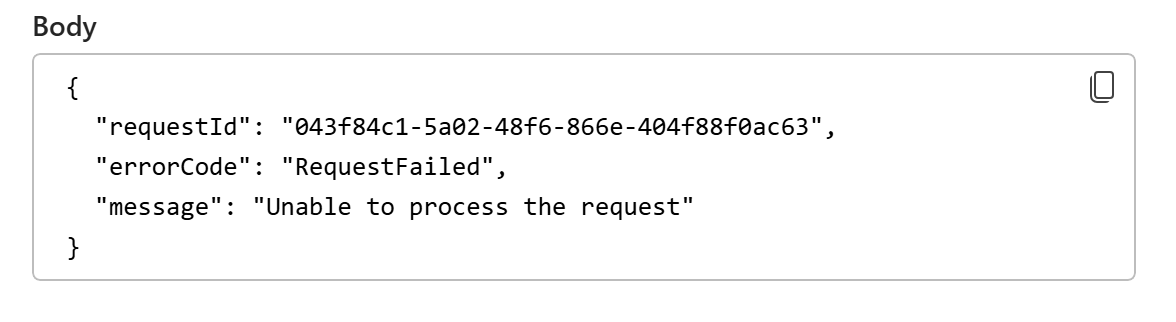
If you are actually unauthorized, the error is different.
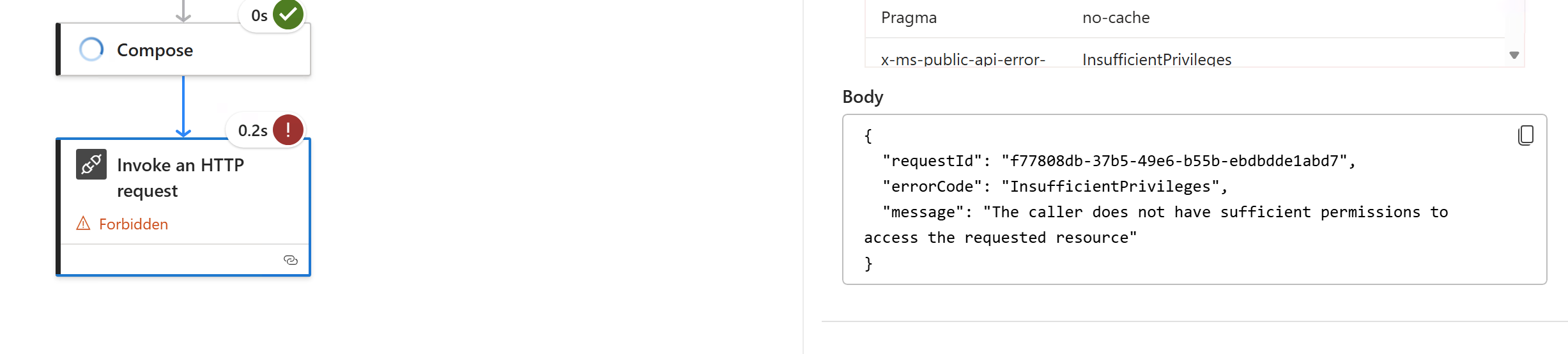
Thanks to Gemini, I realized what was going on. Since the pipeline doesn’t run straight away, what happens behind the scenes when you do an HTTP request is that you are getting a Location URL in the reply header. You are supposed to keep querying that to get updates on what’s happening. But… when the HTTP connector does that, for some reason it doesn’t connect using the signed in account, and that’s why we get an unauthorized error.
To fix it, first turn OFF asynchronous pattern. Click the 3 dots of the connector, go to Settings:
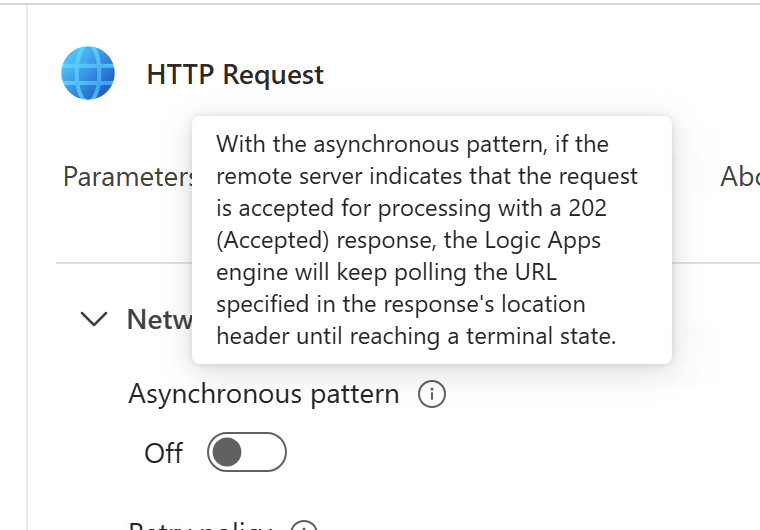
With this turned off, the connector won’t follow the Location URL. Instead, we got to do that.
So immediately after the HTTP connector, add some code to get the Location URL from the header.
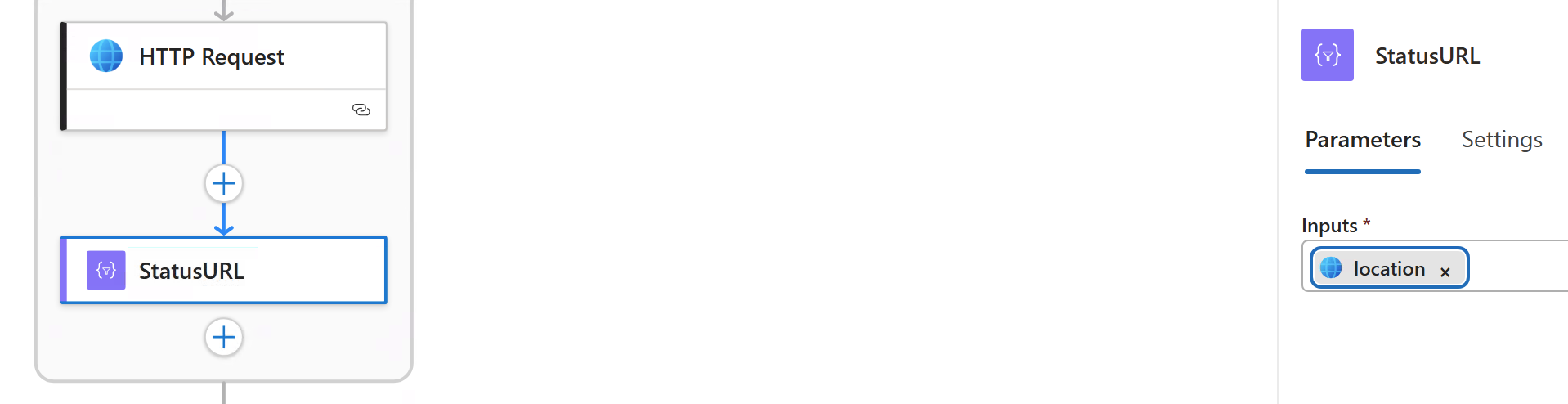
Here’s what I put in the input of the StatusURL compose object: outputs('HTTP_Request')?['headers']?['location'] (Replace “HTTP_Request” with whatever is your case of course)
Now, if I were to query that URL using the authorized connector, I will get a response. That response looks like this:
|
1 2 3 4 5 6 7 8 9 10 11 |
{ "id": "d9c77016-8e5d-4eed-a0df-59266367cf8d", "itemId": "3bfc37e7-8837-430d-8af4-6c6397da24d5", "jobType": "Pipeline", "invokeType": "Manual", "status": "NotStarted", "failureReason": null, "rootActivityId": "7f526ae4-bdb6-4fa8-b51e-2a626b3c9d62", "startTimeUtc": "2026-03-27T14:47:00.8", "endTimeUtc": null } |
Key thing is the status field. Looks like that has the following values:
- NotStarted
- InProgress
- Completed
- Failed
I couldn’t find any documentation on this (and Gemini gave wrong results such as “Succeeded” instead of “Completed”).
So what one must do is setup a loop that calls this Location URL (authenticated request, GET) checks the value of the status field, and keeps looping until it is either Completed or Failed.
Like so:
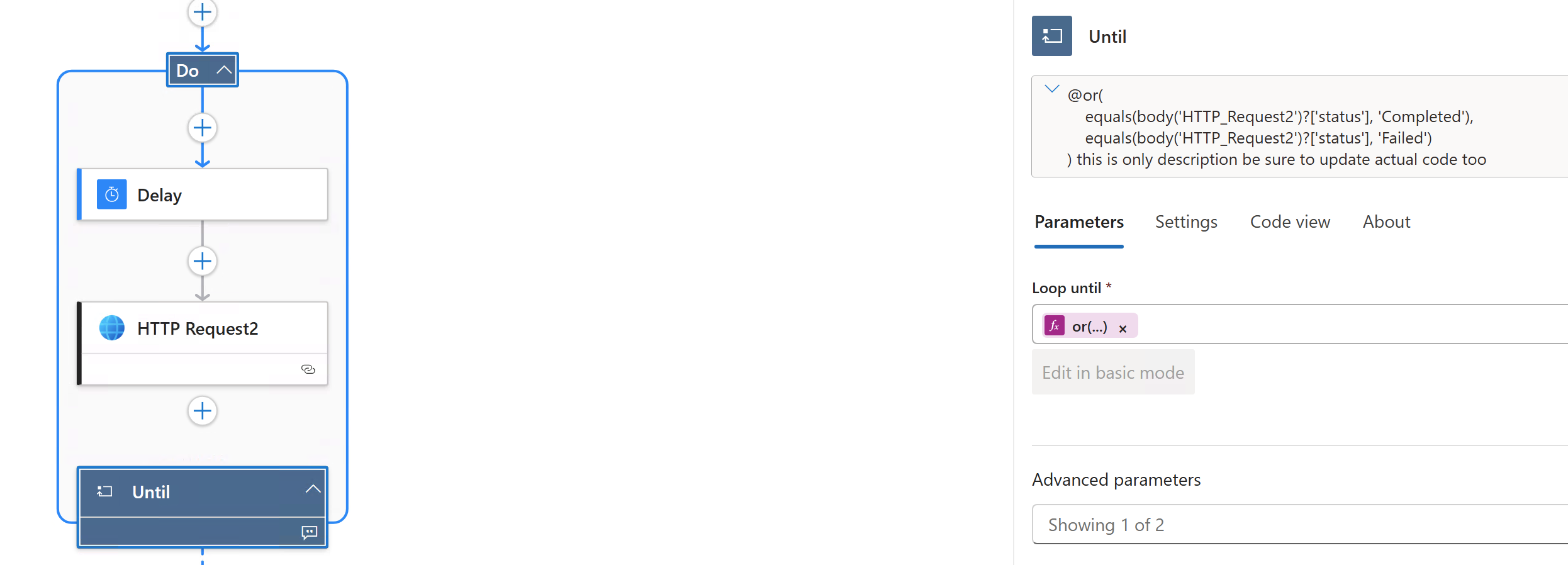
Here’s the formula:
|
1 2 3 4 |
or( equals(body('HTTP_Request2')?['status'], 'Completed'), equals(body('HTTP_Request2')?['status'], 'Failed') ) |
And then one can send an HTTP response to the caller of the Logic App/ Power Automate.
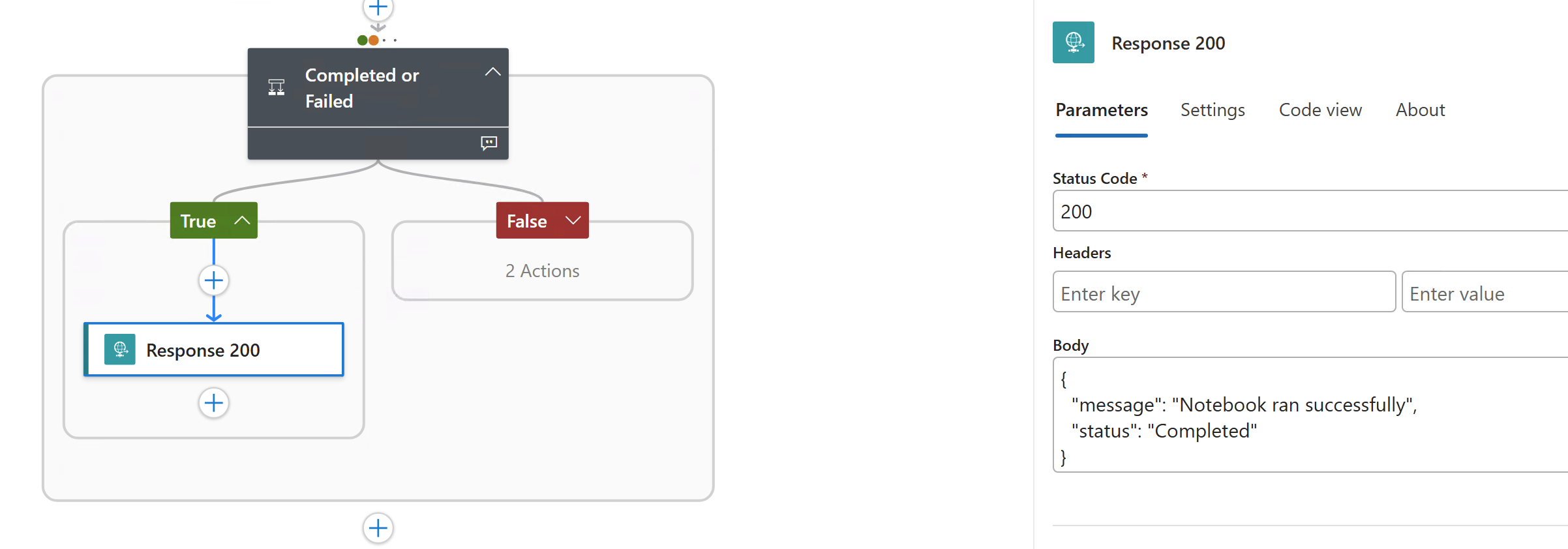
Here’s the condition block:
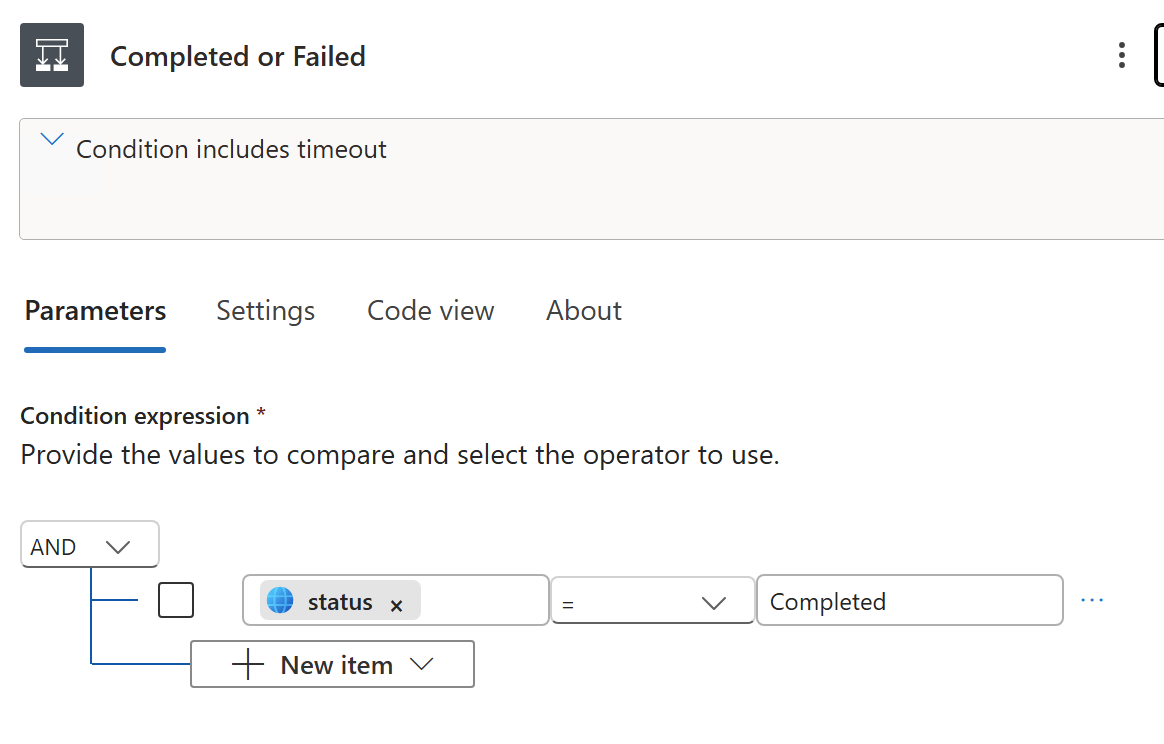
Note that I set the condition to also run if the do/ until loop timesout. This way it returns and error if the loop doesn’t finish for whatever reason.
That’s all! As the author of the blog post I linked to at the beginning of the post, I look forward to the day this is an in-built connector.