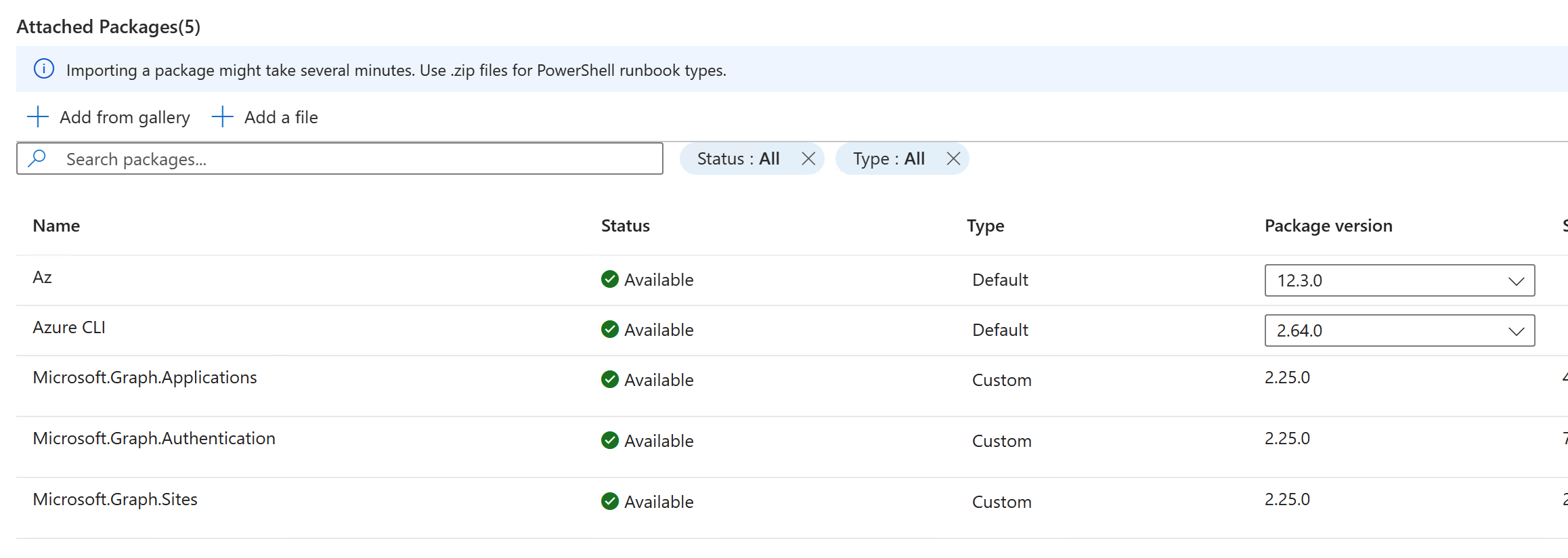
I have an Azure Automation Account Runtime Environment with a few Graph modules installed.
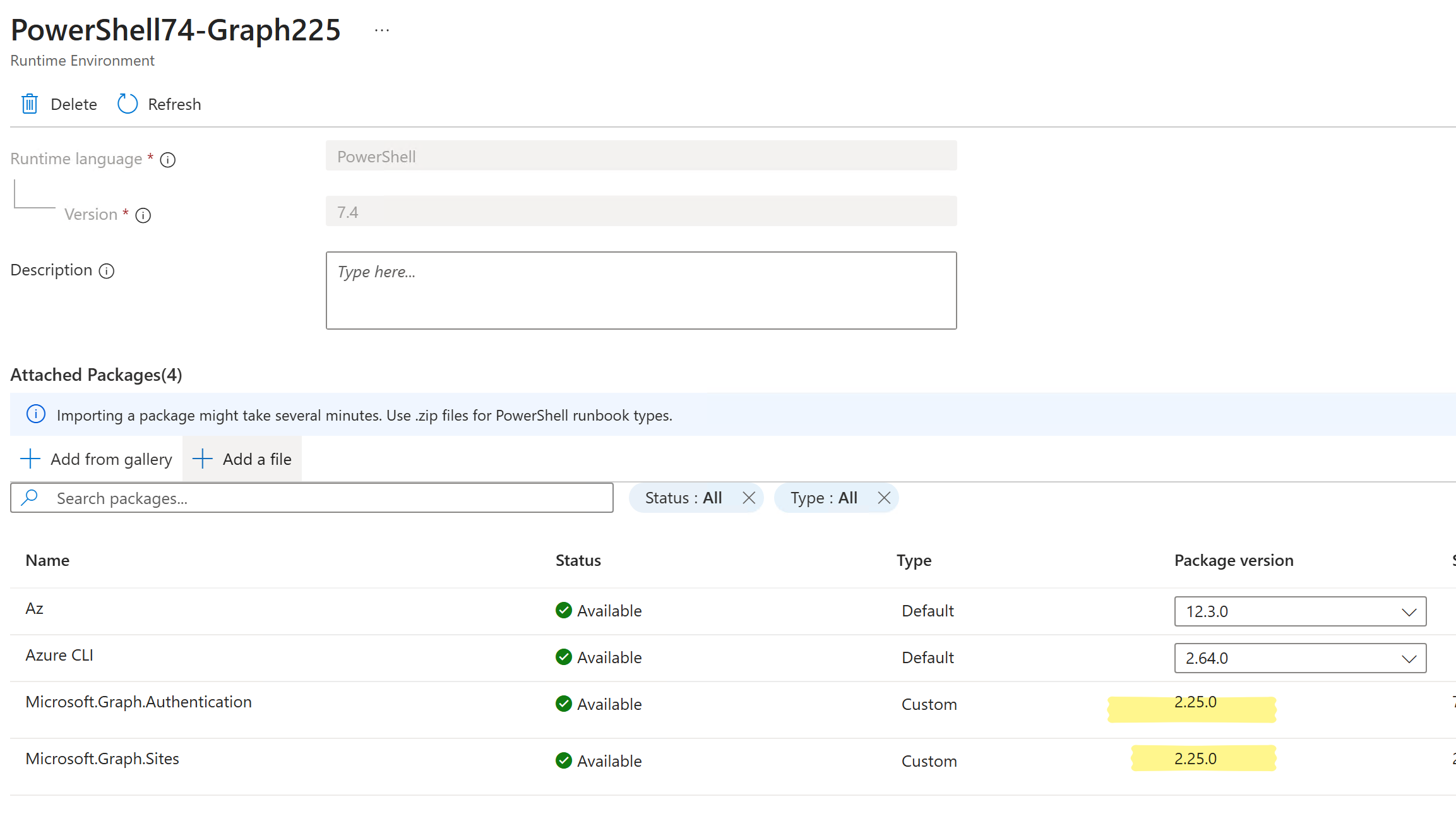
As you can see th existing ones are on version 2.25.0. I want to add the ‘Microsoft.Graph.Applications’ module. You’d think if I tried to install that from the gallery it will either (a) install the 2.25.0 version of the module so it is compatible with the rest; or (b) refuse to install because it can only install the latest version (2.30.0) and that clearly requires the rest of the modules to be at 2.30.0.

But nope, neither happens and it goes ahead and the portal installs version 2.30.0.
I didn’t expect my Runbook to actually work after that, and as expected it didn’t. Instead, I got this as an error:
|
1 |
Exception: The 'Get-MgServicePrincipal' command was found in the module 'Microsoft.Graph.Applications', but the module could not be loaded. For more information, run 'Import-Module Microsoft.Graph.Applications'. |
So… how do I install the specific version I want?
I could create a new runtime environment, but I don’t want to do that currently. There’s an option to “Add a file” but not much instructions except that we need a zip file.

There’s nothing in PowerShell Gallery itself on what to do (I tried to do the “Azure Automation” installation from there and while it has worked in the past (not sure if it was for Runtime Environments though) today it borked).
Anyways, here’s what I eventually did.
One my computer I downloaded the 2.25.0 version to a folder I created:
|
1 |
Find-Module -Name Microsoft.Graph.Applications -RequiredVersion 2.25.0 | Save-Module -Path C:\Users\xxx\Downloads\module |
The folder ended up containing both the “Microsoft.Graph.Applications” and its dependency “Microsoft.Graph.Authentication”. I zipped up the “Microsoft.Graph.Applications” folder, uploaded it (“Add a file”), and clicked Save.
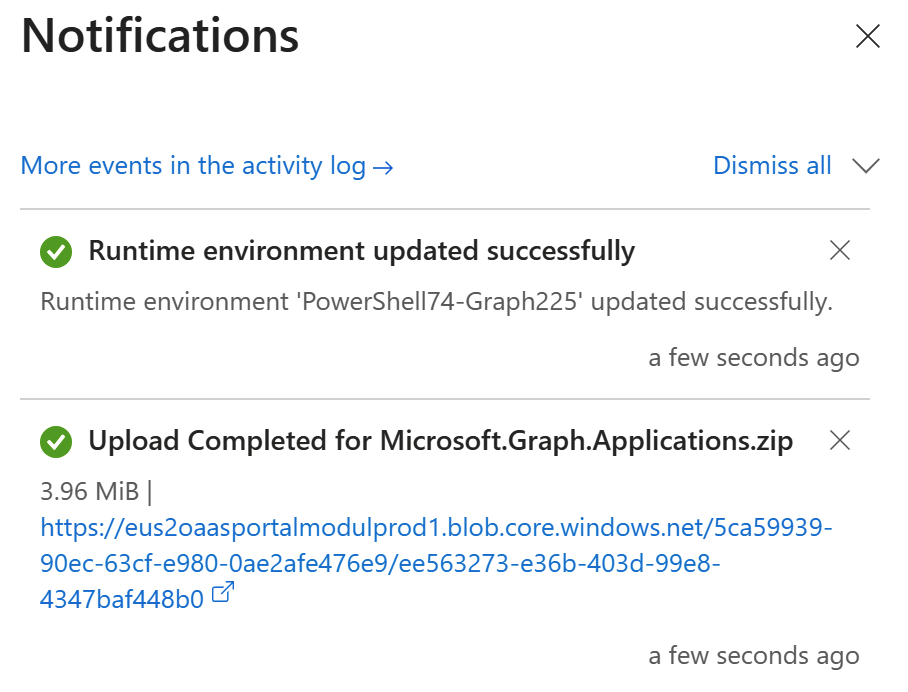
And that did the trick!