
Had an interesting issue at work that we resolved today. It’s probably not relevant to most folks, but I enjoyed getting to the bottom of it with a colleague (who came up with the eventual fix) and wanted to make a note of it.
We have Conditional Access policies for Android, iOS, and macOS that require Compliance, or Compliance and App Protection.
Ignoring macOS for now, the policy that requires Compliance and App Protection applies to “All Cloud Apps” for Android and iOS, with exceptions added and these exempted apps are targetted by the policy that requires Compliance. Of course, to avoid the chicken and egg problem of how to be Compliant if Intune Enrollment itself requires a Compliant device, we also exempt the “Microsoft Intune Enrollment” app from these policies and target it via a separate policy that requires MFA etc.
These two policies have a Grant action. With the requirements being things like “Require device to be marked as compliant” for one, and “Require device to be marked as compliant” and “Require app protection policy” for another.
We also have a “legacy” policy created way before our Intune rollout which targeted the “Office365 App“, applied to Windows only (because this was created before our Intune days, and that time there was no way to mark iOS or Android as compliant), and which blocked access. So if you are coming from Windows OS, accessing “Office 365 App”, and not from a compliant or hybrid joined device (we exclude these via device filters), the action is Block. Make a note of this difference, it’s imporant. 🙂
Thus, to recap: 1️⃣ we had a couple of policies that targeted iOS, Android, macOS and which Granted access with controls like “Require device to be marked as compliant”. And 2️⃣ policies that targeted iOS, Android, macOS specifically for Intune enrollment and which Granted access based on controls like “Require multifactor authentication” and a few others. And 3️⃣ a single policy that targeted Windows and Linux and the “Office 365 App” and which Blocked access if the device was not compliant or hybrid joined.
During an audit, our security team pointed out that policy 3️⃣ should ideally be changed to target all OSes. Yes, in a way we are covering Android, iOS, macOS, Linux, and Windows across all the above policies, but what about situations where the OS is masked somehow and is not in this list. Seemed like a sensible suggestion, and so we changed the policy 3️⃣ to target all OSes.
Fast forward a few months with no issues, but starting last month we started getting complaints about Teams phones running into enrollment issues. We couldn’t give it our full attention due to holidays etc. but looking it this week the issue seemed to affect Android AOSP devices. You see, historically Teams phones and meeting rooms etc. run on Android, but they are now switching to Android AOSP. This migration happens behind the scenes with no user impact, and in our environment we had a number of these AOSP devices too.
What seemed to be going wrong though was that if a device was on AOSP and had to be re-enrolled for any reason, then it wouldn’t work. The user was blocked with a “You cannot access this right now” message. Weird.
Digging into the logs we saw that the user was blocked by the two Android/ iOS policies 1️⃣ 2️⃣ that require App Protection and Compliance, and also the policy 3️⃣ that targets “Office 365 App” and which was now applying to all OSes. That didn’t make sense. The first two policies made sense, coz yes the device wasn’t enrolled and hence not Compliant, but what was policy 3️⃣ doing in the mix?
Investigating furthe, turns out this last policy was applying because the “Microsoft Teams” app on the phone was reaching out to the “Device Management Service”. This is a part of the “Office365 App“. Why though?
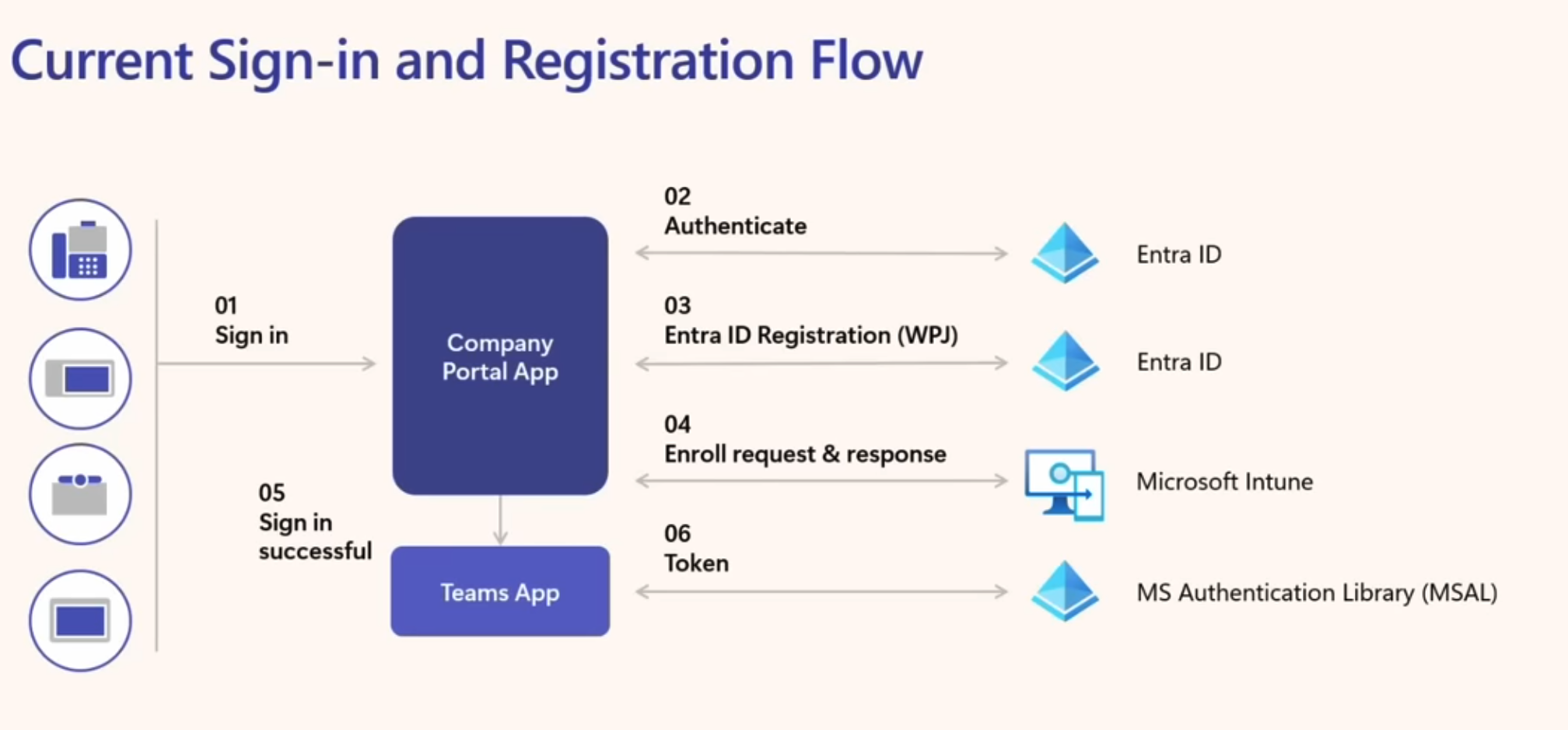
The answer to that was in a video in a Microsoft blog post that talked about switching from Android to Android AOSP. It’s a great video, by the way, and a good blog post too. The key point is that whereas this is how historically Teams phone enrollment took place:
That has now changed to be like this:
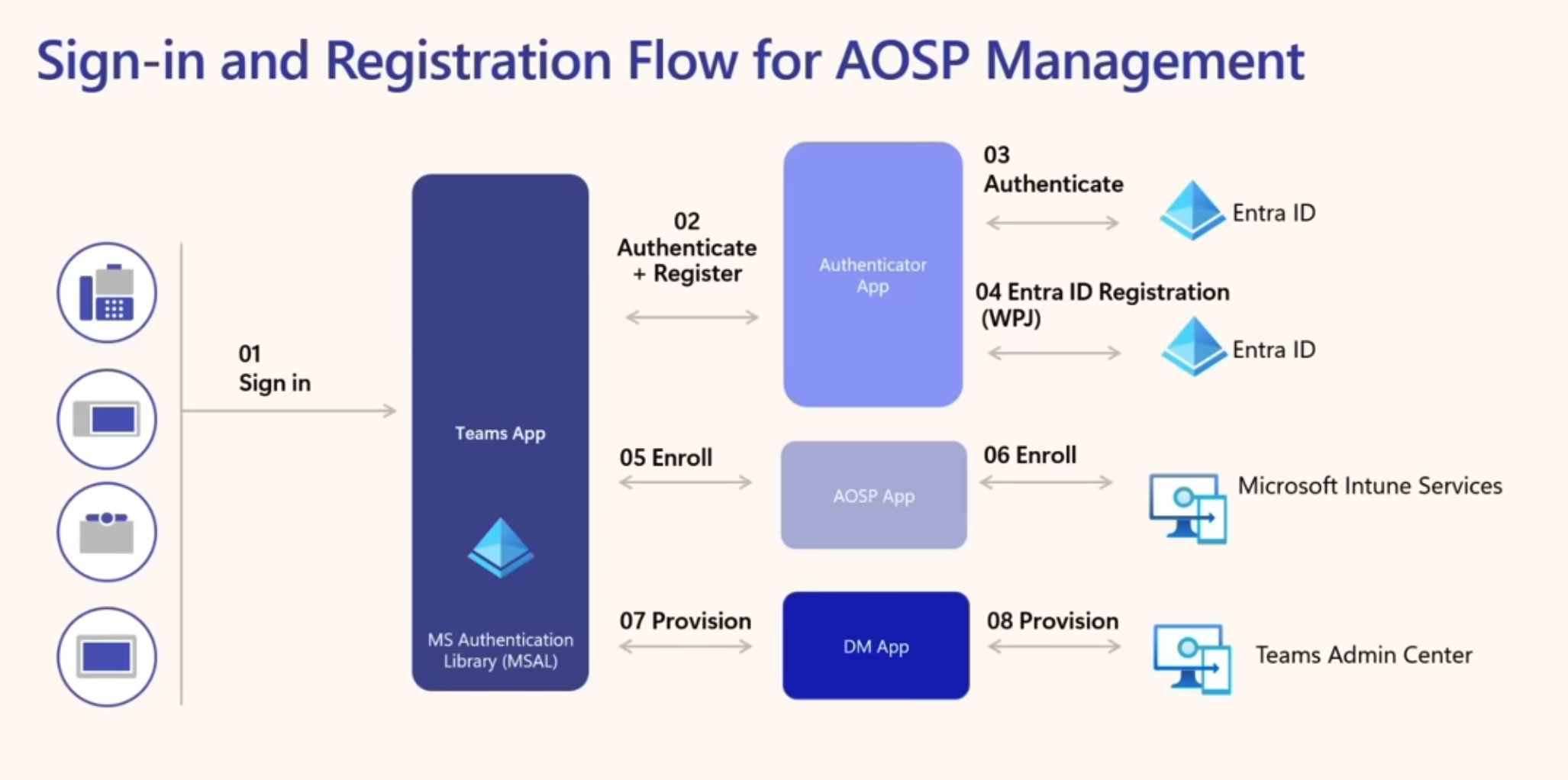
There is no longer a Intune Company Portal app that does enrollment, but the Teams App that does the whole thing by making use of the Authenticator App. A subtle difference, but one of importance. With Android Teams phones you’d use the Company Portal app to kick off an enrollment flow and thus you won’t hit any of our policies 1️⃣ 2️⃣ 3️⃣ but only the one that targeted Intune enrollment; while with Android AOSP Teams phones the Teams app talks to this “Device Management Service” in Entra (not shown in the pictures above, but that’s what we saw in our logs) – possibly to check if the device is registered or not? – and since the device isn’t Compliant at this point it gets blocked by policy 3️⃣ as “Device Management Service” is targeted by this policy.
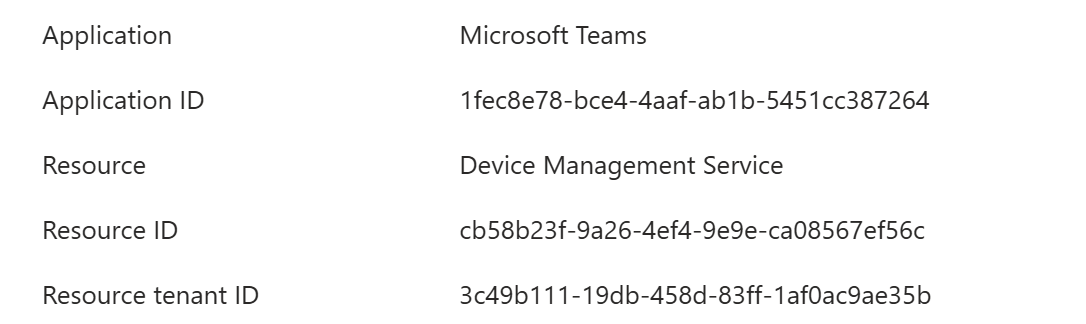
To confirm, we removed the user from policy 3️⃣ and the phone successfully enrols. As before Teams app talks to “Device Management Service”, but it does not get blocked, and so then the Authenticator App talks to the “Microsoft Intune Enrollment” service and starts enrolling.
Our initial thought was the exempt Android (or Android AOSP specifically if possible) from the policy 3️⃣ and we spent a lot of time going down that track (short answer: there doesn’t seem to be a way, though if you ask ChatGPT or Copilot it will suggest a lot of options). Our final plan was to exempt Android itself because after all it was being targetted by our other policies, but that just seemed icky and we were still curious as to why the policy 3️⃣ was causing an issue. Yes, the device isn’t compliant, but surely shouldn’t it just proceed to getting enrolled and not blocked?
And this is where my colleague Z had his insight. You see, whereas all the other policies were of a Grant type and thus “positive” in a sense, policy 3️⃣ was Block and thus “negative”. A Grant type policy blocks access, but in a positive way in that it tells the client what it needs to do to get access – become compliant or pass MFA etc. – whereas a Block type policy gives no feedback and just blocks access. This is why with Teams phones running AOSP they were being blocked and not proceeding to get enrolled, they had no idea wha to do. So we changed this policy to be of Grant type with “Require device to be marked as compliant”, and that did the trick! 🥳
Lesson learnt – use Block sparingly. As with most things in life, try and give feedback on why you are doing something rather than just walk out of the room slamming the door. 😃
Another thing – Android AOSP Teams devices are the odd ones in the pack. Whereas iOS and Android devices (including Android Teams devices) have the Company Portal app wherein you initiate enrollment and then try to access something, with Android AOSP Teams devices you try to access something first, figure out you are not registered, and then try to enroll. Subtle difference.