
I wanted to document the authentication flow for Teams phones. This is by no means comprehensive, but only what I have been able to gather by looking at a Yealink MP56 phone. The device itself is discontinued, but firmware updates are available so it works with Teams. The device I got happened to be on a really old version of the firmware, so I was able to try it across various versions.
Firmware 122.15.0.33
This is what the device had out of the box:
- Firmware Version: 122.15.0.33
-
Hardware Version: 122.1.0.0.0.0.0
-
Company Portal Version: 5.0.4927.0
-
Teams Version: 1449/1.0.94.2020111101
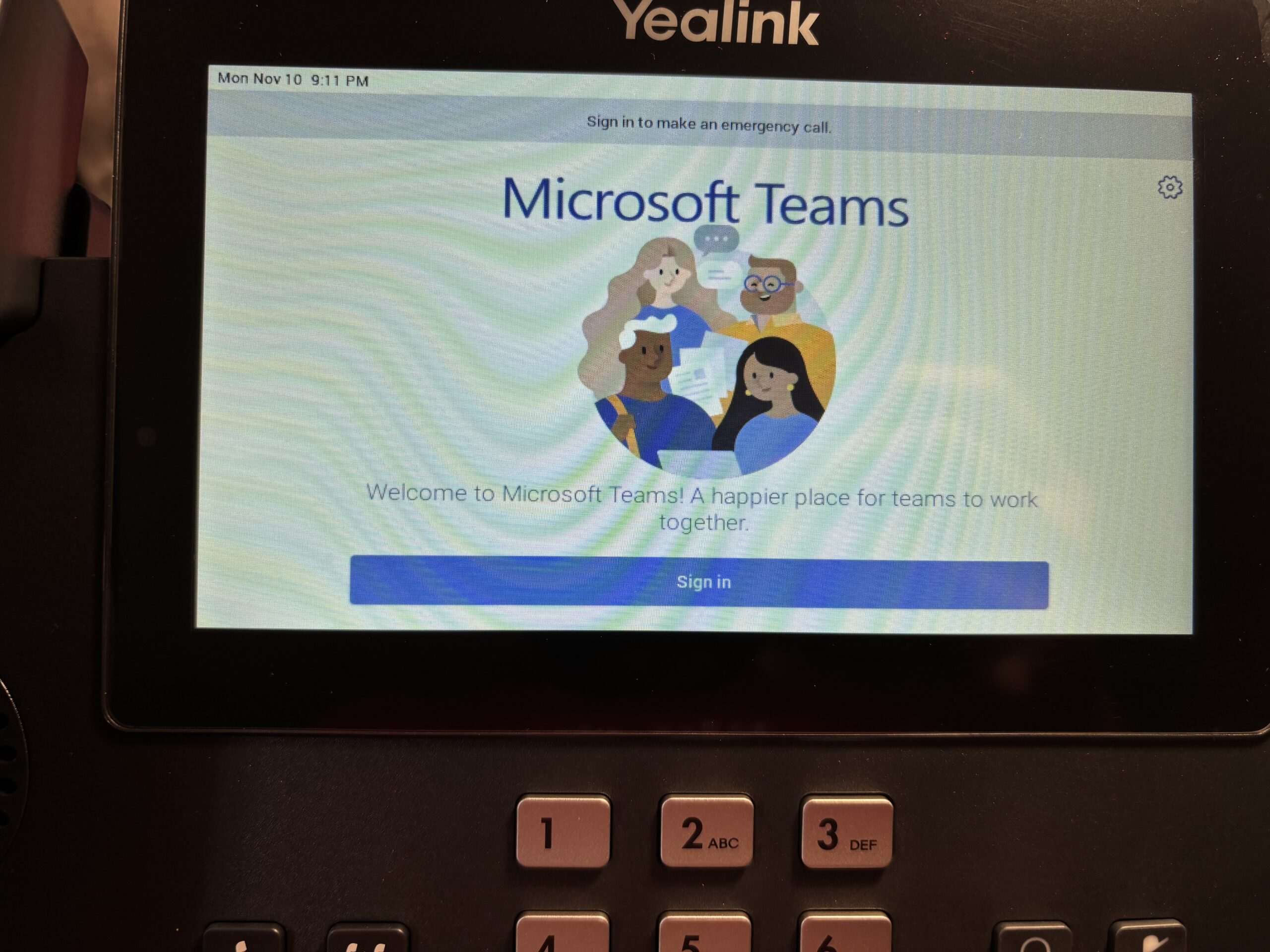
Powering on the device greets you with this screen:

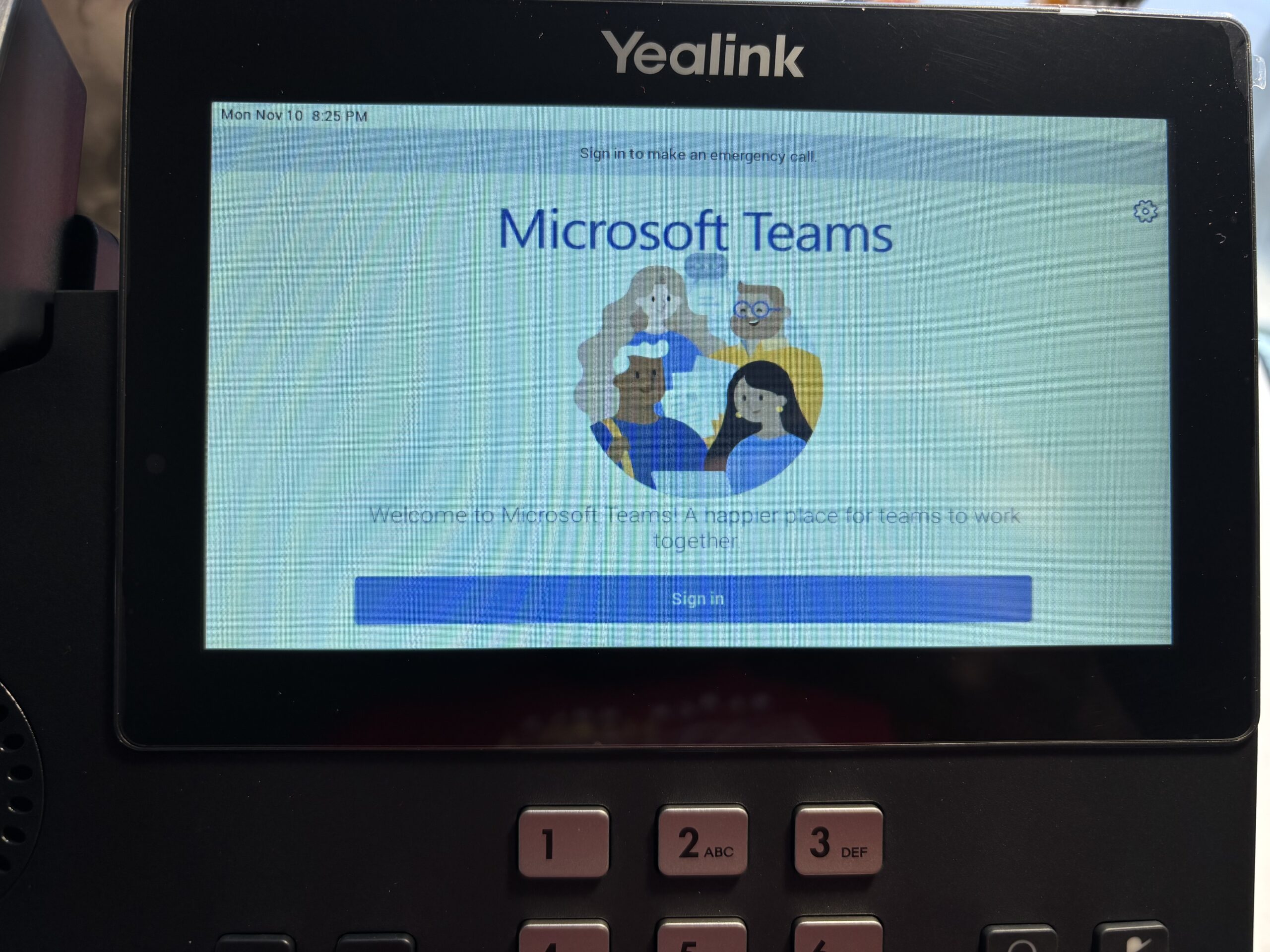
You can click the Gear icon on the top right to get into settings to view the IP address and other details. That’s how I then connected to the phone’s admin portal to take a look at the firmware etc.
Clicking “Sign in” opens up the (Intune) Company Portal app.
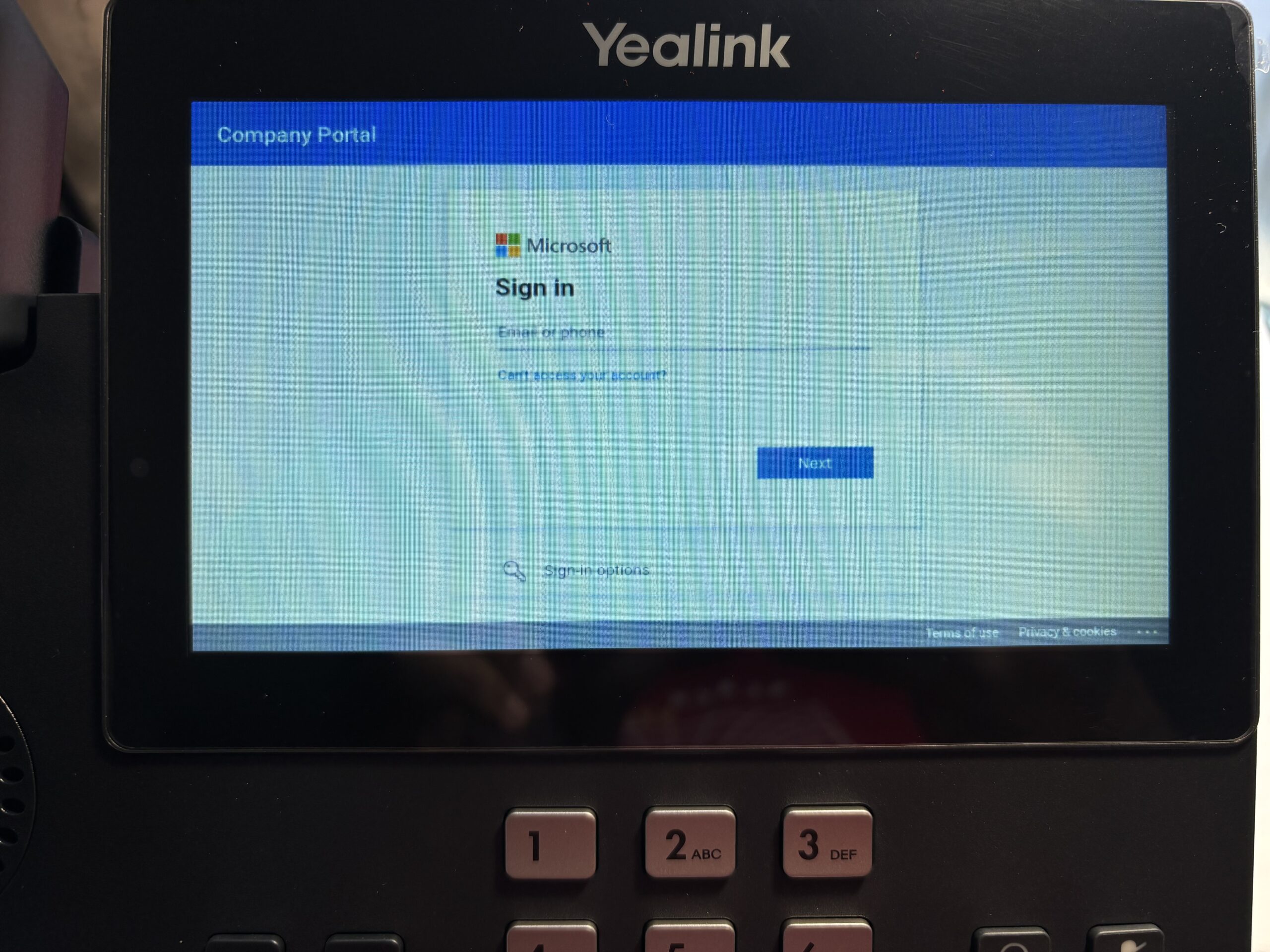
I can either enter the email address here and click “Next”, or click “Sign-in options” to do a Device Code flow.
Device Code flow
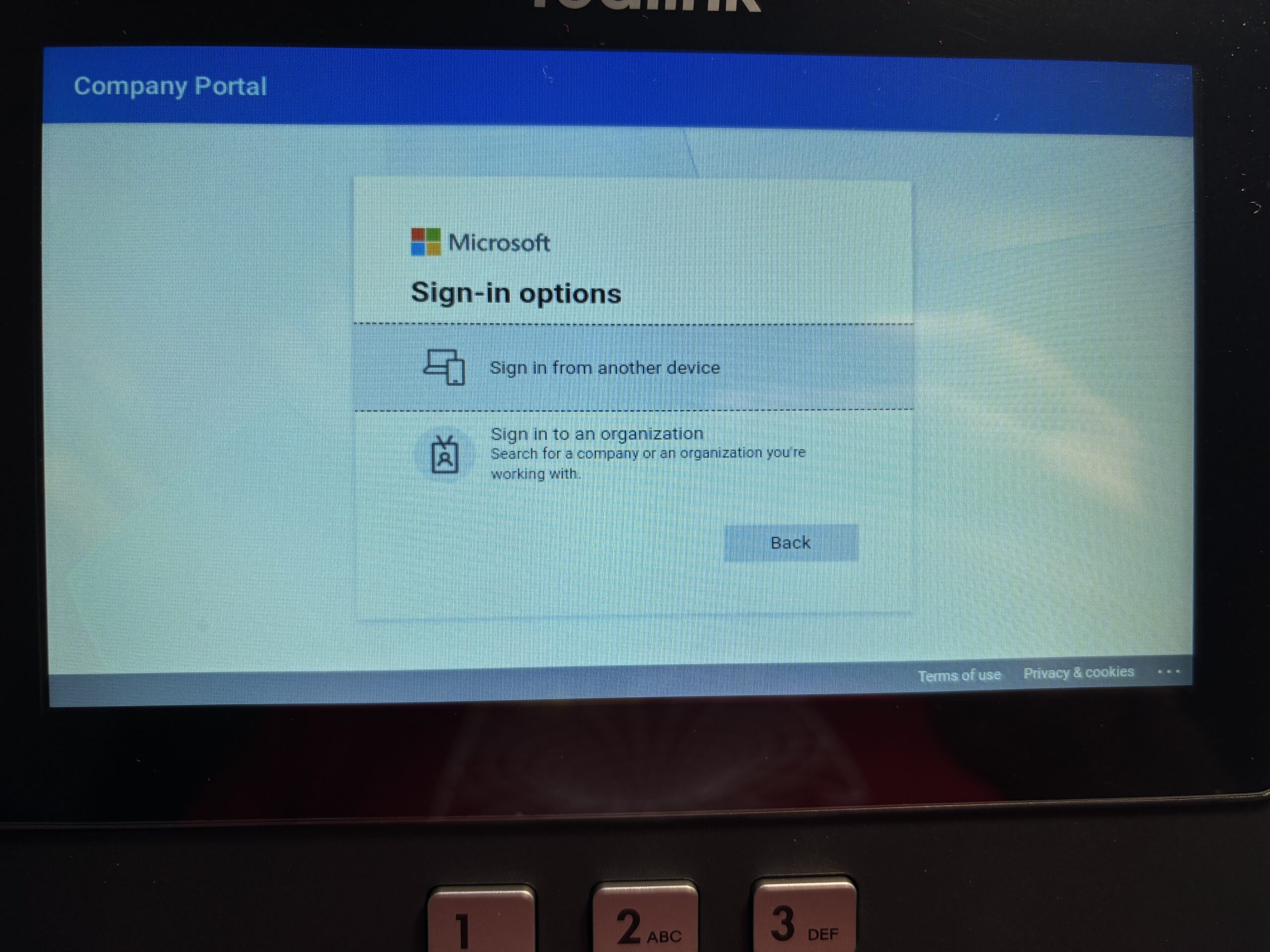
I am not expecting this to work coz we have blocked device code flow firmwide. As a test though, I have an exception for myself for when registering a device, and I want to see what happens.
Clicking on “Sign in from another device” gives me a code. I can enter that in a browser, and as expected it failed.
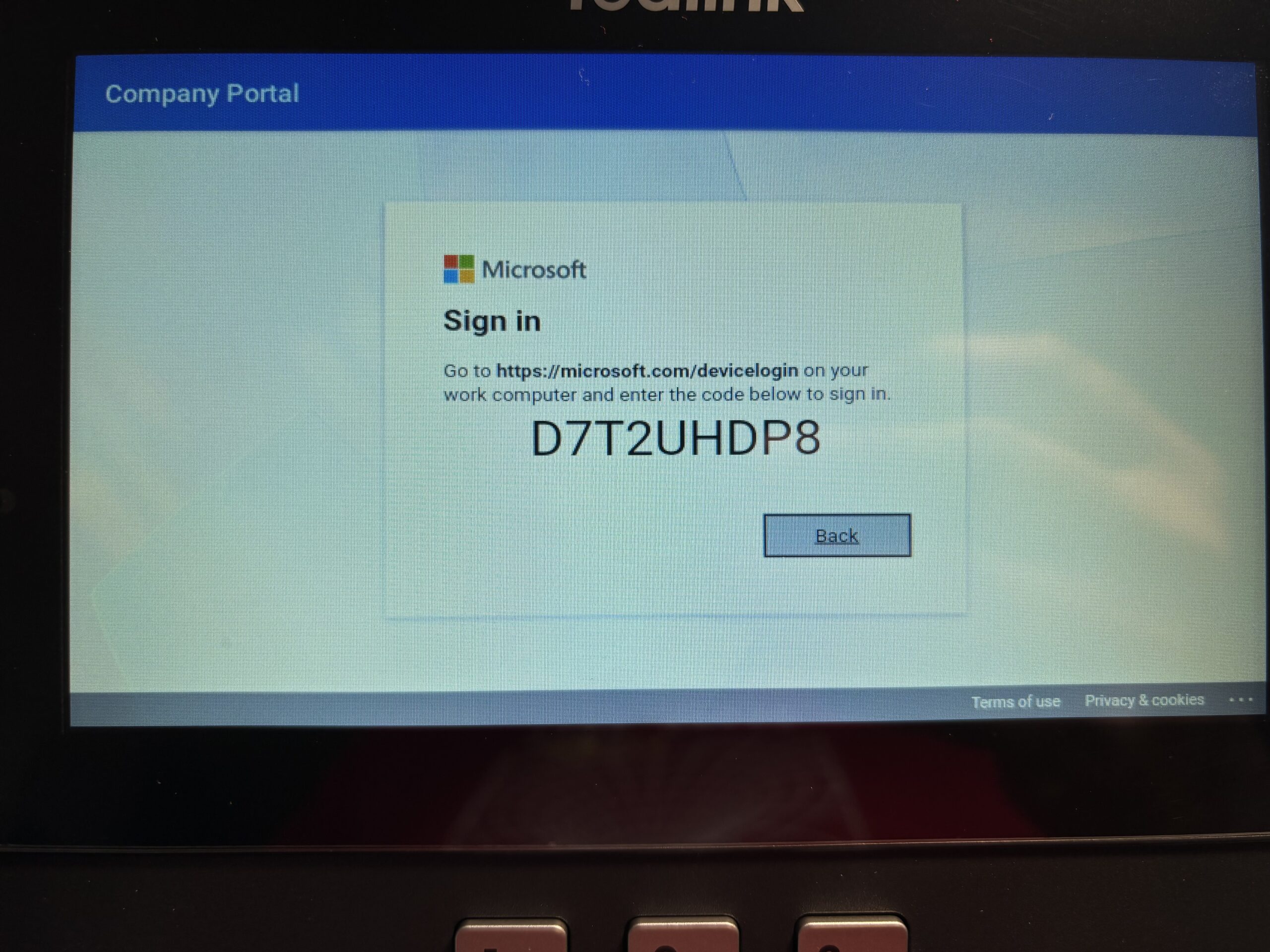
As expected it fails: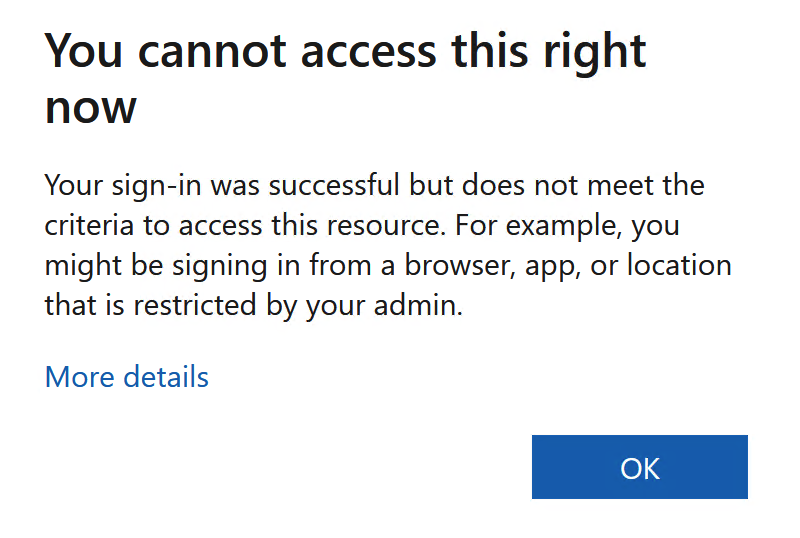
And I can see it in the logs too:
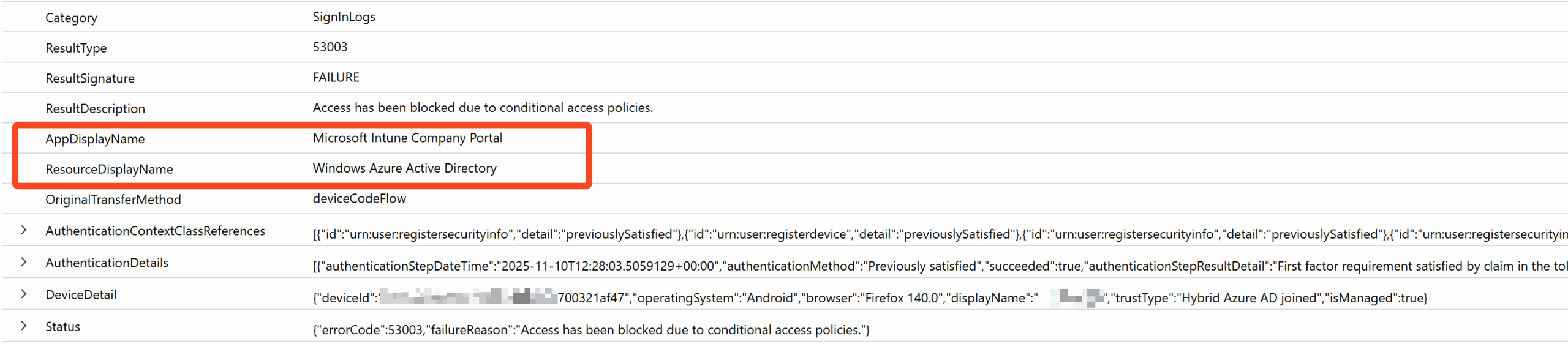
Some things to note:
- The app in question is the Intune Company Portal – expected.
- It is trying to access Windows Azure AD
- Notice the Device Details are a mix of the computer I am doing device login from (the device Id is of my computer, the browser I am using is indeed Firefox, the machine itself is Hybrid joined, but the OS is picked up as Android).
- There’s no particular significance to this, but it’s worth pointing out because the OS field/ Device Details may not always be accurate. I would have either excepted this to be “Windows”, or the whole Device Details property to be about the Teams phone itself.
Username password flow
Now let’s try the username password flow. I enter my email address, followed by password, followed by an MFA prompt (may or may not happen to anyone else trying this as it depends on your conditional access policies).
Things went weird after this, and I think that’s down to the very old firmware on the device. Nevertheless, here are some screenshots.
First, the company portal tries to sign in.
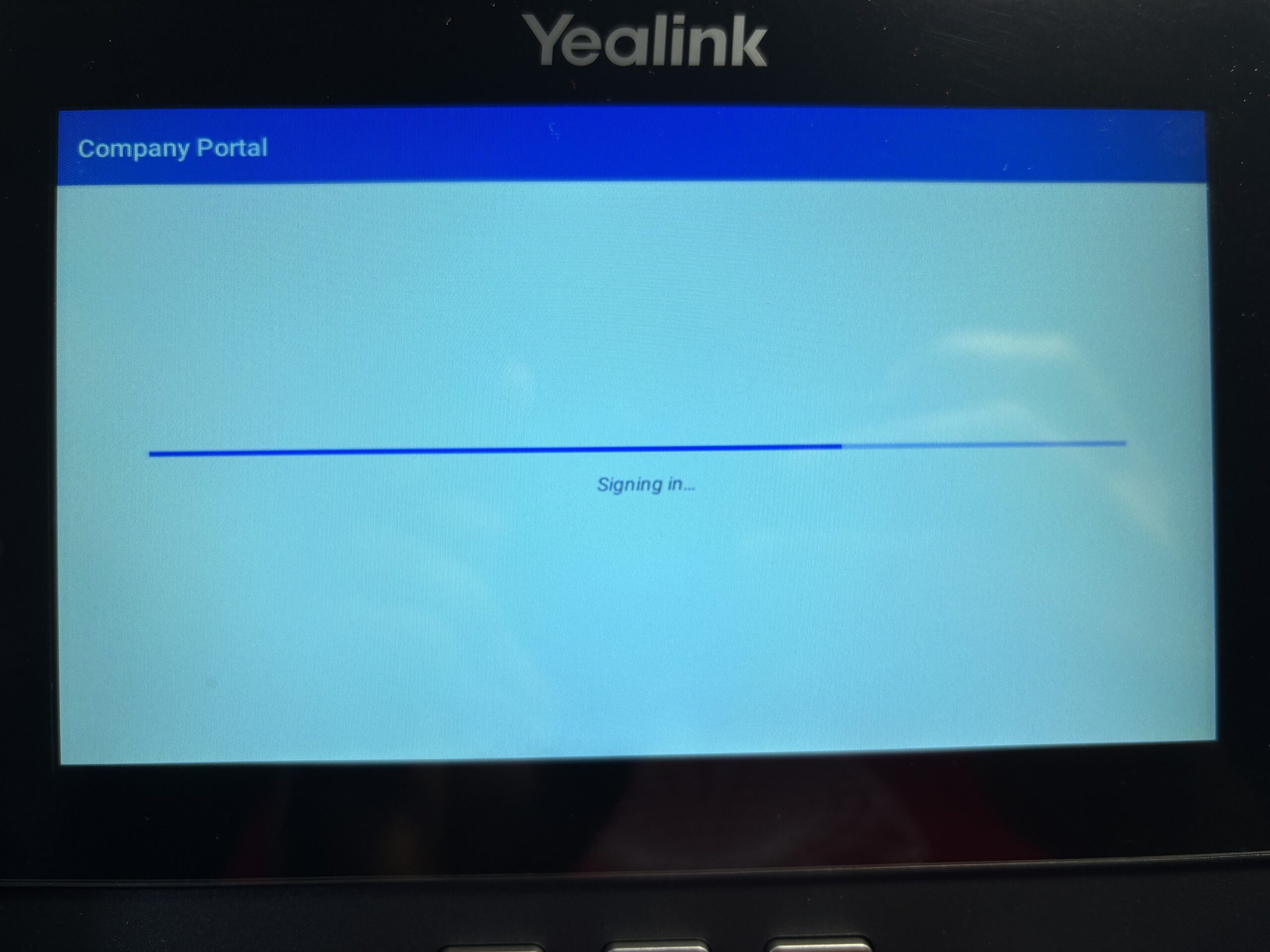
Then I got this error from Teams, which I clicked “OK” on and tried to sign in again at which point it again launched the Company Portal and tried to sign me in (didn’t ask for credentials this time coz I am already authenticated I suppose). That too gave me some errors.
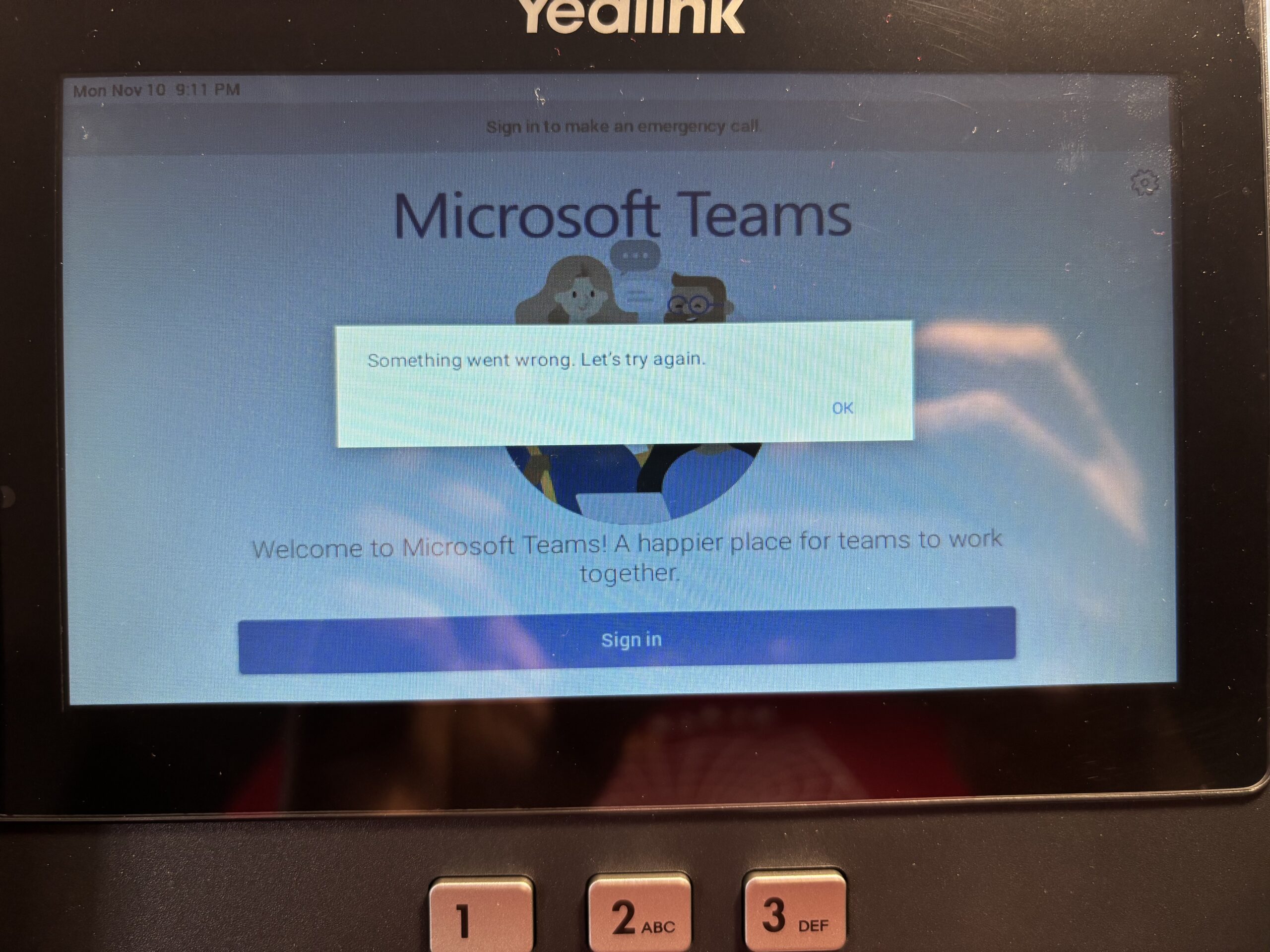
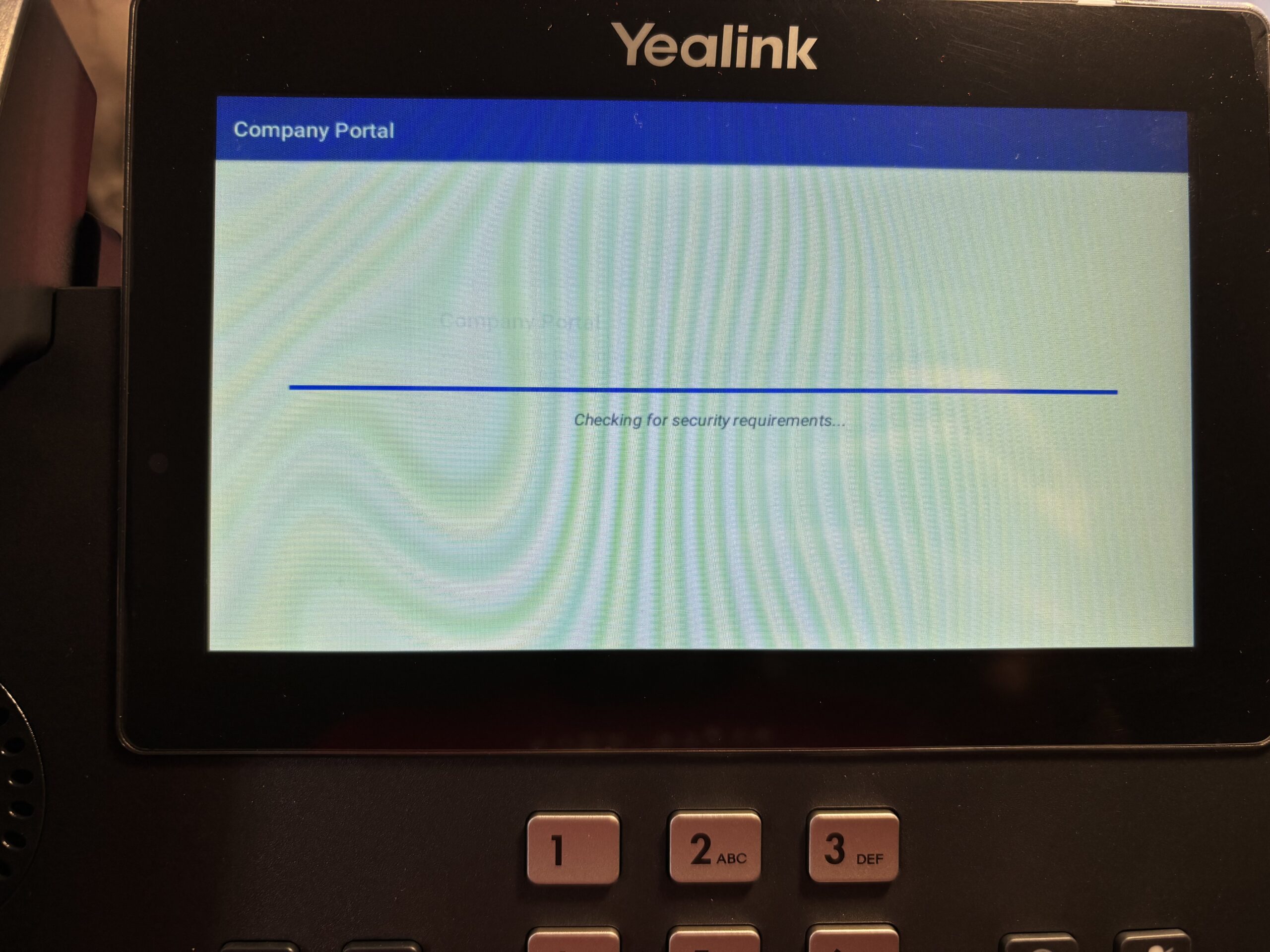
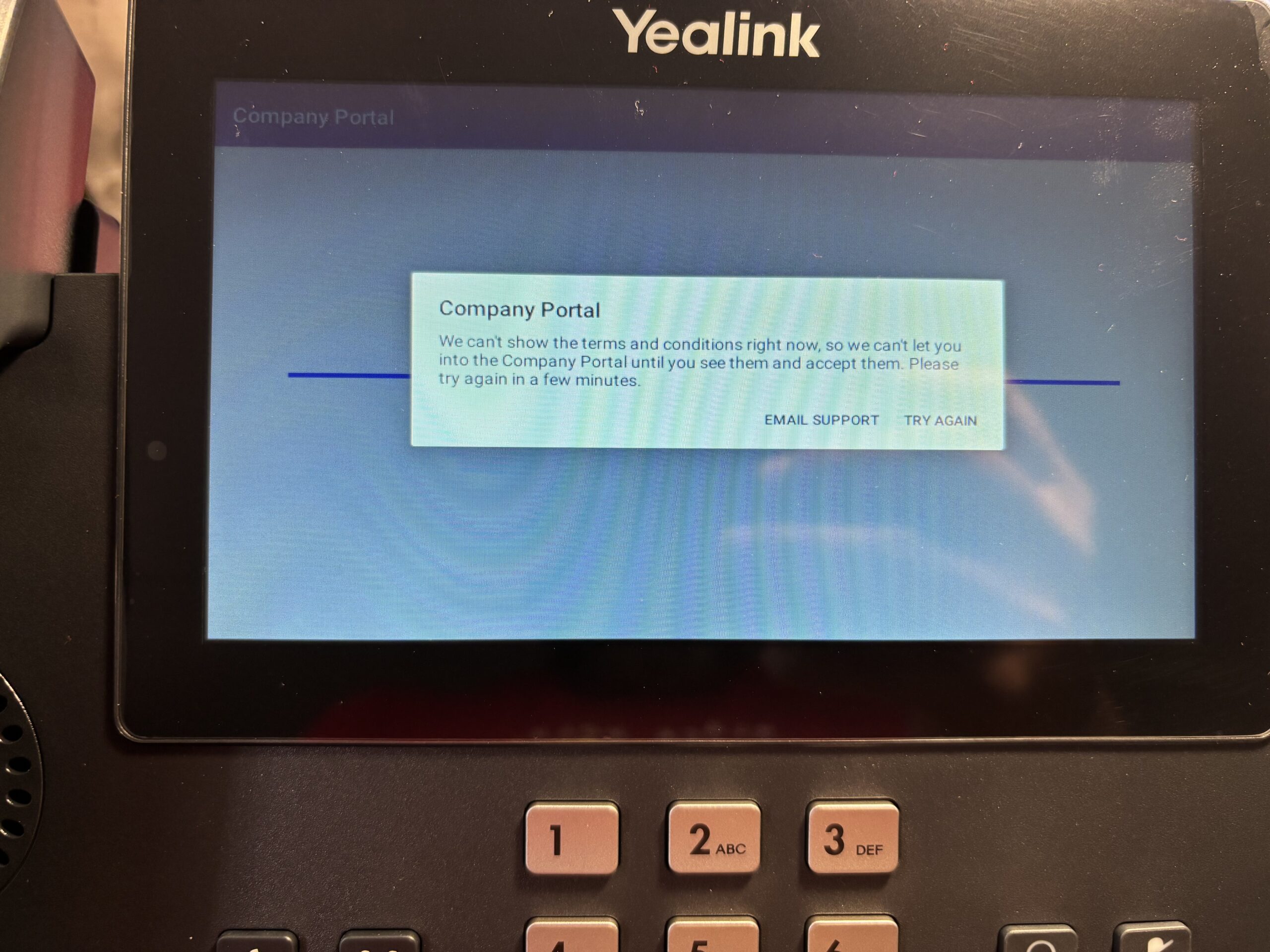
If I click “Try again” here, it went through the Company Portal steps again but with more success than last time. It got up to the stage where the device was setup, but then balked and took me back to a different sort of Company Portal sign in page.
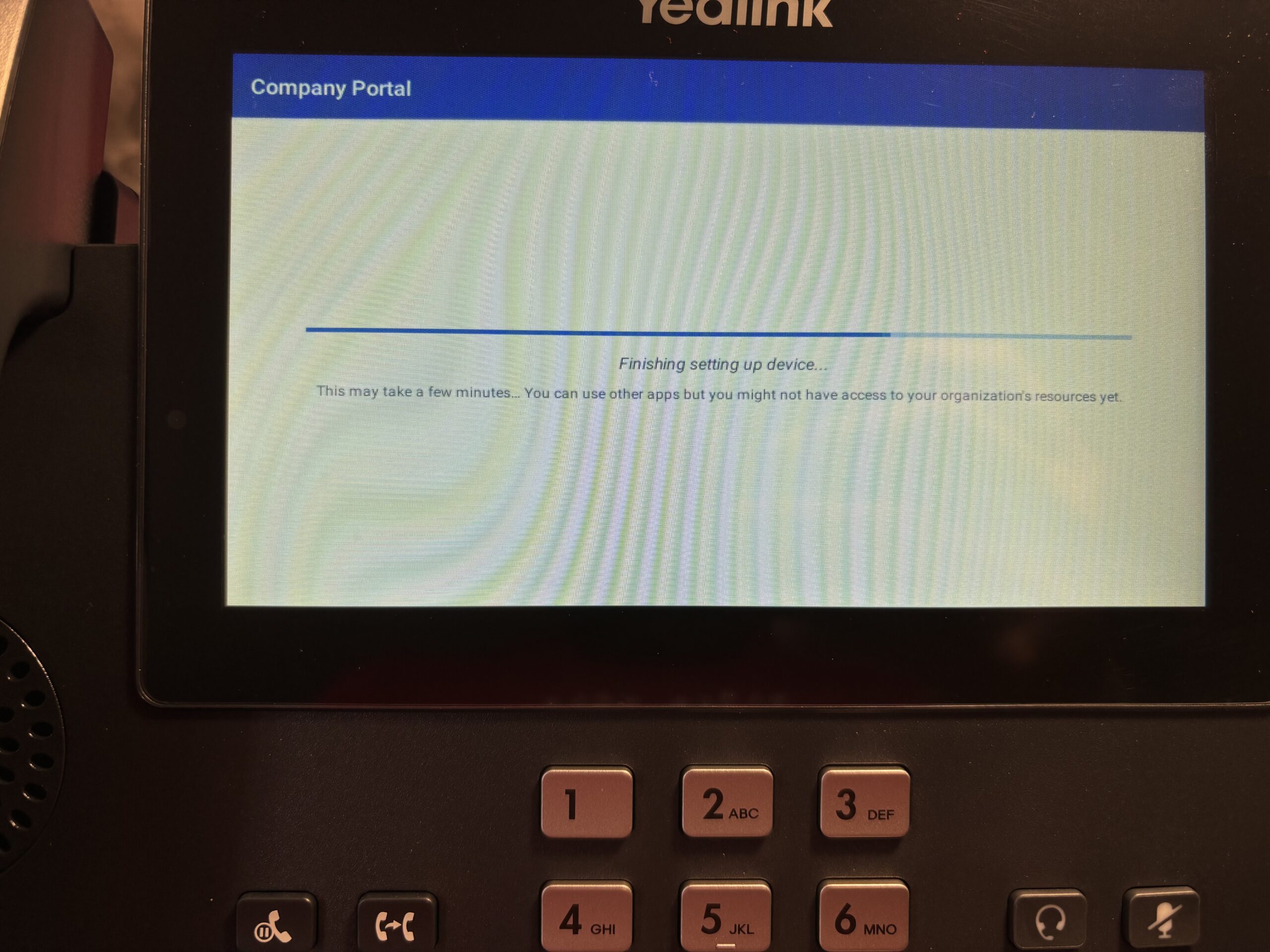
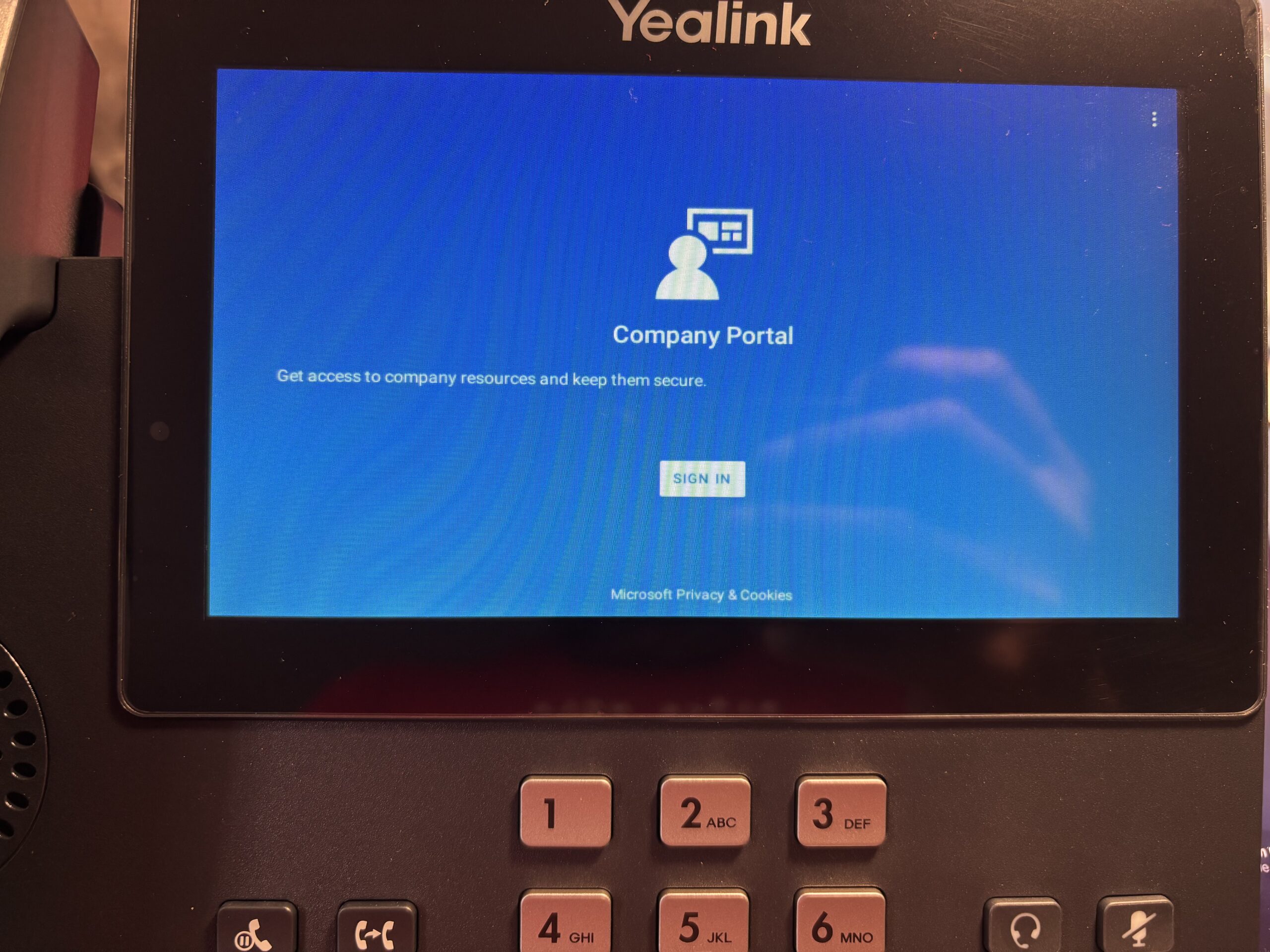
Clicking “Sign in” here again tried to sign me in via the Company Portal (automatically, I wasn’t prompted for creds) and then it dropped me at the regular sign in page.
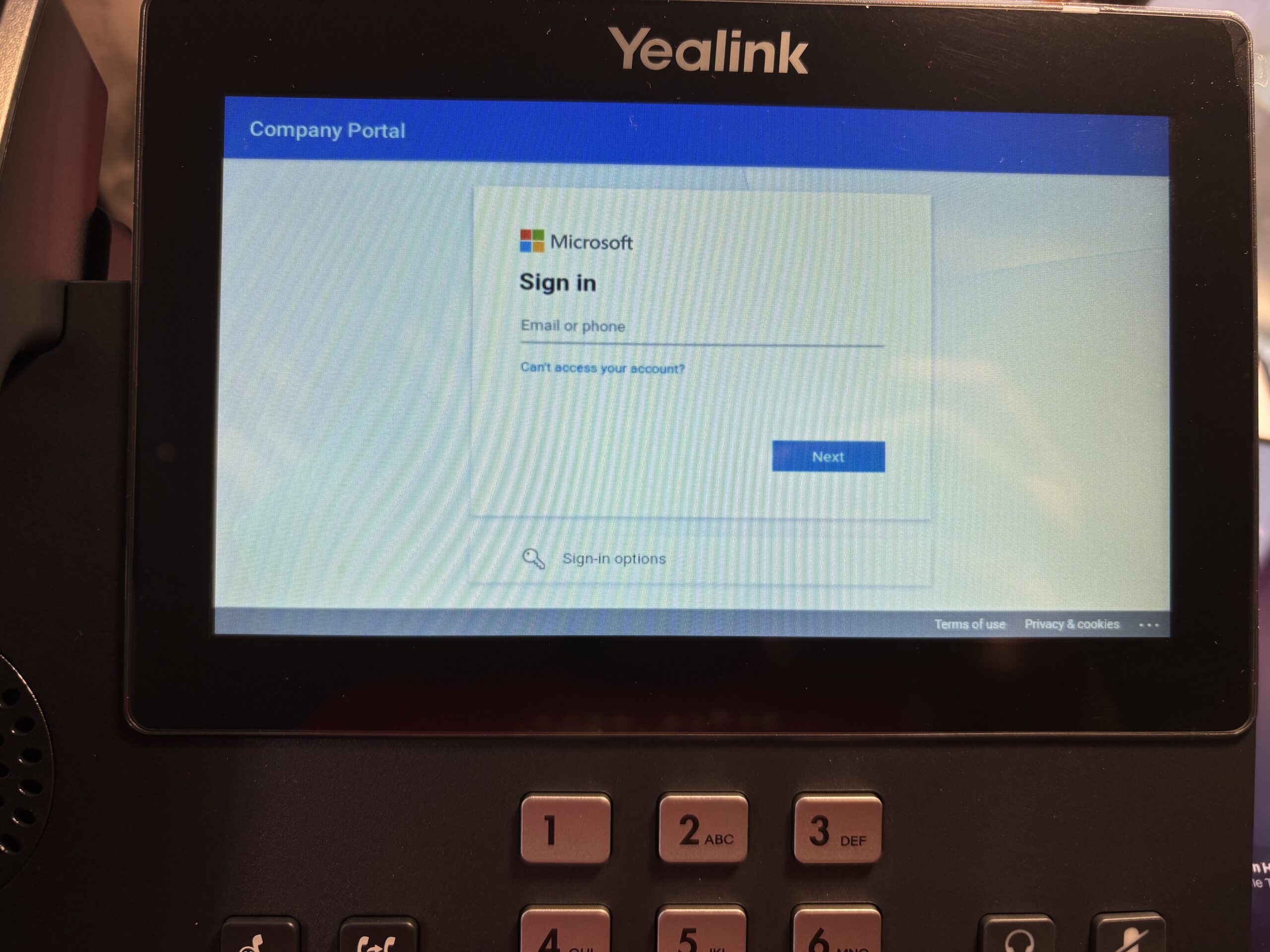
Again, I entered my email address and password and went through the drill… and again it looked like it was trying to register my device, but finally failed and dropped me back at this sign in page. At this point I gave up. I suspected the older firmware might not be supported any more.
Here’s what I see in the interactive and non-interactive sign-in logs (oldest entries at the bottom – read from bottom to top).
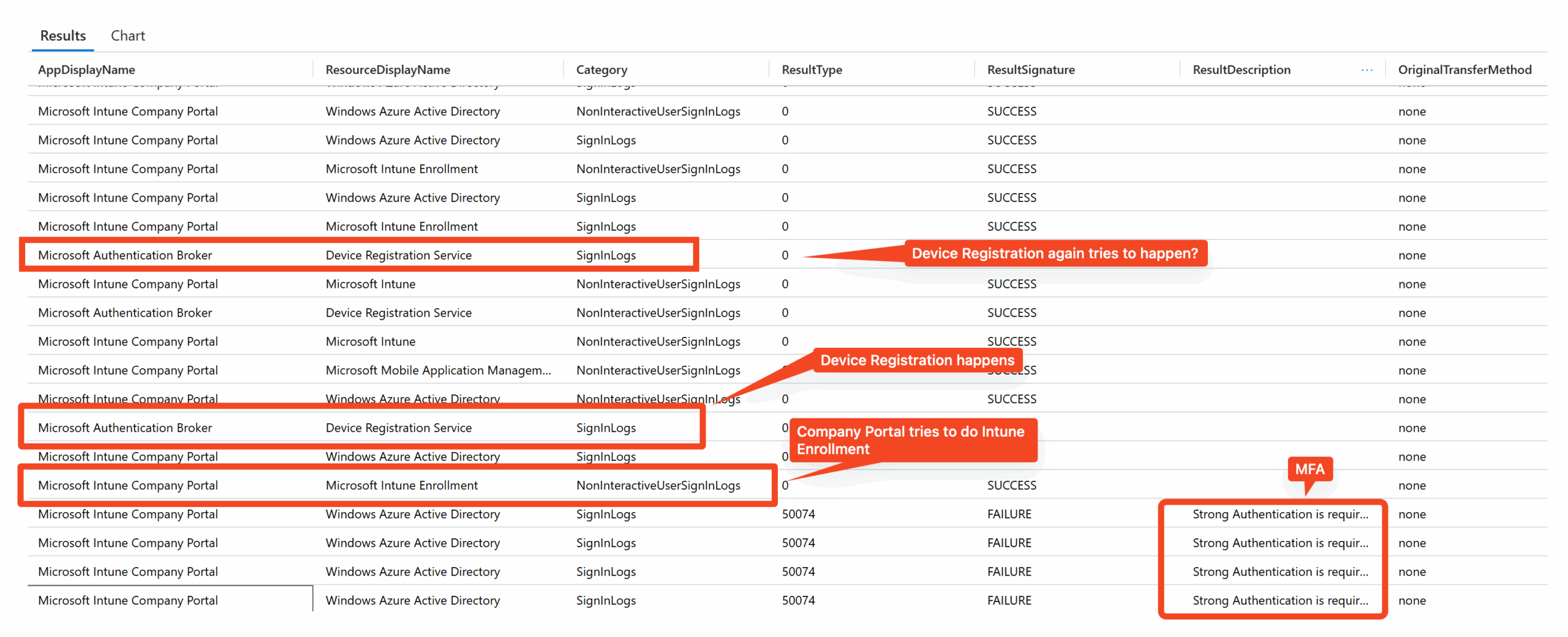
This coincides with what I saw on the phone itself. Essentially:
- The Intune Company Portal app is what drives things
- It talks to the Authentication Broker to do a Device Registration
- Things don’t work somewhere – not in Conditional Access or Entra ID at least, coz everything is a success here – and that’s probably why things keep retrying.
I figured I should update the firmware and try again. Rather than continue in this post though, I am going to start a new one. I realize this one has too many photos so I don’t want to load it all in a single post.